Follow these simple instructions to create a special page on Blogger where your Cookies Policy can be displayed.
-
Log in to Blogger. (Note: You'll need to have a Google account.)
-
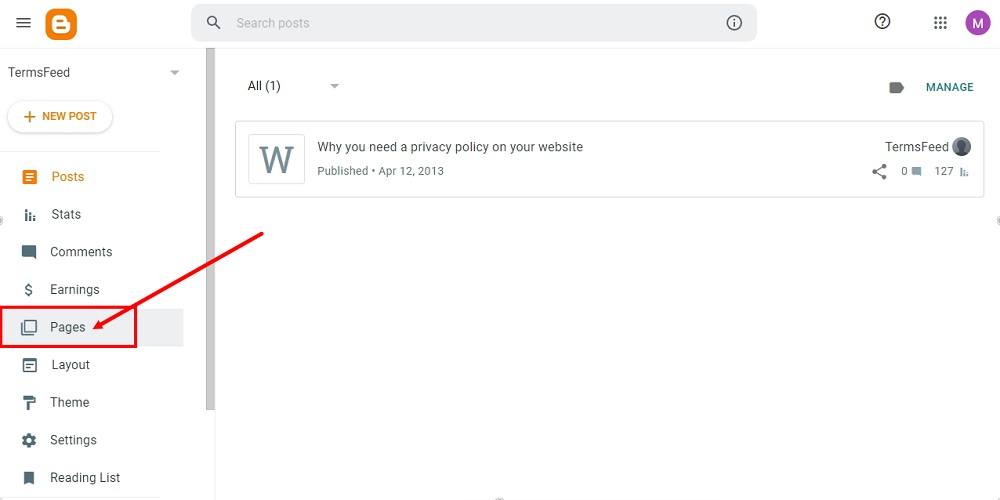
From Blogger's Dashboard, go to Pages:
-
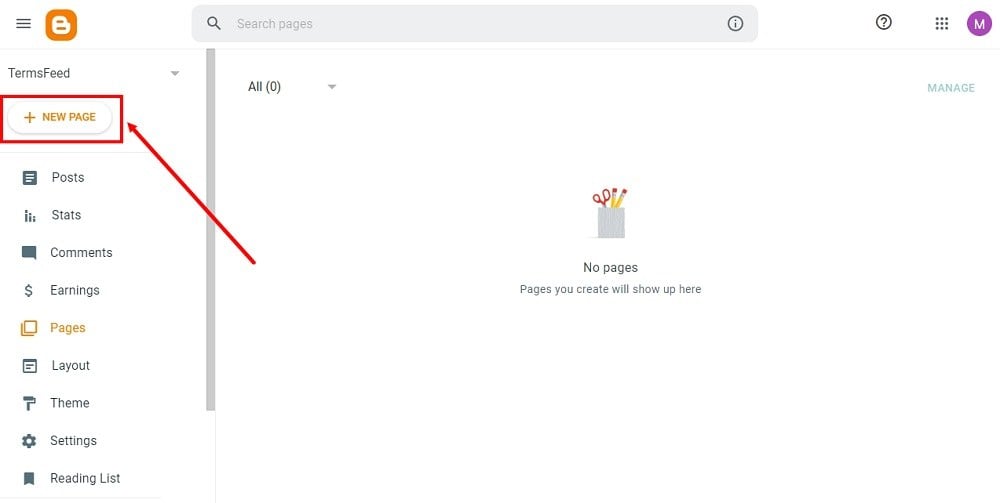
To create a new page, click + New Page:
-
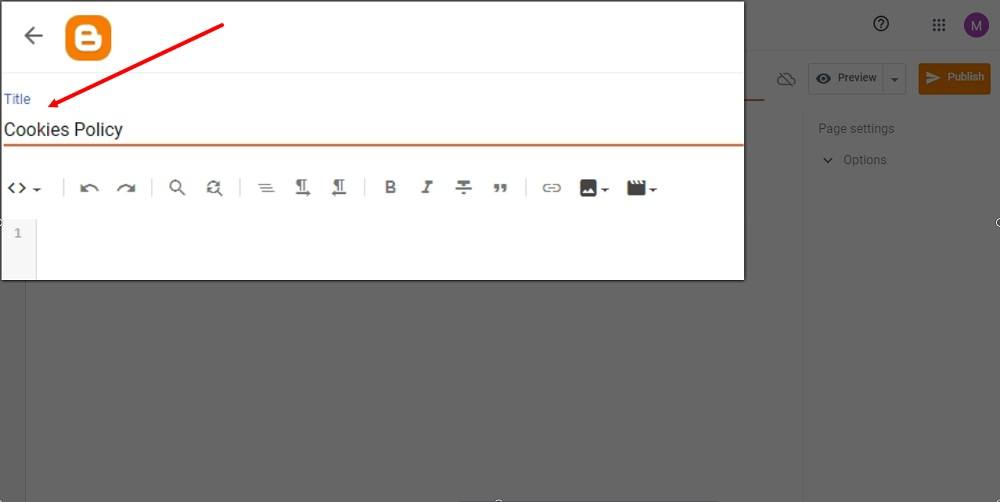
Type Cookies Policy in the Title field:
-
Add the HTML of your Cookies Policy in the editor.
If you do not have a Cookies Policy, you can use our Cookies Policy Generator and create one within minutes.
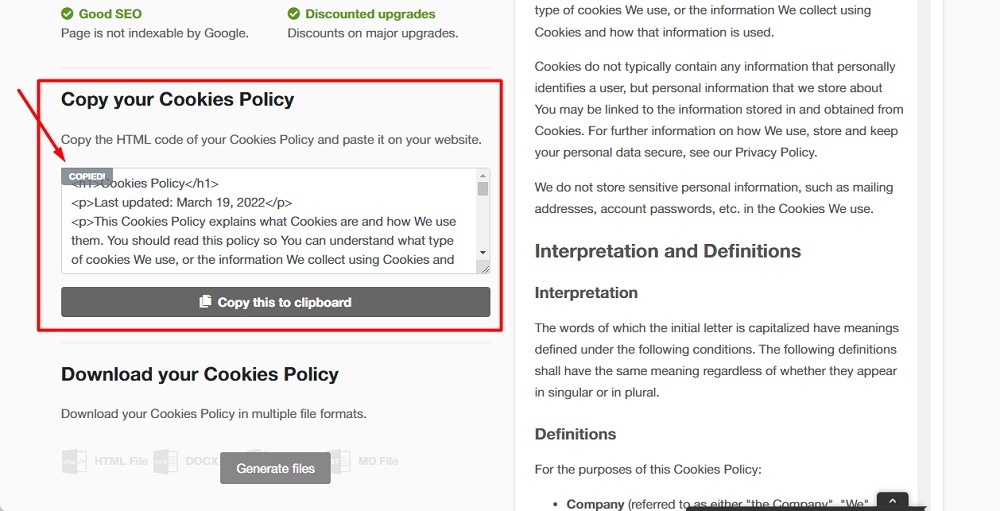
Once you have the Cookies Policy created by TermsFeed, let's get the policy text. Under the Copy your Cookies Policy section, click on Copy this to clipboard:
-
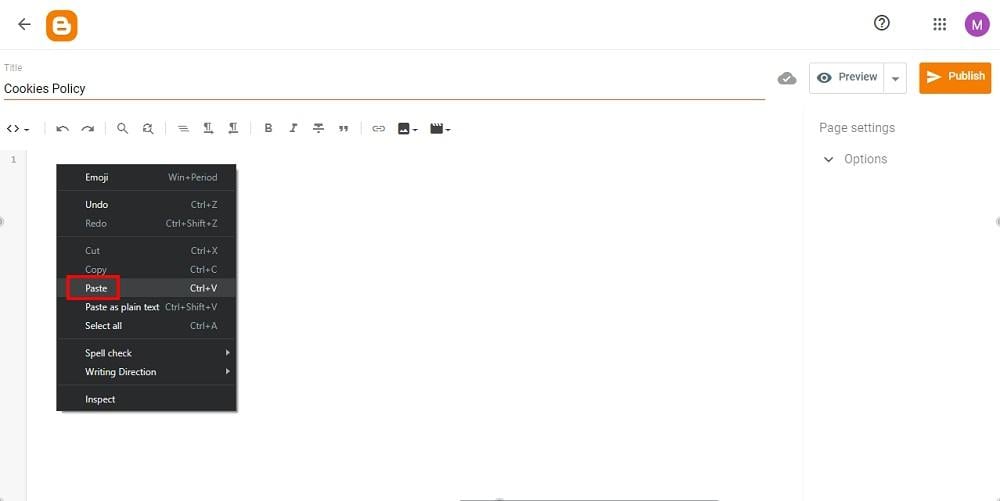
Go back to the Blogger page editor and paste the HTML code:
-
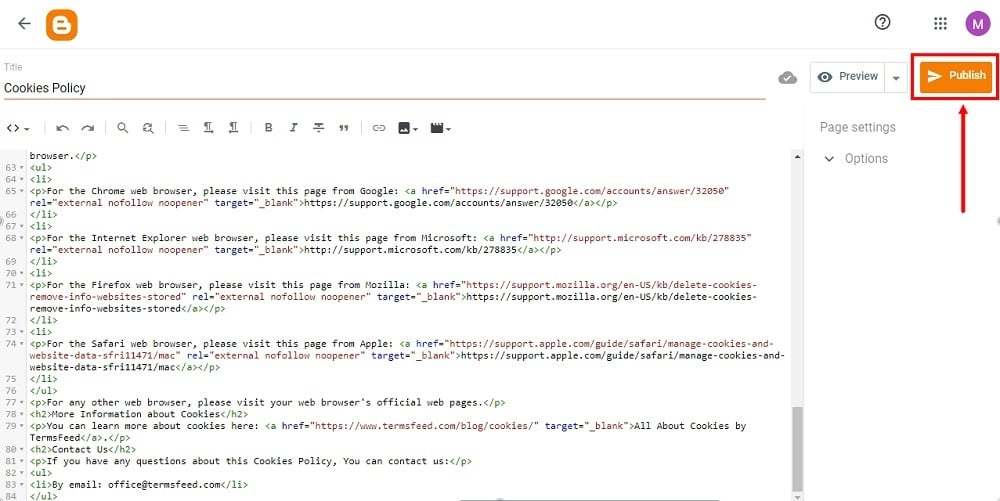
Click Publish:
-
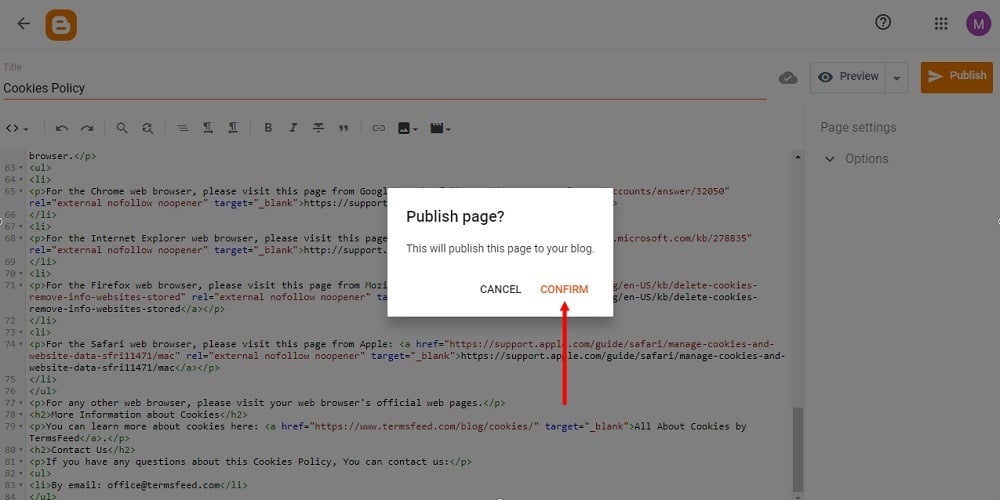
The dialog window will open. Click Confirm:
-
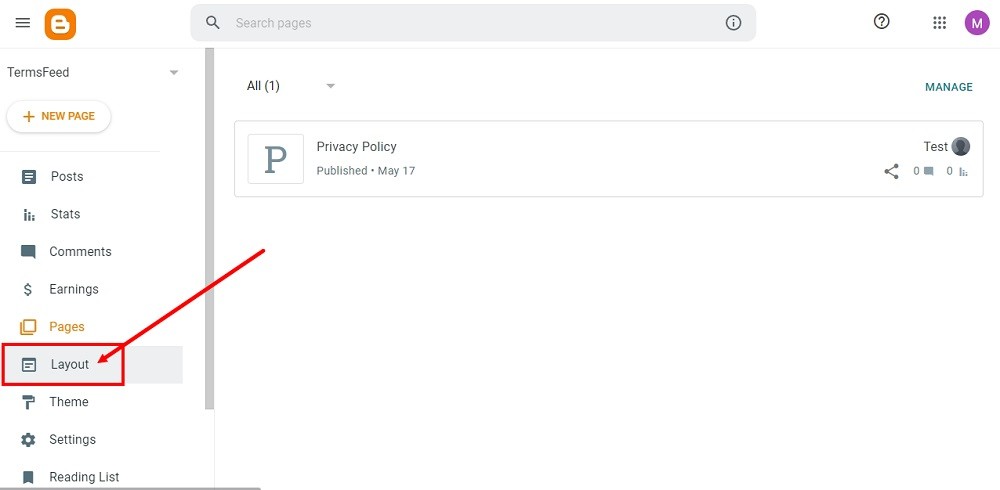
Your page is published, but not yet shown on your website. In order to show your Cookies Policy page, proceed to Layout.
-
On the Layout page, find the place for your Cookies Policy page. You can add it to:
- The Pages List (Top) navigation menu, or
- The Sidebar menu
For this example, we've used the Sidebar menu. Click the Pen icon to edit the Pages Gadget called Legal:
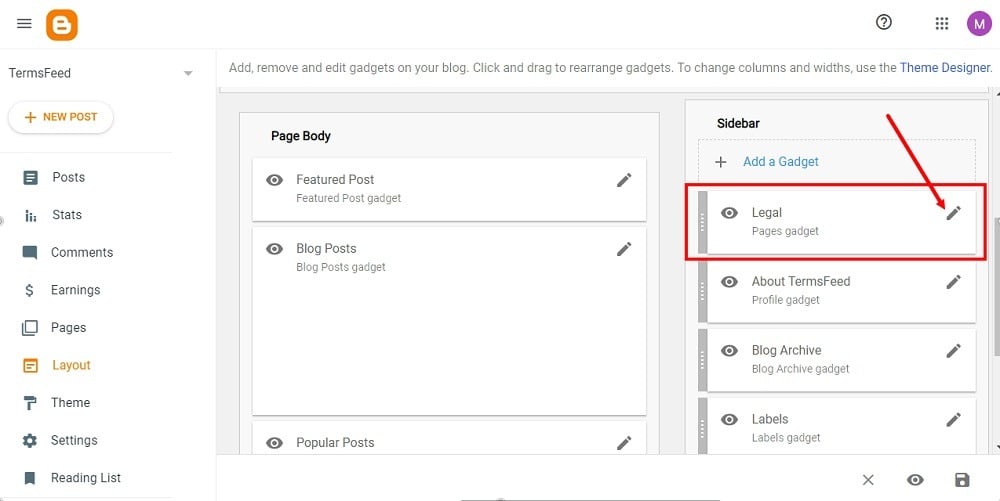
In order to create Legal pages group see instructions from this video, steps from 11 to 14. After, continue with the instructions below.
-
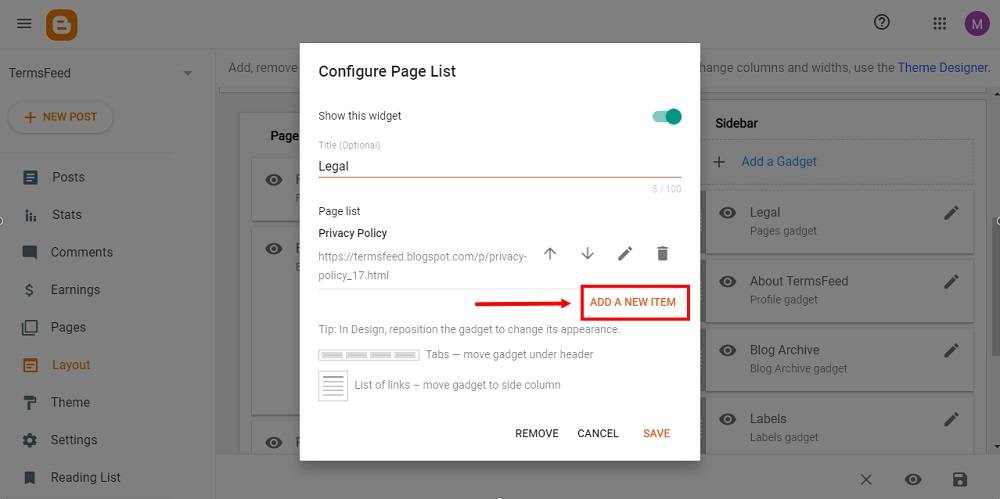
The Configure Page List window will open. Make sure that Show this widget is active. Under Page List, click Add a New Item:
-
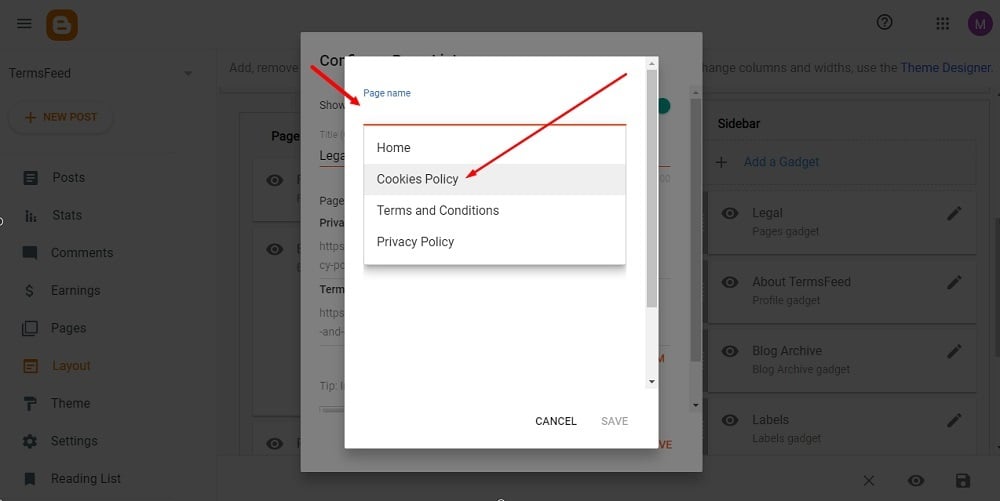
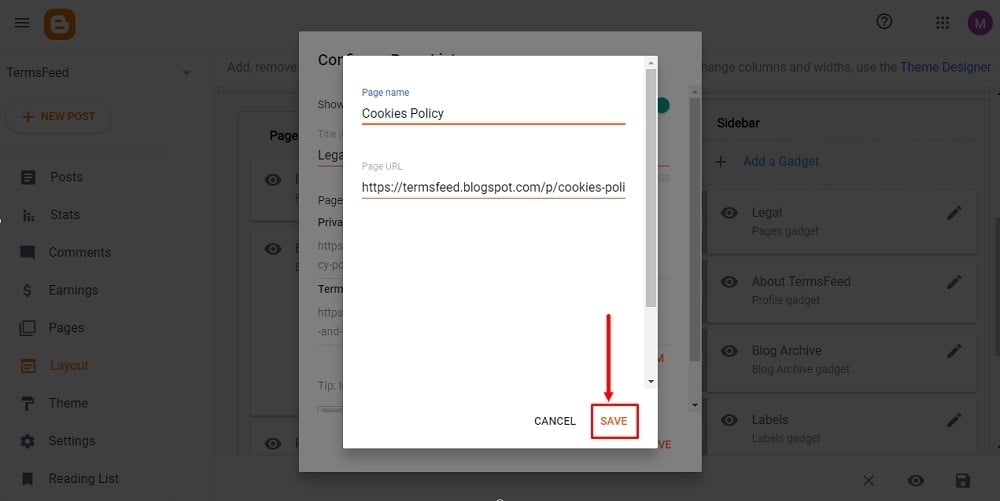
A new window will open. Under the Page name dropdown menu, select the Cookies Policy page you just created. The Page URL will be filled automatically.
-
Click Save:
-
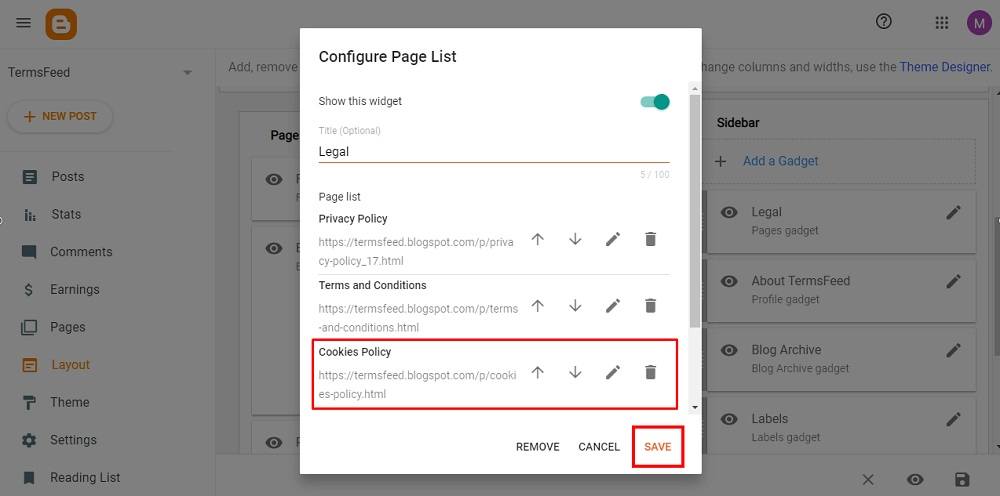
Again click Save:
-
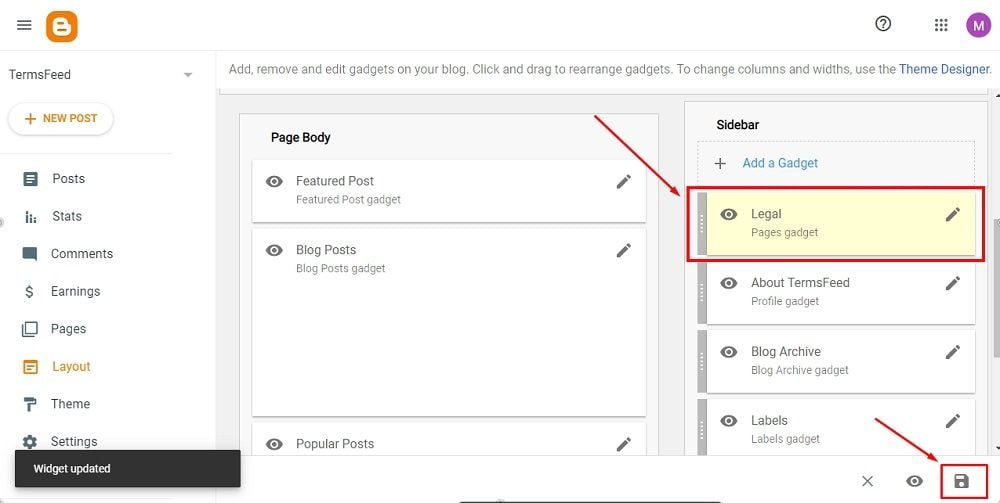
Your widget is successfully updated. Click the Save icon from the bottom right corner:
-
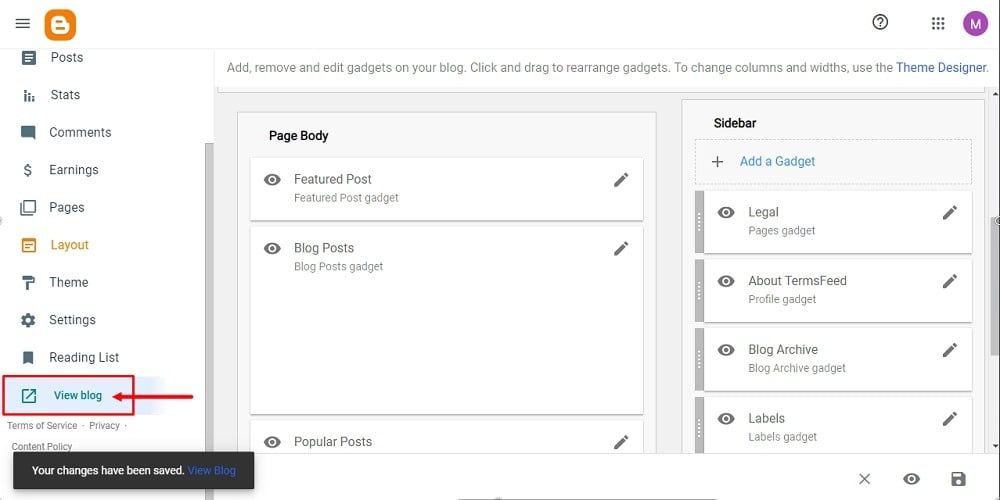
You're done. To see changes, go to View blog at the bottom of the dashboard menu: