
In this video, we'll show you how to add a new URL to the existing menu from the Zoho Site builder editor.
Let's get started.
-
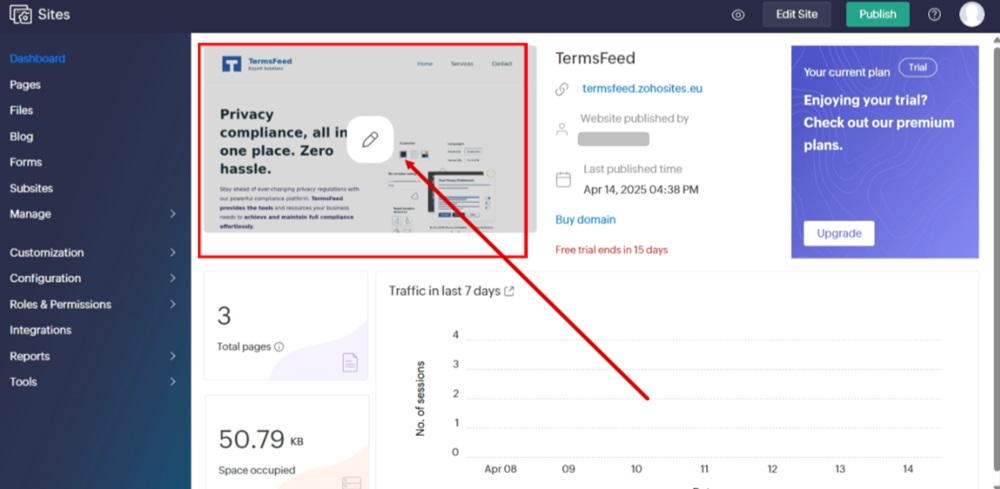
Log in to your Zoho Sites dashboard and go to your site:
-
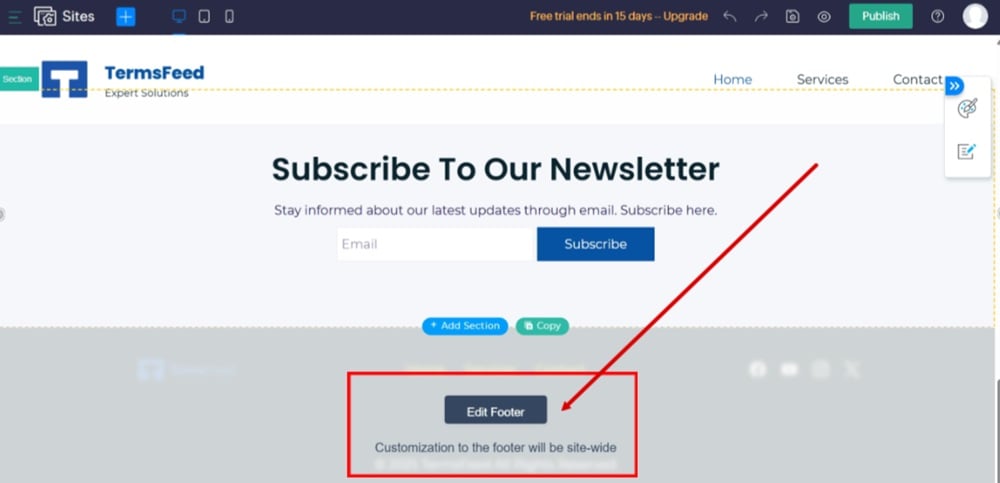
Click the "Edit Footer" button:
-
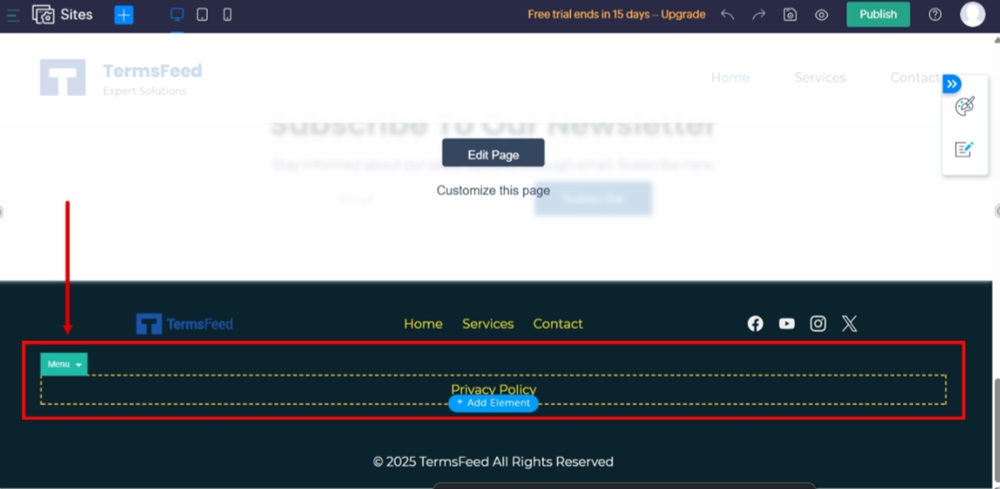
Click on the Menu element to open settings:
-
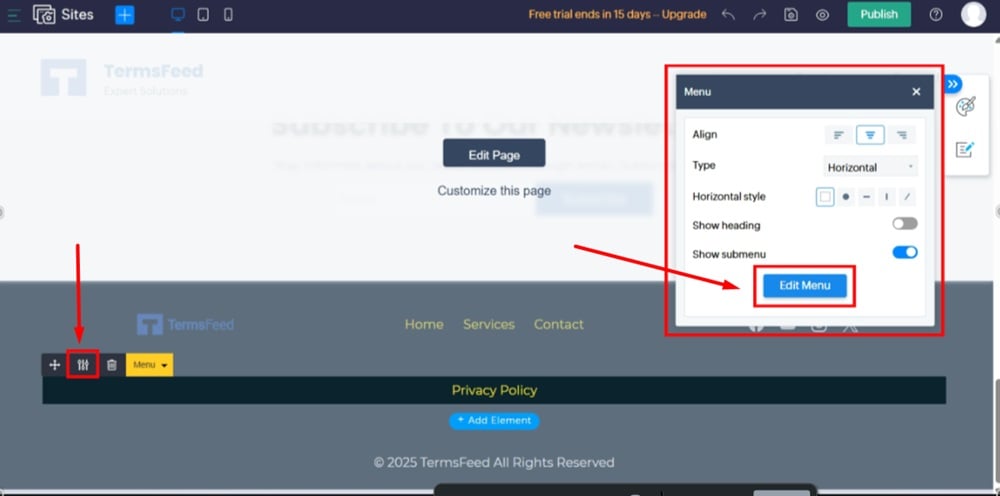
Click the "Edit Menu" button from the menu settings options:
-
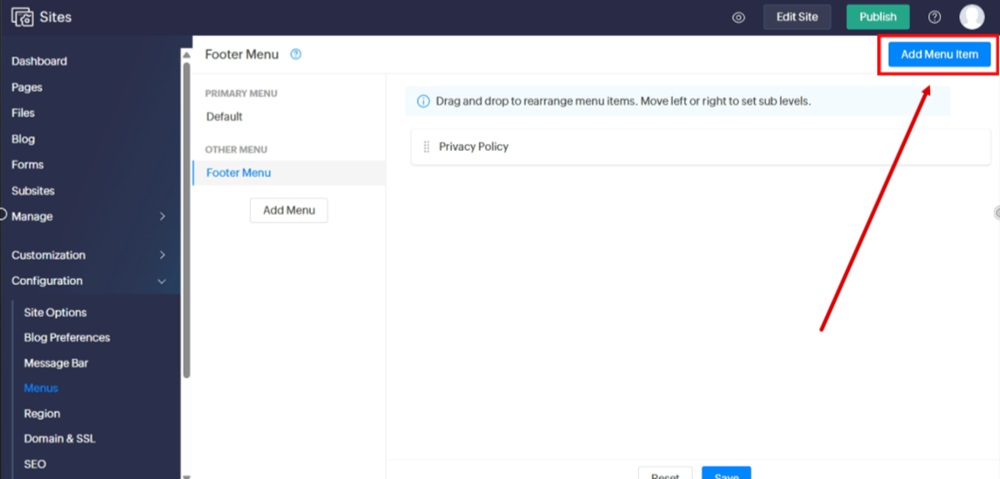
Click the "Add Menu Item" button:
-
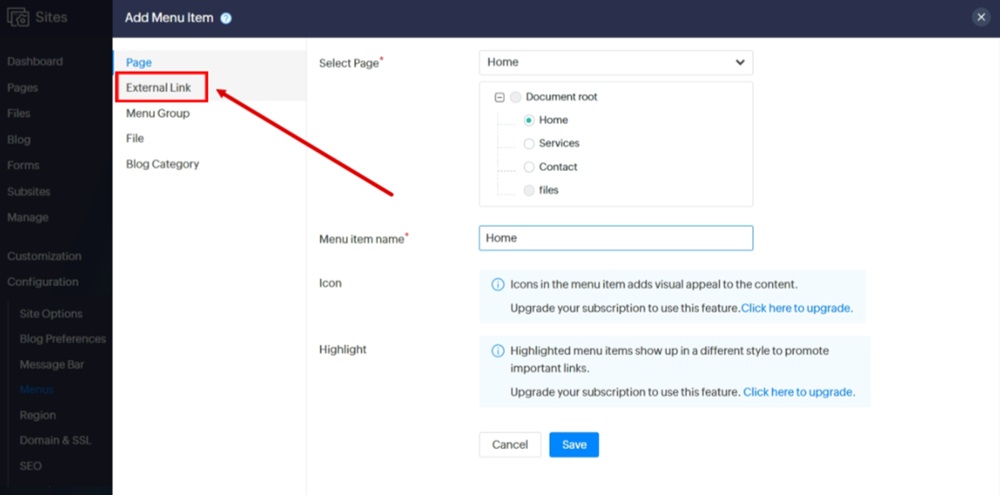
Switch to the "External Link" option:
-
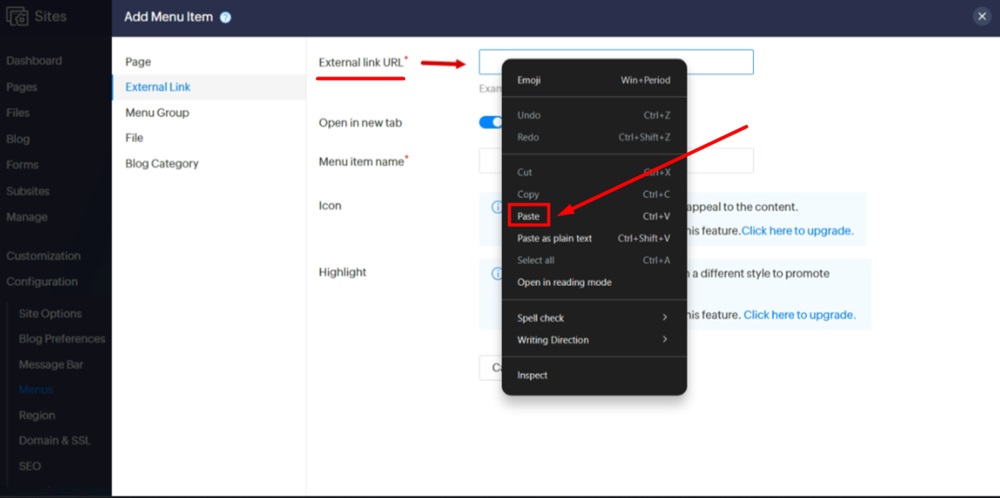
Fill in the "External Link URL" required field.
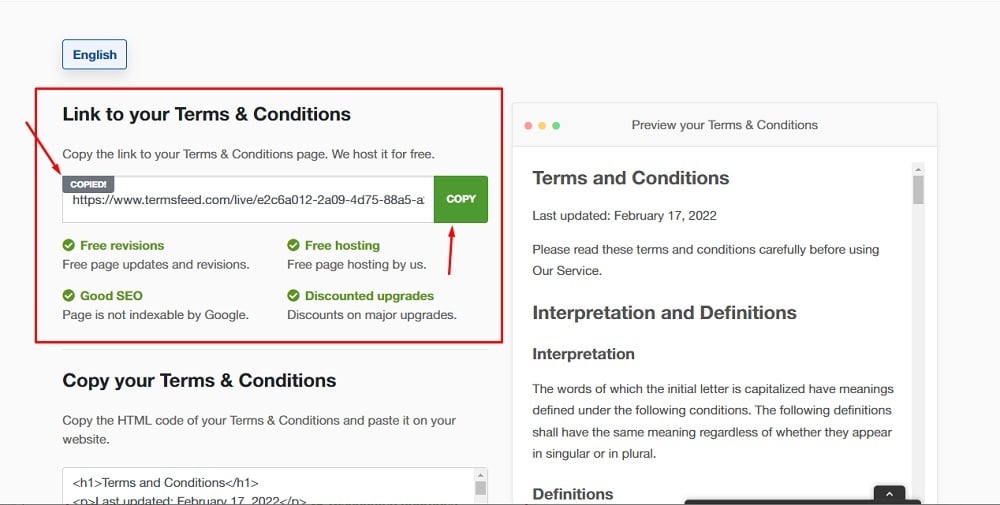
Go to the TermsFeed Terms and Conditions Generator to create the Terms and Conditions and get a free hosted Terms and Conditions URL webpage.
In the Link to your Terms and Conditions section, click on the green Copy button:
-
Paste the URL in the "External Link URL" field:
-
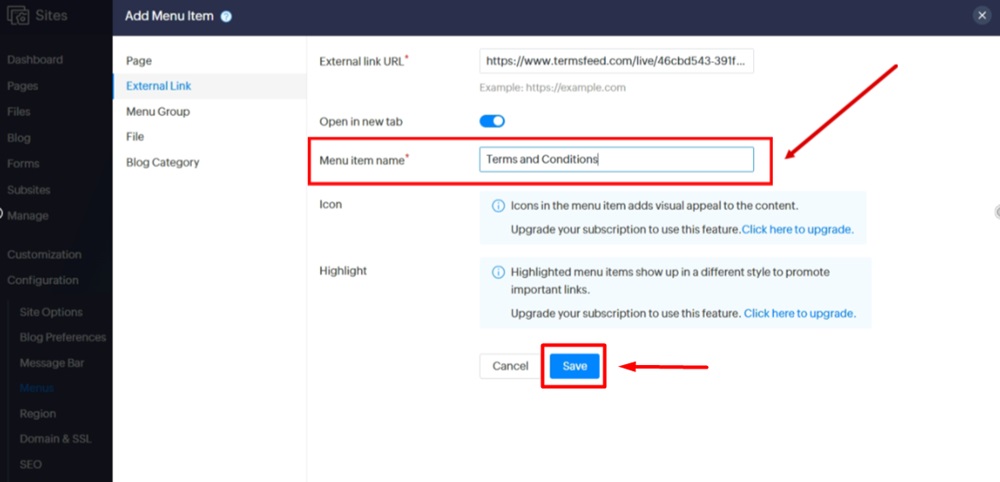
Add "Terms and Conditions" in the "Menu Item Name" required field and click "Save" (at the bottom):
-
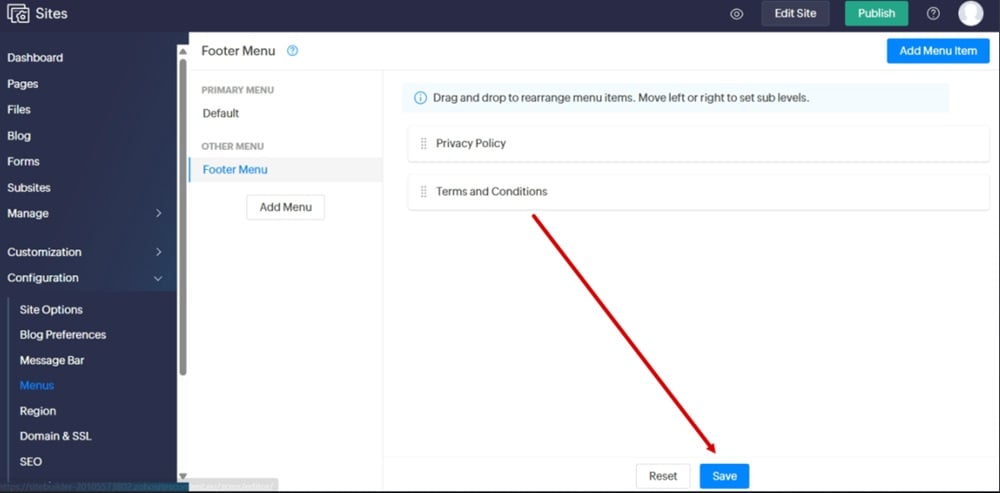
The Terms and Conditions page is in the Footer Menu. Click "Add" (at the bottom):
-
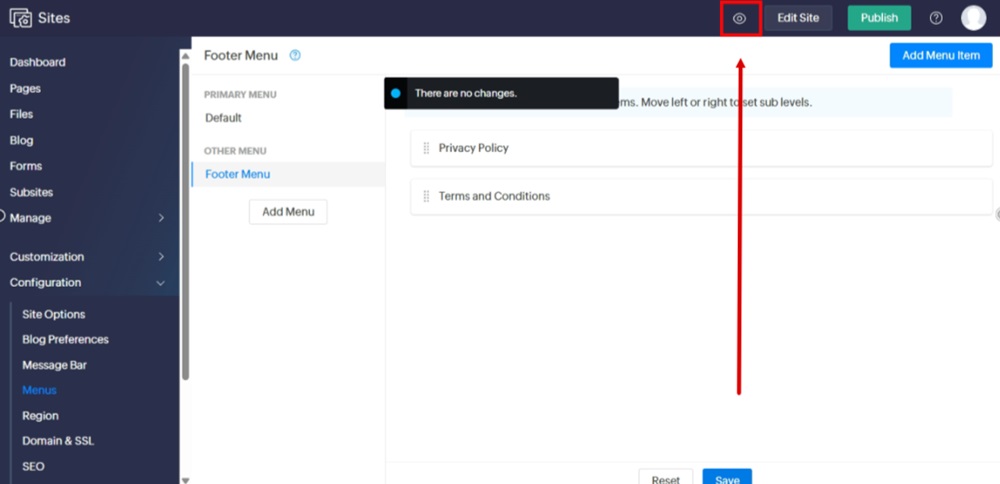
Preview changes:
-
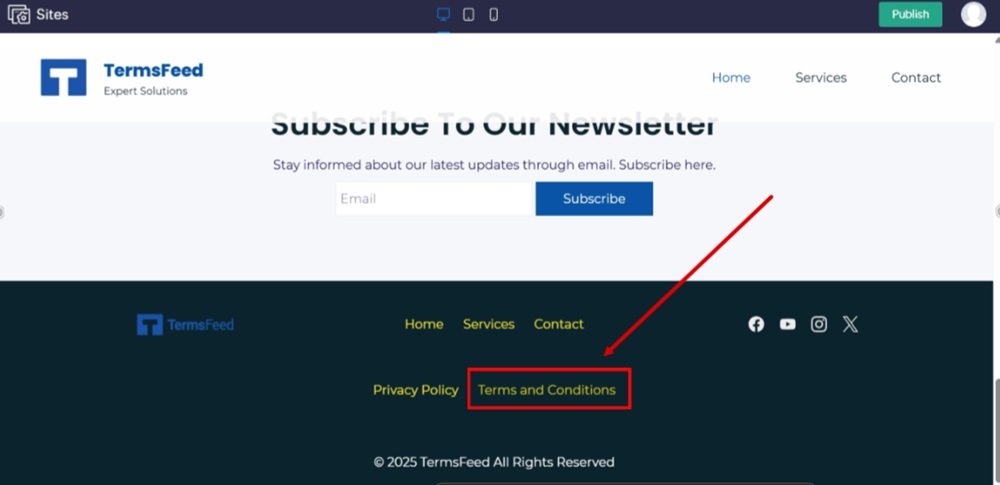
The Terms and Conditions URL is linked and displayed at the footer of your Zoho website.


Done.


