Steps
-
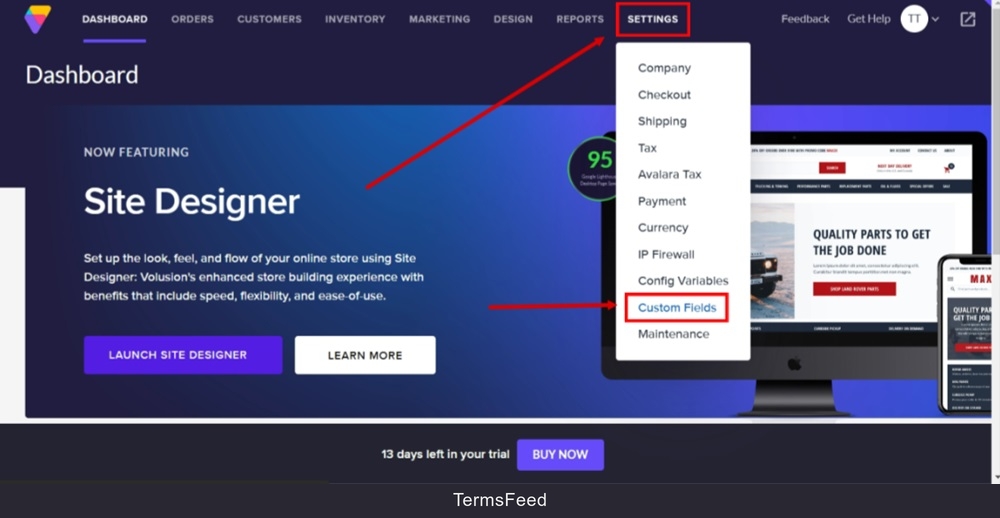
Log in to your Volusion account. From the Dashboard, go to Settings and select Custom Fields:
-
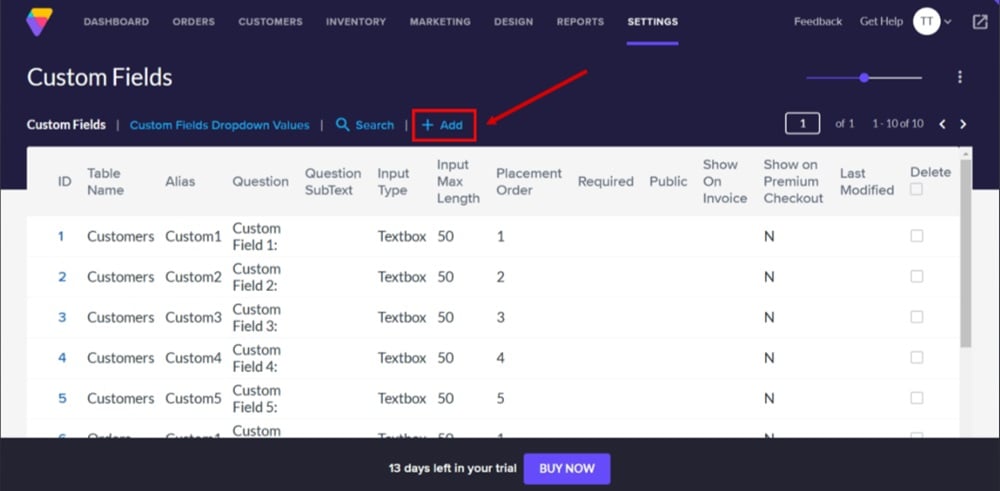
Click + Add:
-
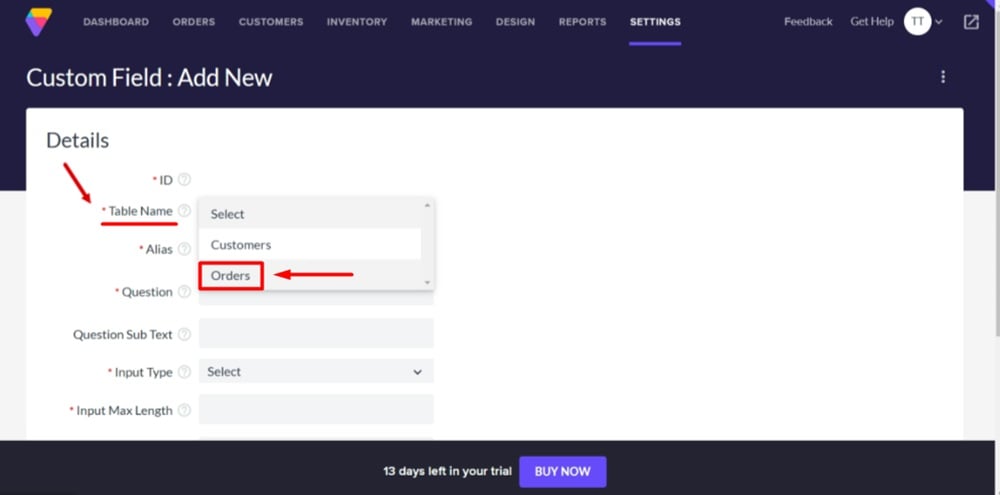
The Add new Custom Field Details will open. Add required details.
For the "Table Name" select "Orders":
-
In the required "Question" field add text and a link to your policy:
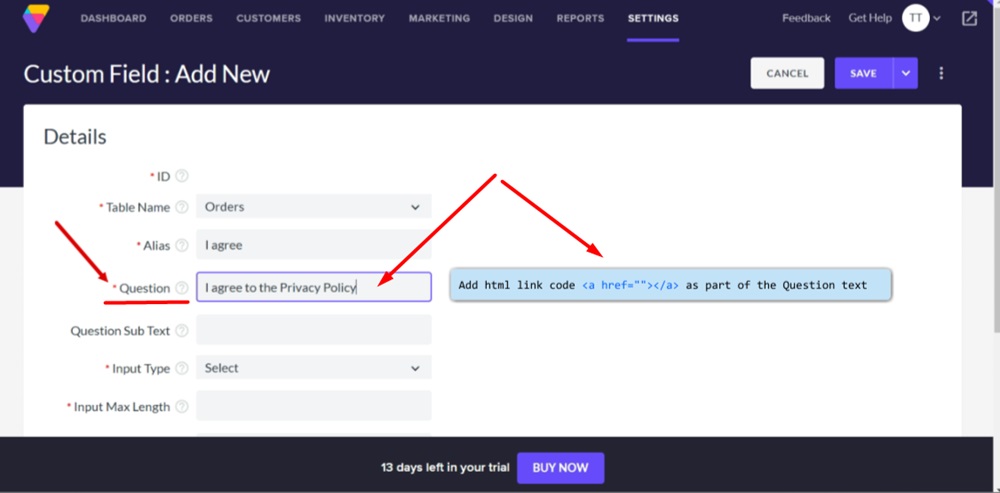
For example, type "I agree to the Privacy Policy" in the Question field.
-
Then add a link as HTML code
<a href="url"></a>as part of the text for the words "Privacy Policy."To get a Privacy Policy URL link, go to the TermsFeed Privacy Policy Generator to create a Privacy Policy and get the hosted Privacy Policy URL.
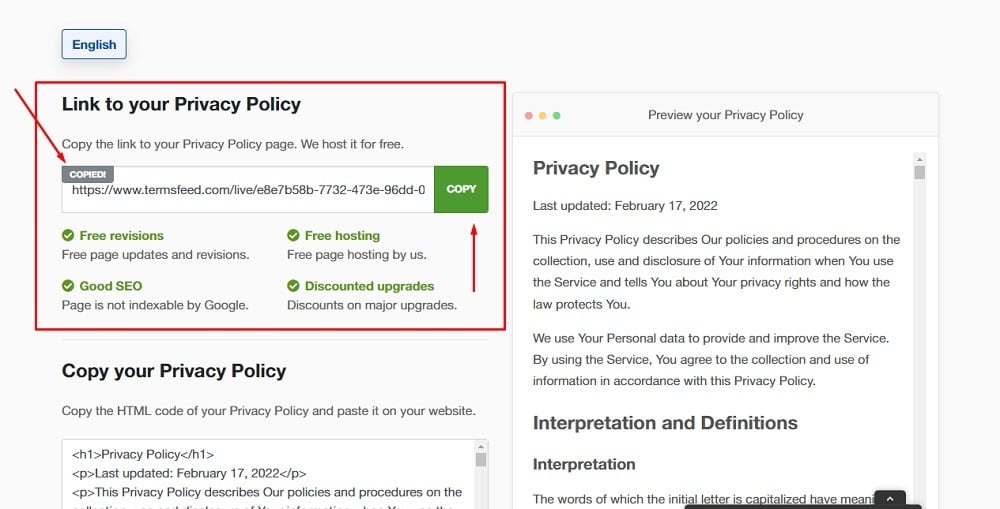
Once you have a Privacy Policy created by TermsFeed, click Copy from the Link to your Privacy Policy section to copy the URL:
-
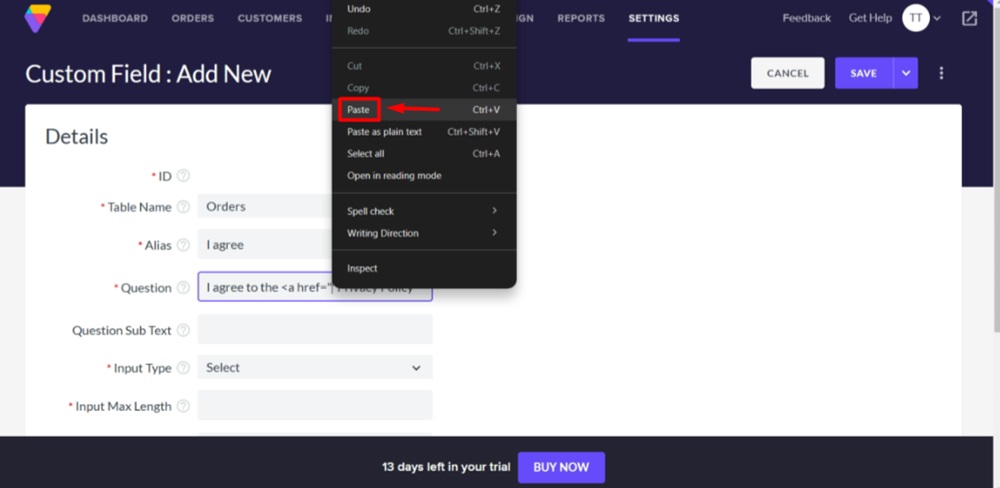
Paste the URL in the HTML link code and close the link tag:
-
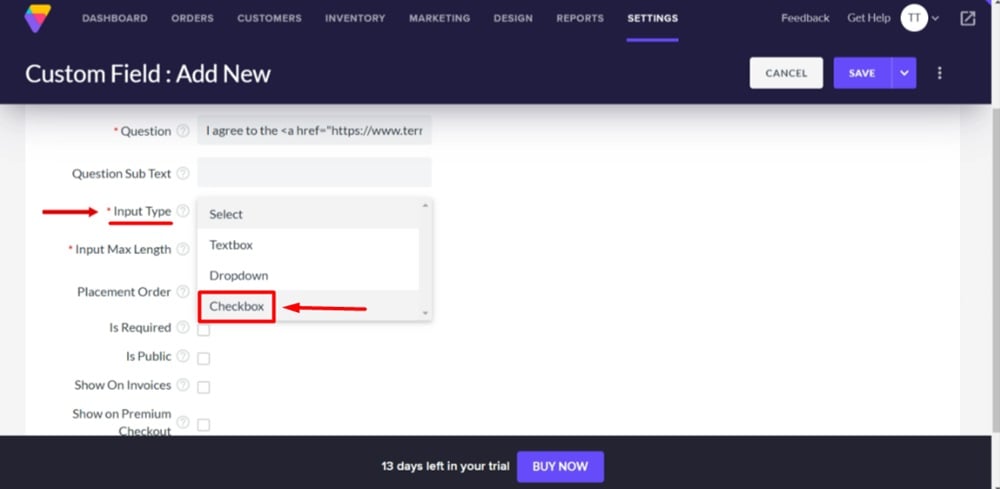
For the required field "Input type," select "Checkbox:"
-
Fill in the rest of the fields and click Save.
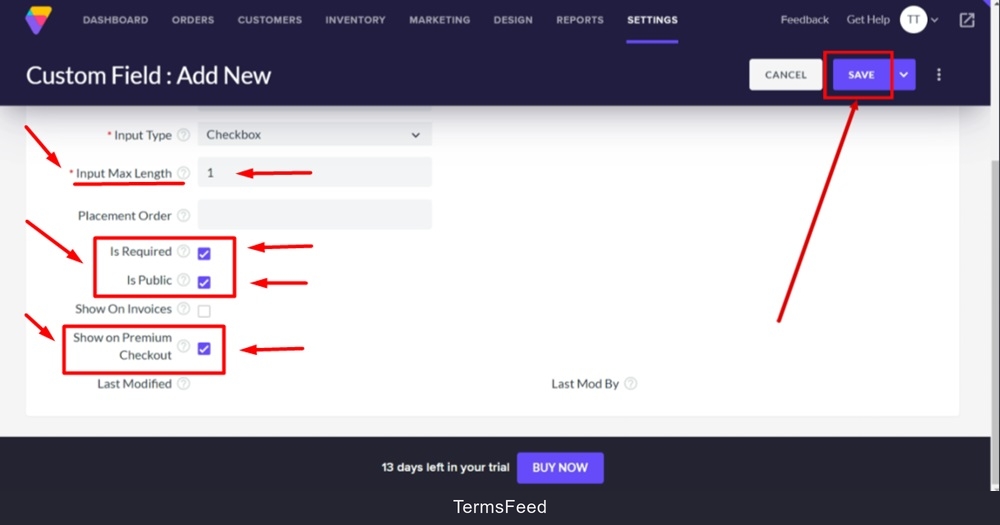
In the "Input Max Length" required field add a number. For example, type 1. Then select whether you want this new custom field to be required, public, shown on invoices and on premium checkout.
-
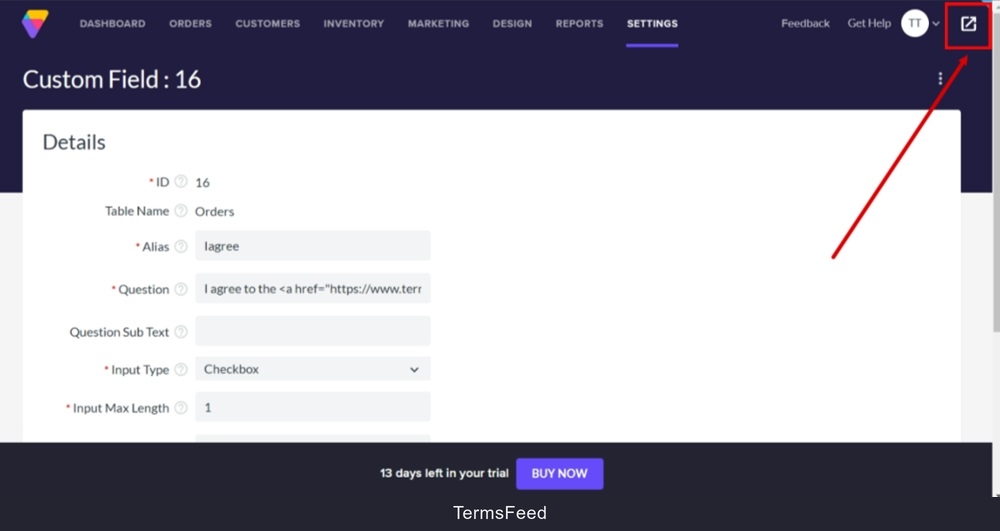
Go to the View Live Store to preview changes:
-
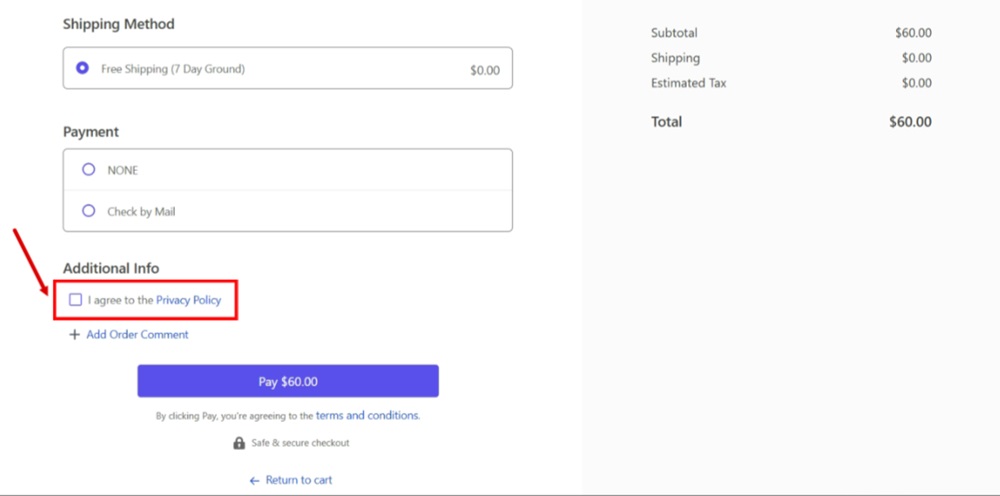
The "I agree to the Privacy Policy" with the link and the consent checkbox field will be displayed on the checkout page: