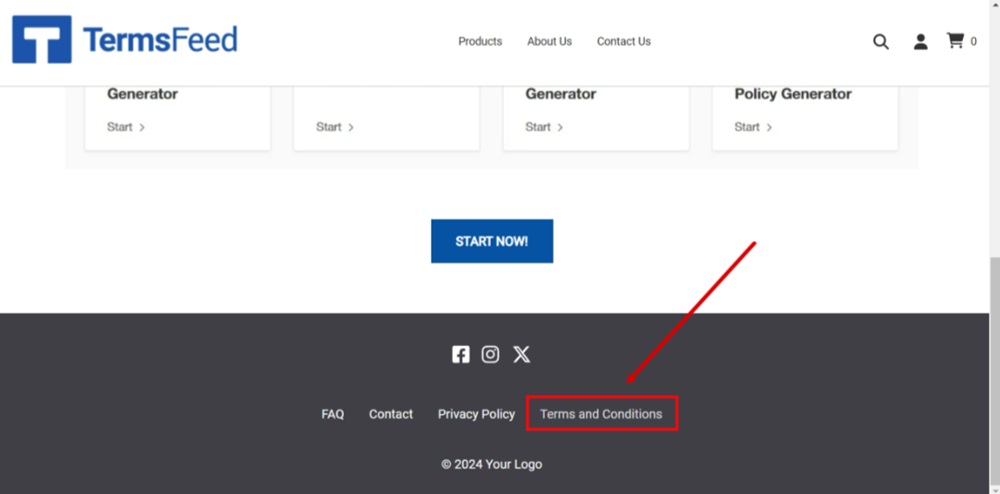
Steps
-
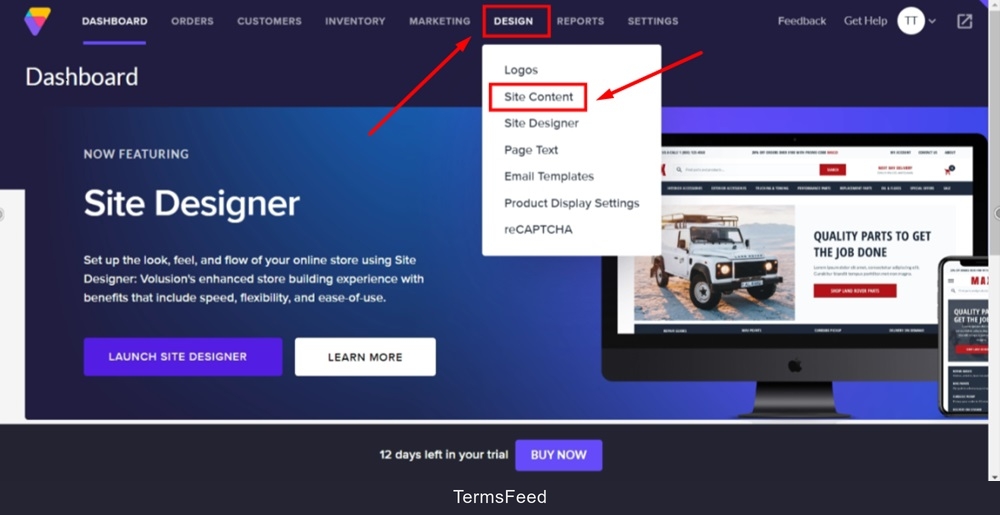
Log in to your Volusion account. From the Dashboard, go to Design and select Site Content:
-
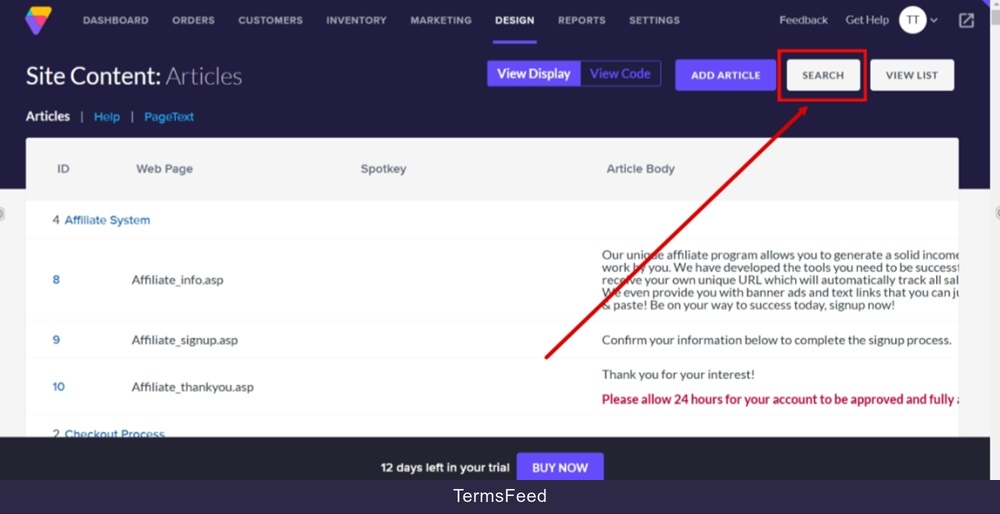
From the Articles list, go to Search:
-
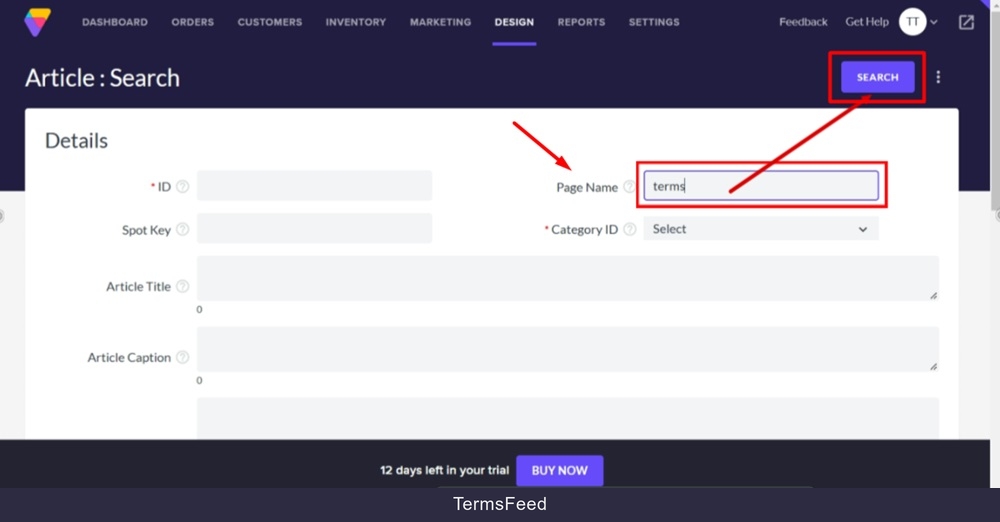
In the Page Name field, type "terms" and click the Search button:
-
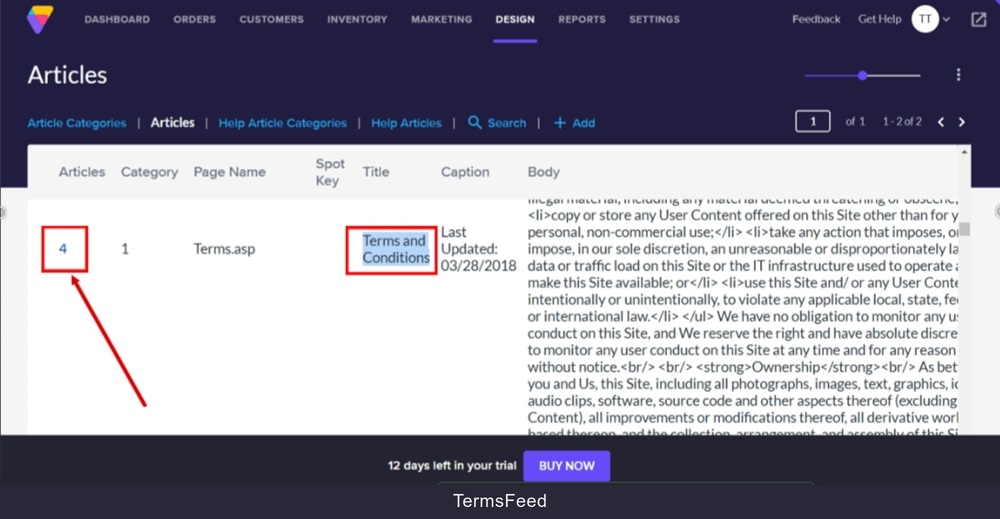
Scroll down to the middle of the page content, and click on the Terms and Conditions's page ID:
-
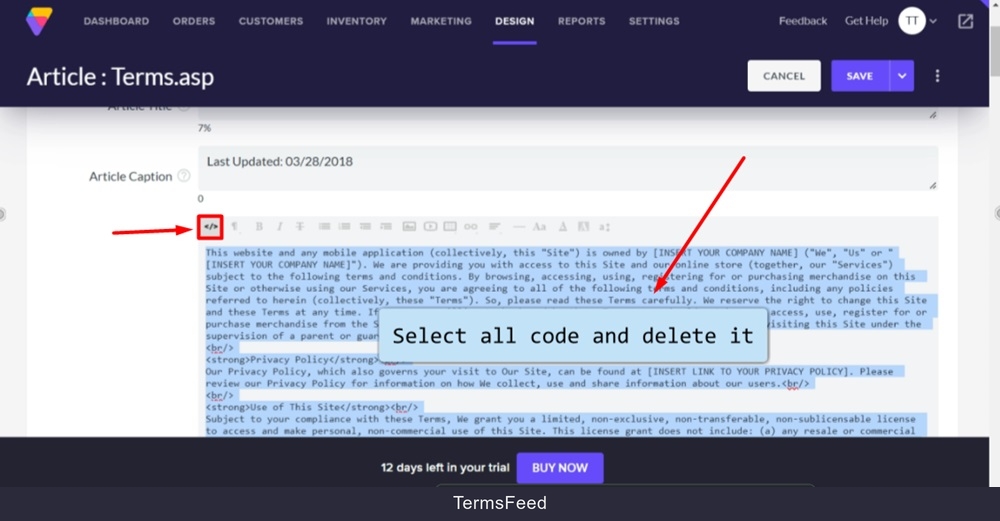
Click in the Article body editor to select the entire code and delete it.
-
Add your Terms and Conditions content.
If you do not have a Terms and Conditions, you can use our Terms and Conditions Generator and create it within minutes.
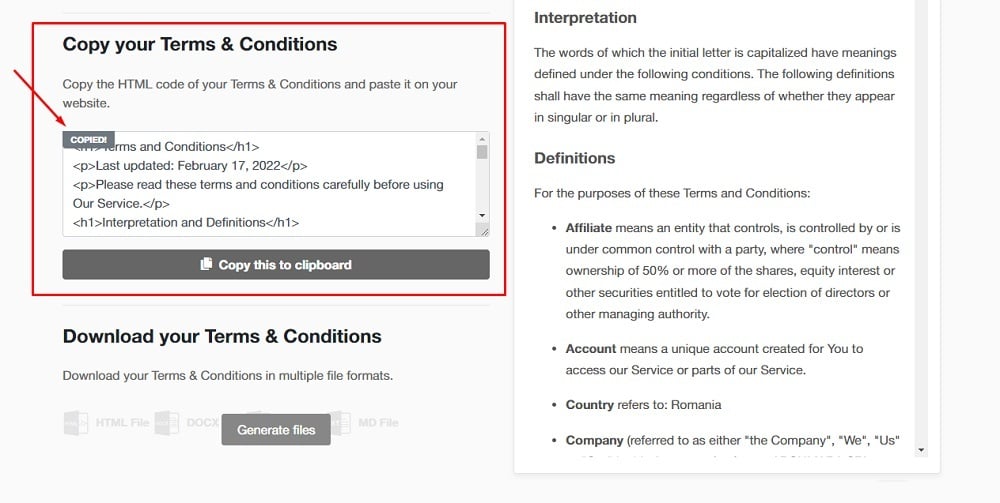
Once you have the Terms and Conditions created by TermsFeed, let's get the policy text. Under the Copy your Terms and Conditions section, click on Copy this to clipboard:
-
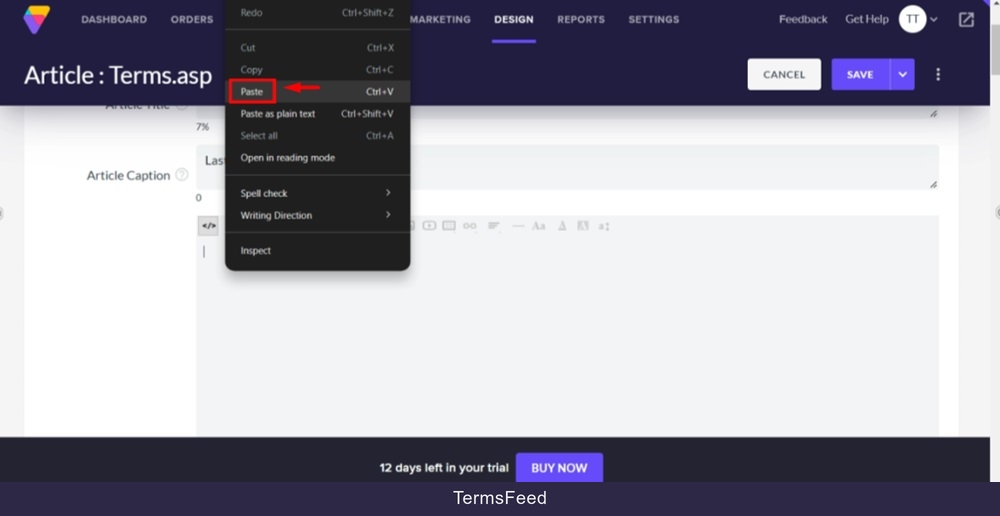
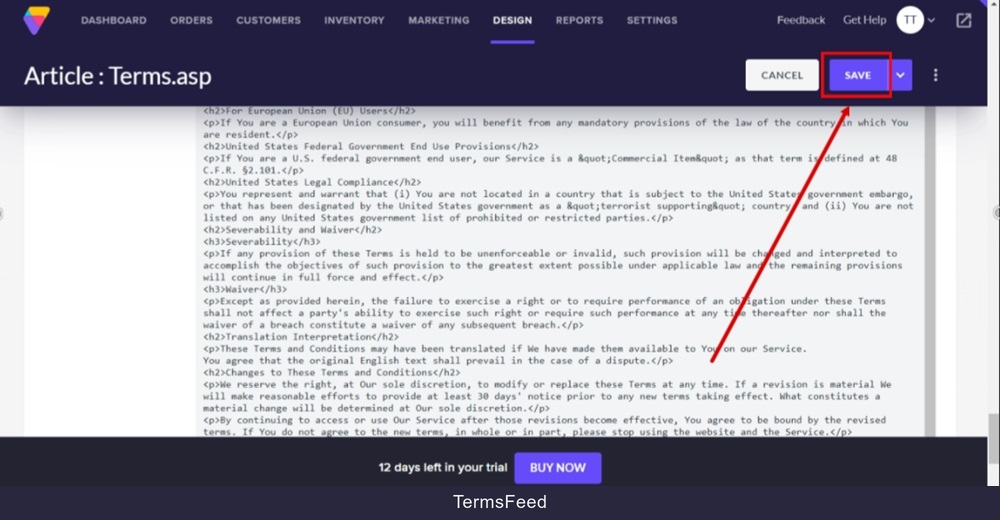
Paste the Terms and Conditions HTML in the Article body:
-
Click Save:
-
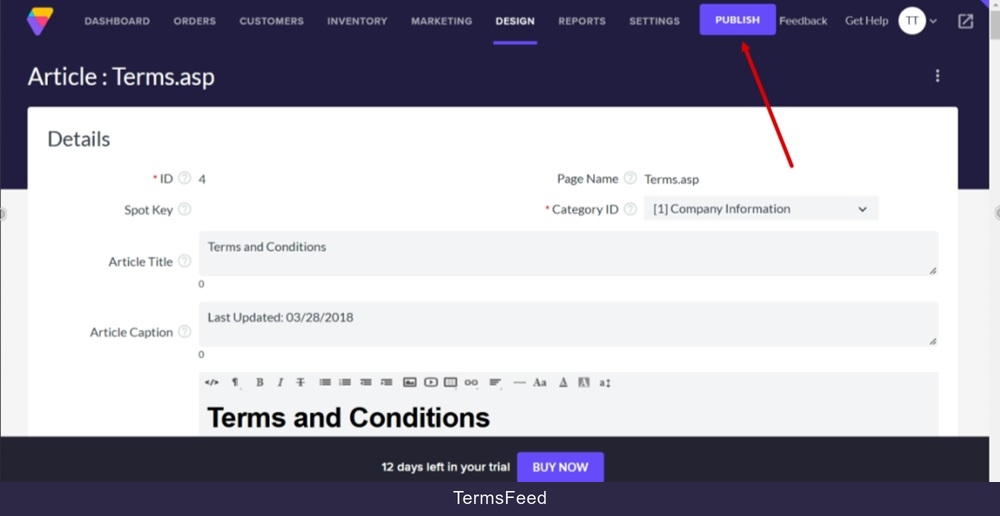
Click Publish:
-
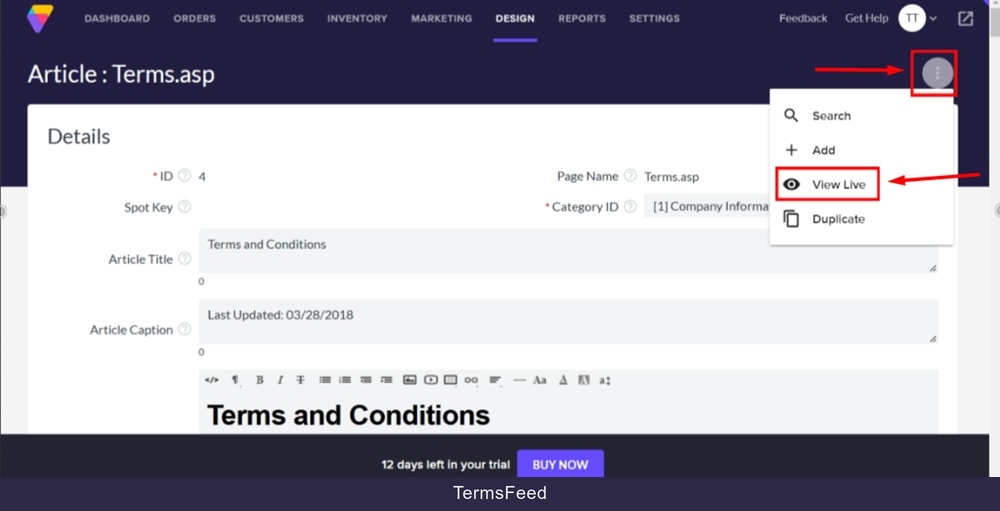
Click the three dots and select View Live:
-
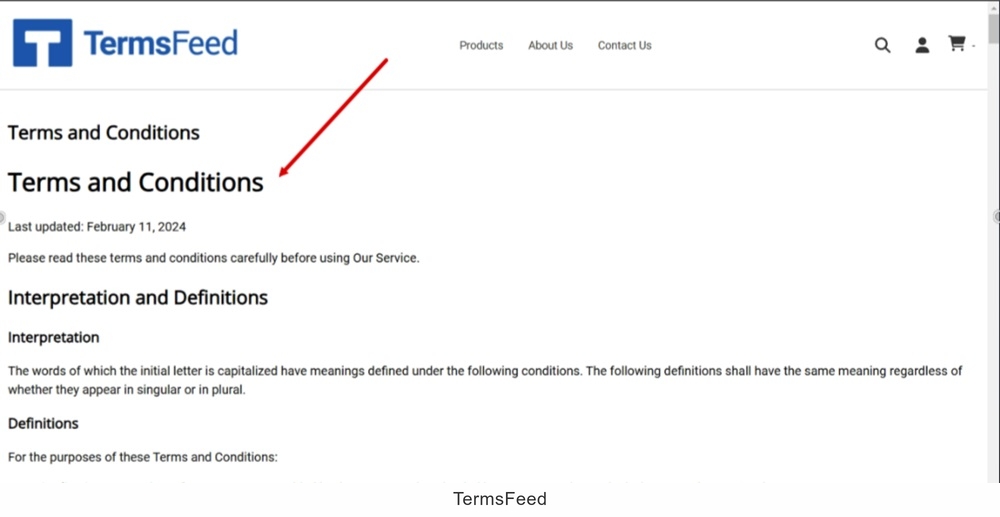
The Terms and Conditions page is displayed:
-
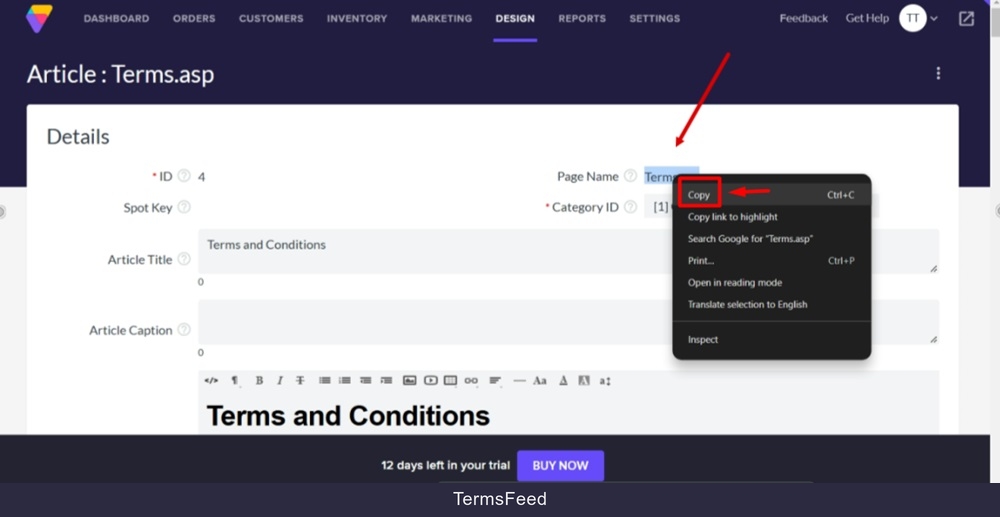
From the Terms and Conditions article page, copy the Page Name path. You'll need to paste it to the footer section:
-
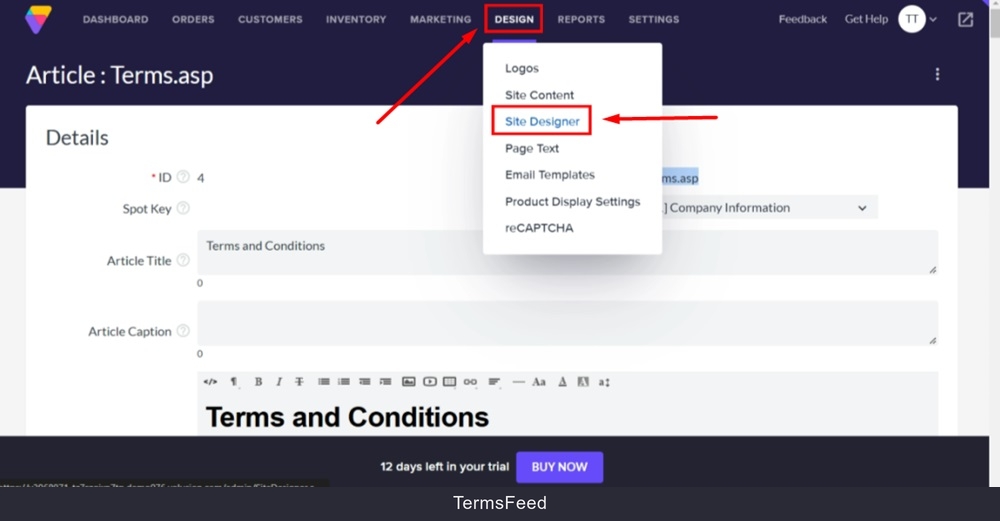
To add a link to the footer, you'll need to go to the Design and select the Site Designer option:
-
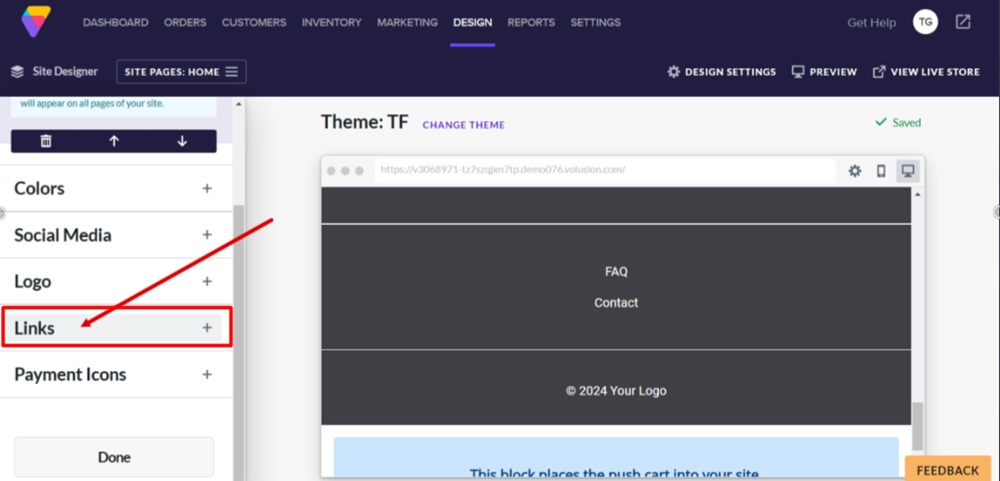
Scroll down to the footer section. Click inside it to open the footer block editor. Select Links section:
-
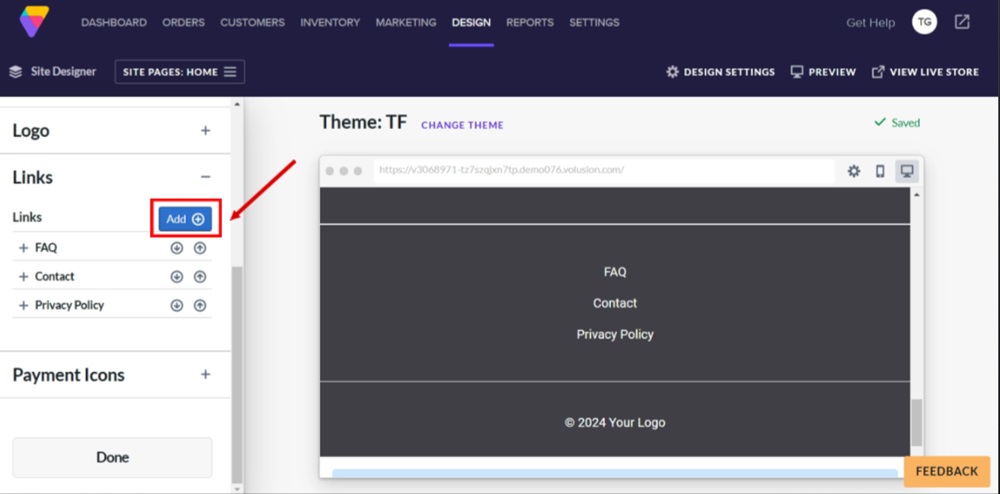
Click the Add button to add a new link:
-
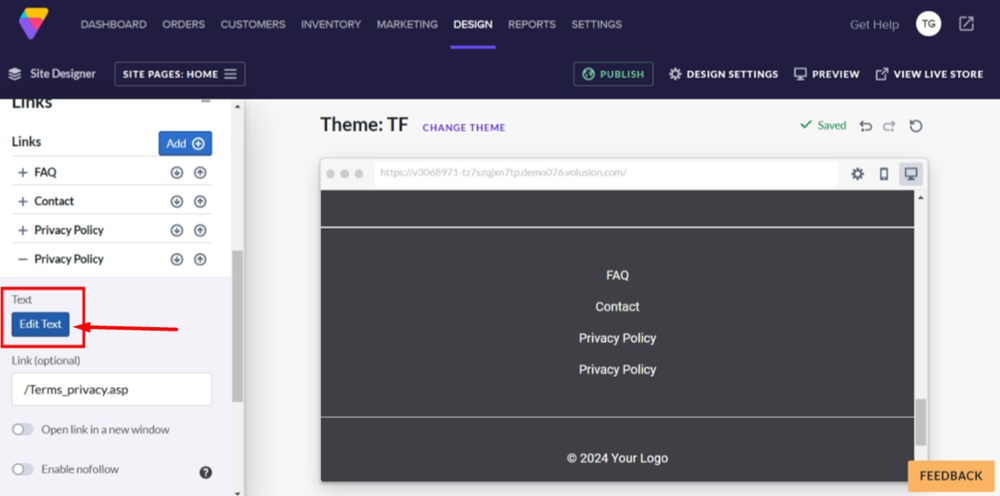
The last link will be copied. Click on it to open the link editor. Under Text, click on the Edit Text button:
-
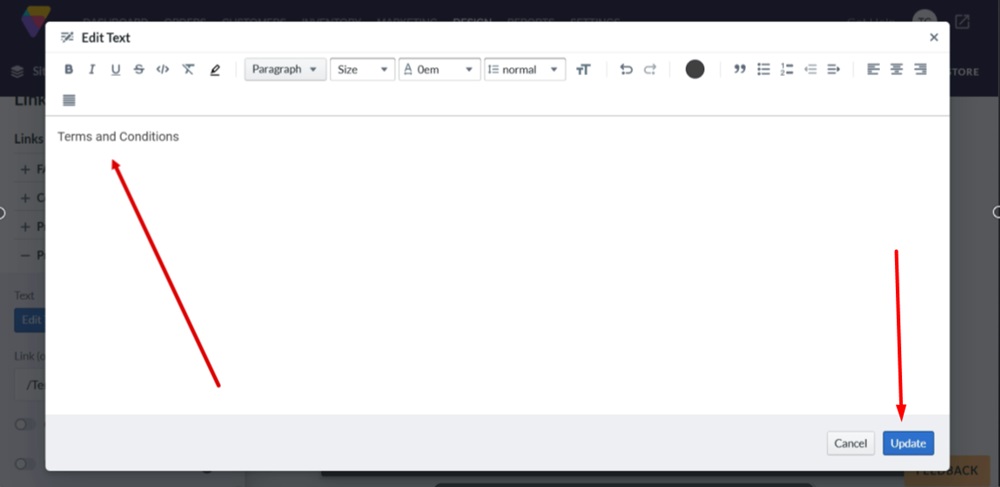
Replace "Privacy Policy" with "Terms and Conditions" and click the Update button at the bottom of the new text editor window:
-
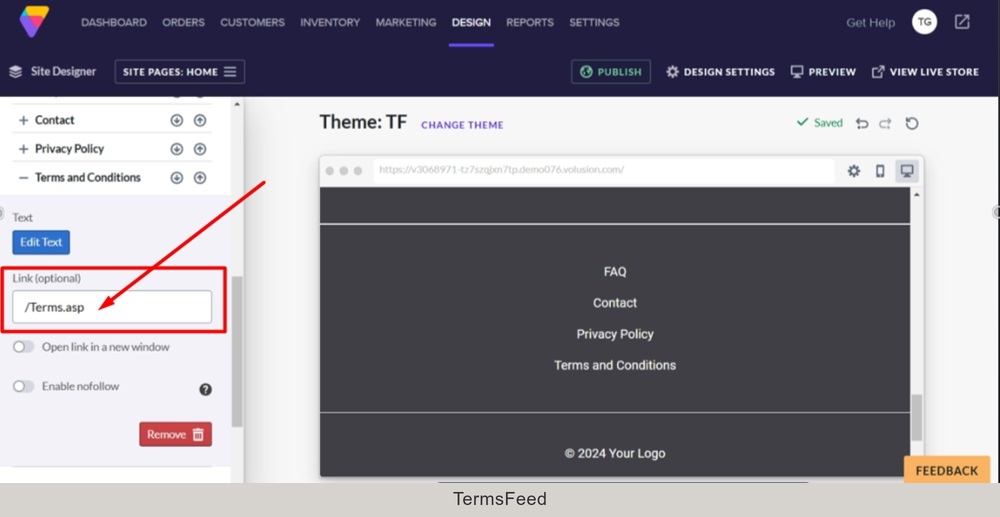
Paste the previously copied Page Name path in the Link (optional) field:
-
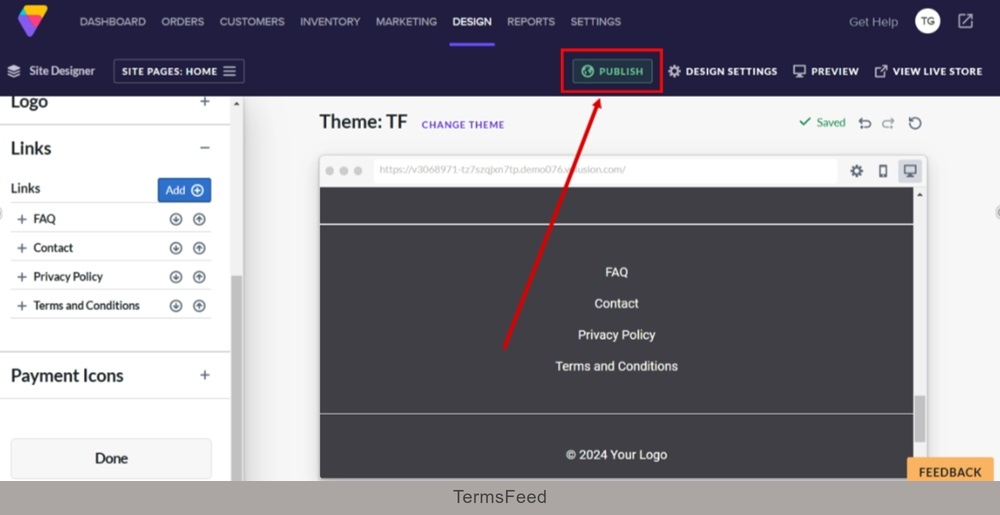
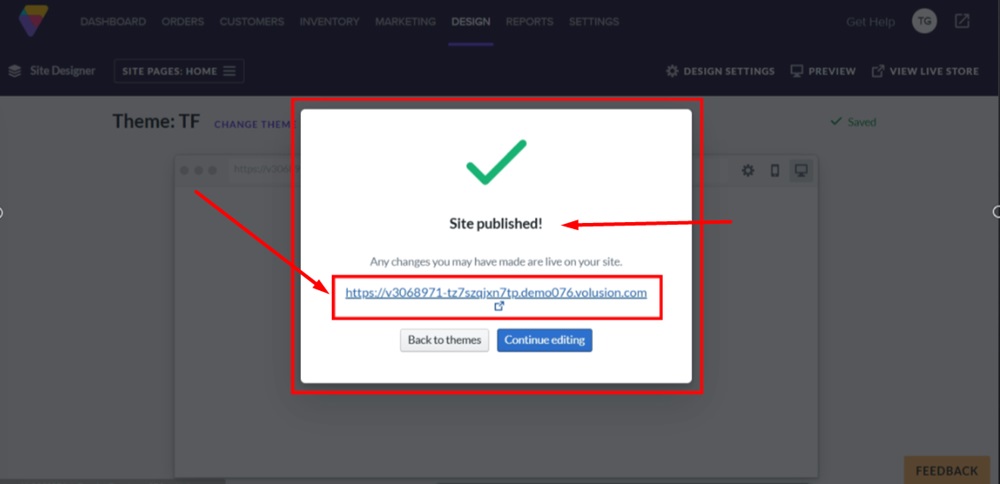
Click Publish:
-
Click on the live link to see changes:
-
The Terms and Conditions page is linked and displayed in the footer section of the Volusion website: