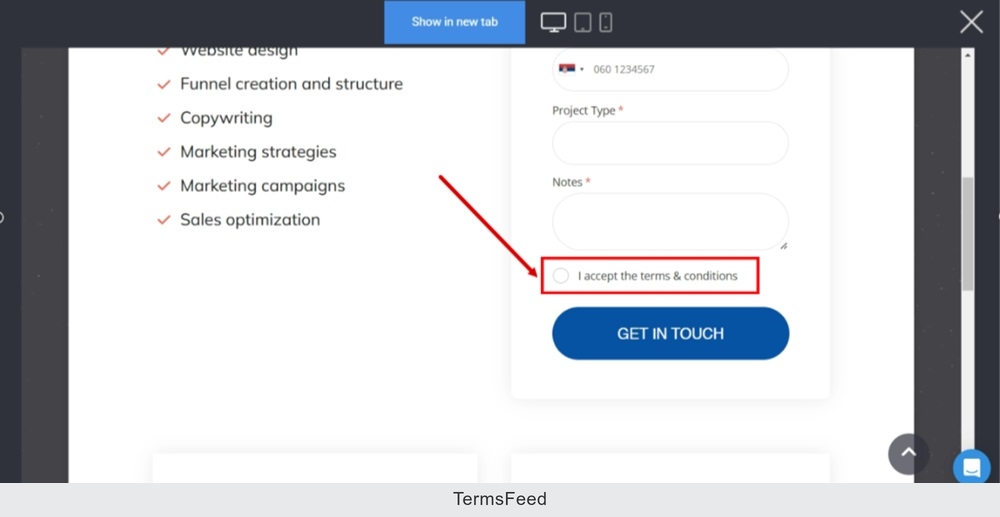
We've used the form on the Contact Us page for this example, but the steps can apply to all forms your business may need on Simvoly. We'll show you how to add a Terms and Conditions URL to the consent field on the form.
Steps
-
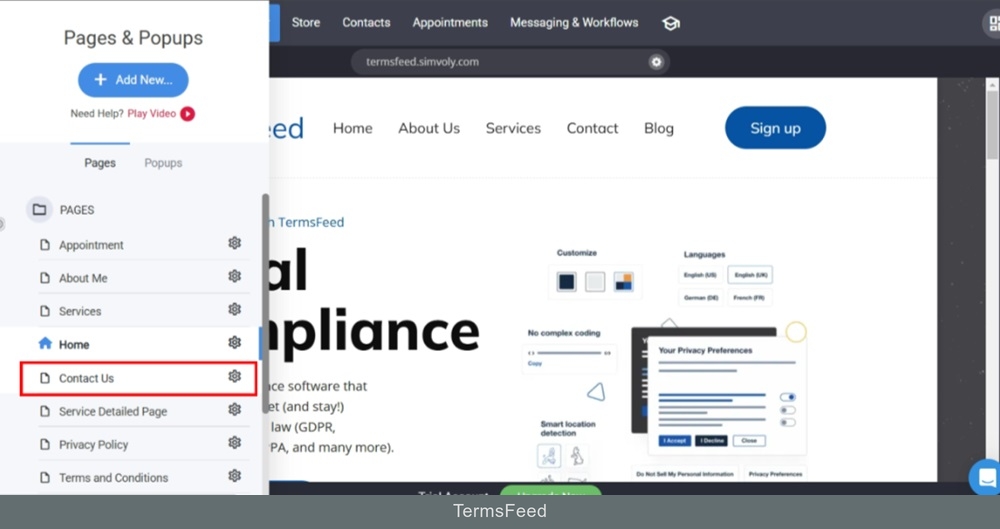
Log in to your Simvoly account. Switch to the Contact Us page.
-
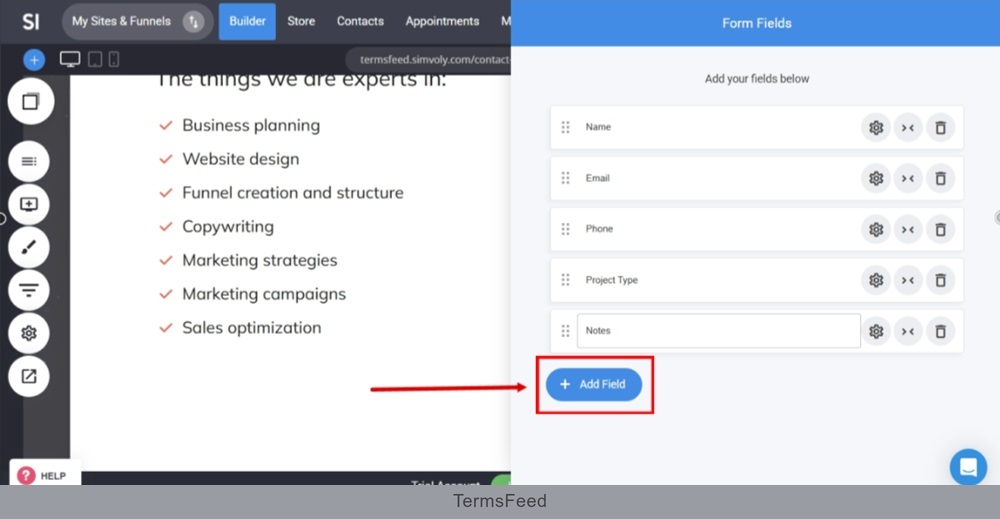
Double-click on the form to open the Form Fields settings. Click + Add Field:
-
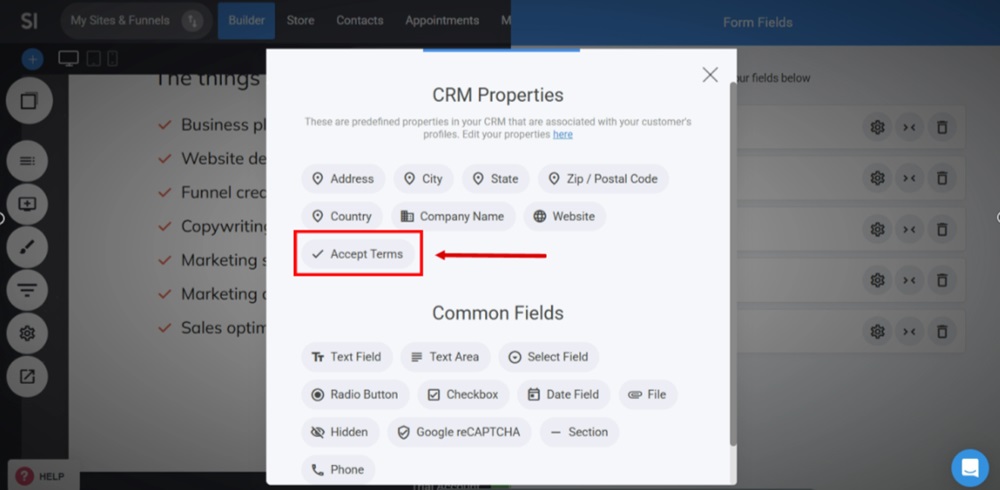
Select the "Accept Terms" from the CRM Properties section to add:
-
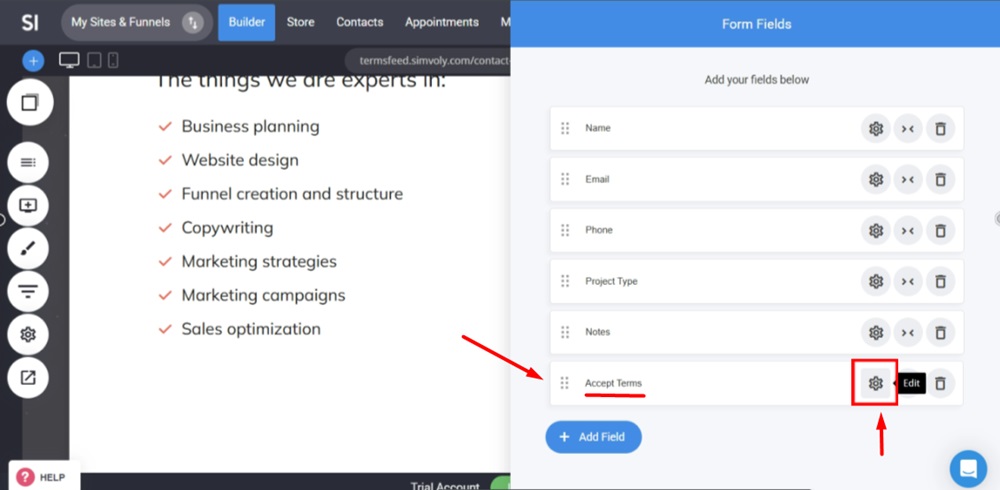
The field appears at the bottom. Click the Gear icon to adjust the field settings:
-
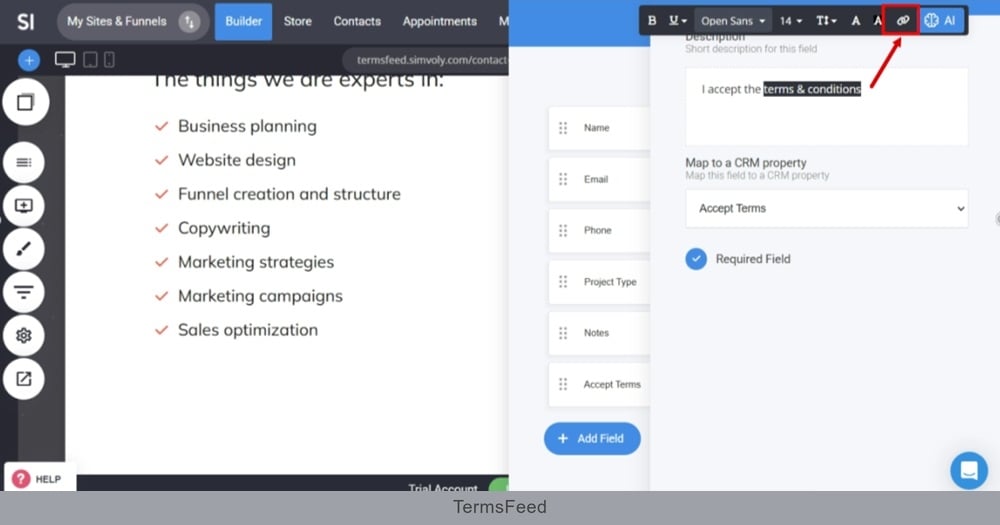
From the Description field, select the "terms & conditions" words and go to the Link icon from the Text editor:
-
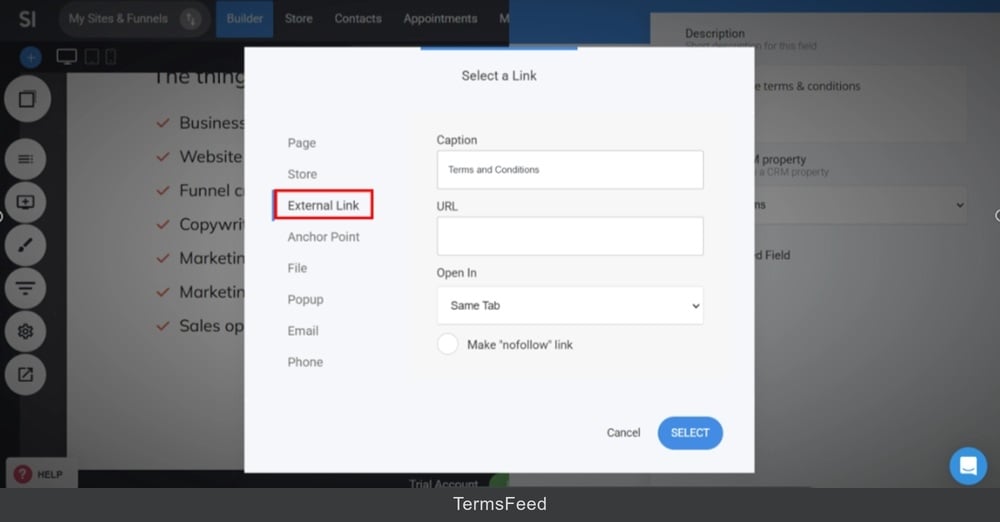
The "Select a Link" window opens. Switch to the External Link. Type "Terms and Conditions" in the Caption field:
-
In the URL field add a link.
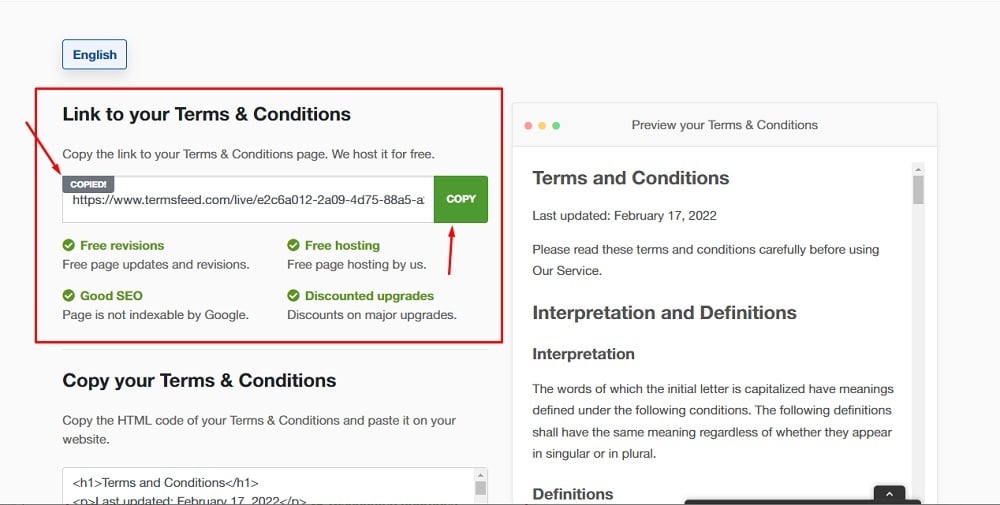
Go to the TermsFeed Terms and Conditions Generator to create the Terms and Conditions and get a free hosted Terms and Conditions URL webpage.
In the Link to your Terms and Conditions section, click on the green Copy button:
-
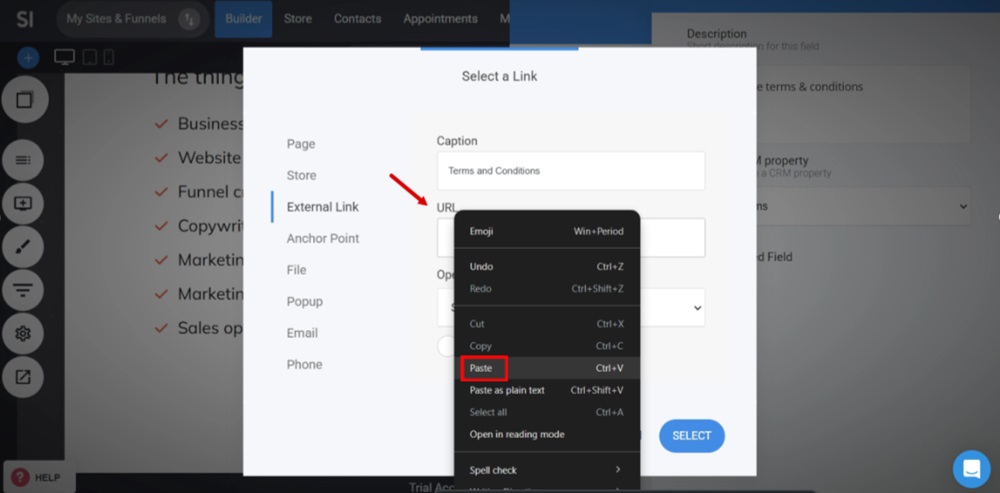
Paste the Terms and Conditions URL in the URL field:
-
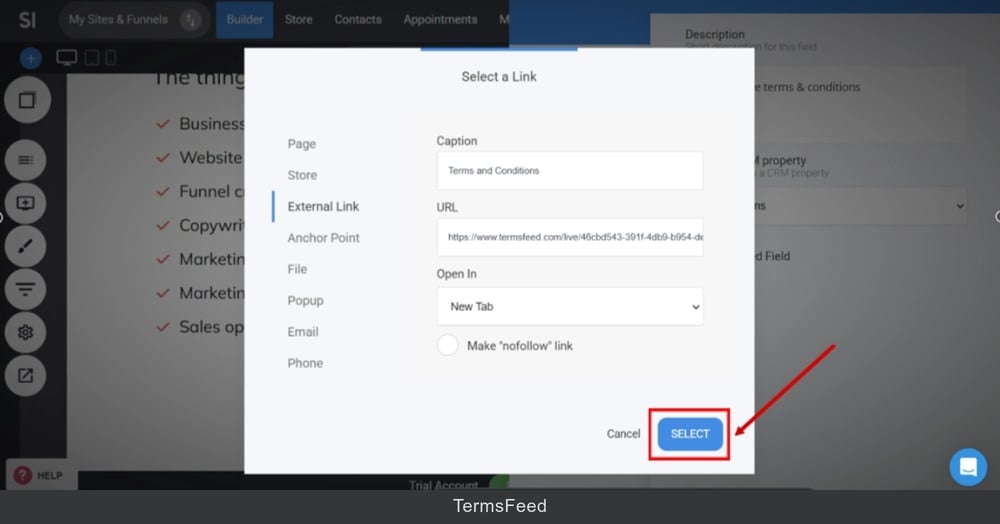
Click the Select button:
-
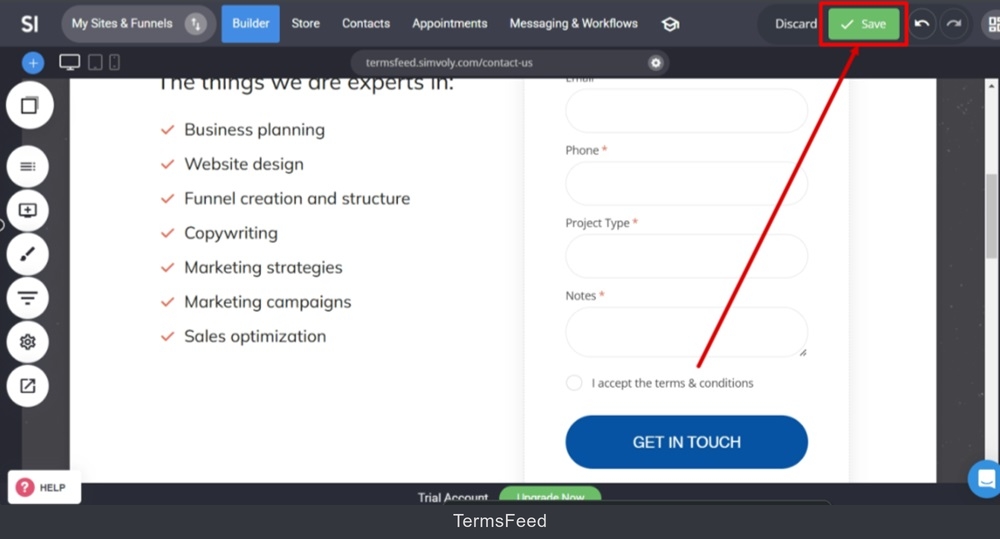
Click Save at the top:
-
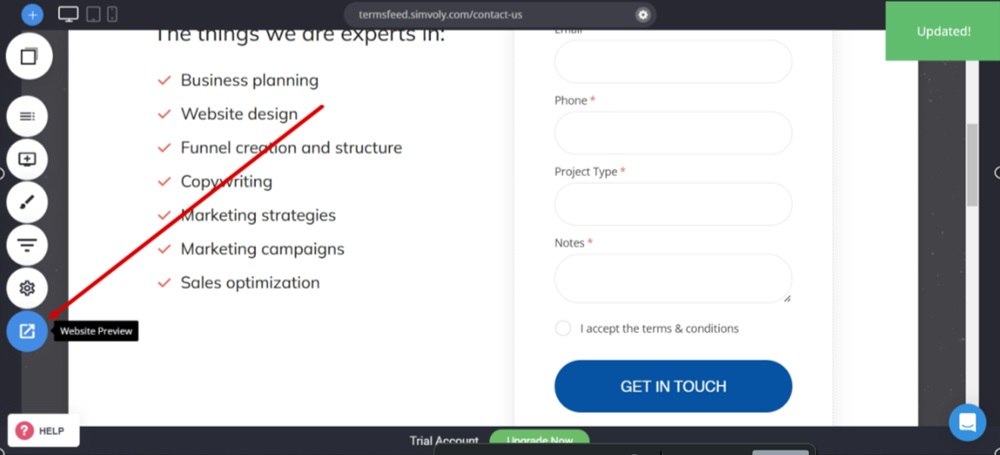
Go to Website Preview to see the changes:
-
The "I accept the terms & conditions" field with a radio button for user consent is added to the form on the Contact Us page is displayed: