
Here's how to quickly create a url that links directly to your Cookies Policy.
-
Log in to Blogger. (Note: You'll need to have a Google account.)
-
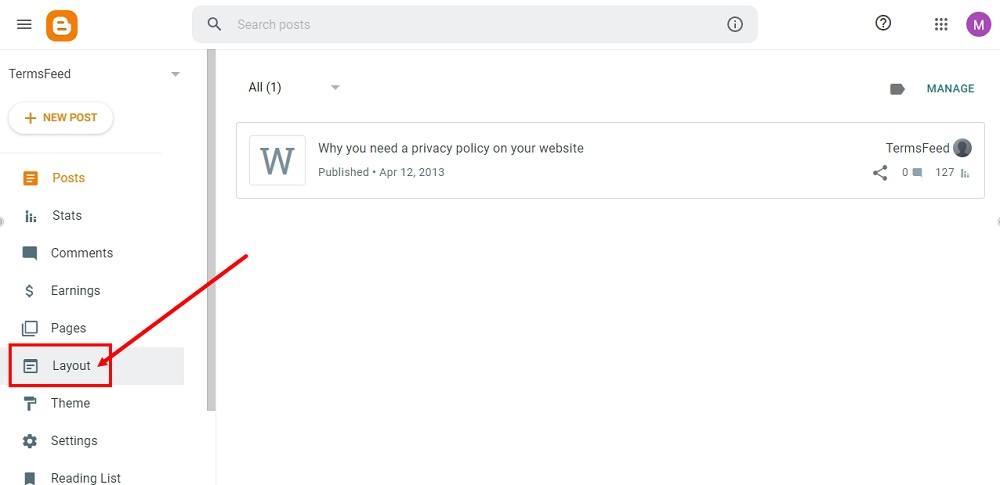
From Blogger's Dashboard, go to Layout:
-
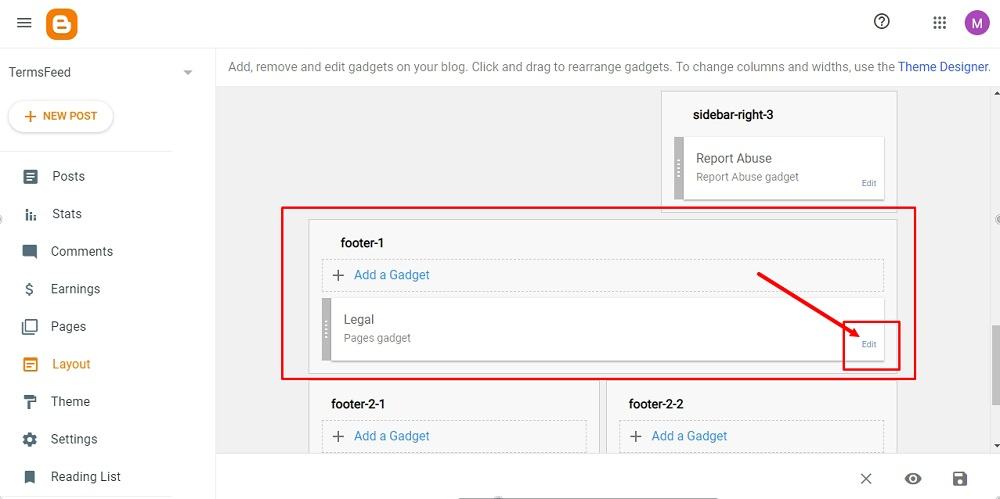
If your theme has a footer, as in our example, scroll to the footer section. The Pages Gadget called Legal is already added in our example. Proceed by clicking Edit:
-
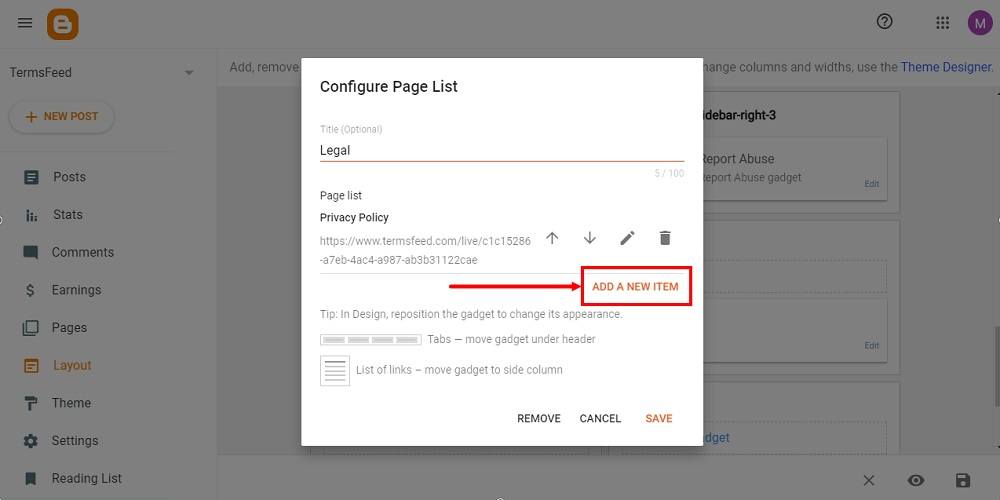
The configure the page list window will open. Go to Add a New Item:
-
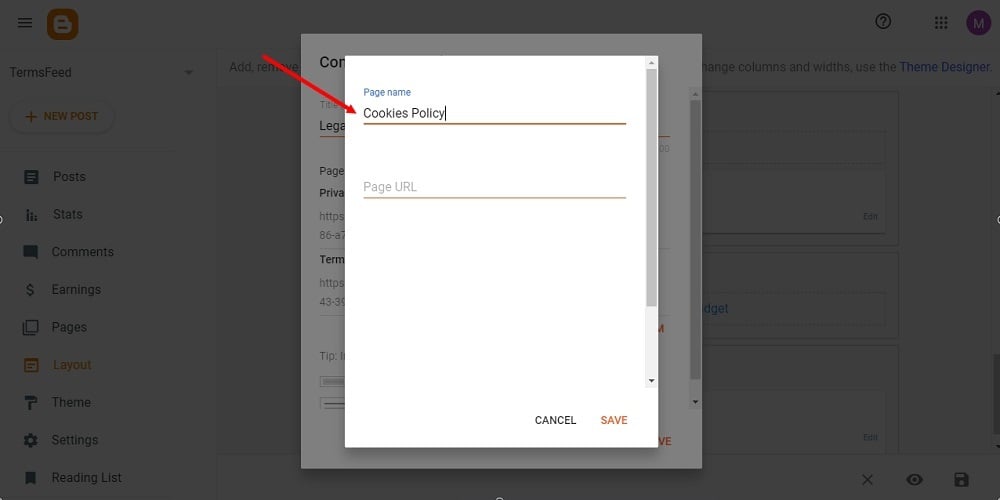
Under Page Name, type Cookies Policy:
-
Next, add a Page URL to link to your Cookies Policy.
To get the Cookies Policy URL link, go to the TermsFeed Cookies Policy Generator. From here you can create a Cookies Policy and get the hosted Cookies Policy URL.
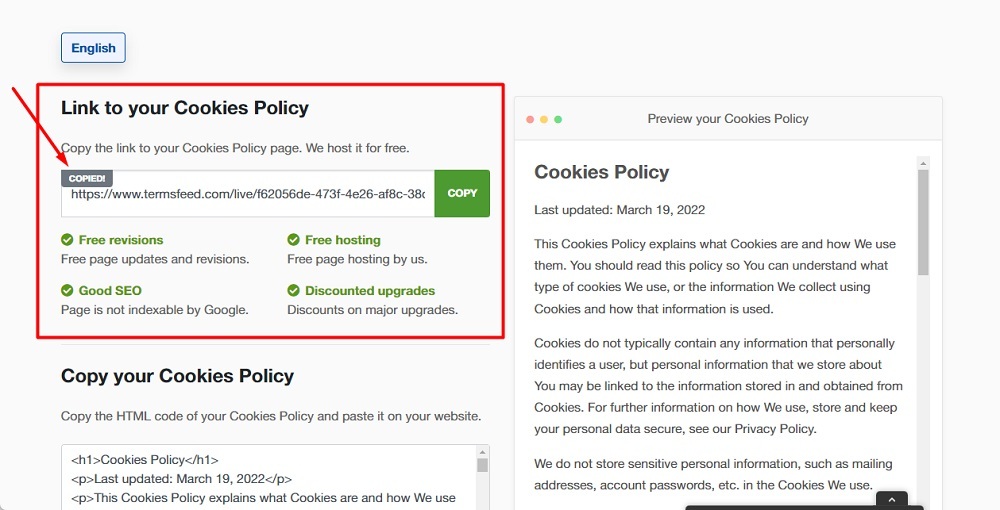
Once you have the Cookies Policy created by TermsFeed, click Copy from the Link to your Cookies Policy section to copy the URL:
-
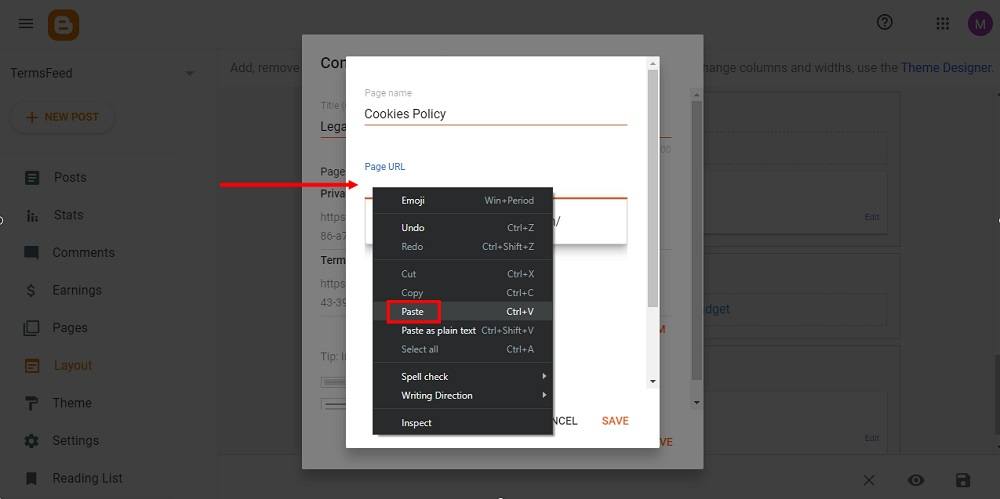
Go back and paste the Cookies Policy URL:
-
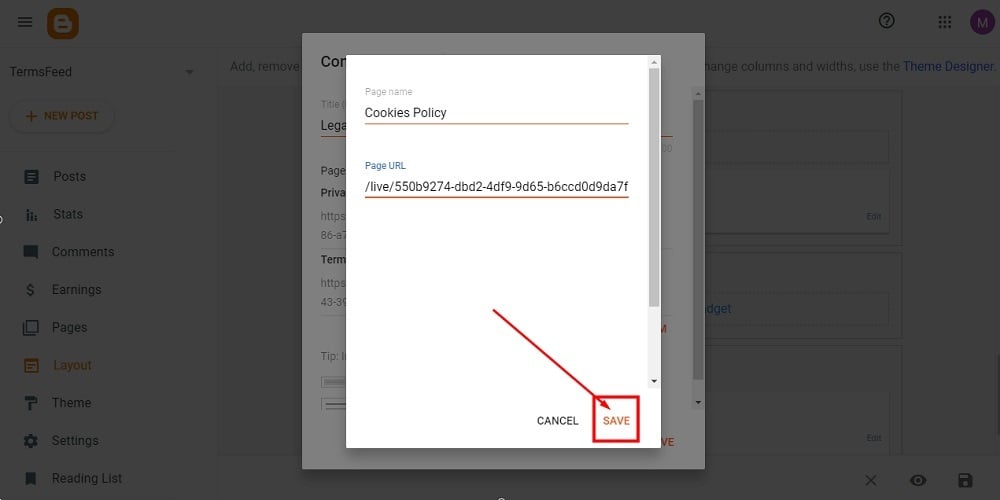
Click Save:
-
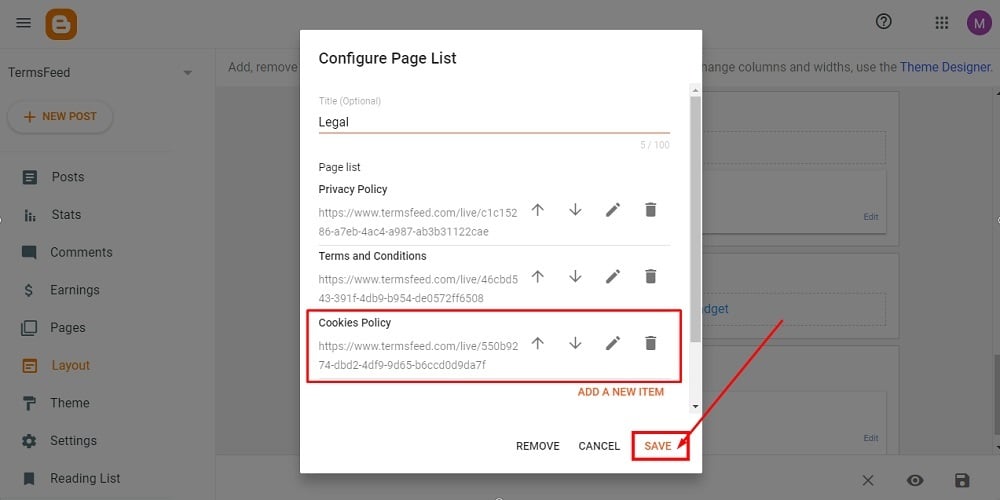
Again click Save:
-
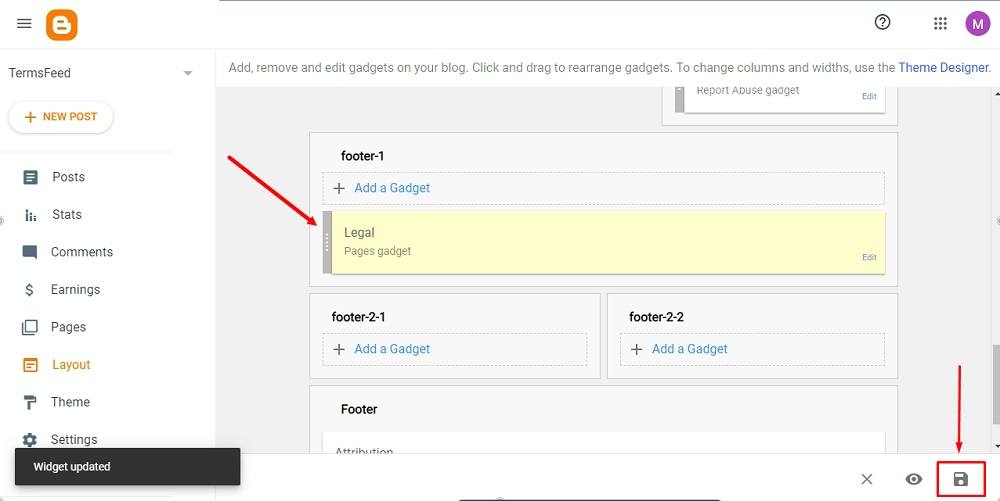
The widget is updated. To save the changes, click the Save icon at the bottom right corner:
-
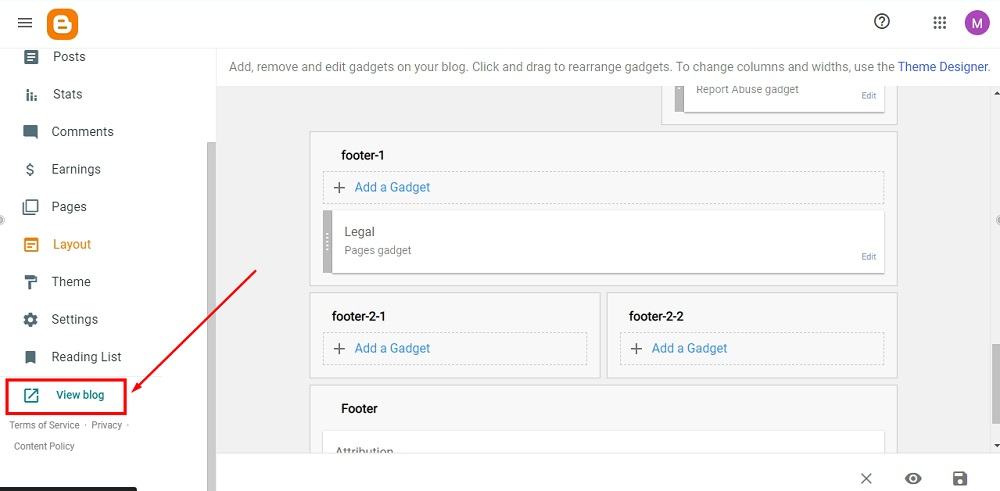
To see the changes, go to View blog at the bottom:
-
You're done.


