In this video we'll show you how to create a new page on the Big Cartel platform.
Let's start.
-
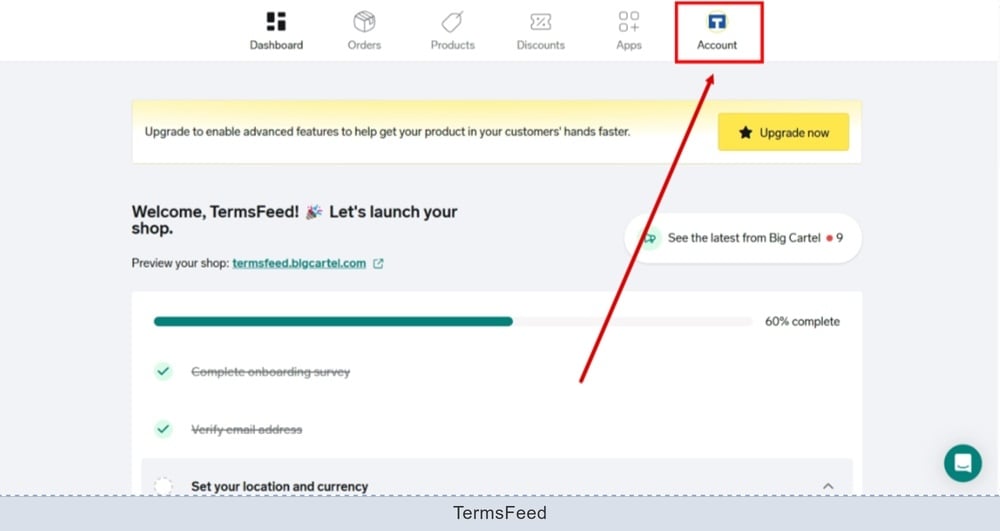
Log in to the Big Cartel dashboard and go to Account:
-
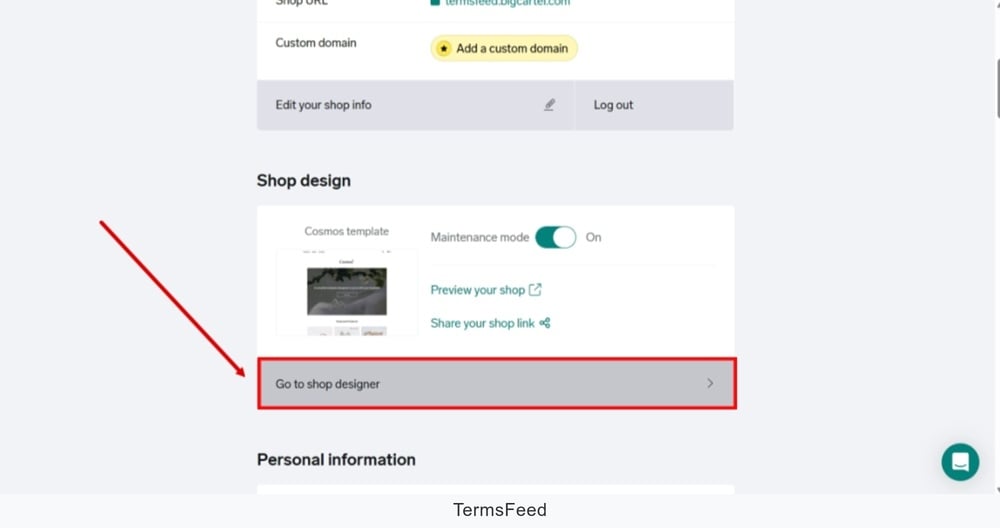
Find the "Shop design" and click the "Go to shop designer" to start editing:
-
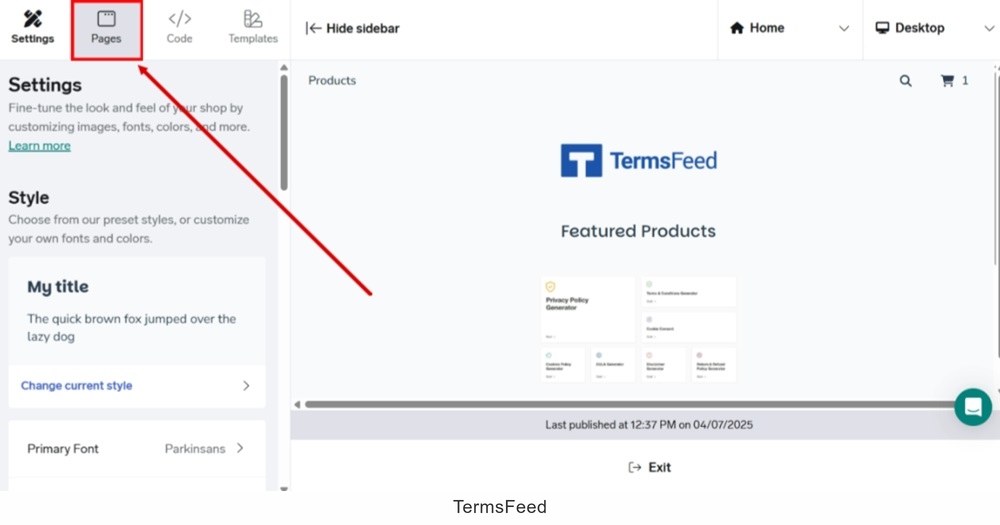
Select "Pages" from the menu:
-
Click the "Add a new page" button:
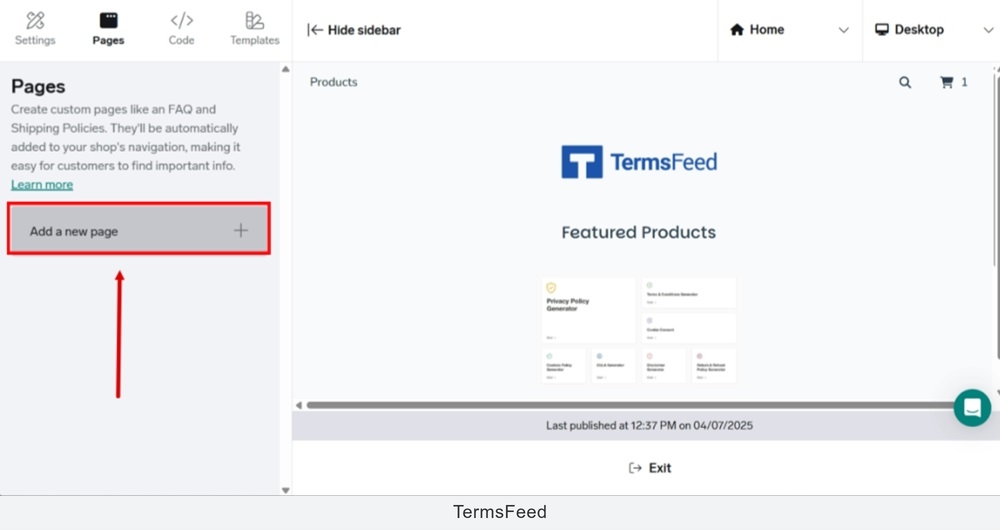
-
Type "Terms and Conditions" in the "Name" field:
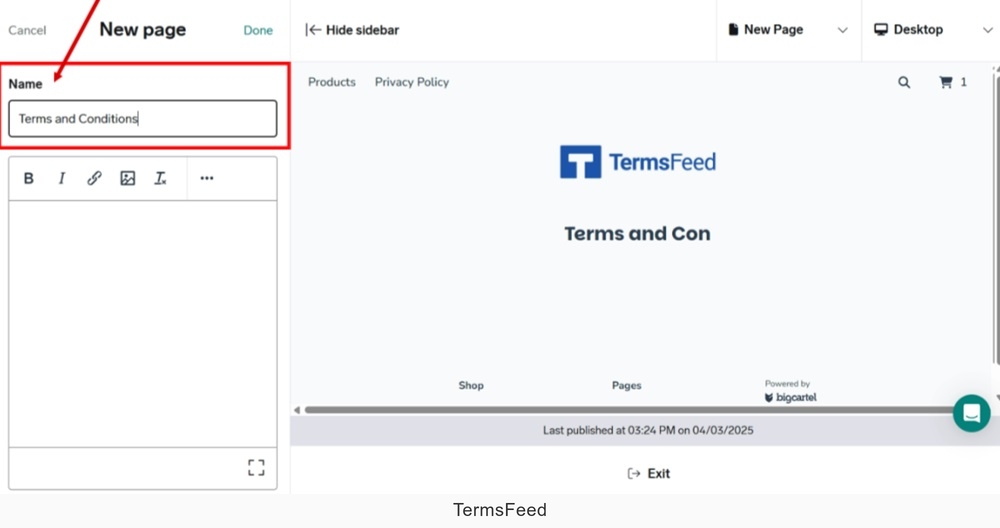
-
Copy the text for the Terms and Conditions page.
If you do not have a Terms and Conditions, you can use our Terms and Conditions Generator and create one within minutes.
Once you have the Terms and Conditions created by TermsFeed, let's get the policy text. You can copy the HTML variant of the policy or download the Plain Text file format:
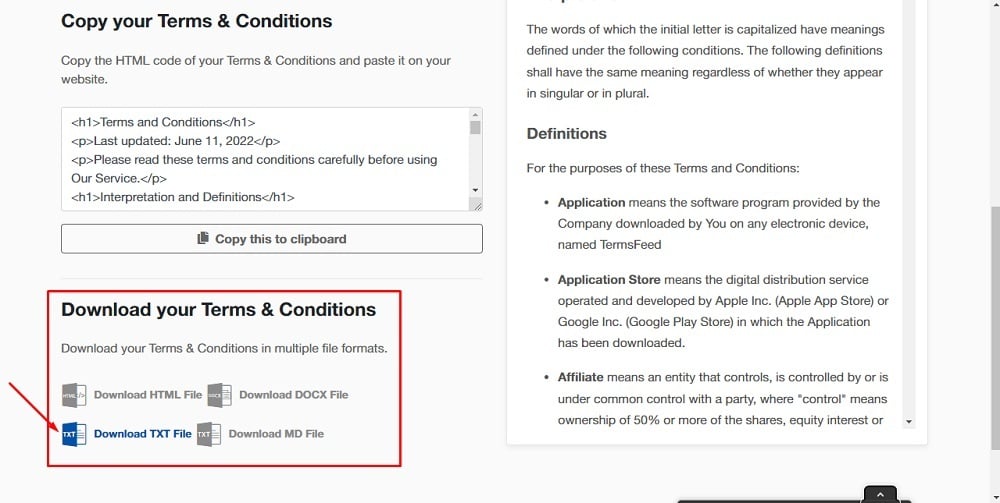
-
Paste the copied text. Use the CTRL + V from your keyboard:
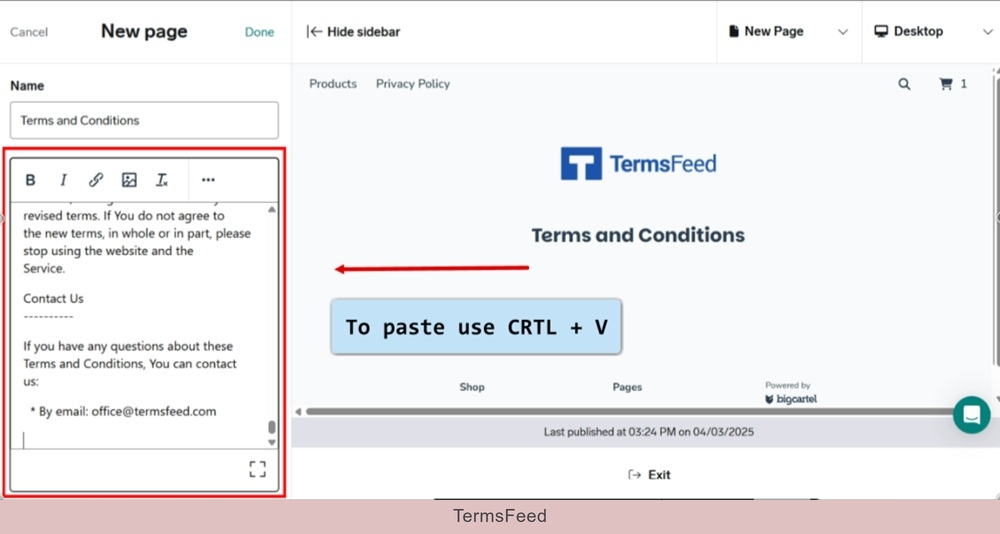
-
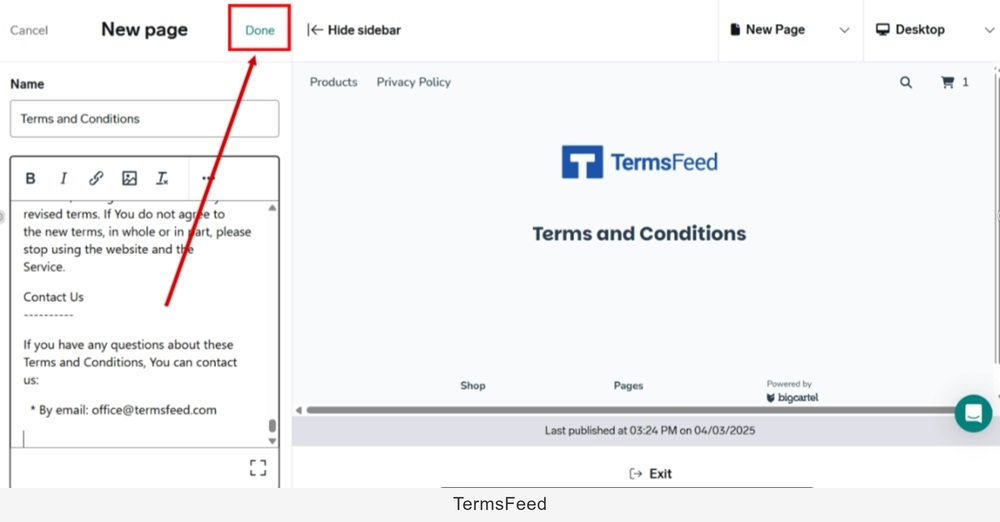
Click "Done" at the top:
-
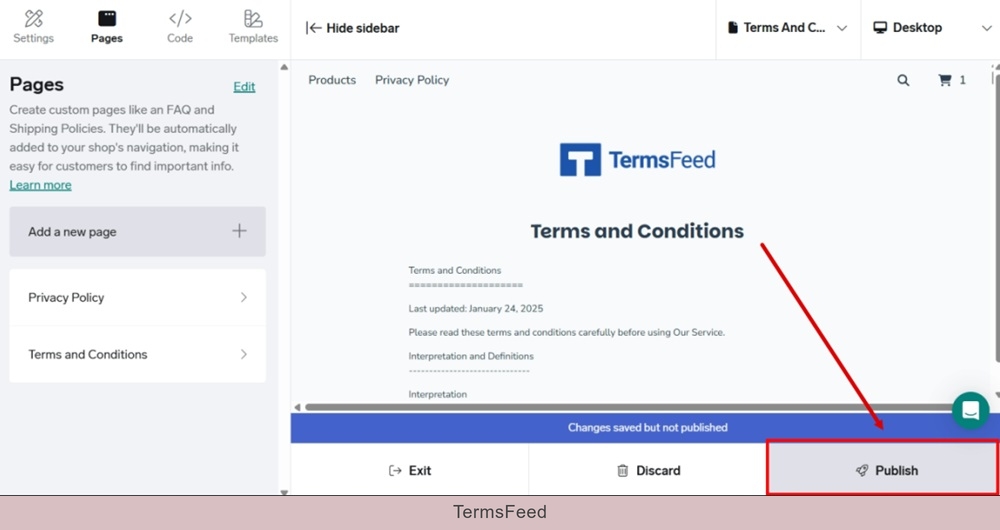
Publish your changes:
-
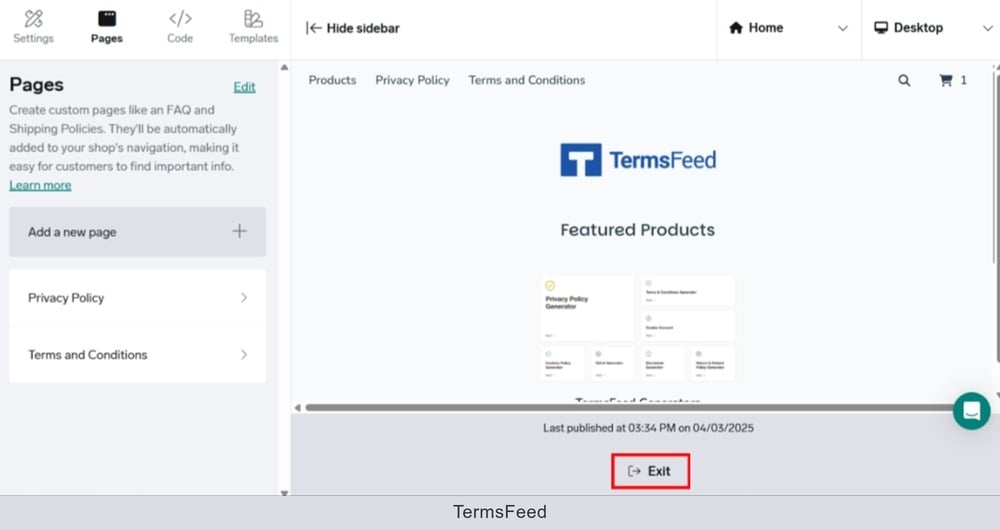
Exit the editor:
-
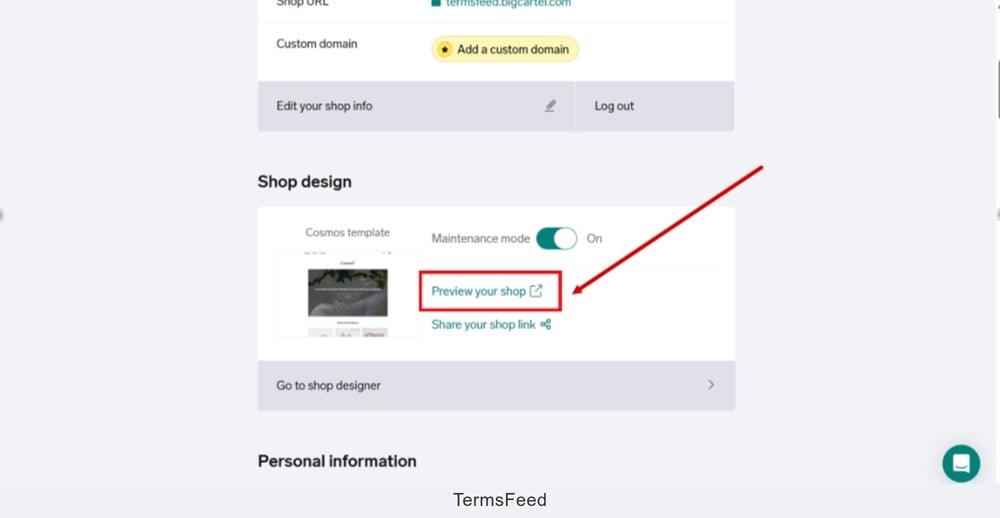
Go back to the "Shop design" and click the "Preview your shop:"
-
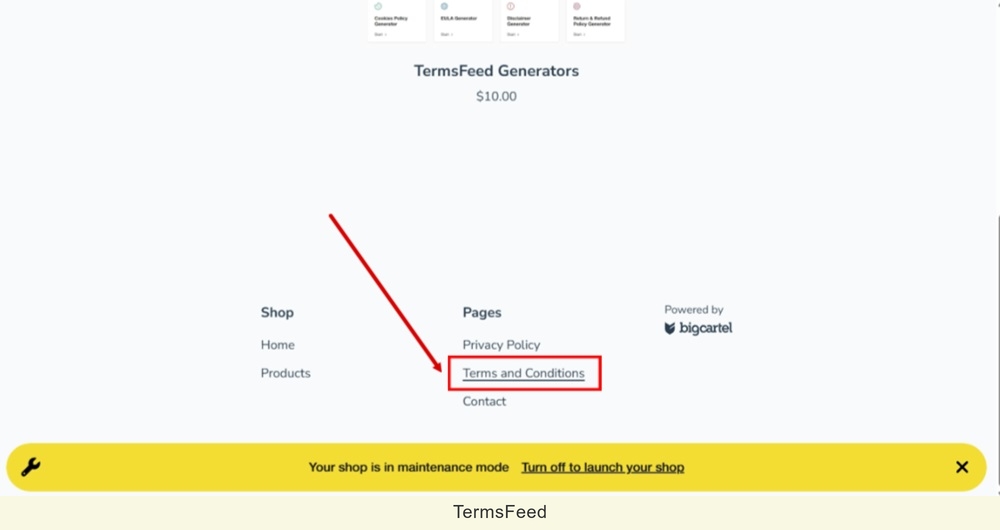
The new Terms and Conditions page is displayed at the header and the footer of your Big Cartel shop: