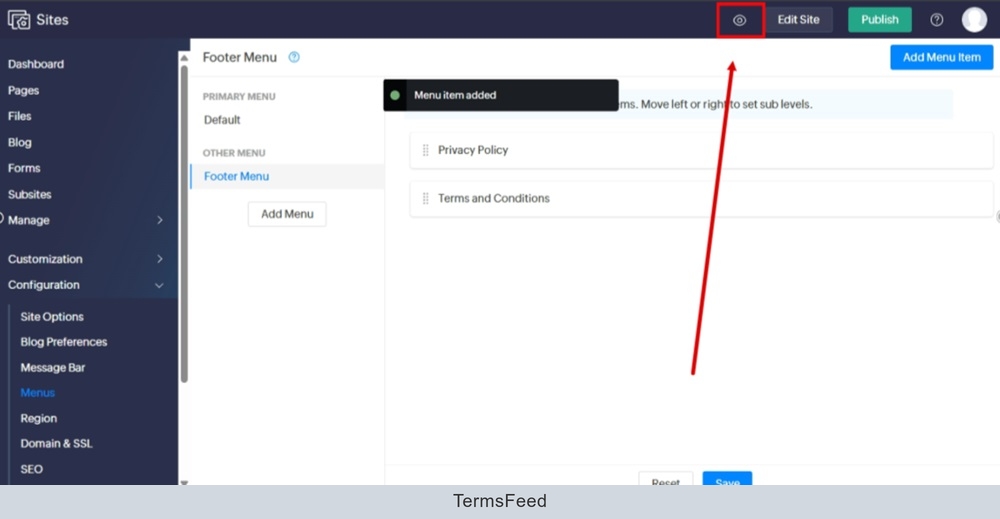
In this video you'll learn how to:

  1. Create a new Terms and Conditions page for a Zoho Site
  2. Update the existing footer menu with the new page

Let's get started.

Step 1. Create a new Terms and Conditions Page

  1. Log in to your Zoho Sites dashboard. Go to "Pages:"
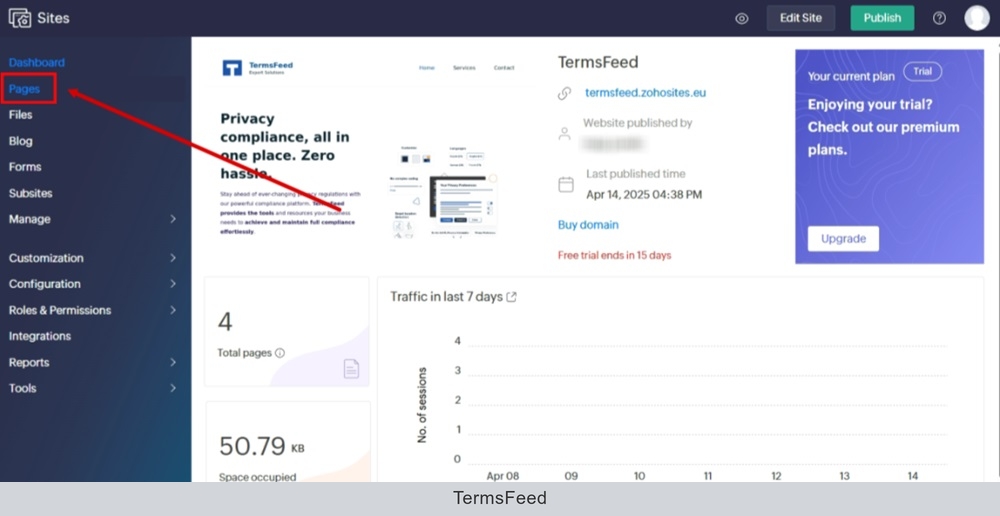
    TermsFeed Zoho - Sites - Dashboard - Pages

  2. Click the "Add Page" button (at the top right):
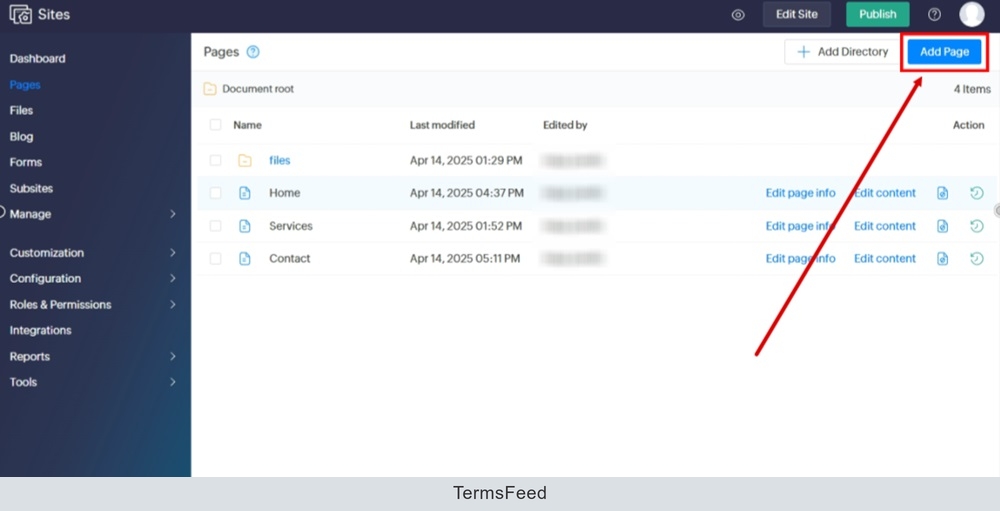
    TermsFeed Zoho - Sites - Pages - Add new page

  3. Type "Terms and Conditions" in the "Page Name" field. The "Page URL" field will fill automatically. Disable the "Add page to default menu" option.
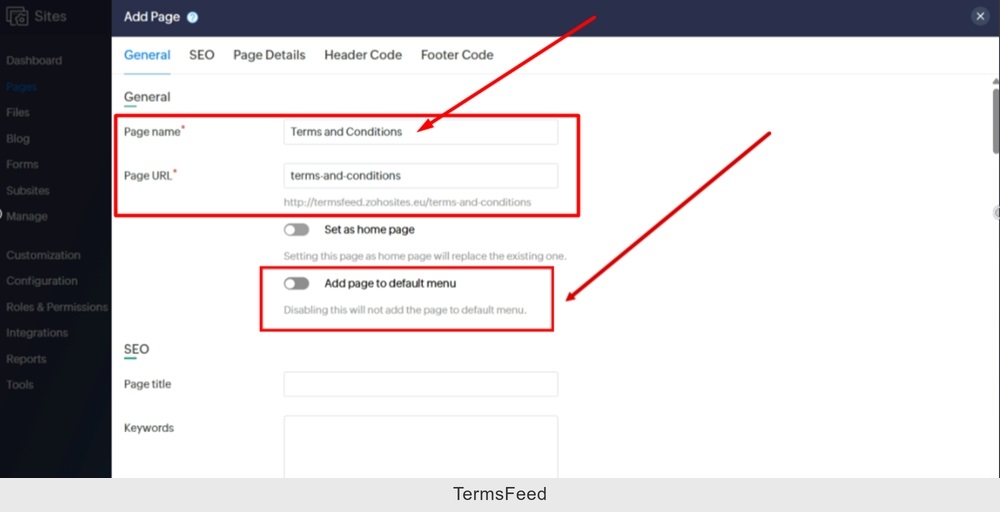
    TermsFeed Zoho - Sites - Pages - Add new page - Name - Terms and Conditions

  4. Click "Save" (the button is at the bottom):
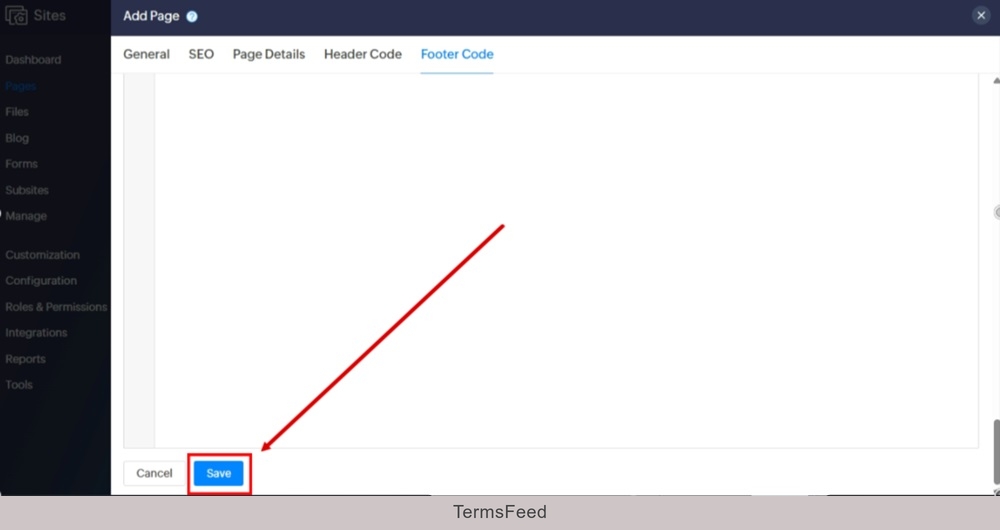
    TermsFeed Zoho - Sites - Pages - Add new page - Save

  5. The new page editor opens. Delete the placeholder elements:
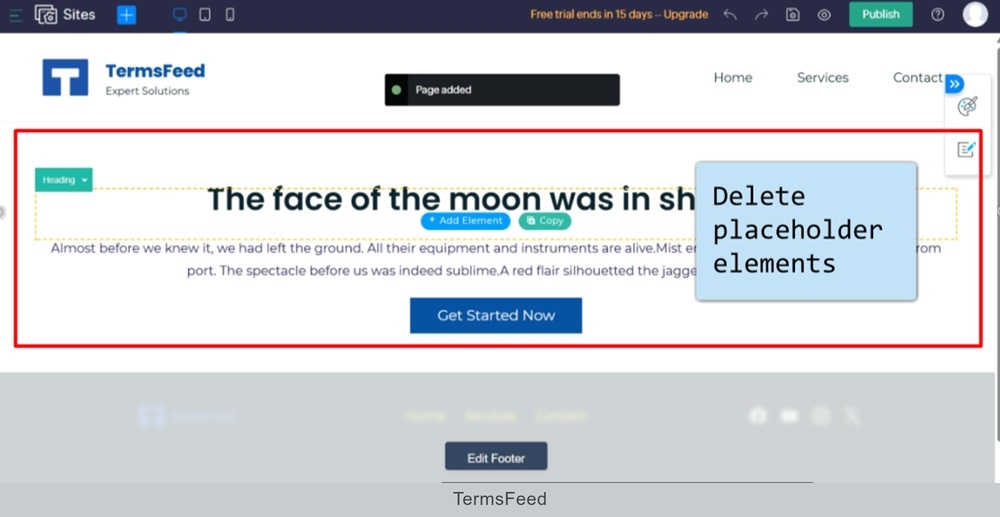
    TermsFeed Zoho - Sites - Pages - New page is added - Delete placeholder elements

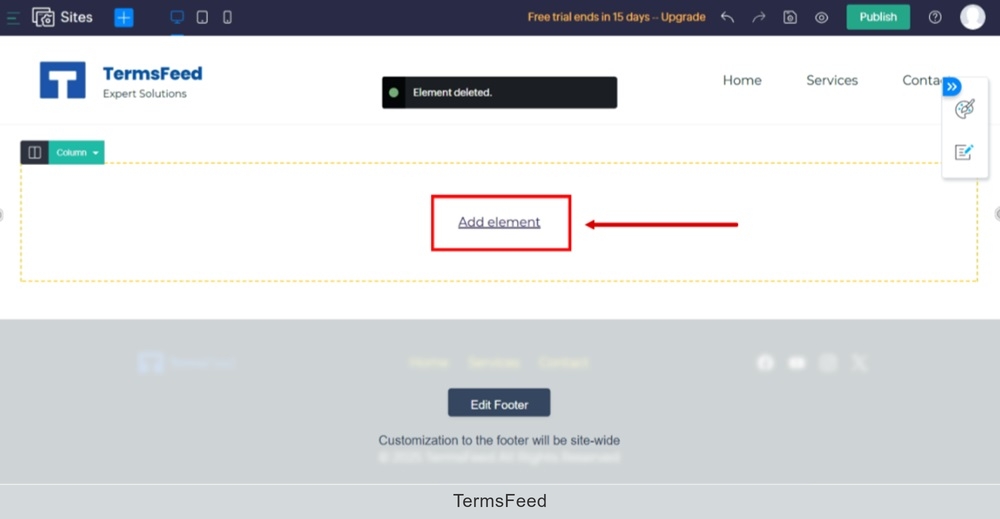
  6. Click "Add element:"

    TermsFeed Zoho - Sites - Pages - New page is added - Add element

  7. Select the "Paragraph" element to add:
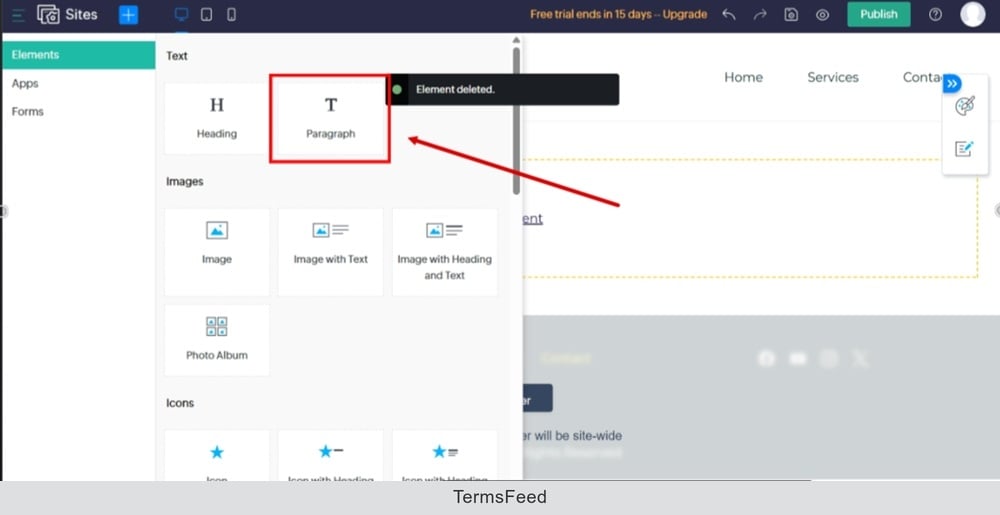
    TermsFeed Zoho - Sites - Pages - New page is added - Add element - Paragraph selected

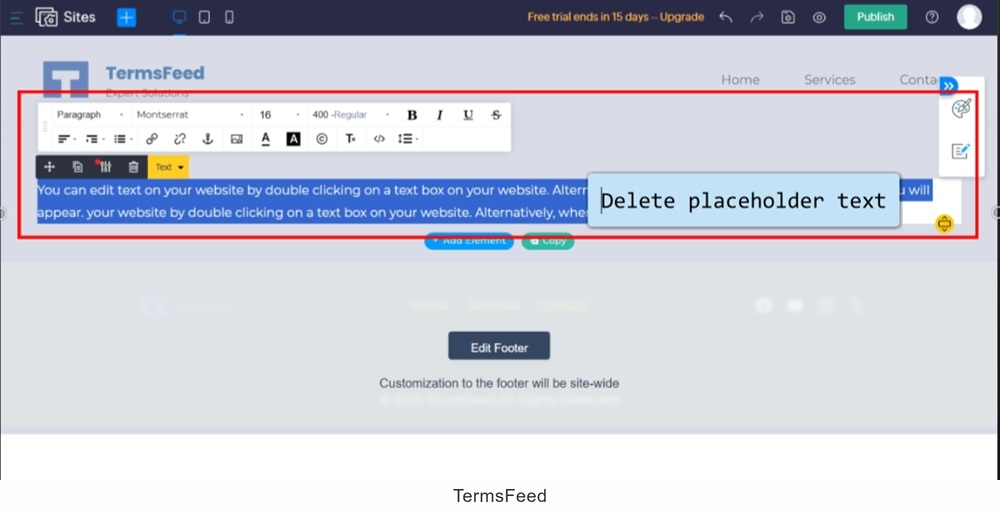
  8. Delete the placeholder text:

    TermsFeed Zoho - Sites - Pages - New page is added - Add element - Paragraph - Delete placeholder text

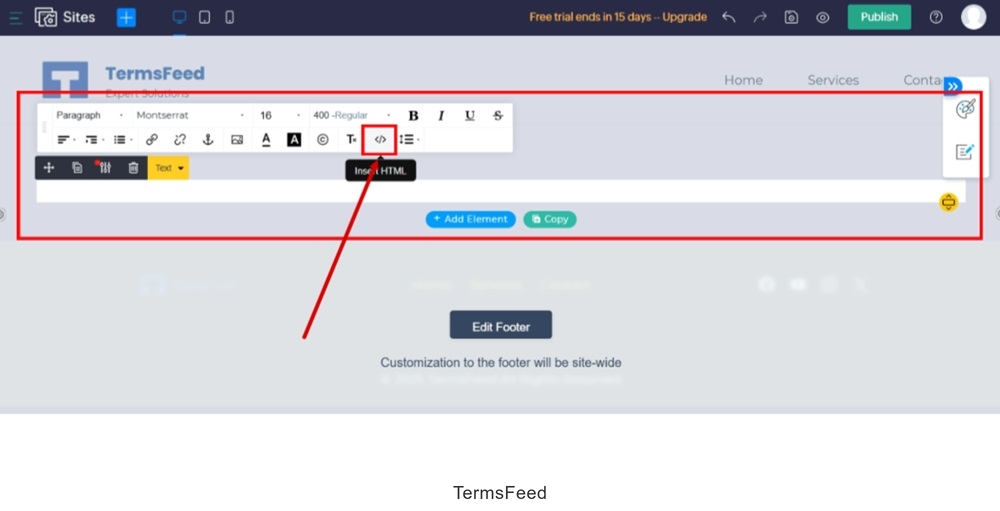
  9. Switch to the "Code" icon:

    TermsFeed Zoho - Sites - Pages - New page is added - Add element - Paragraph - editor - Code icon selected

  10. The new window will open. Add the HTML code of your Terms and Conditions to it.

    If you do not have a Terms and Conditions, you can use our Terms and Conditions Generator and create it within minutes.

    Once you have the Terms and Conditions created by TermsFeed, let's get the policy text. Under the Copy your Terms and Conditions section, click on Copy this to clipboard:
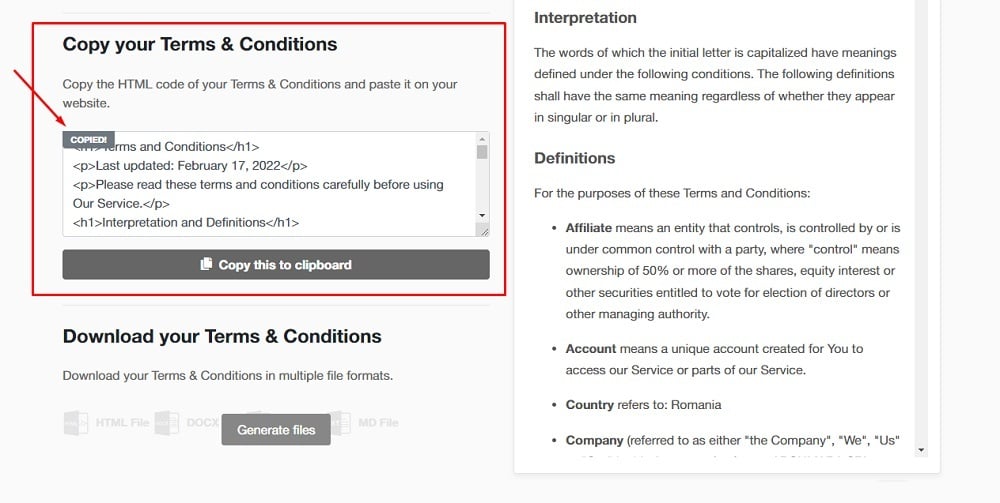
    TermsFeed App: Terms and Conditions Download page - Copy your Terms and Conditions section highlighted

  11. Paste the code in the "Insert HTML" window:
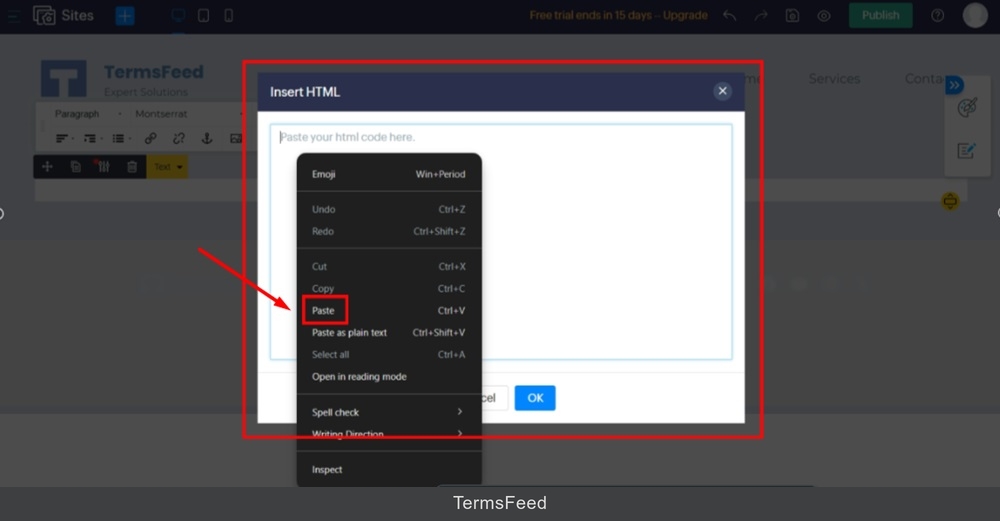
    TermsFeed Zoho - Sites - Pages - New page is added - Add element - Paragraph - editor - Code paste

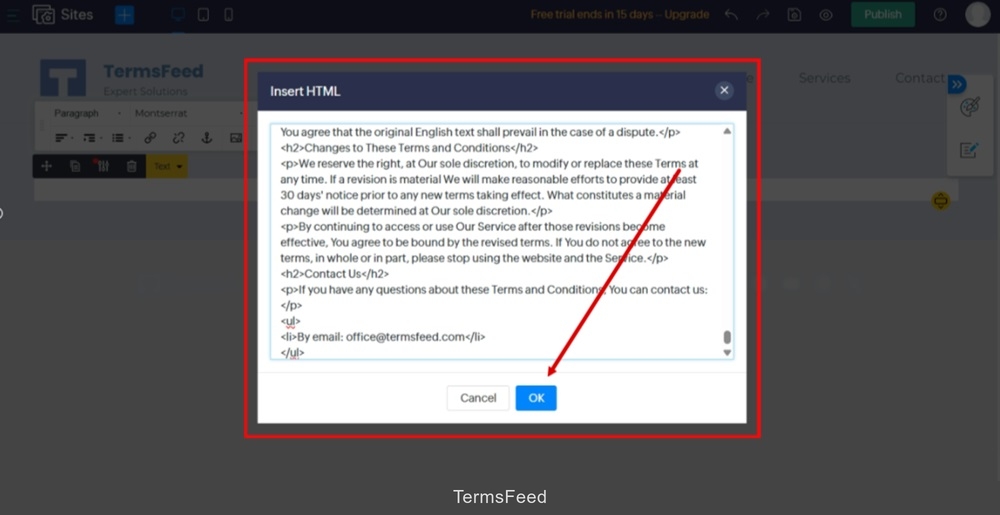
  12. Click "OK:"

    TermsFeed Zoho - Sites - Pages - New page Terms and Conditions is added - Add element - Paragraph - editor - Code pasted - OK

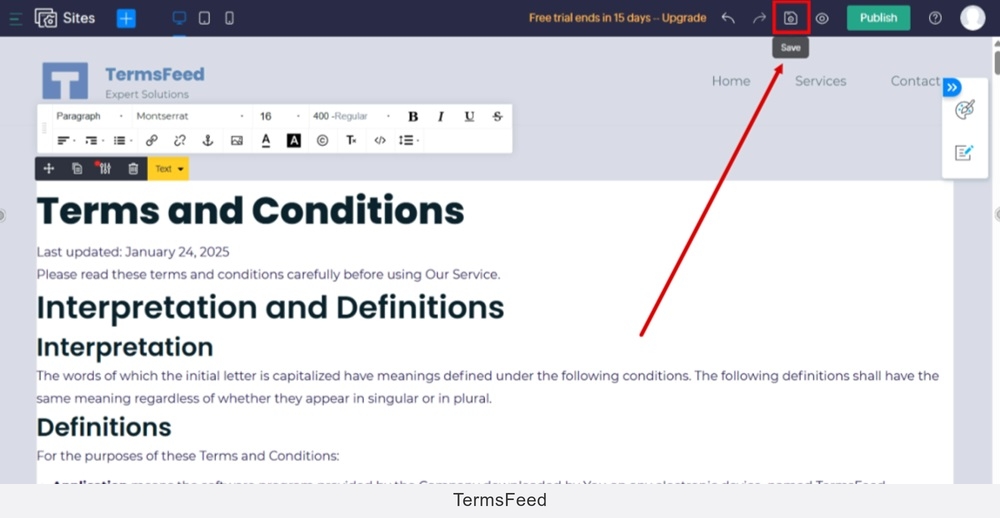
  13. Save changes:

    TermsFeed Zoho - Sites - Pages - New page Terms and Conditions is added - Add element - Paragraph - editor - Code pasted - OK - Save

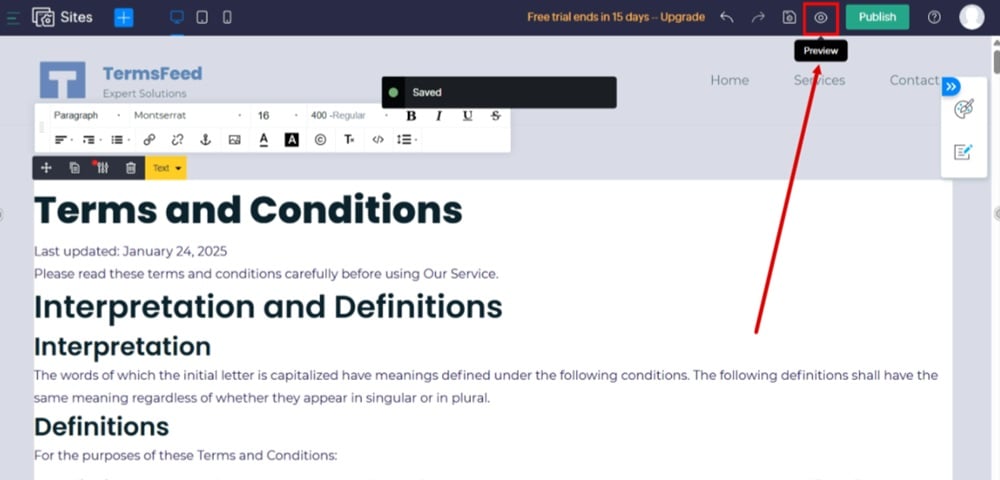
  14. Go to Preview to see changes:

    TermsFeed Zoho - Sites - Pages - New page Terms and Conditions is added - Add element - Paragraph - editor - Code pasted - OK - Save - Preview

  15. The Terms and Conditions page is displayed:
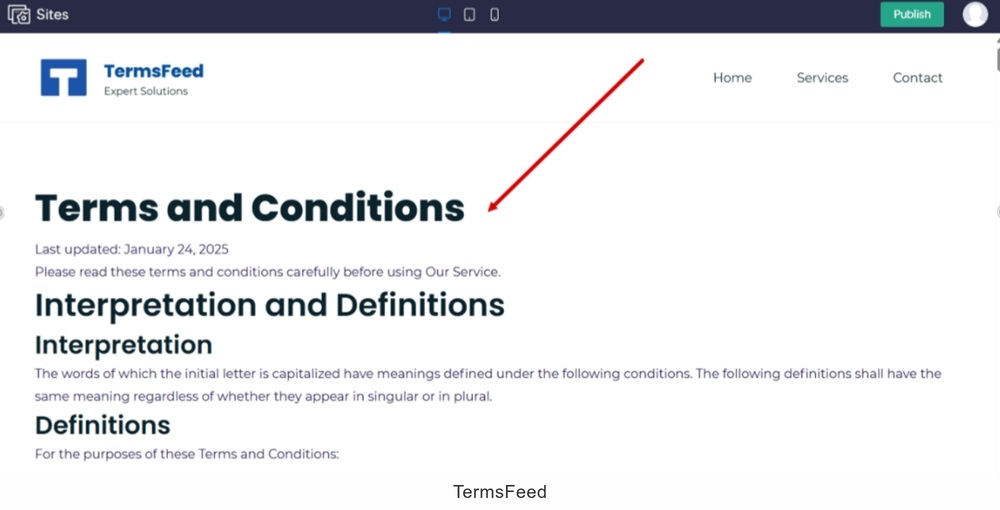
    TermsFeed Zoho - Sites - Pages - New page Terms and Conditions is added - Preview displayed

We've successfully created a new Terms and Conditions page with your content through the Insert HTML code.

Let's move to the next step.

  1. Go back to the dashboard. From "Configuration" options, select "Menus:"
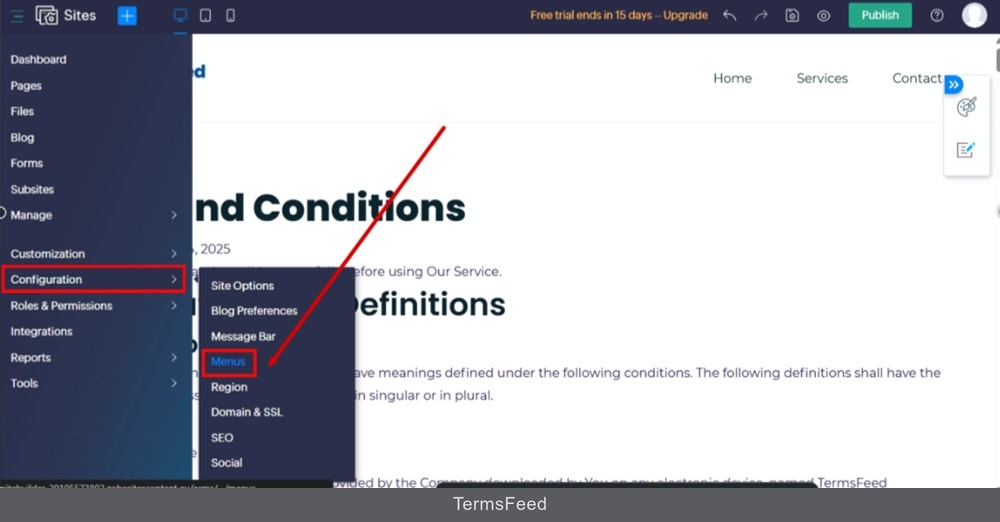
    TermsFeed Zoho - Sites - Pages - Terms and Conditions page - Dashboard - Configuration - Menus selected

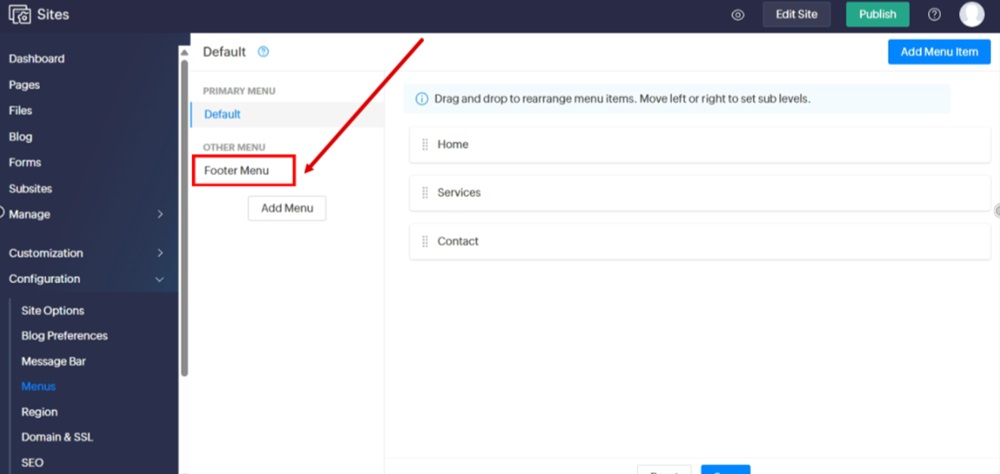
  2. Switch to the "Footer Menu:"

    TermsFeed Zoho - Sites - Menus - Footer Menu

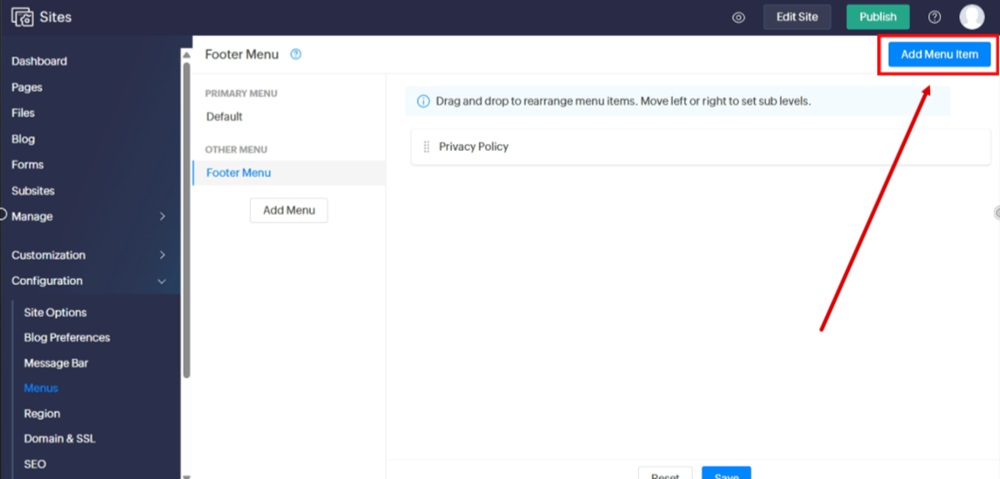
  3. Click the "Add Menu Item" button:

    TermsFeed Zoho - Sites - Menus - Footer Menu - Add Menu Item

  4. Select the Terms and Conditions page and click "Save" (at the bottom):
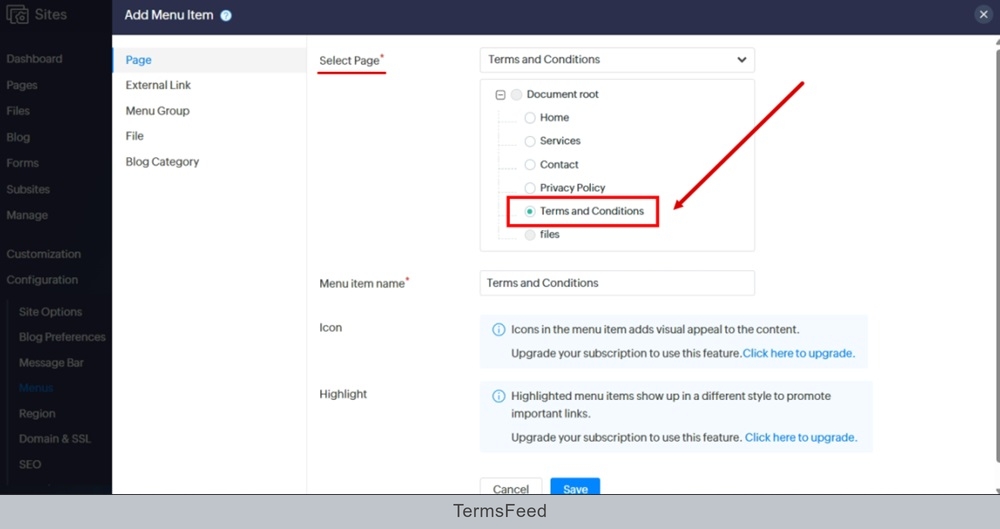
    TermsFeed Zoho - Sites - Menus - Footer - Saved - Add Menu Item - Terms and Conditions page selected

  5. Go to Preview to see changes:

    TermsFeed Zoho - Sites - Menus - Footer - Terms and Conditions added to menu - Preview changes

  6. The Terms and Conditions page is linked and displayed at the footer of your Zoho website.
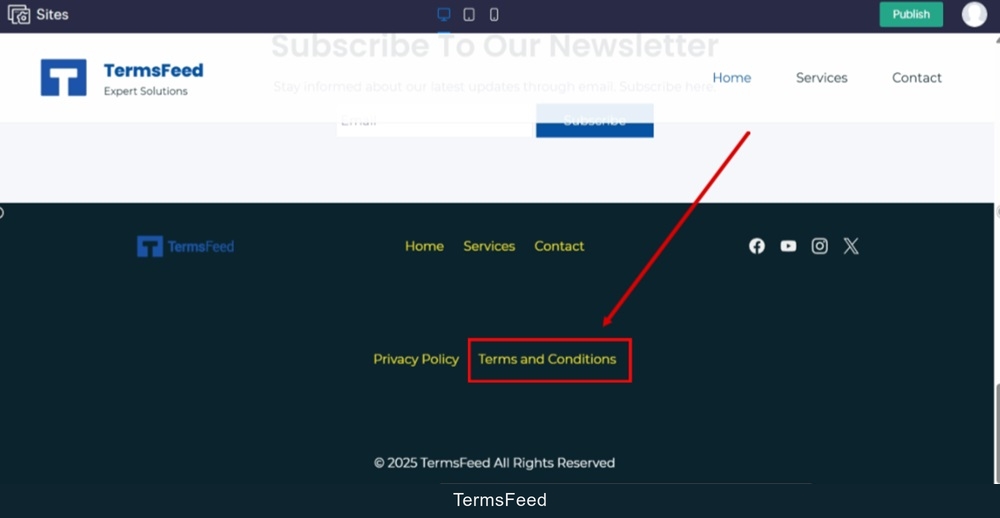
    TermsFeed Zoho - Sites - Preview - Footer - The Terms and Conditions page is linked and displayed