
In this video we'll show you how to:
- Create a new menu on your Zoho Site
- Add a new URL to the menu
- Update the website footer with the new menu element that links to your Privacy Policy
Let's get started.
-
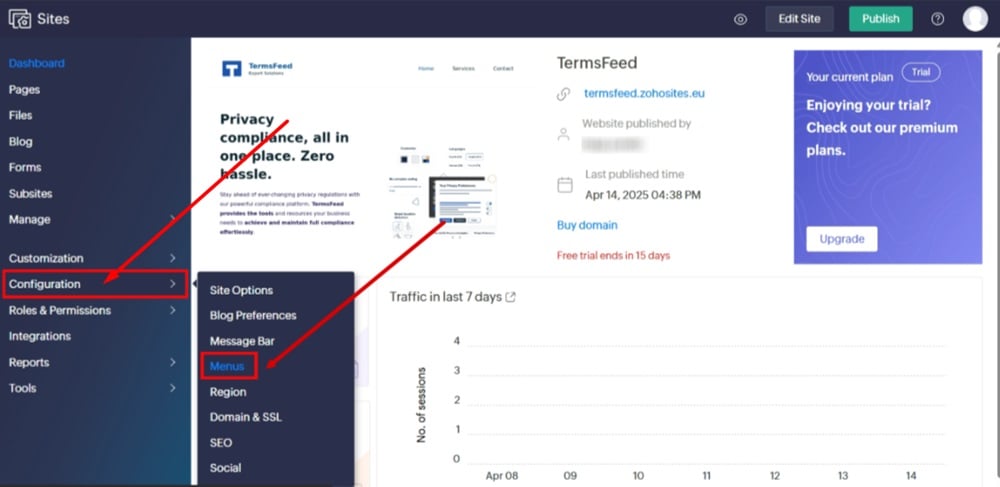
Log in to your Zoho Sites dashboard and go to "Configuration" and select "Menus:"
-
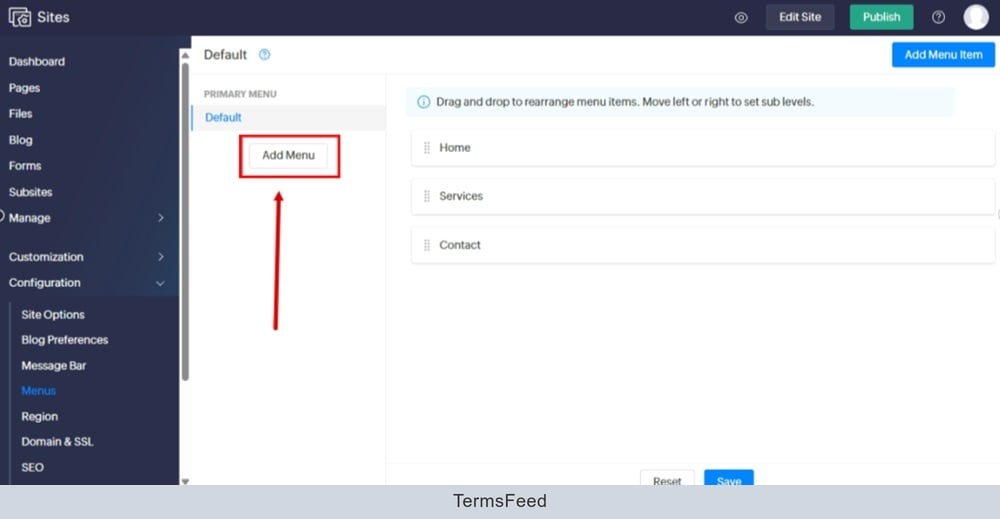
Click the "Add Menu" button:
-
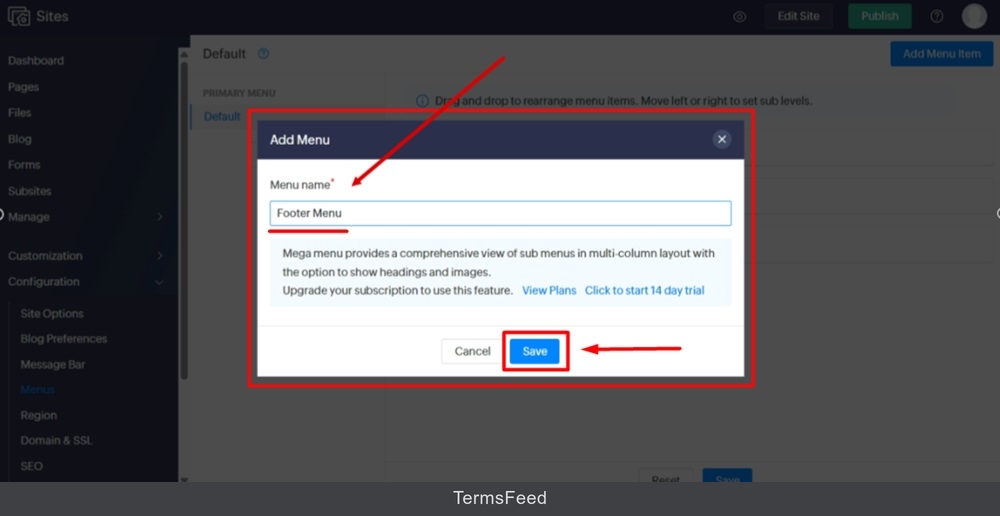
Name your menu. For example, "Footer Menu," and click "Save:"
-
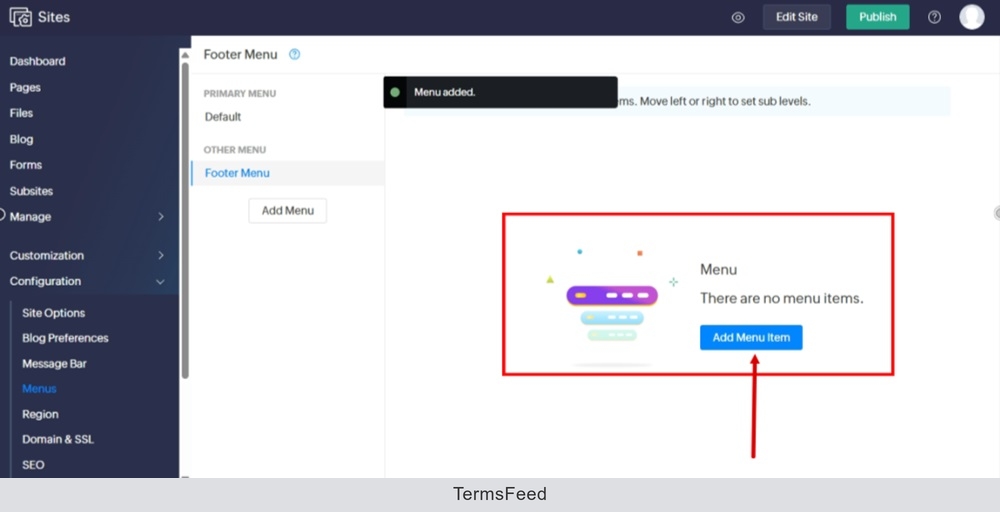
Click the "Add Menu Item" button:
-
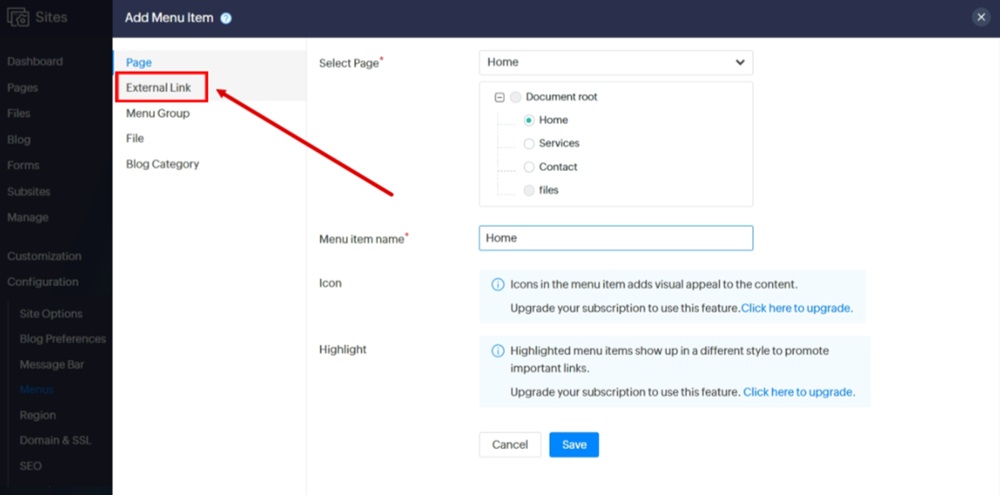
Switch to the "External Link" option:
-
Fill in the "External Link URL" required field.
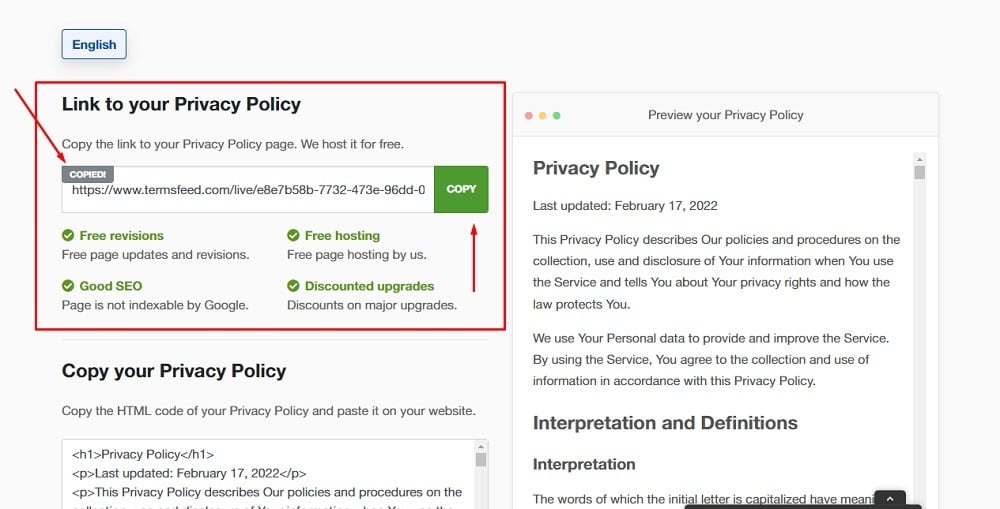
To get a Privacy Policy URL link, go to the TermsFeed Privacy Policy Generator to create a Privacy Policy and get the hosted Privacy Policy URL.
Once you have a Privacy Policy created by TermsFeed, click Copy from the Link to your Privacy Policy section to copy the URL:
-
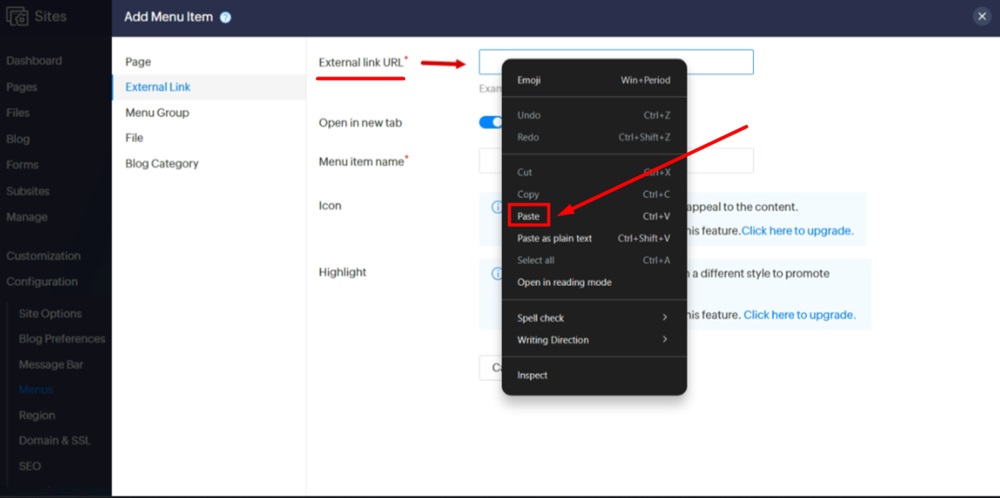
Paste the URL in the "External Link URL" field:
-
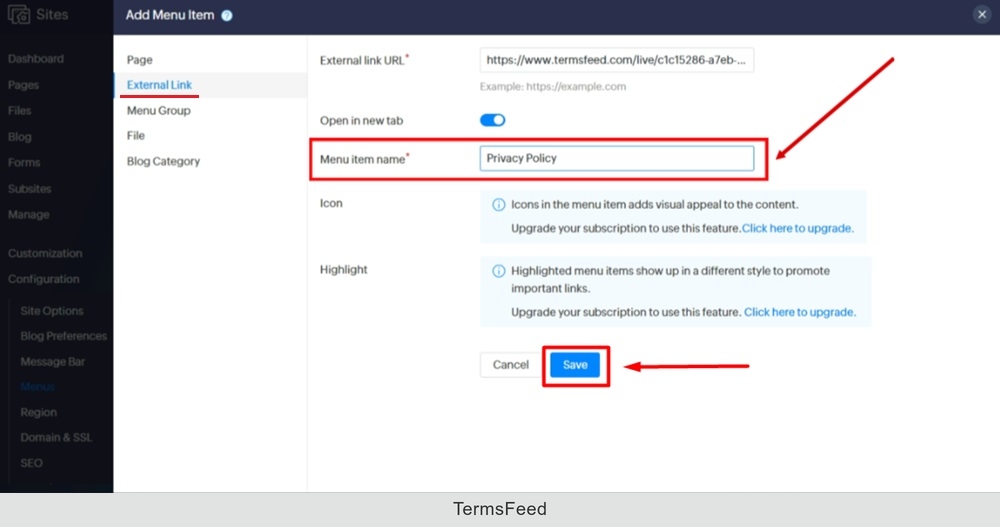
Add "Privacy Policy" in the "Menu Item Name" required field and click "Save" (at the bottom):
-
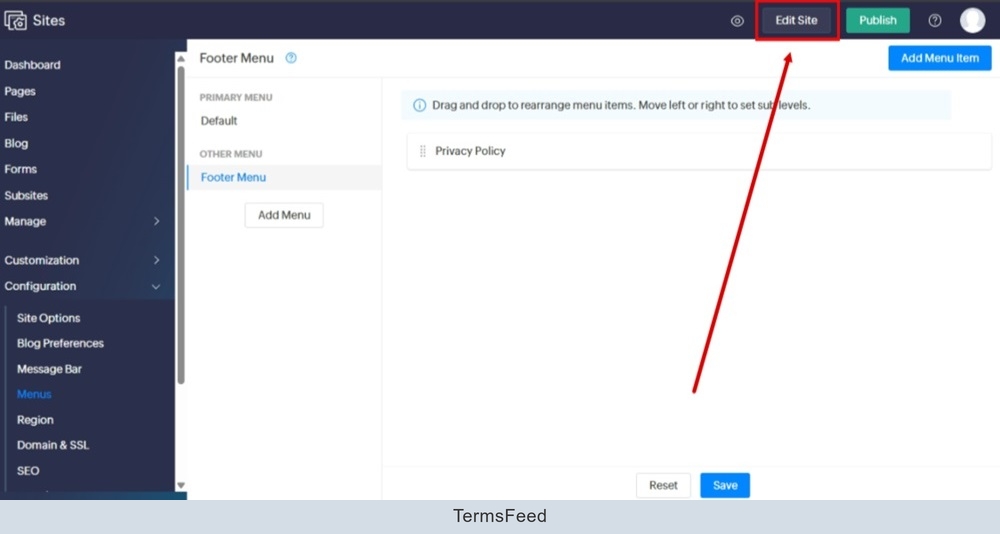
Go to the Edit Site (at the top):
-
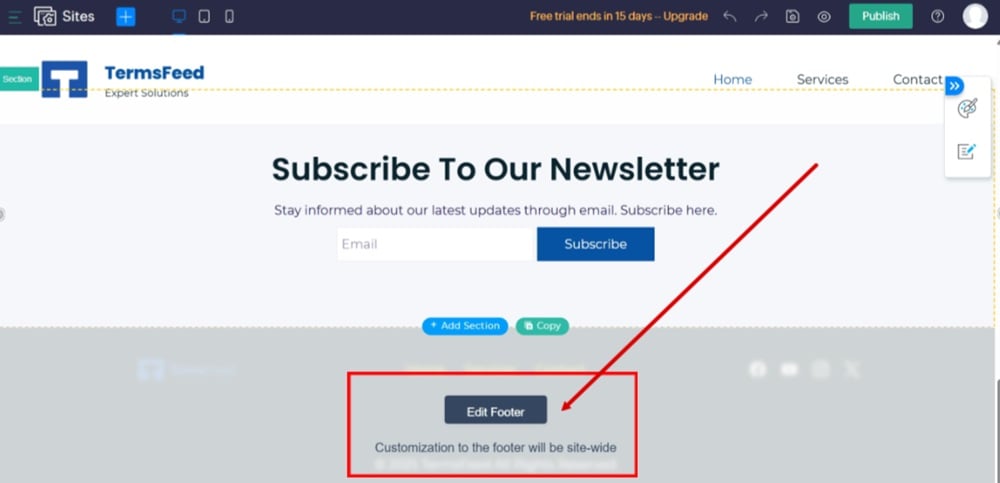
Click the "Edit Footer" button:
-
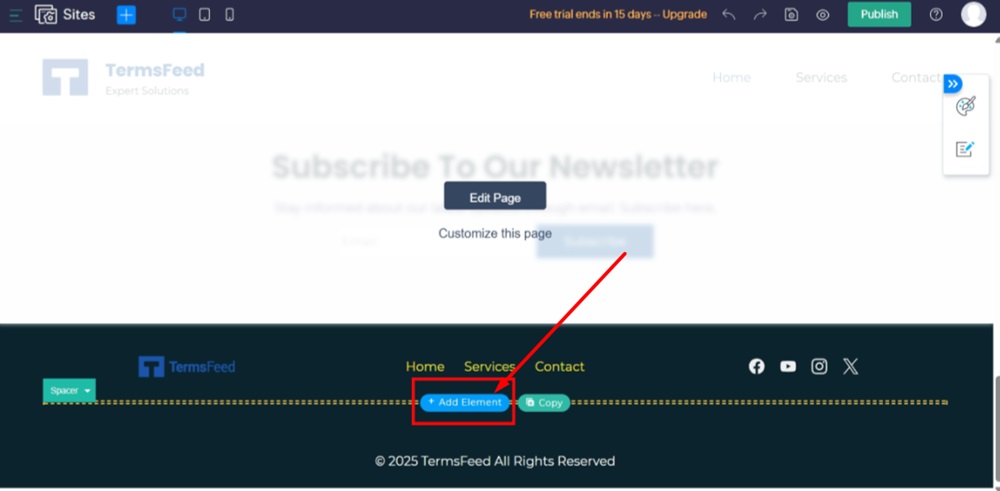
Add an element:
-
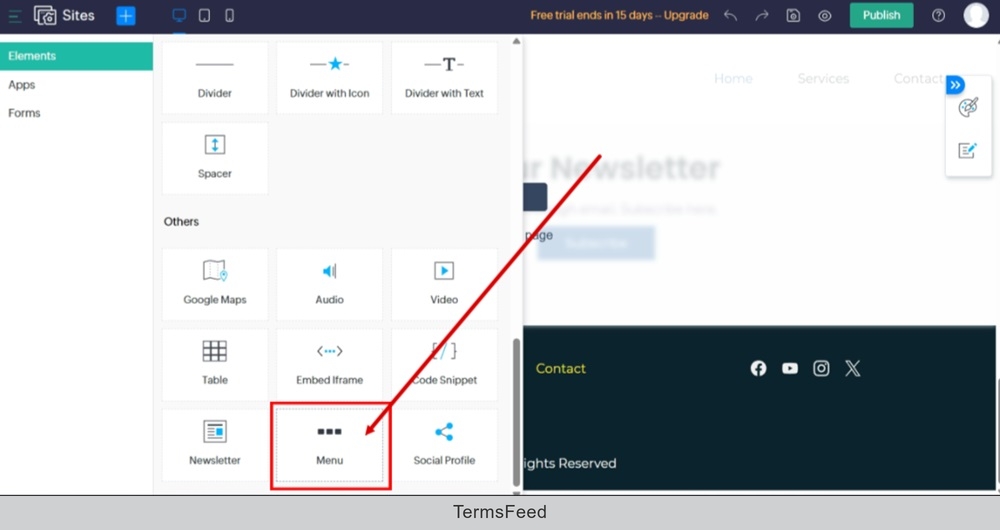
Select the "Menu" widget to add:
-
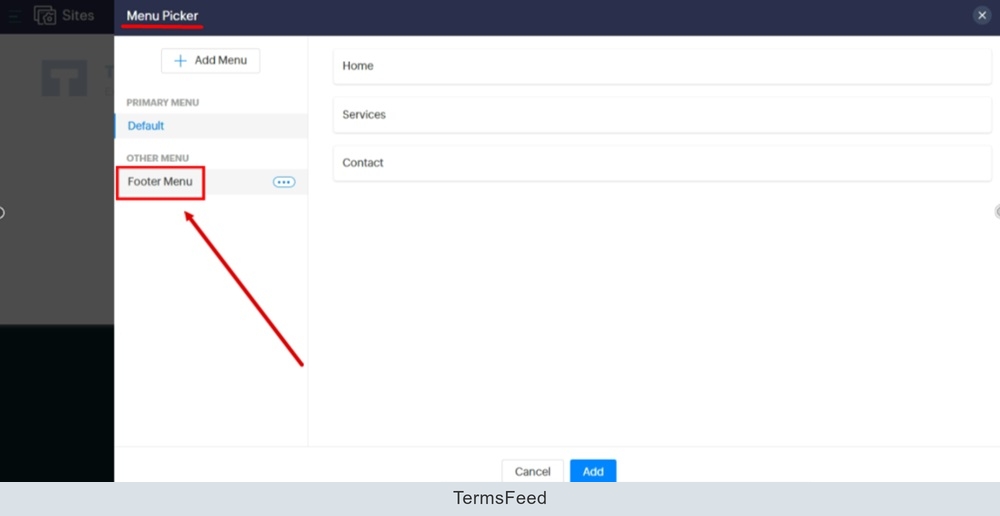
From the Menu Picker, select the "Footer Menu:"
-
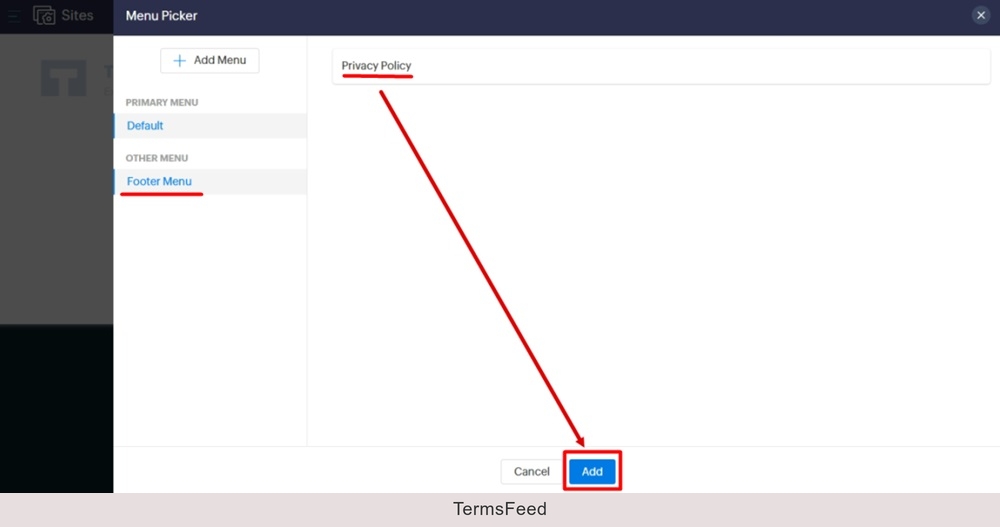
The Privacy Policy page is in the Footer Menu. Click "Add" (at the bottom):
-
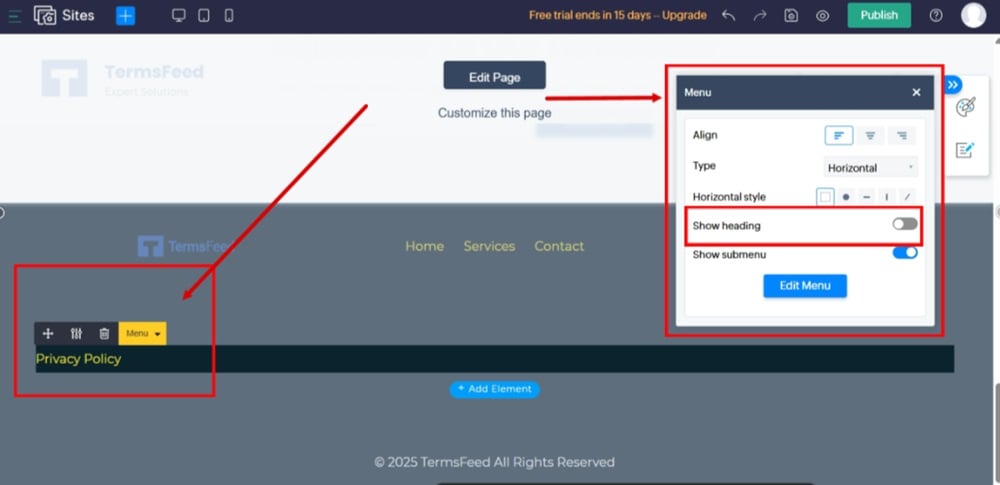
Adjust the Menu settings for your needs:
-
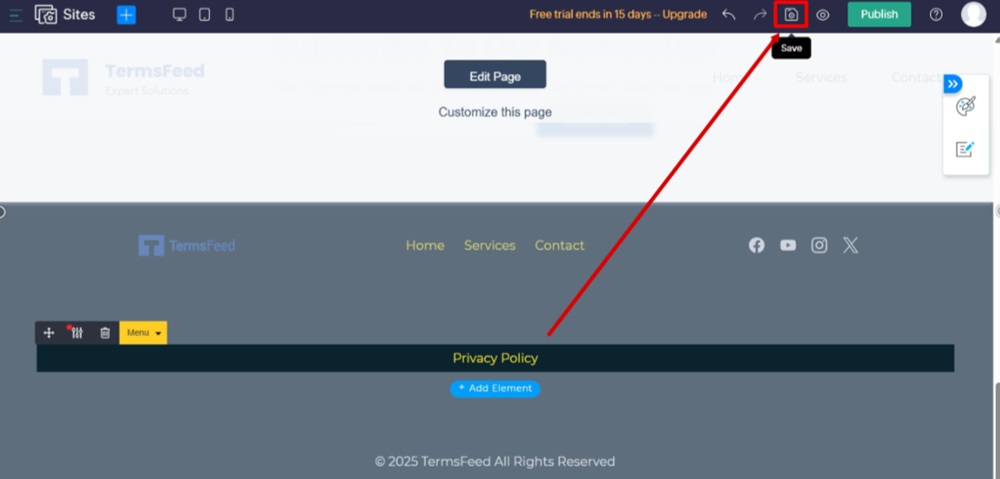
Save changes:
-
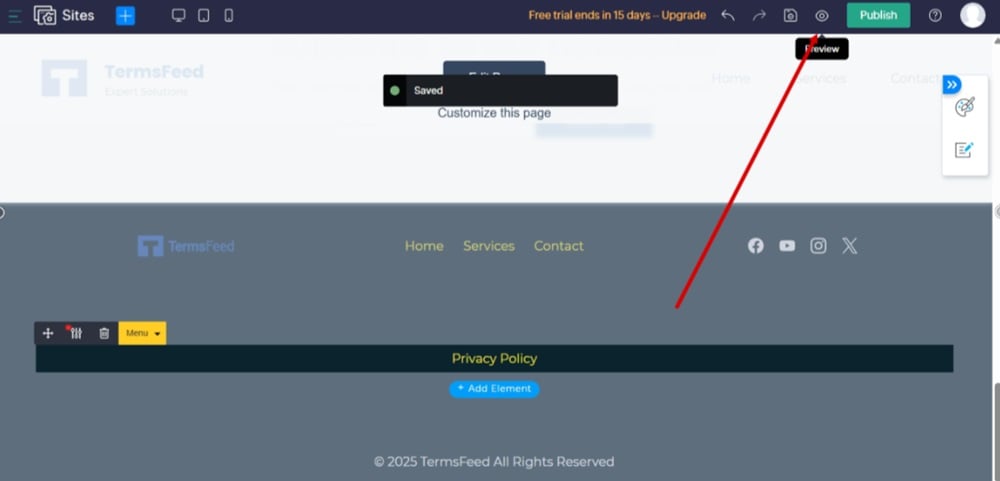
Go to Preview to see changes:
-
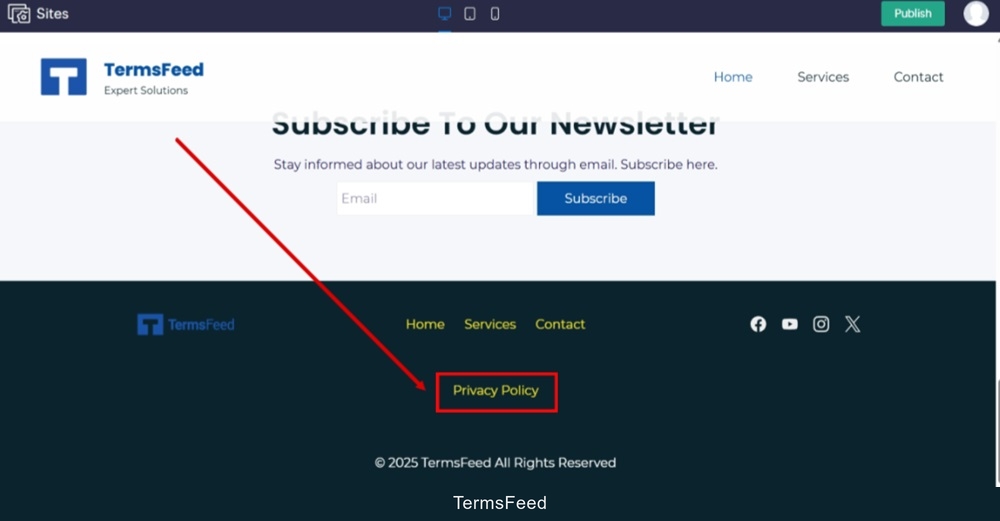
The Privacy Policy URL is linked and displayed at the footer of your Zoho website.


Done.


