In this video, we'll show you how to:
- Get Zoho Forms for your account
- Create a new form
- Add the Terms and Conditions text and the element to the form
Let's start:
-
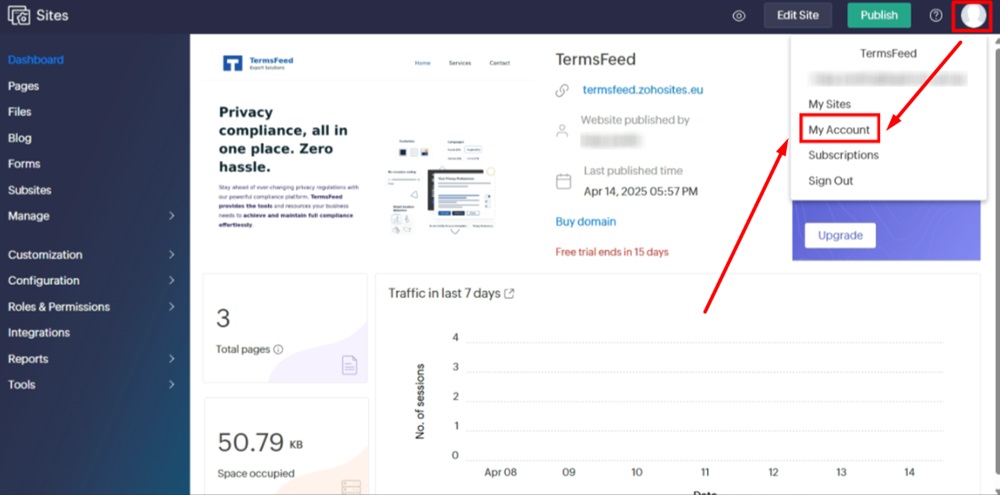
Log in to your Zoho account and select "My account" from your profile:
-
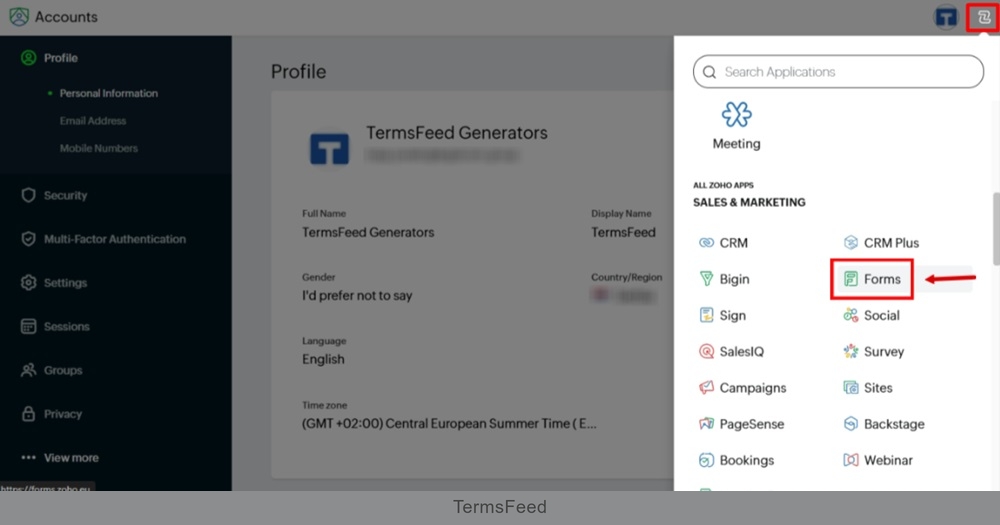
From Zoho Projects, find the Zoho Forms:
-
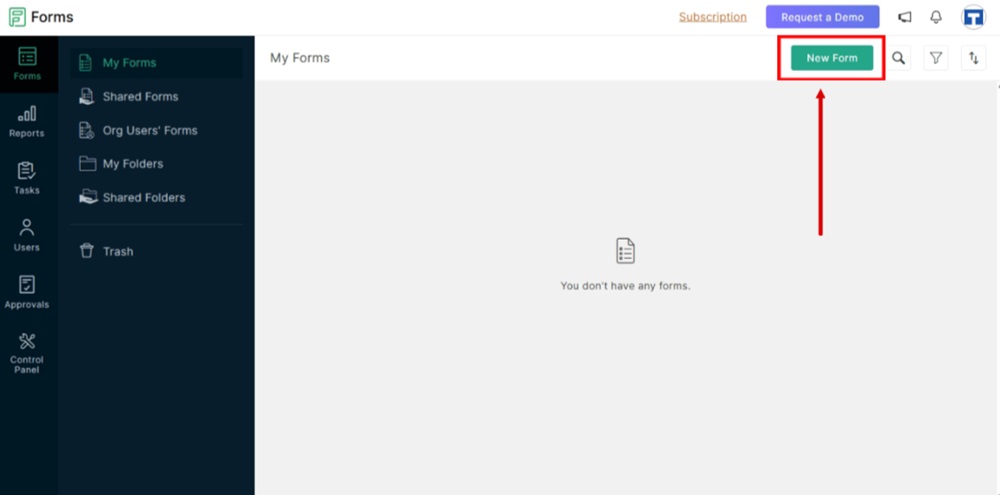
Click the "New Form" button:
-
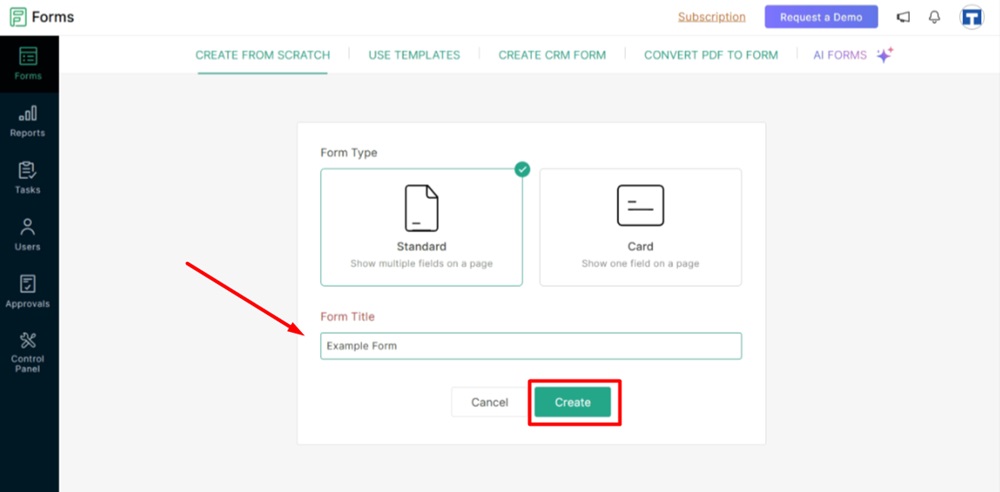
Name your form and click "Create:"
-
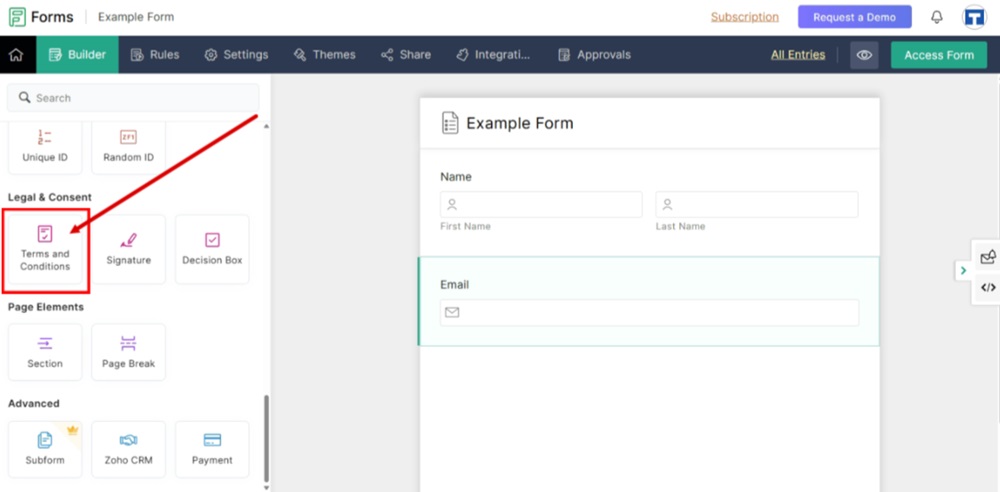
Add some form elements. For example, add the "Name" and "Email" fields to the form. Scroll down to the "Legal & Consent" section and drag and drop the "Terms and Conditions" element to the form:
-
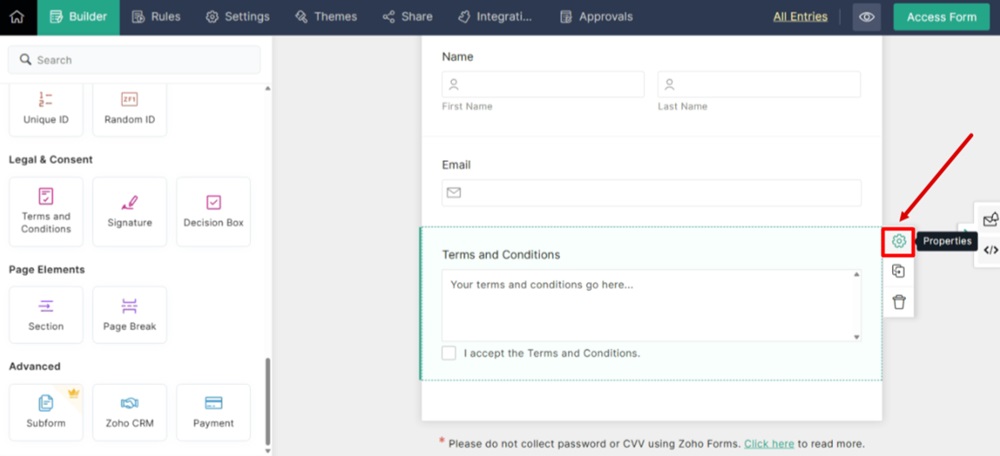
Open the field properties:
-
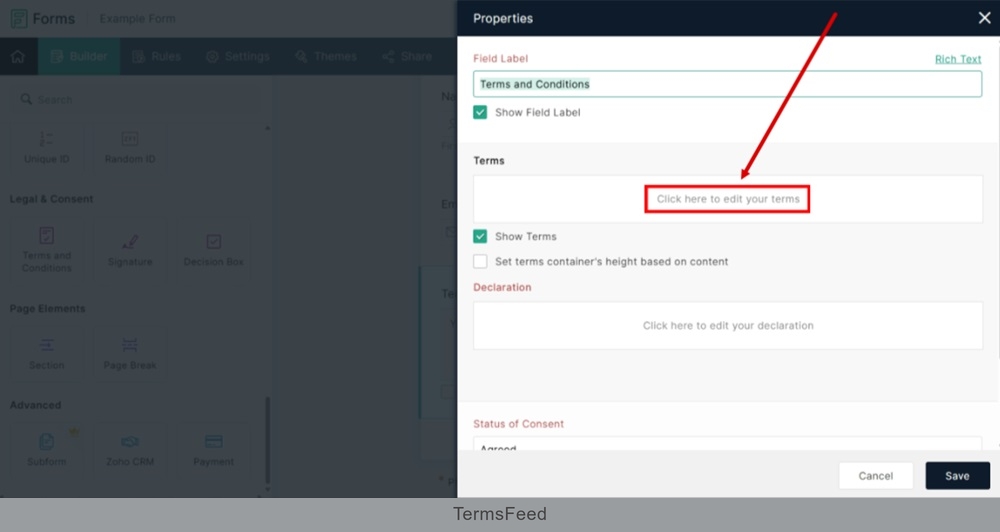
Under the Terms field box, click in the field to edit your terms:
-
The new "Edit Terms" window opens. Add the text of your Terms and Conditions in the editor.
If you do not have a Terms and Conditions, you can use our Terms and Conditions Generator and create one within minutes.
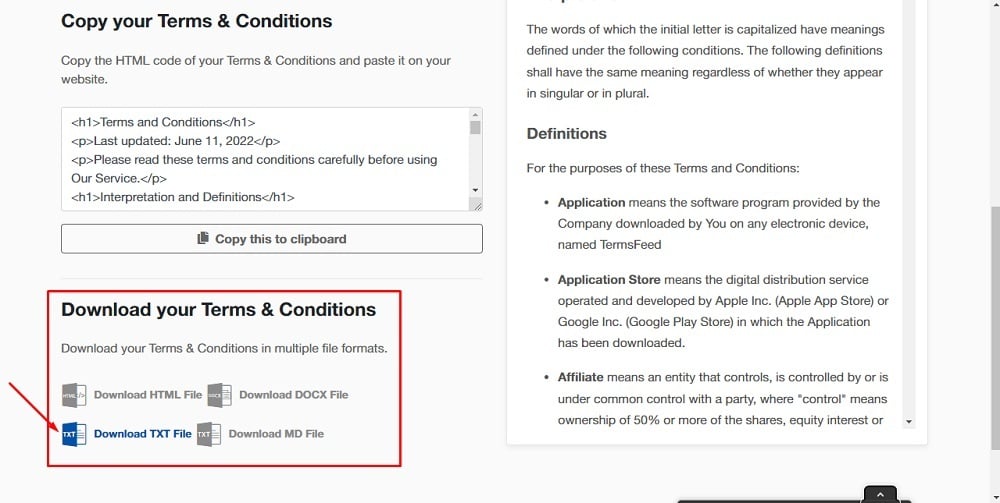
Once you have the Terms and Conditions created by TermsFeed, let's get the policy text. You can copy the HTML variant of the policy or download the Plain Text file format:
-
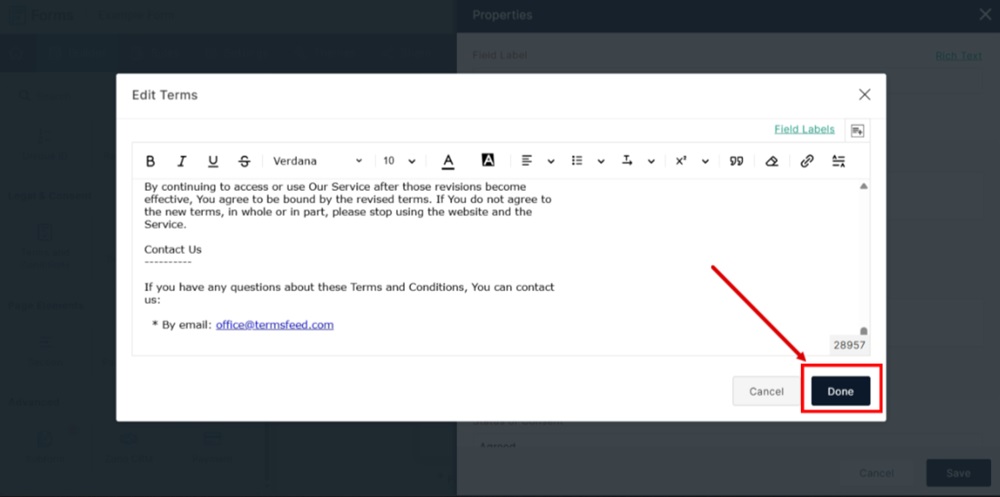
Paste the text of your Terms and Conditions in the editor and click the "Done" button:
-
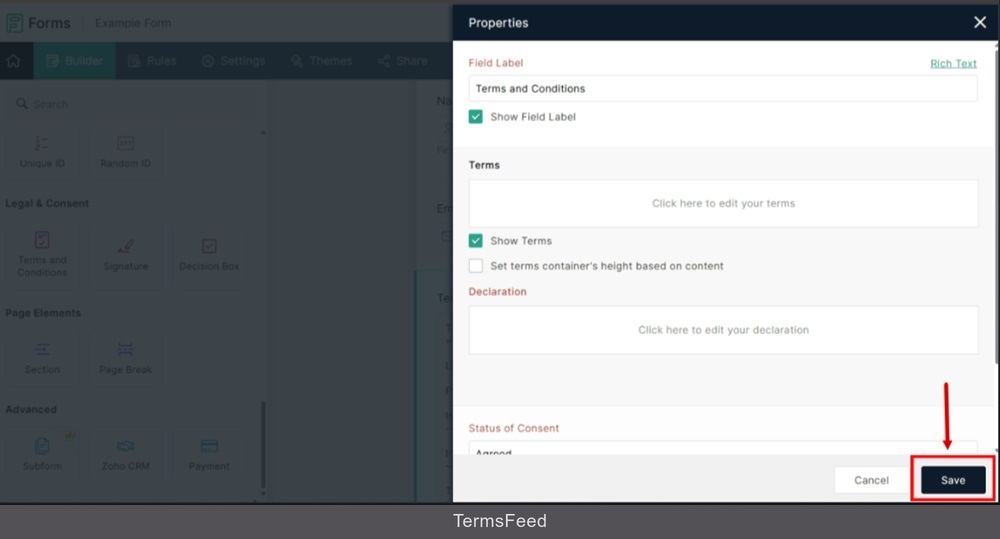
Click "Save" at the bottom:
-
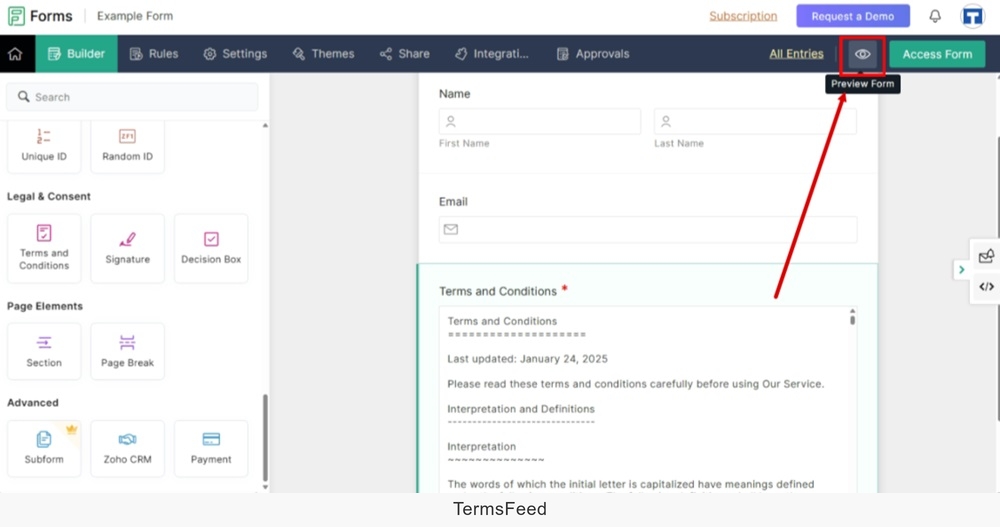
Go to the Eye icon to preview changes:
-
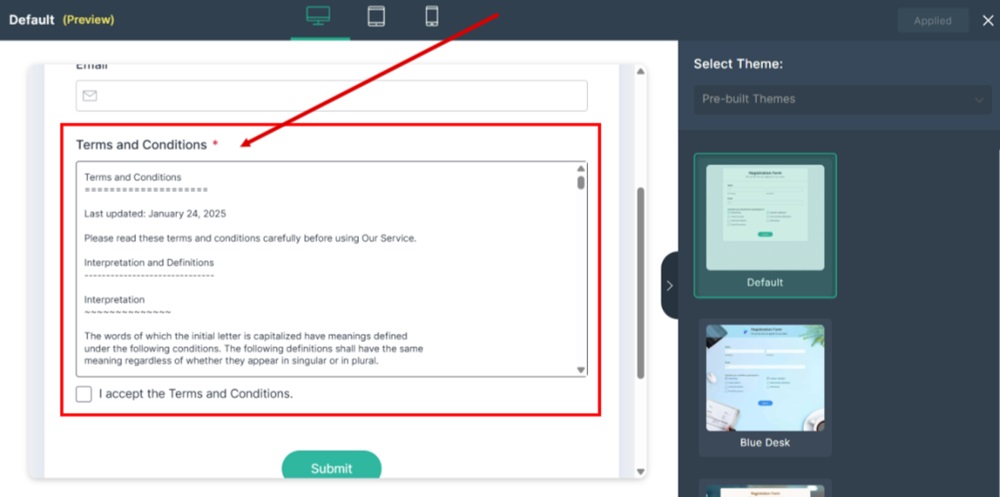
The Terms and Conditions field is displayed with its full text in a separate window, and a checkbox below as part of the Zoho Form: