Steps

  1. Log in to your Tilda account. Click "Edit site":
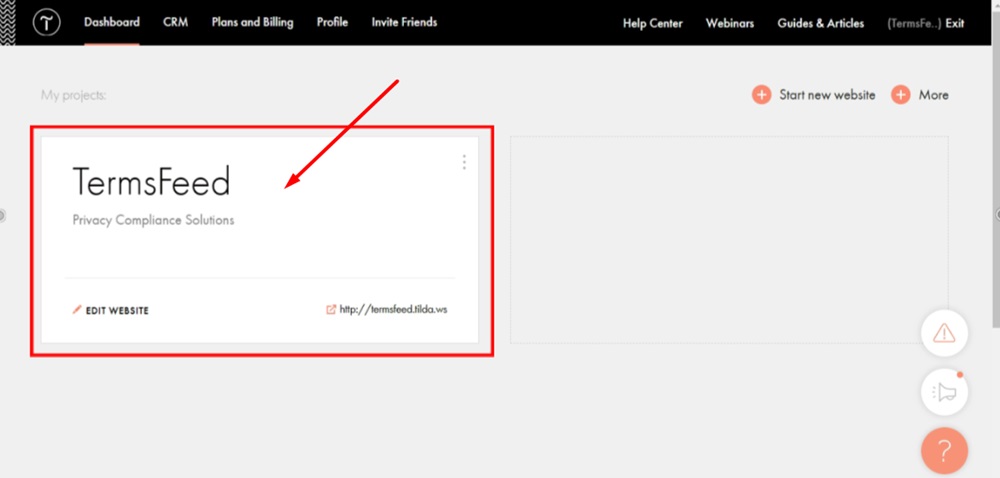
    TermsFeed Tilda - Dashboard - Edit website

  2. Go to the Header page to start editing it:
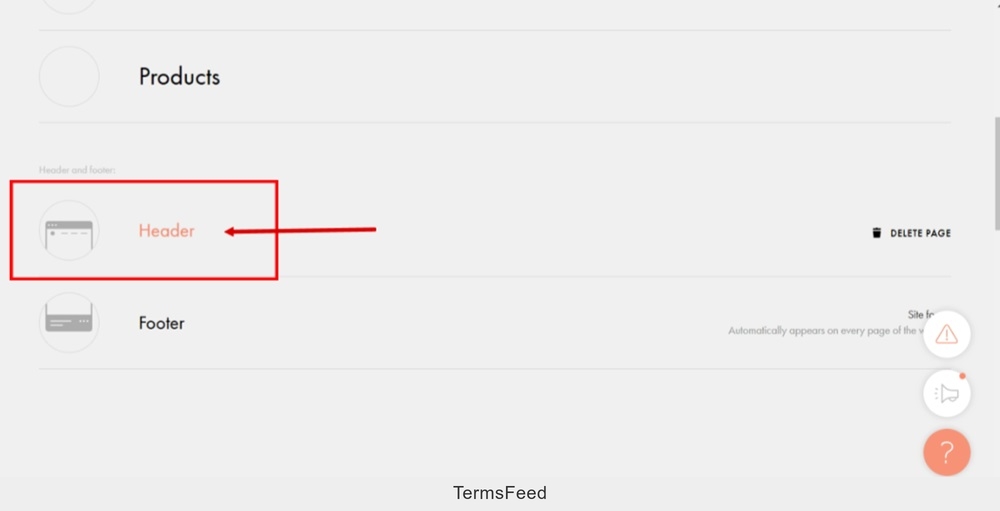
    termsfeed-tilda-edit-website-header-page

  3. To add a new block, click the "More Blocks" button:
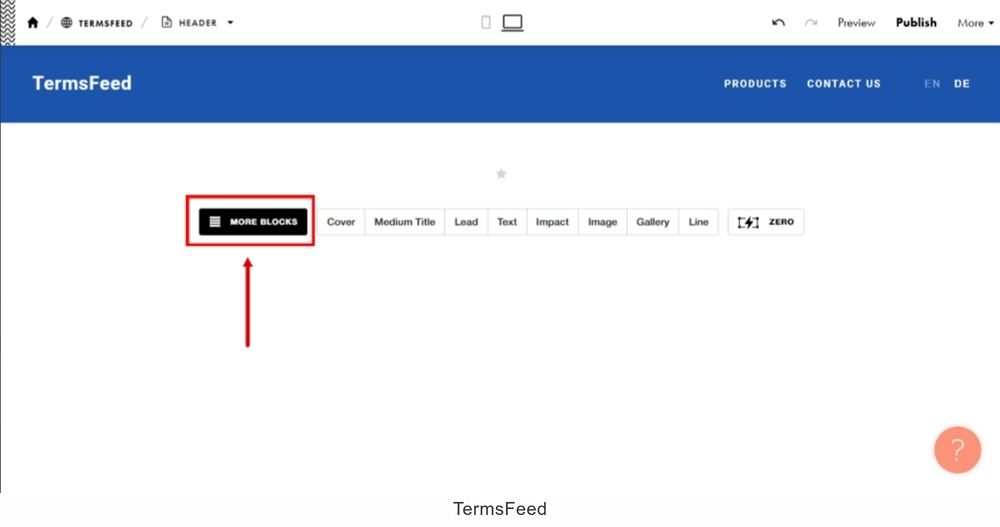
    TermsFeed Tilda - Edit Header page - More Blocks

  4. From the Block library, scroll to the "Store" and select the "Shopping cart with an order form" block to add:
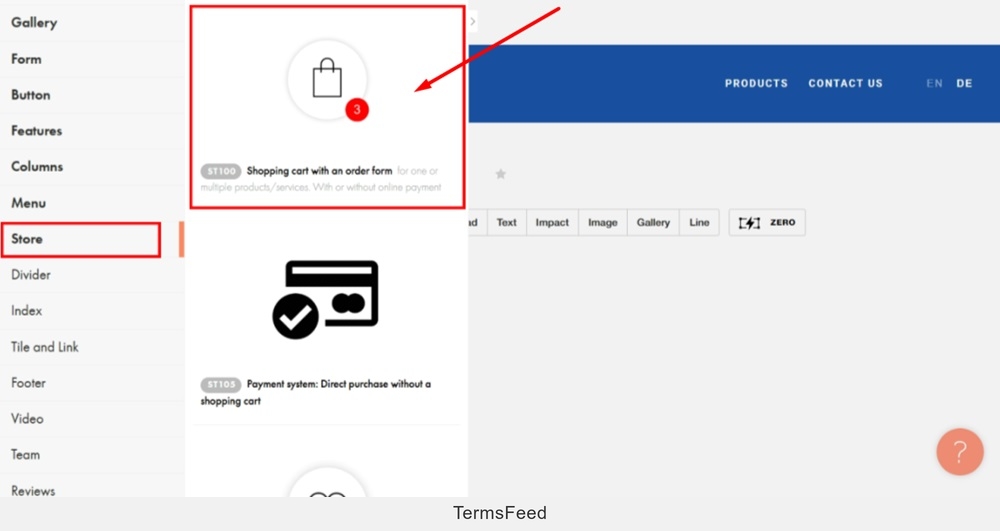
    TermsFeed Tilda - Edit Header page - More Blocks - Store -  Shopping cart with an order form

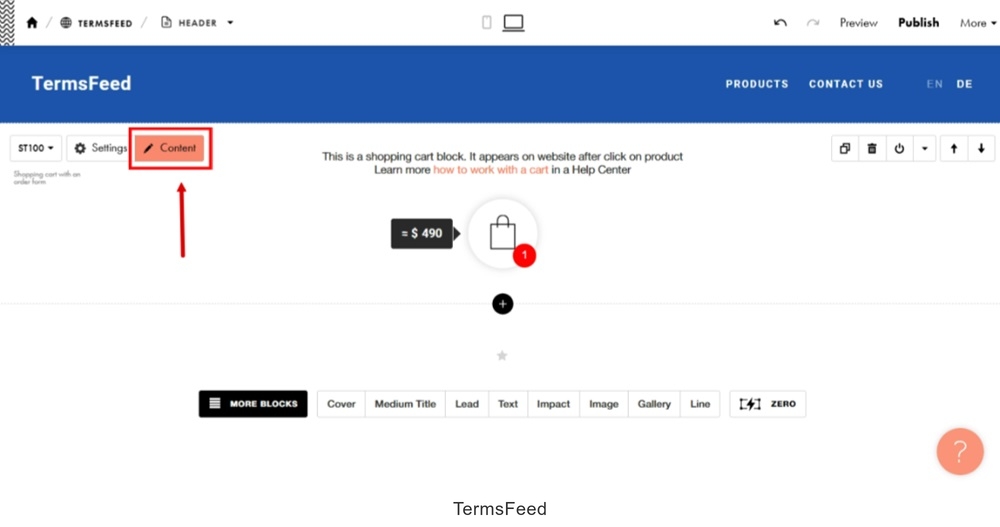
  5. Open the "Content" section:

    TermsFeed Tilda - Shopping cart with an order form added - Edit Content

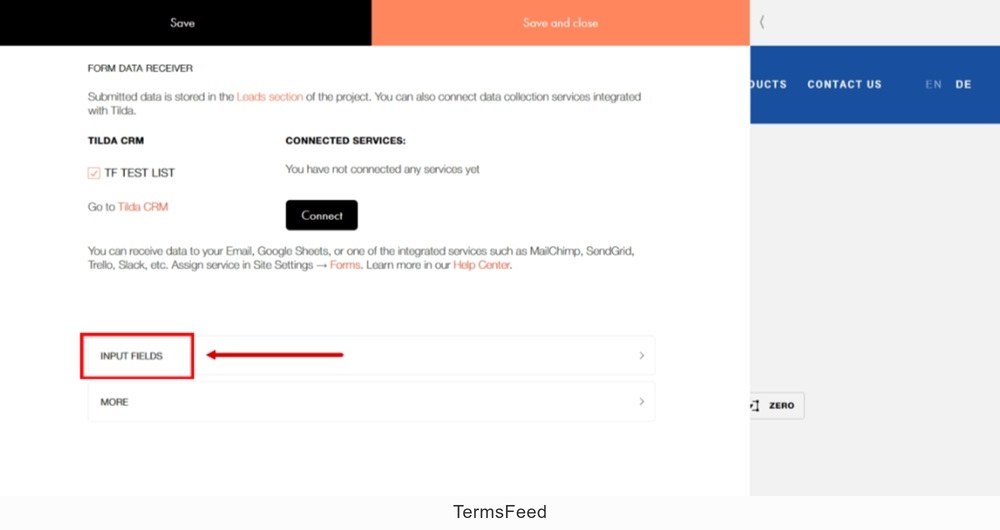
  6. Click the "Input Fields:"

    TermsFeed Tilda - Shopping cart with an order form - Edit Content - Input Fields

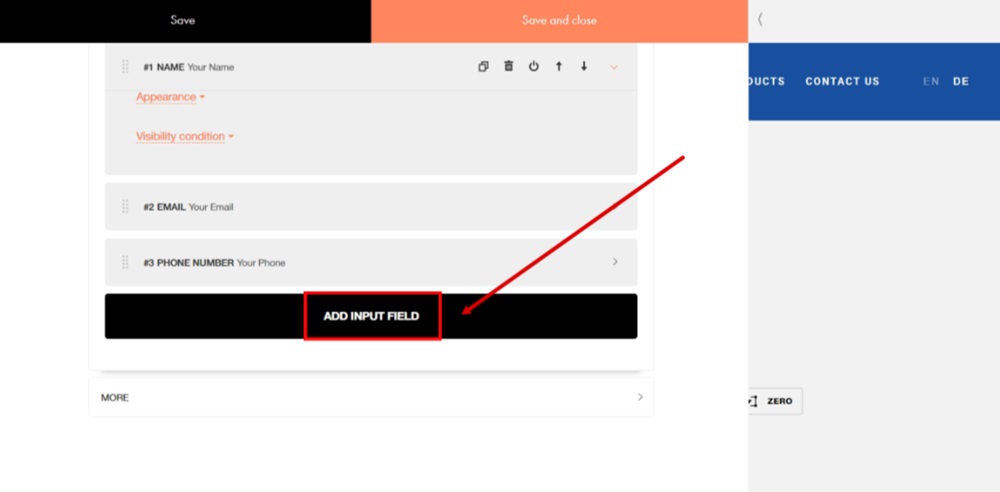
  7. Click the "Add Input Field" button:

    TermsFeed Tilda - Shopping cart with an order form - Edit Content - Input Fields - Add

  8. In the "Type" field, select "Checkbox" as the Input type:
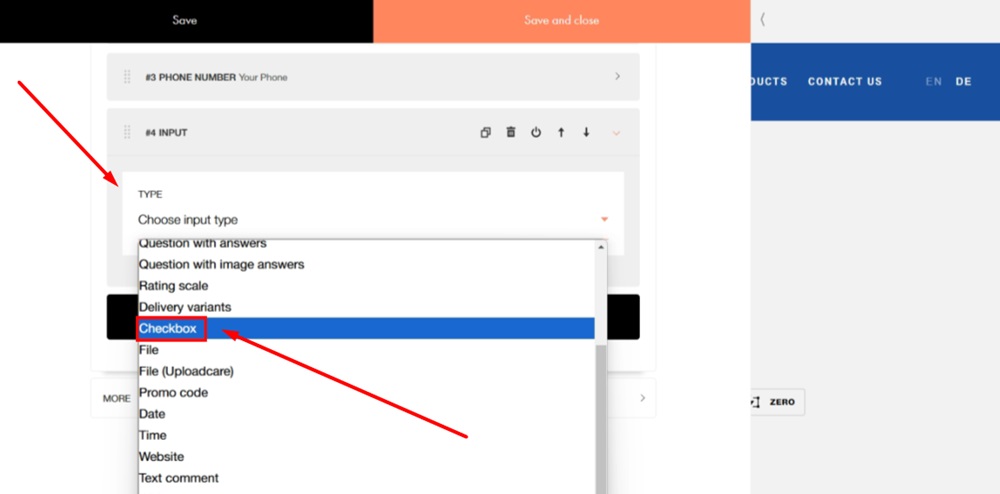
    TermsFeed Tilda - Shopping cart with an order form - Edit Content - Input Fields - Add - Type - Checkbox

  9. In the "Label" field type: "I agree to the Privacy Policy." Select the "Privacy Policy" words and click the Link icon:
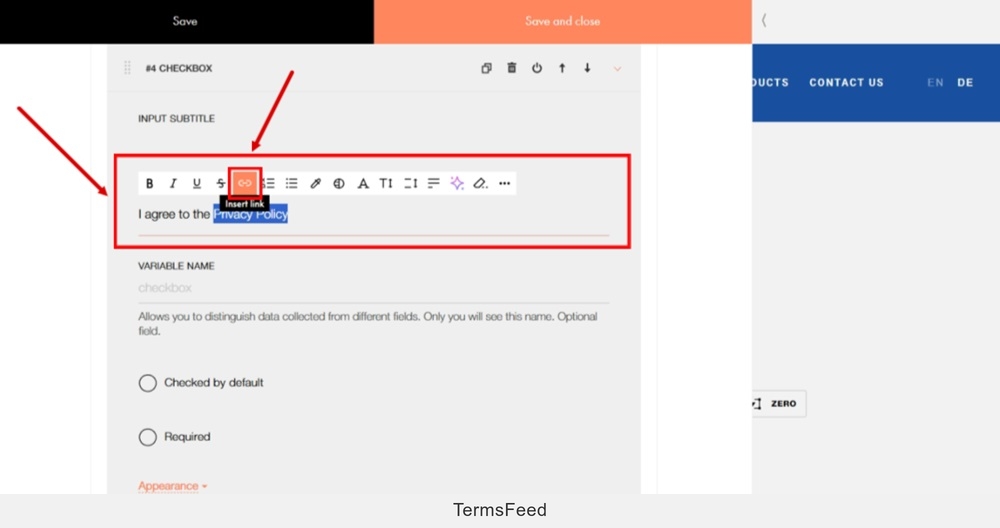
    TermsFeed Tilda - Shopping cart with an order form - Edit Content - Input Fields - Add - Label - I agree to the Privacy Policy - select Link icon

  10. A new "Enter a Link" window to add a link opens.

    To get a Privacy Policy URL link, go to the TermsFeed Privacy Policy Generator to create a Privacy Policy and get the hosted Privacy Policy URL.

    Once you have a Privacy Policy created by TermsFeed, click Copy from the Link to your Privacy Policy section to copy the URL:
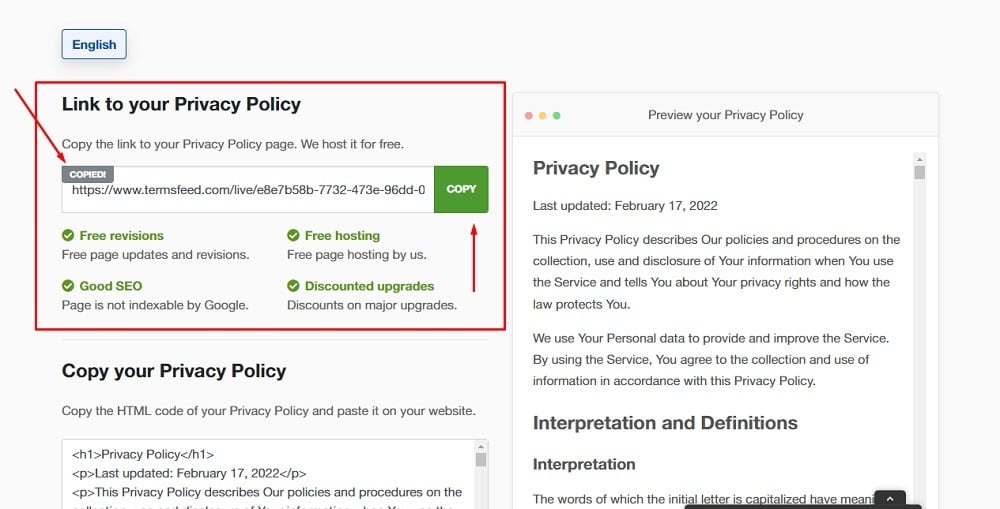
    TermsFeed Generators App: Privacy Policy Download Page - Link to hosted Privacy Policy URL copy option highlighted

  11. Paste the URL in the field. Check the "Open link in new tab" and click "Apply" button:
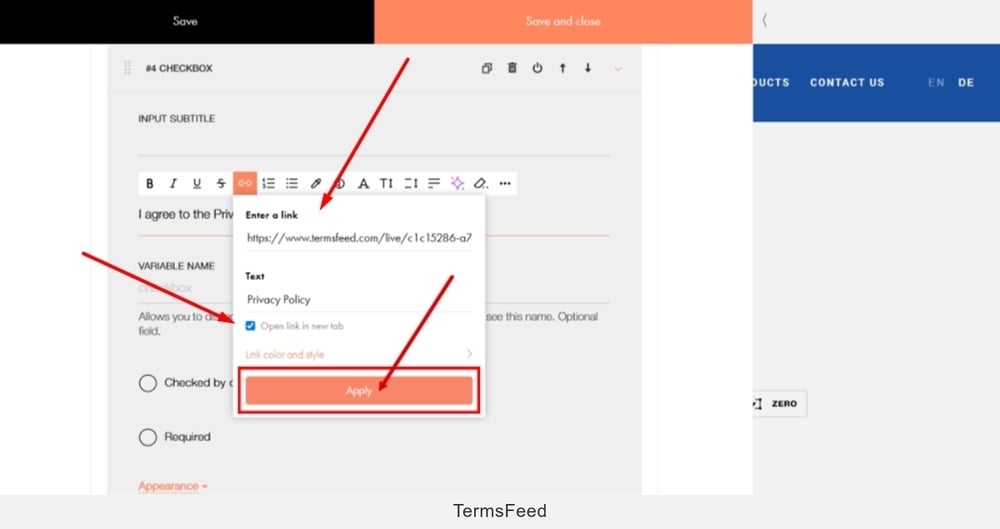
    TermsFeed Tilda - Shopping cart with an order form - Edit Content - Input Fields - Add - Label - I agree to the Privacy Policy - Link pasted - Apply

  12. Check the "Required" option and the "Save and close:"
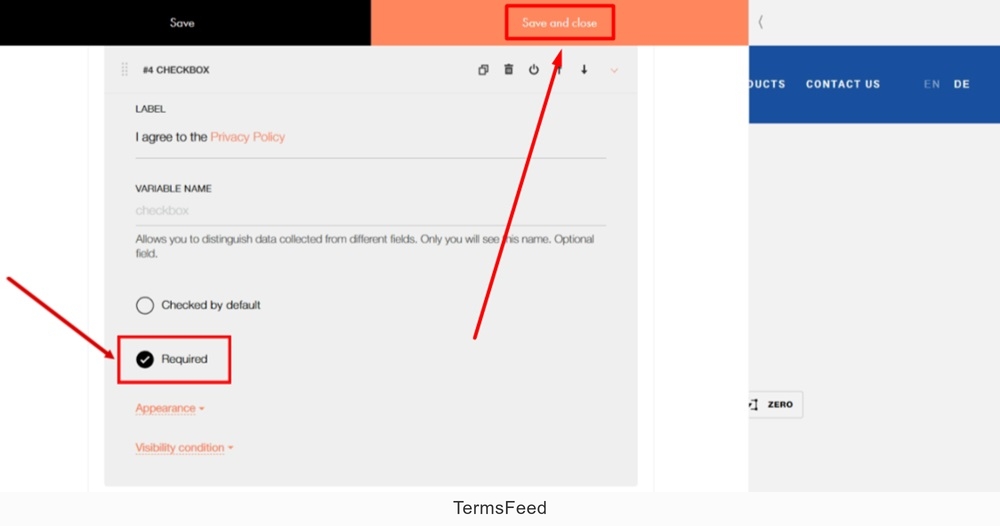
    TermsFeed Tilda - Shopping cart with an order form - Edit Content - Input Fields - Add - Required option - Save and close

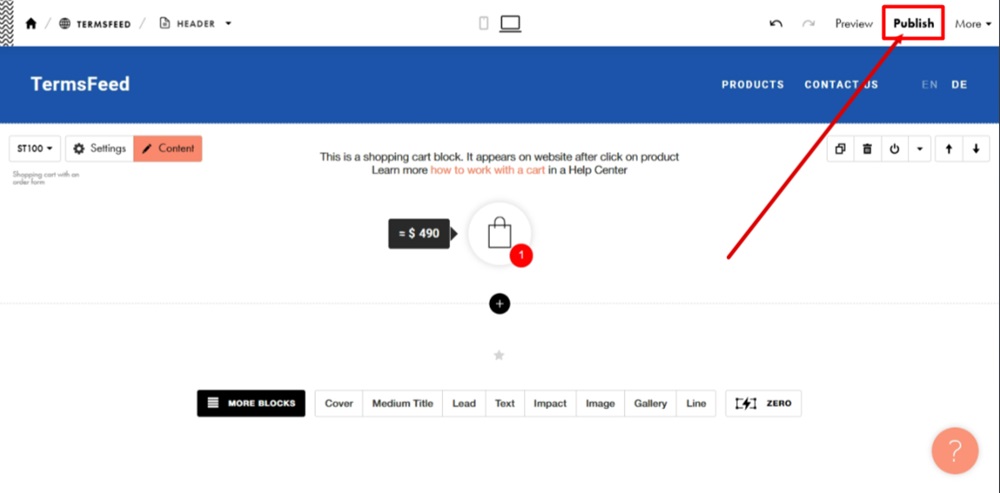
  13. Publish changes:

    TermsFeed Tilda - Header page editor - Shopping cart with an order form - edited - Publish

  14. Go back to the website and click "Publish All Pages:"
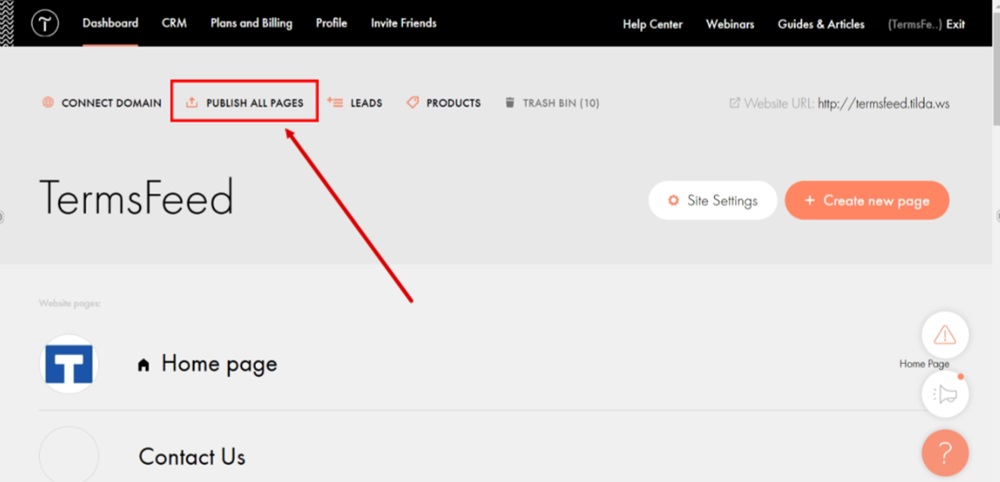
    TermsFeed Tilda - Edit website - Publish All Pages

  15. The cart order form that shows in a new window now has a new consent field - the checkbox with the "I agree to the Privacy Policy" text and a link to it:
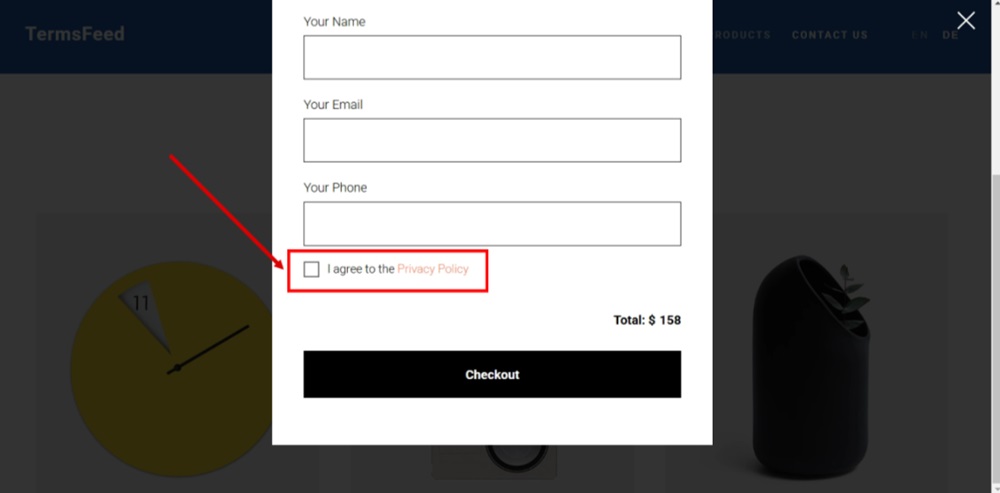
    TermsFeed Tilda - Published - Cart order form with an I agree to the Privacy Policy checkbox field displayed