Steps

  1. Log in to your Pixpa account and go to Store:
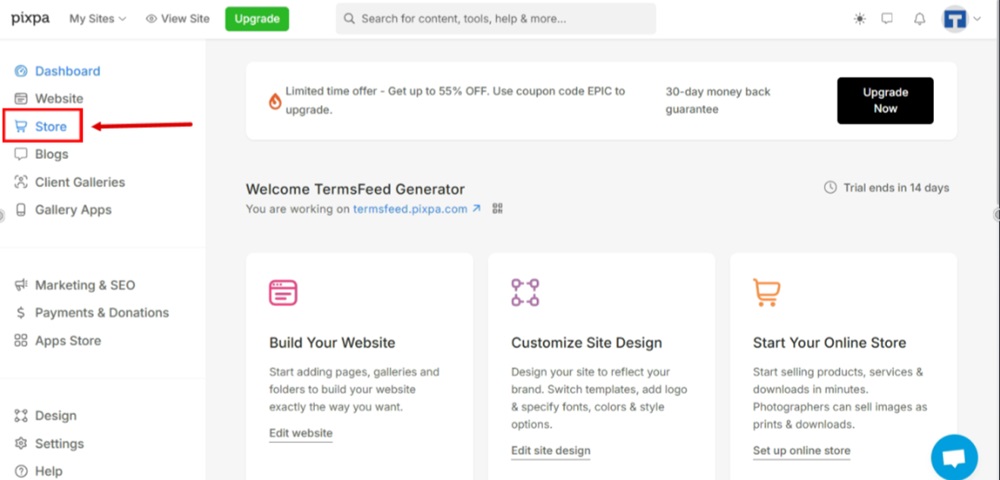
    TermsFeed Pixpa - Dashboard - Store

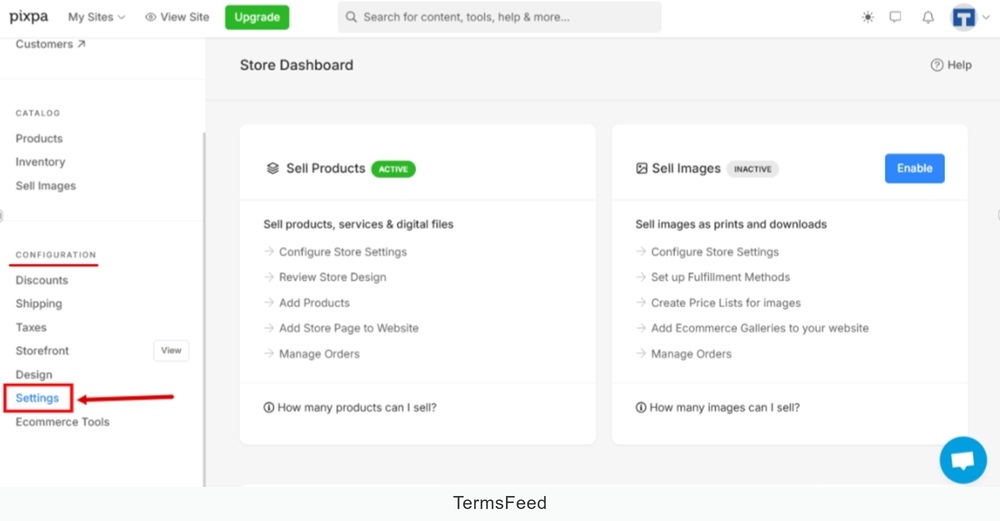
  2. Select Settings:

    TermsFeed Pixpa - Store - Settings

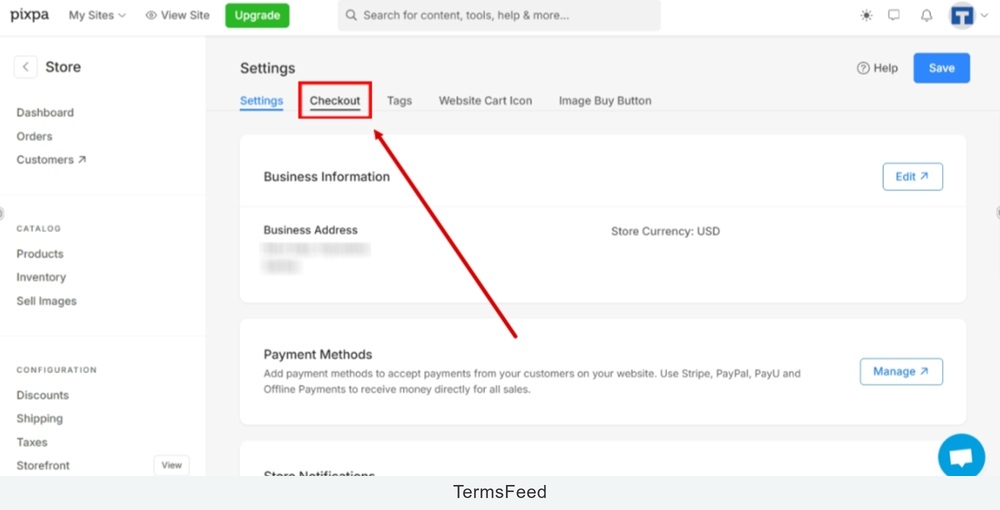
  3. Switch to the Checkout tab:

    TermsFeed Pixpa - Store - Settings - Checkout tab

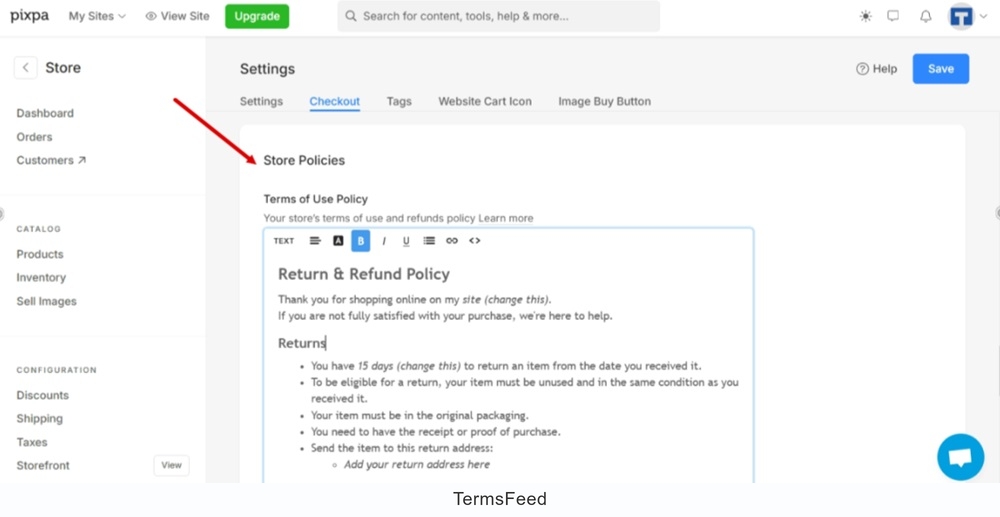
  4. Scroll down to the Store Policies:

    TermsFeed Pixpa - Store - Settings - Checkout tab - Store Policies

  5. Select the code icon from the text editor. Select the entire code and delete it:
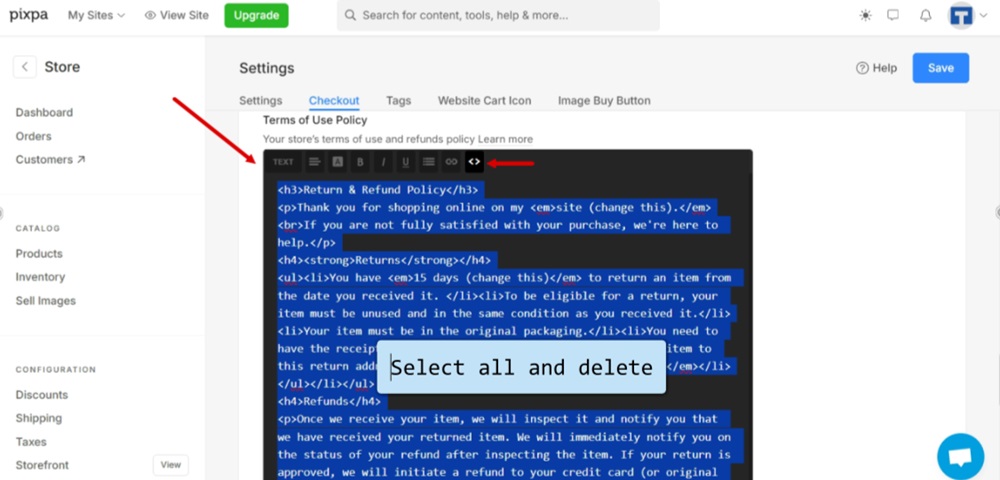
    TermsFeed Pixpa - Store - Settings - Checkout tab - Store Policies - Text editor - Select code icon - Select all code and delete it

  6. Add the HTML code of your Return and Refund Policy.

    If you do not have a Return and Refund Policy, you can use our Return and Refund Policy Generator and create it within minutes.

    On the download page, under the "Copy your Return and Refund Policy" section, click "Copy this to clipboard":
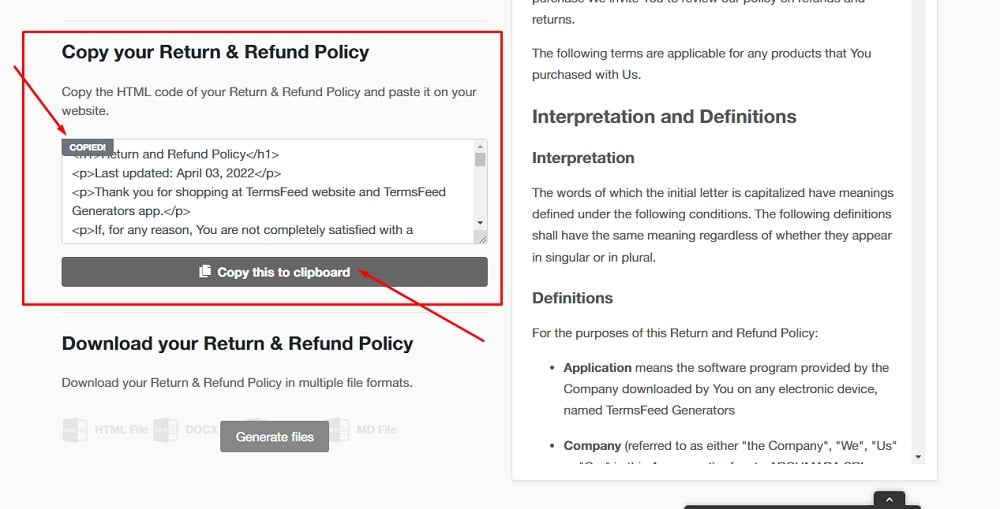
    TermsFeed App: Return and Refund Policy Download page - Copy your Return and Refund Policy section highlighted

  7. Paste the Return and Refund Policy code and click Save:
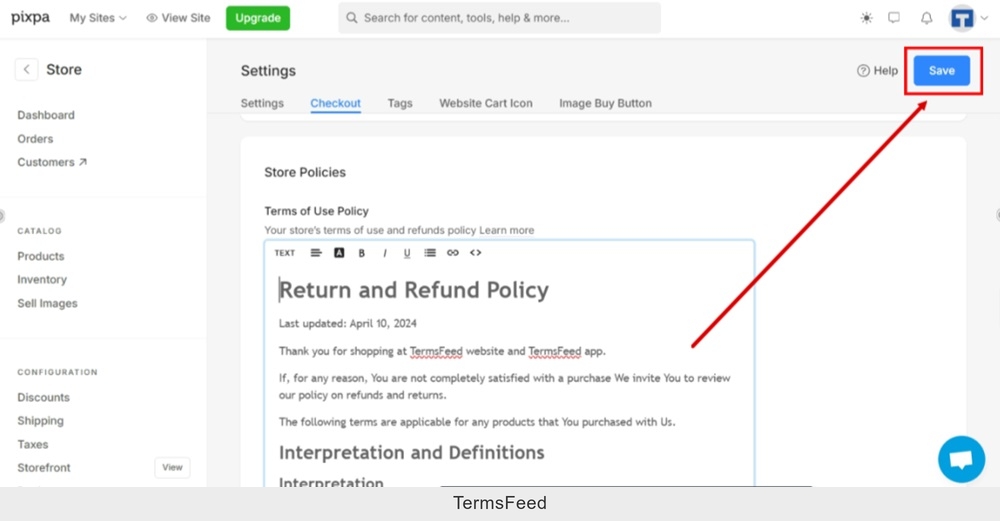
    TermsFeed Pixpa - Store - Settings - Checkout tab - Store Policies - Text editor - Return and Refund Policy pasted - Save

  8. Go to the "View Site" to see the changes:
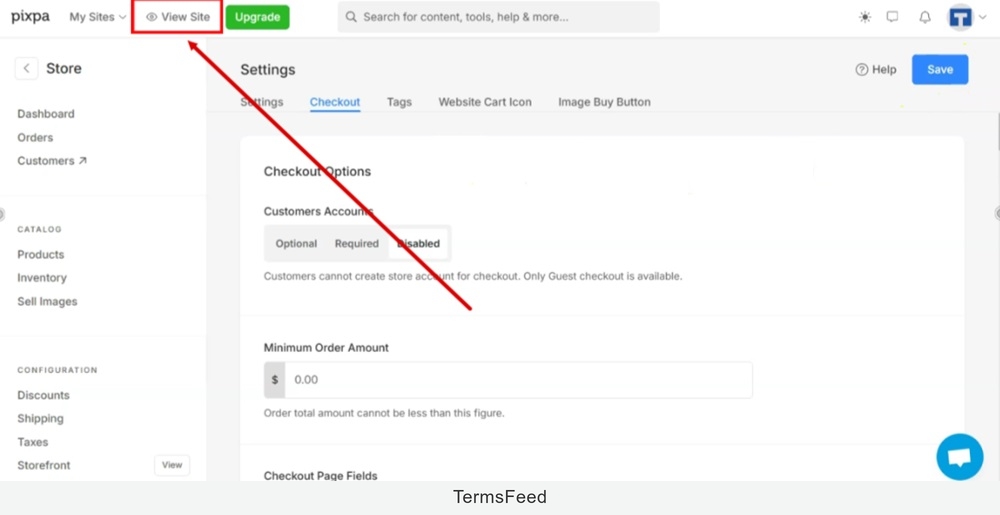
    TermsFeed Pixpa - Store - Settings - Checkout tab - View Site

  9. Open the cart and go to the checkout page:
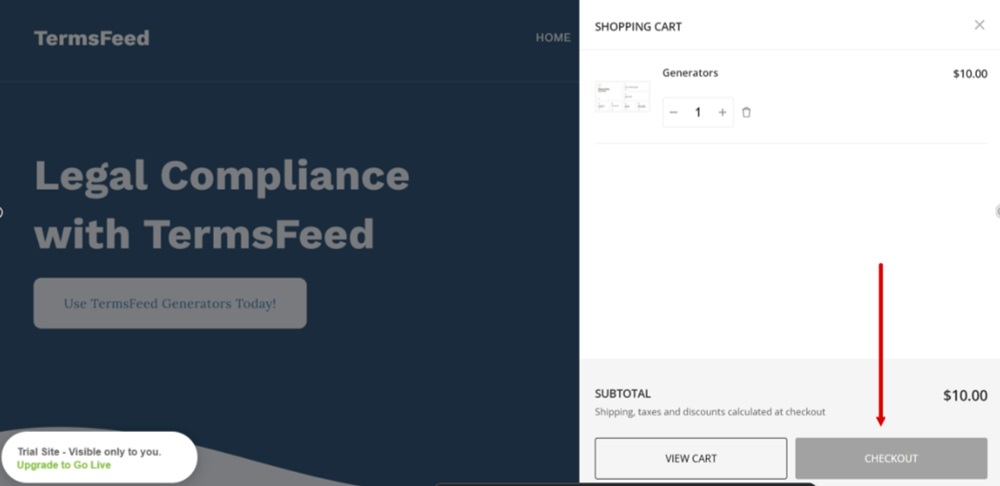
    TermsFeed Pixpa - Website Preview - Open Cart - Checkout

  10. The "I accept Terms of Use" radio button is displayed next to the "Complete Order" button on the checkout page:
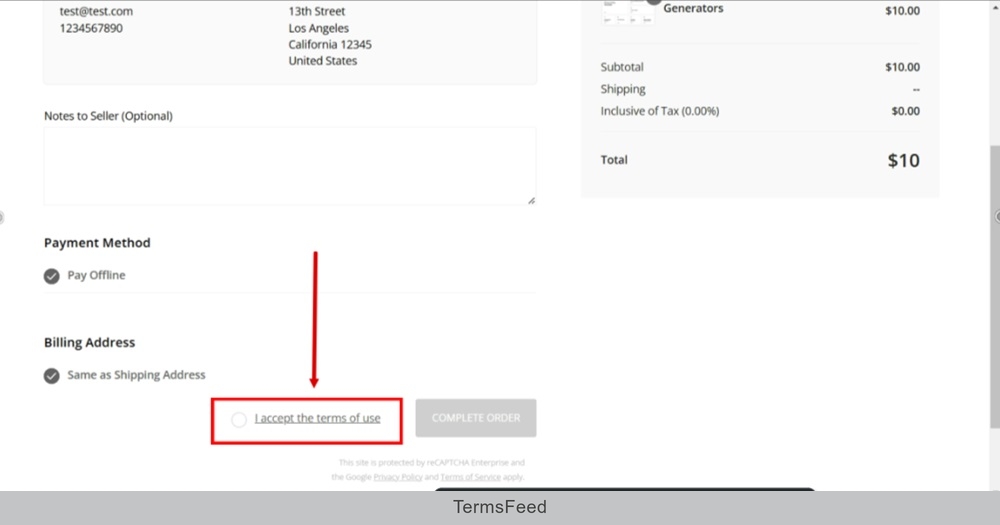
    TermsFeed Pixpa - Website Preview - Open Cart - Checkout - step 2 - The I agree to Terms of Use radio button is displayed

  11. The link opens in a new window with the text of the Return and Refund Policy:
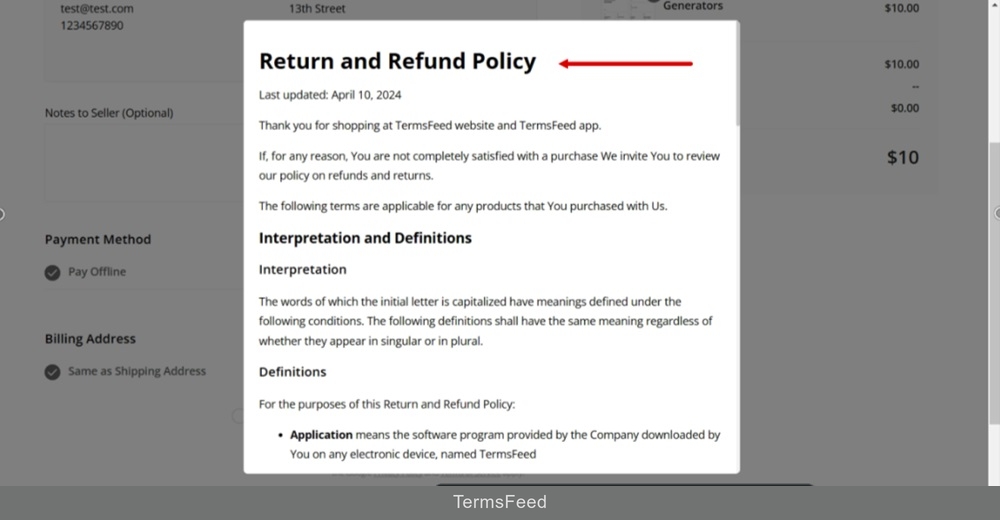
    TermsFeed Pixpa - Website Preview - Open Cart - Checkout - step 2 - The link opens in a new window with Return and Refund Policy text displayed