Steps

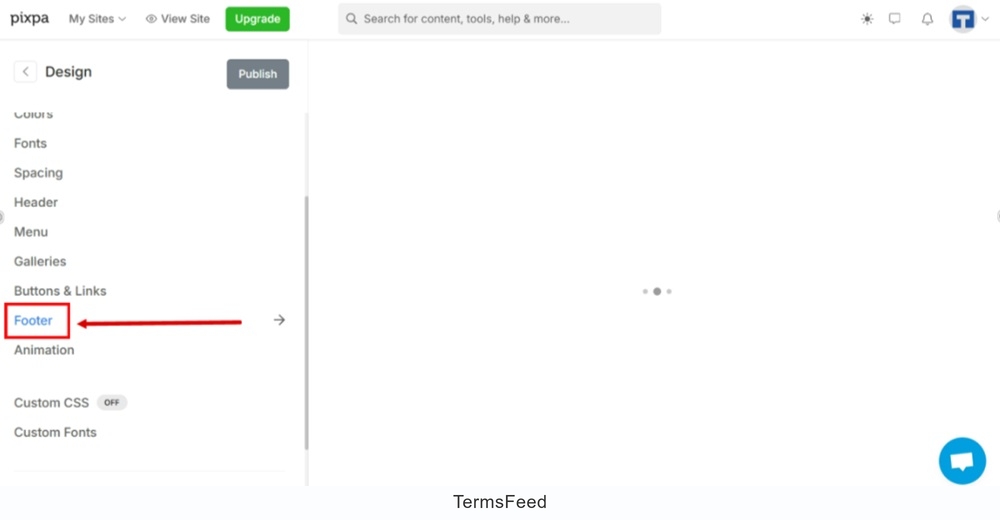
  1. Log in to your Pixpa account. From the dashboard, go to Design:
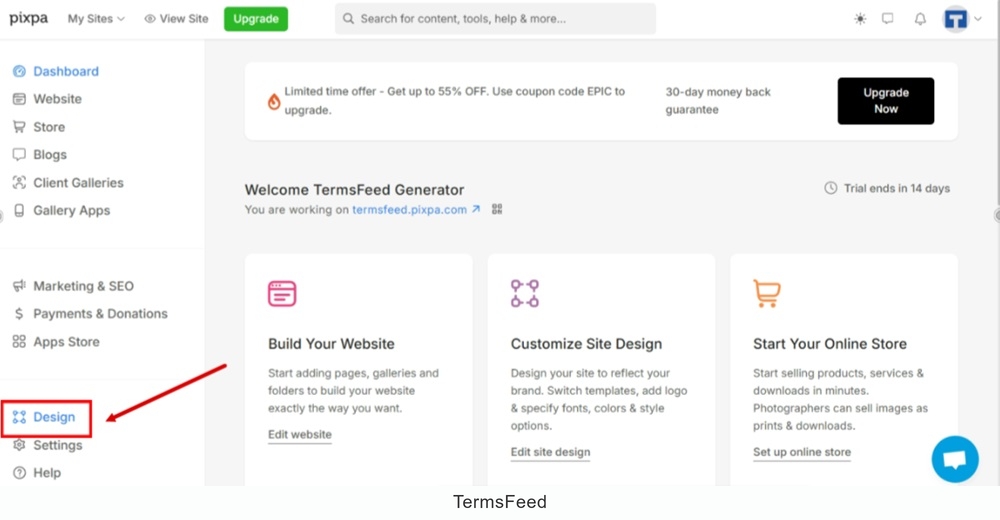
    TermsFeed Pixpa - Dashboard - Design

  2. Open the "Footer" settings:

    TermsFeed Pixpa - Design - Footer - open settings

  3. Scroll down to the Footer Text section. Next to the Privacy Policy, type "Terms and Conditions" in the field. Select it and click on the Link icon. Go to the Insert Link option:
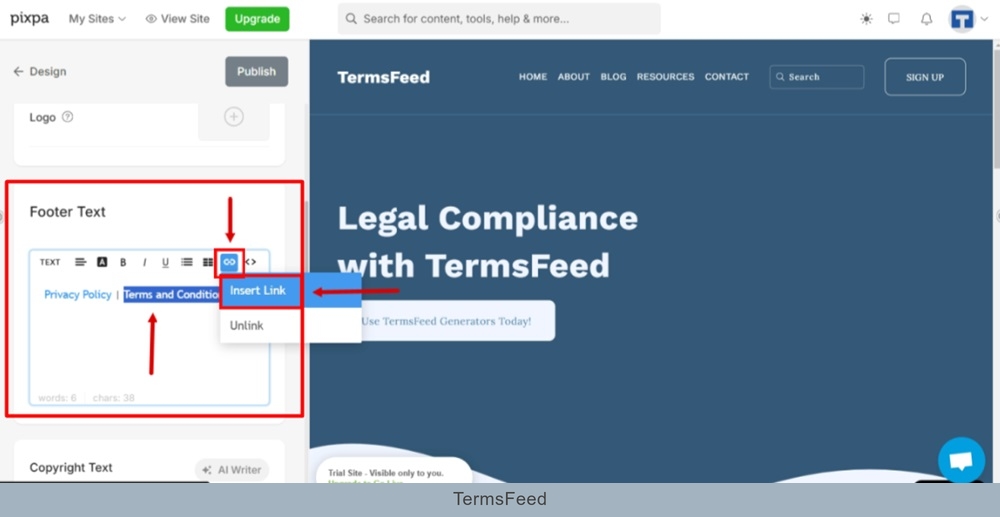
    TermsFeed Pixpa - Design - Footer - settings - Footer Text section - Type Terms and Conditions, select it, and go to the Link icon to Insert Link

  4. The new window "Insert Link" opens. In the "URL" field click the gear icon to open link settings:
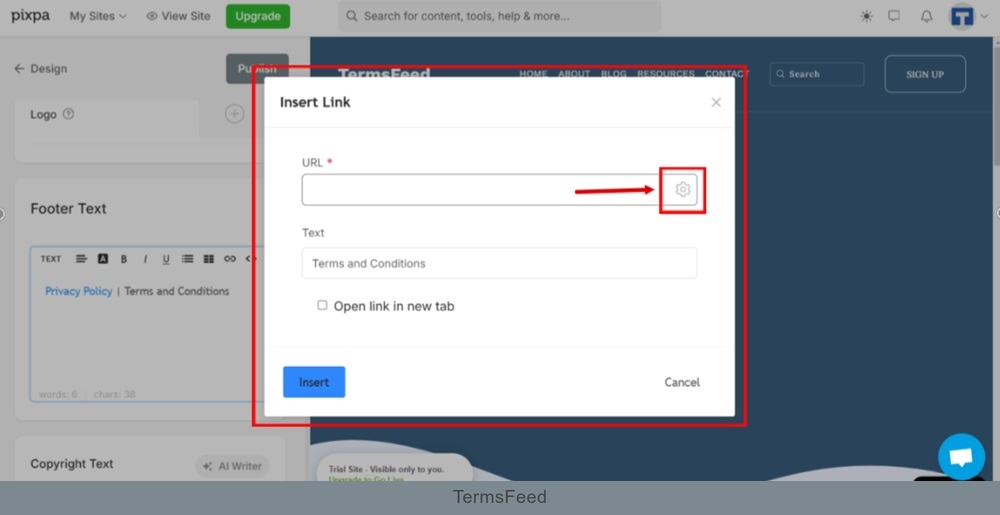
    TermsFeed Pixpa - Design - Footer - settings - Footer Text section - Terms and Conditions - Insert Link - URL - gear icon

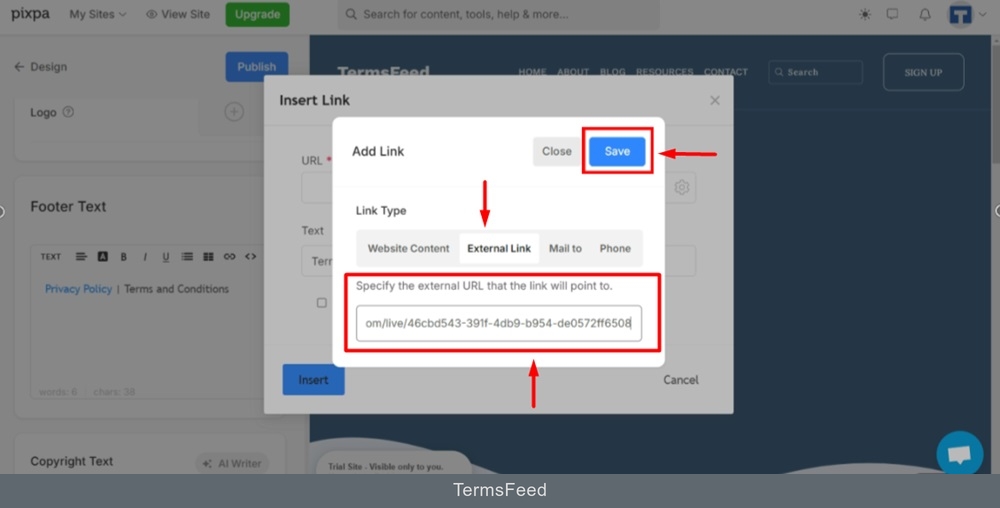
  5. Another new window "Add Link" opens. Switch to the External Link tab:
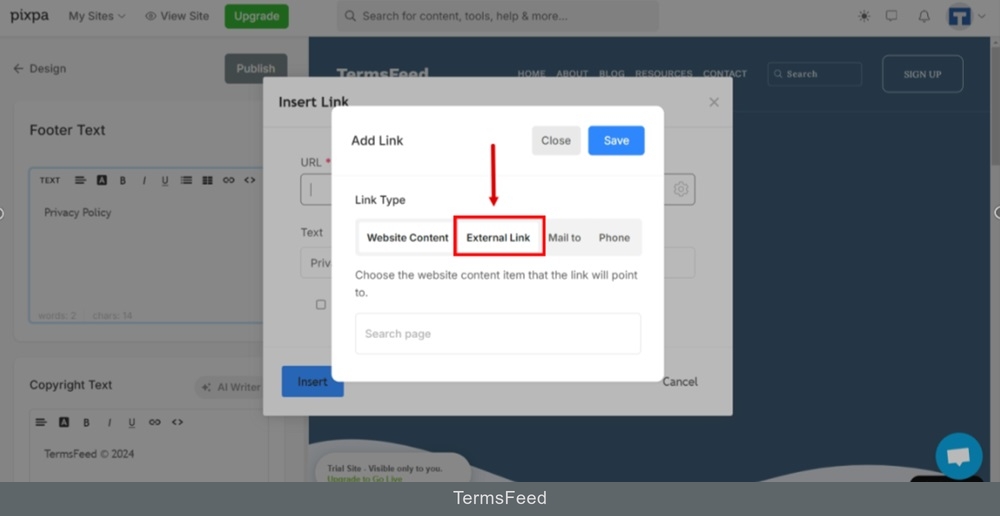
    TermsFeed Pixpa - Design - Footer - settings - Insert Link - Settings - Add link window switch to External Link tab

  6. The field for your Terms and Conditions URL external link appears. Add your link.

    Go to the TermsFeed Terms and Conditions Generator to create the Terms and Conditions and get a free hosted Terms and Conditions URL webpage.

    In the Link to your Terms and Conditions section, click on the green Copy button:
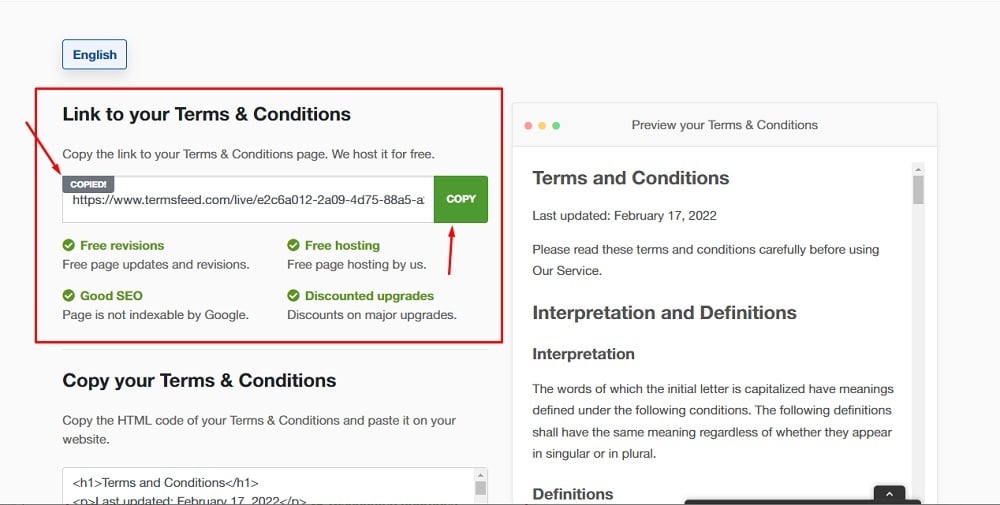
    TermsFeed Generators App: Terms and Conditions Download Page - Link to hosted Terms and Conditions URL copy option highlighted

  7. Paste the link and click Save:

    TermsFeed Pixpa - Design - Footer - settings - Terms and Conditions - Insert Link - Settings - Add link window switch to External Link tab - Pasted - Save

  8. Check the "Open link in new tab" option and click the "Insert" button:
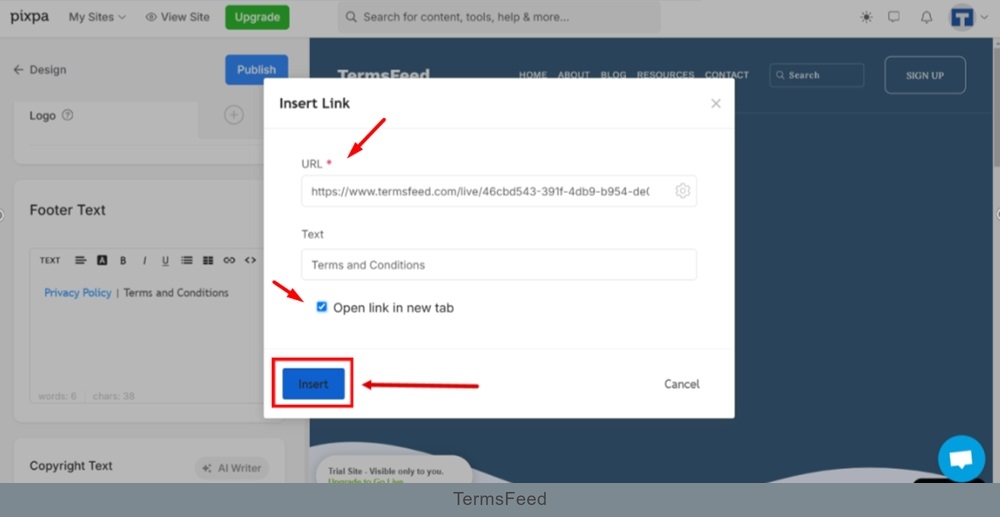
    TermsFeed Pixpa - Design - Footer - settings - Terms and Conditions - Insert Link - Settings - Open in new tab - Insert

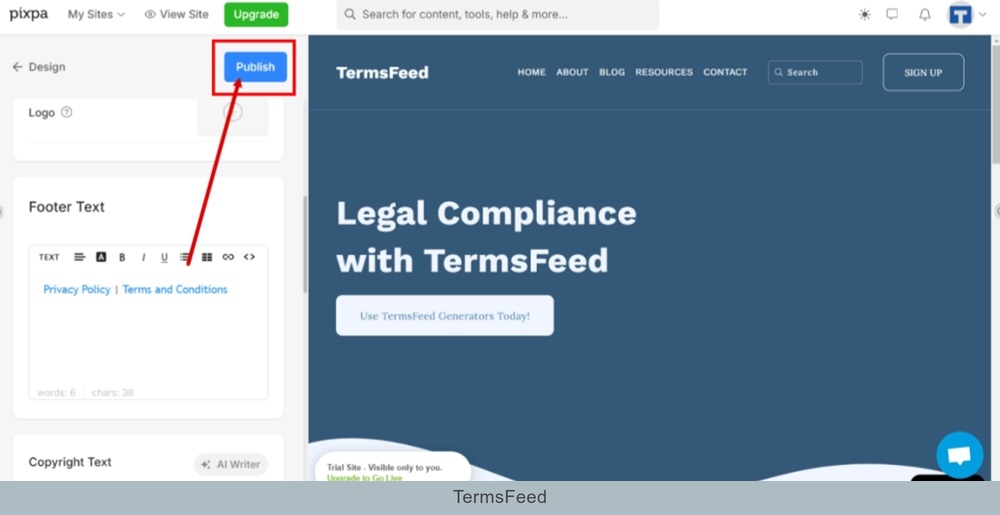
  9. Click Publish:

    TermsFeed Pixpa - Design - Footer - settings - Terms and Conditions - Link Inserted - Publish

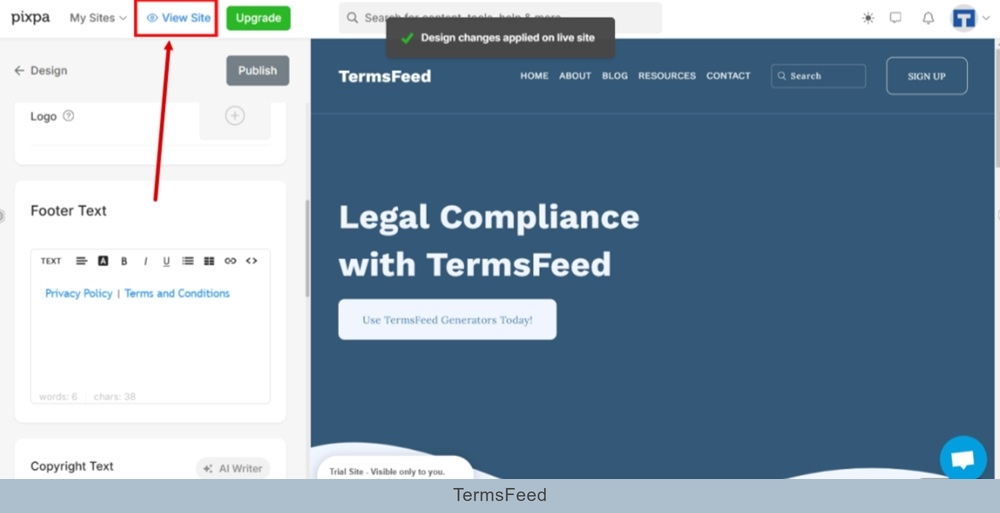
  10. Go to the View Site to see changes:

    TermsFeed Pixpa - Design - Footer - settings - Terms and Conditions - Link Inserted - Published - View Site

  11. The Terms and Conditions URL is displayed in the footer section of the Pixpa website:
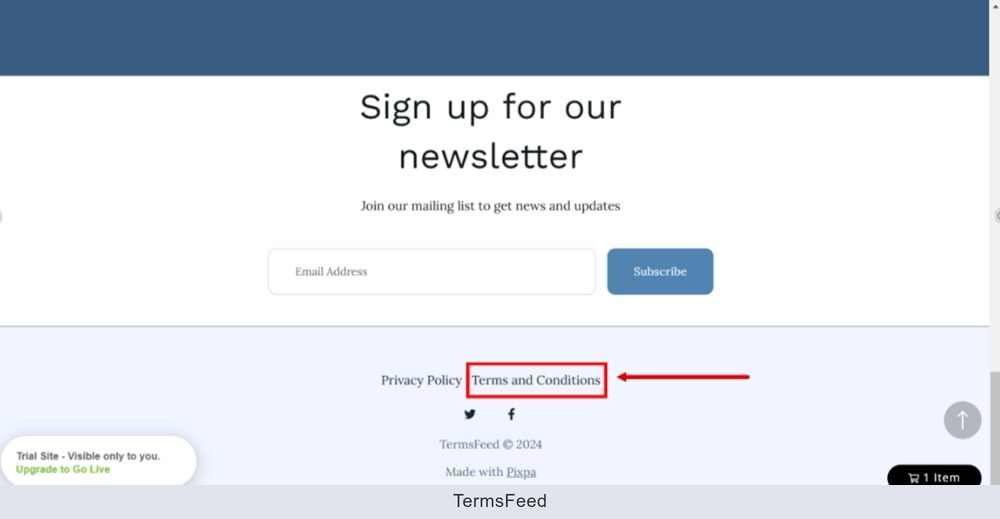
    TermsFeed Pixpa - Preview - Footer - Terms and Conditions URL displayed