Steps
-
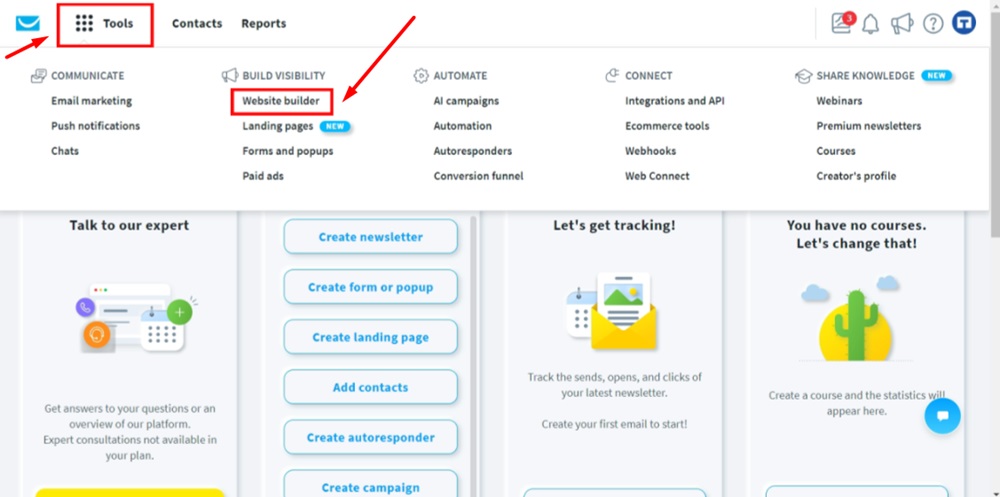
Log in to GetResponse. From Dashboard go to Tools and select Website Builder:
-
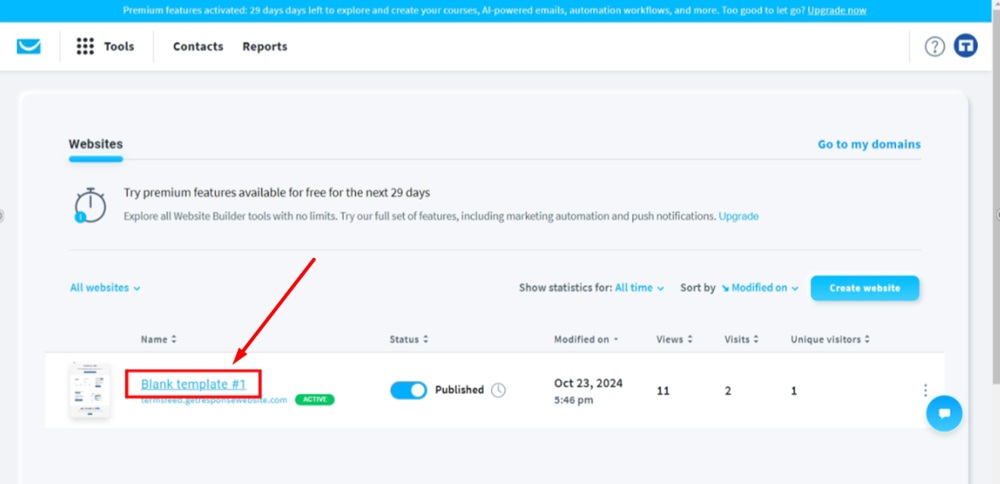
Click on the name of your website to edit it:
-
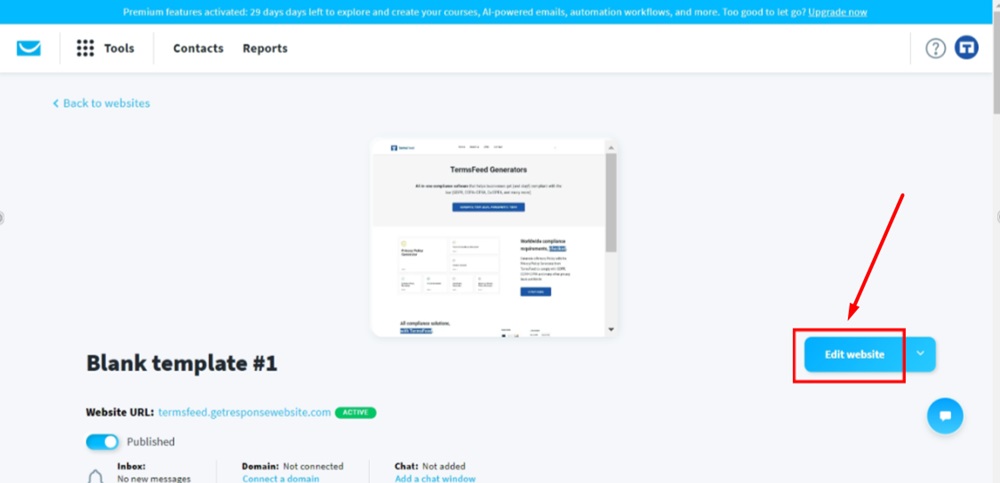
Click the Edit website button:
-
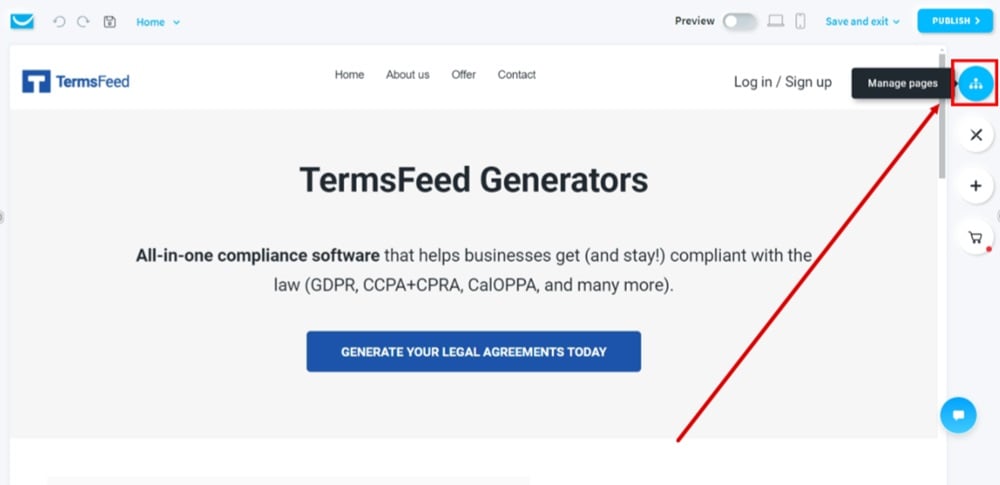
Go to the Manage Pages icon:
-
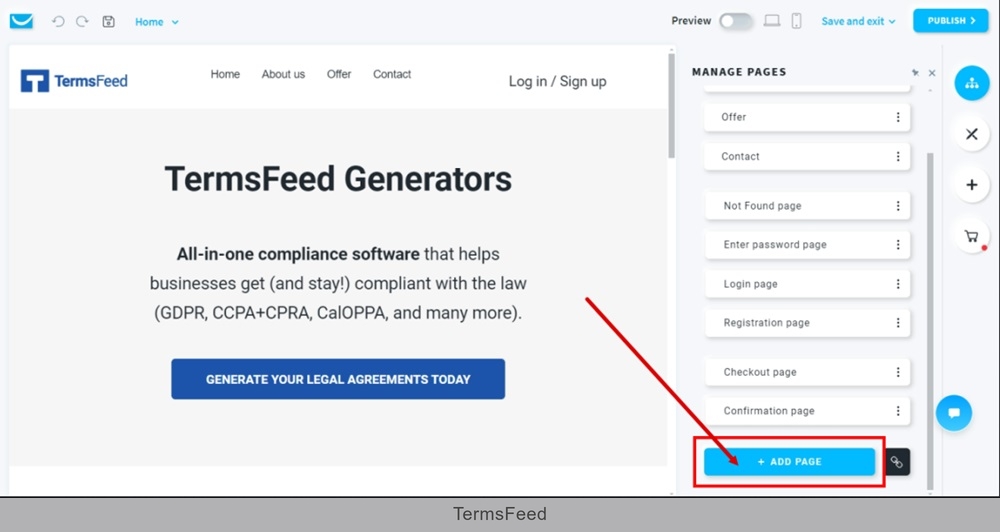
Click the Add a new page button:
-
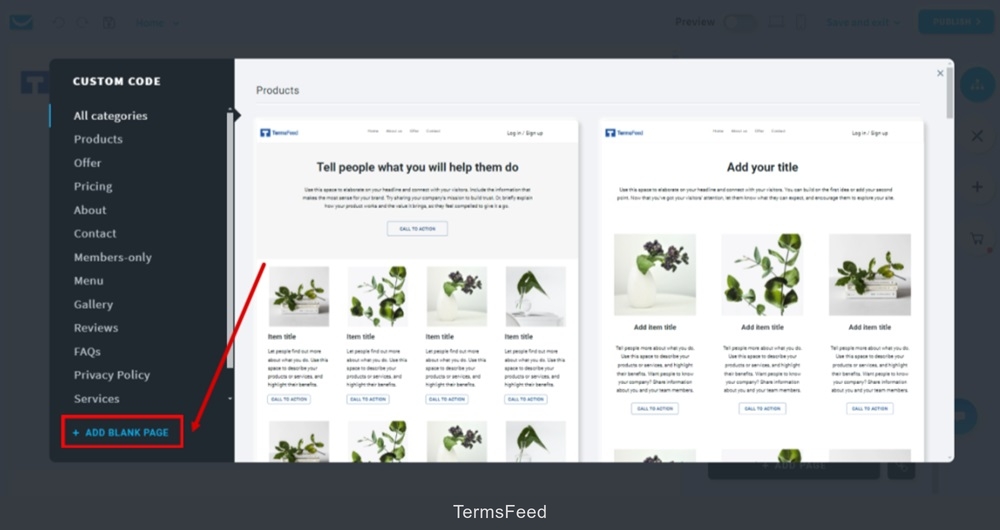
Add Blank Page:
-
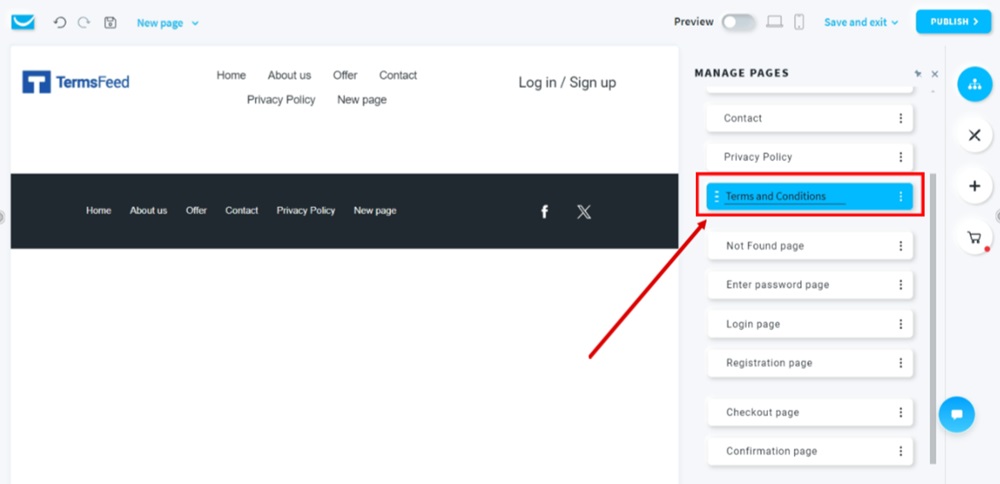
Name your page "Terms and Conditions":
-
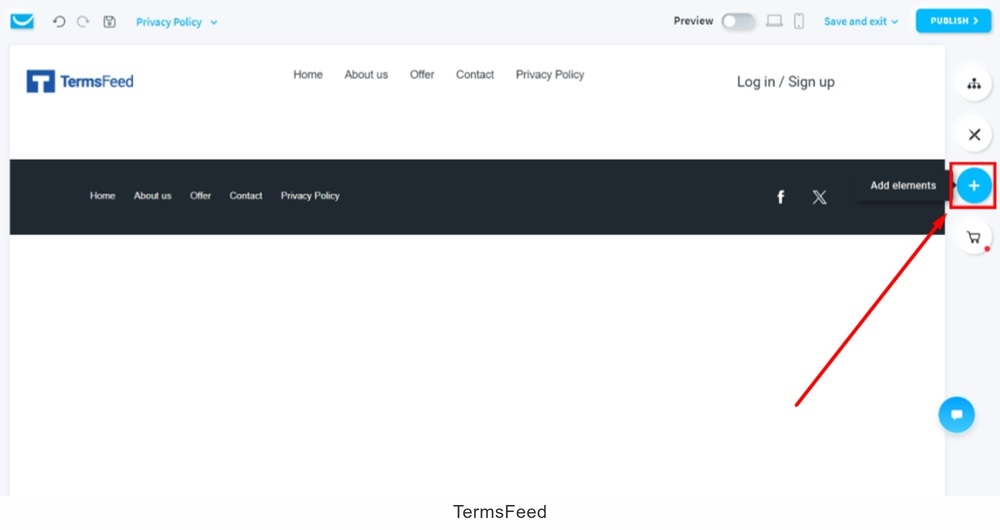
Go to the Plus icon to add a new element:
-
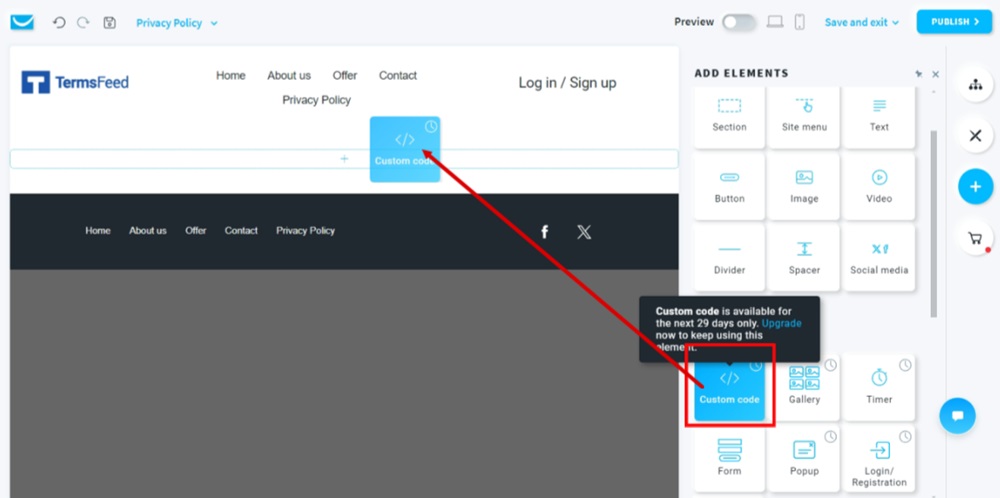
Drag and drop the Custom code element to the page:
-
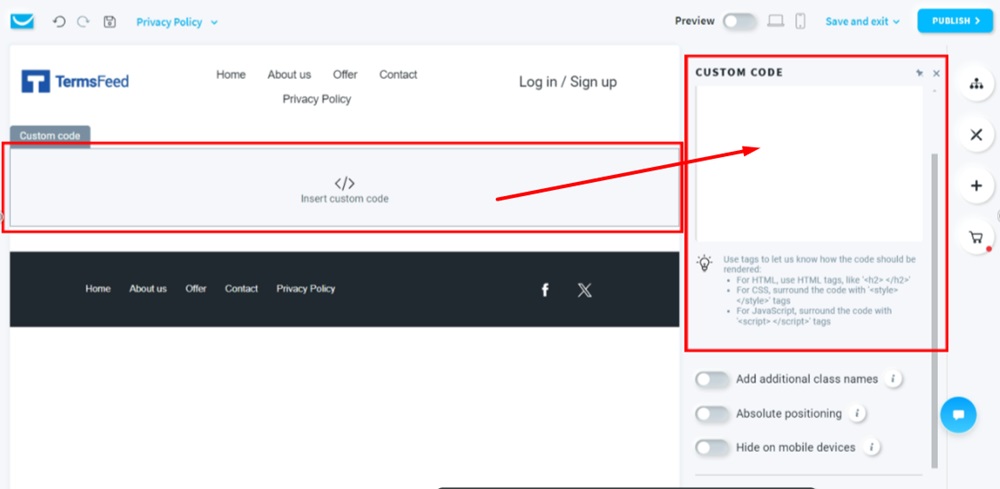
Click in the custom code field to open edit settings that will appear on the right side editor:
-
Add the code of your Terms and Conditions in the field.
If you do not have a Terms and Conditions, you can use our Terms and Conditions Generator and create it within minutes.
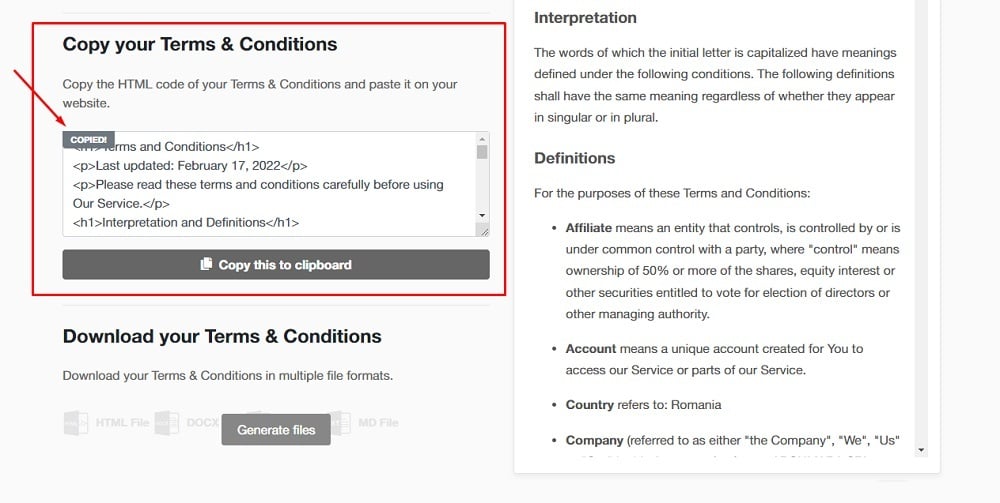
Once you have the Terms and Conditions created by TermsFeed, let's get the policy text. Under the Copy your Terms and Conditions section, click on Copy this to clipboard:
-
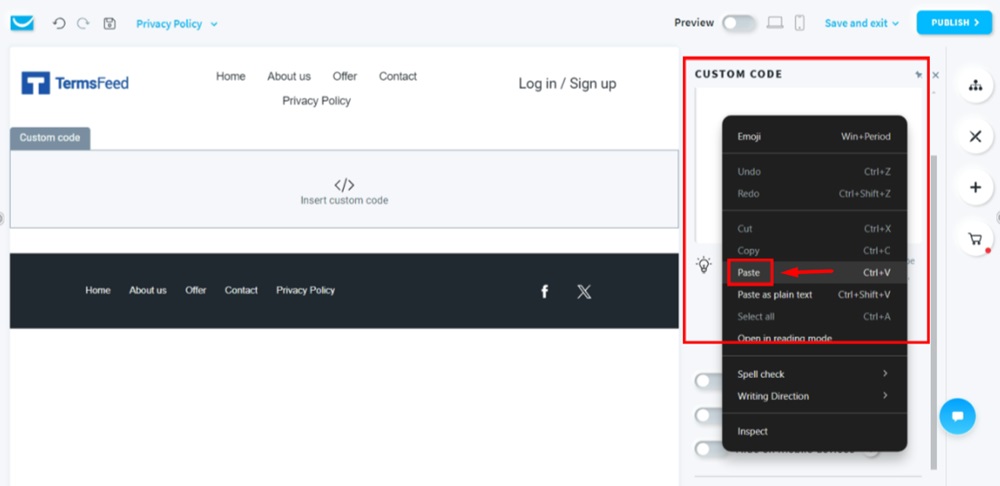
Paste the HTML code of your Terms and Conditions in the Custom code field:
-
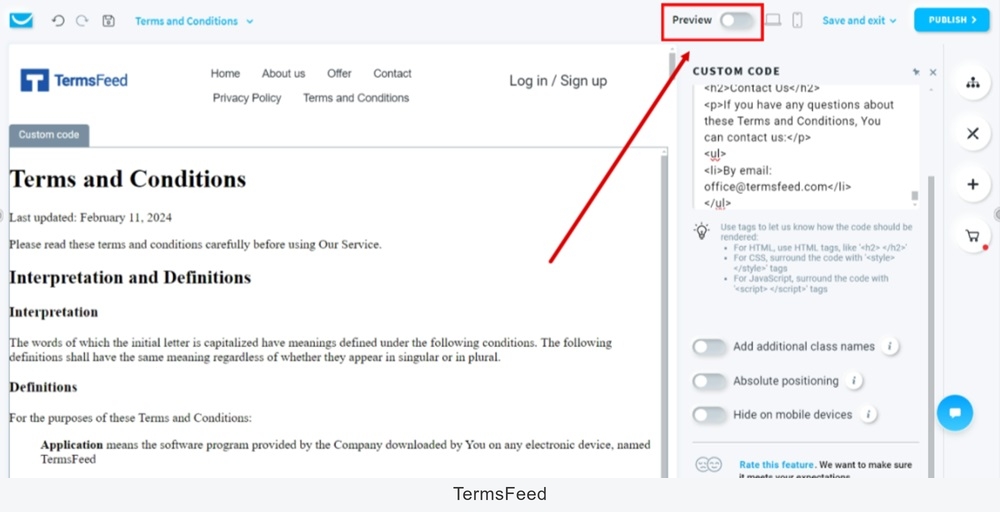
Use the Preview option to see the page:
-
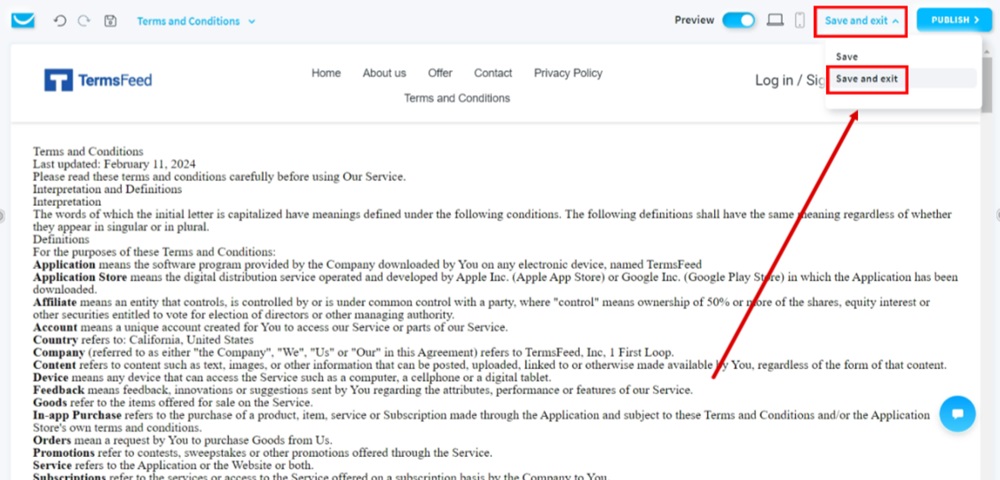
Go to Save and edit and select the Save and exit option:
-
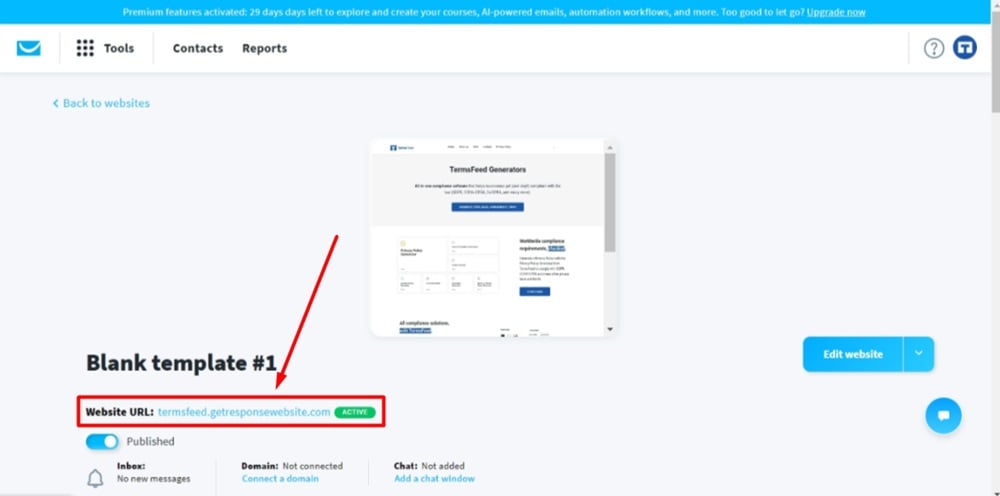
Click on the Website URL to see the published version of your page:
-
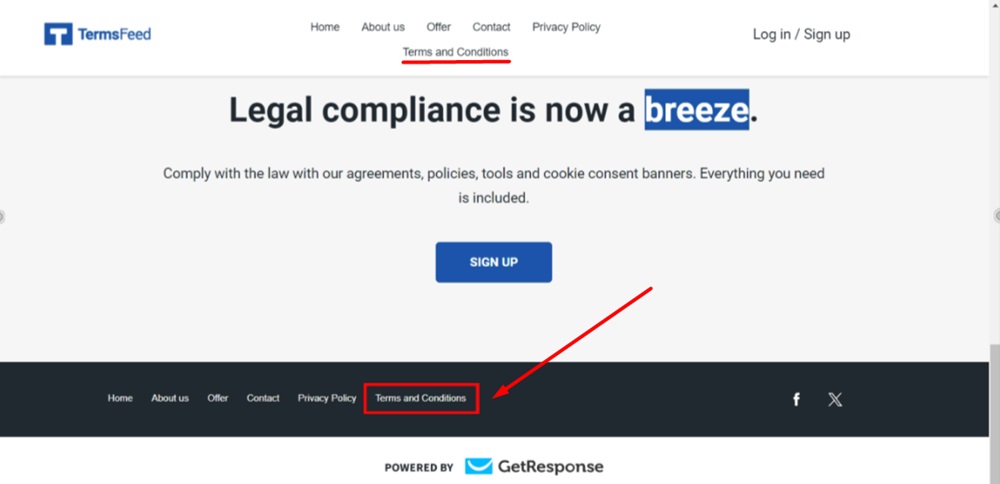
The Terms and Conditions page is displayed at the header and the footer sections of the GetResponse website: