In this video we'll show you how to add an external link to the footer of a Big Cartel website.

Let's start.

  1. Log in to the Big Cartel dashboard and go to Account:
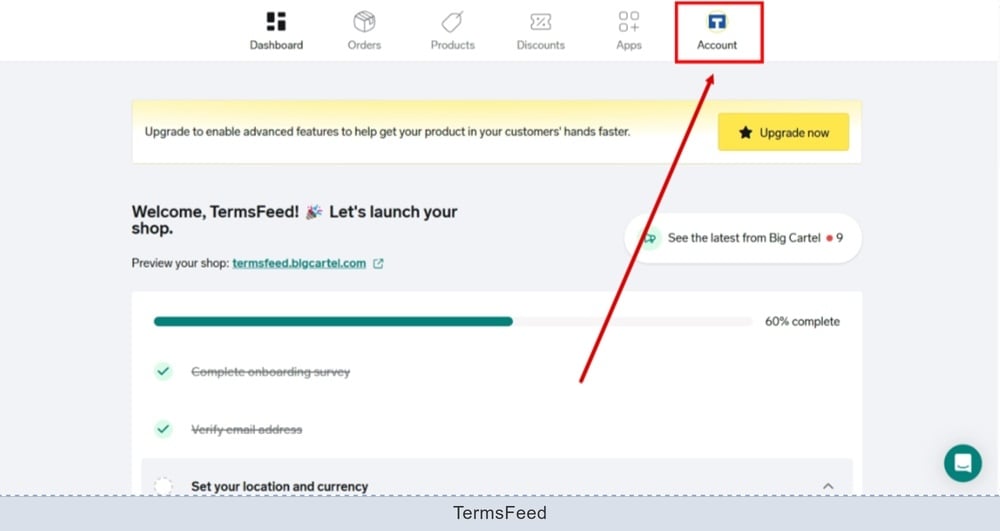
    TermsFeed Big Cartel - Dashboard - Account selected

  2. Find the "Shop design" and click the "Go to shop designer" to start editing:
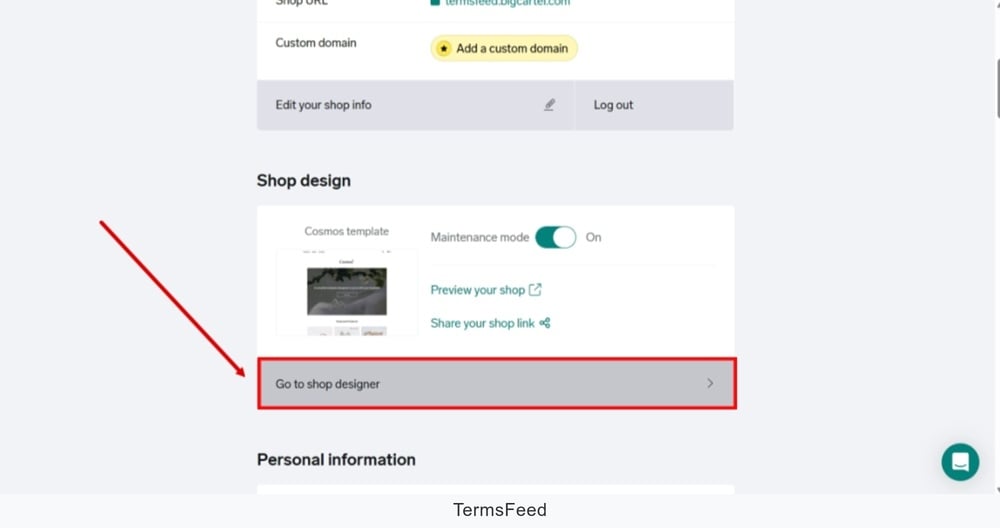
    TermsFeed Big Cartel - Dashboard - Account - Shop design - Go to shop designer

  3. From the "Settings" menu, open the "Template settings":
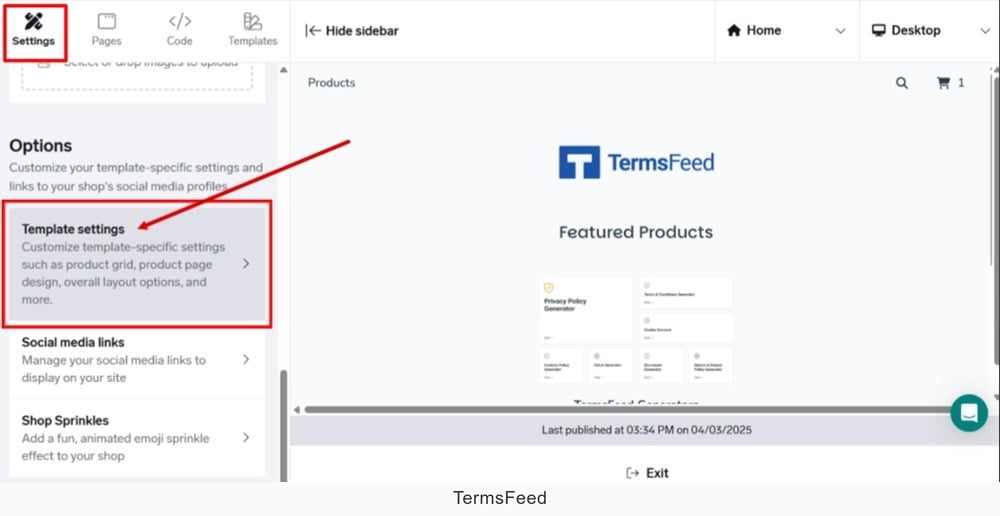
    TermsFeed Big Cartel - Shop designer - Settings - Template

  4. In the "Footer text" field, type "Terms and Conditions:"
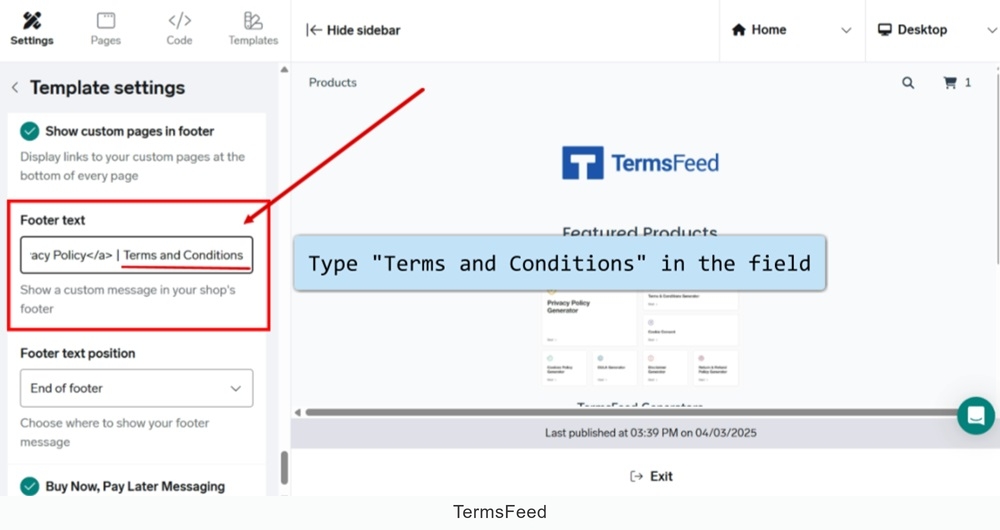
    TermsFeed Big Cartel - Shop designer - Settings - Template - Footer text - type Terms and Conditions

  5. Copy the URL to the Terms and Conditions page.

    Go to the TermsFeed Terms and Conditions Generator to create the Terms and Conditions and get a free hosted Terms and Conditions URL webpage.

    In the Link to your Terms and Conditions section, click on the green Copy button:
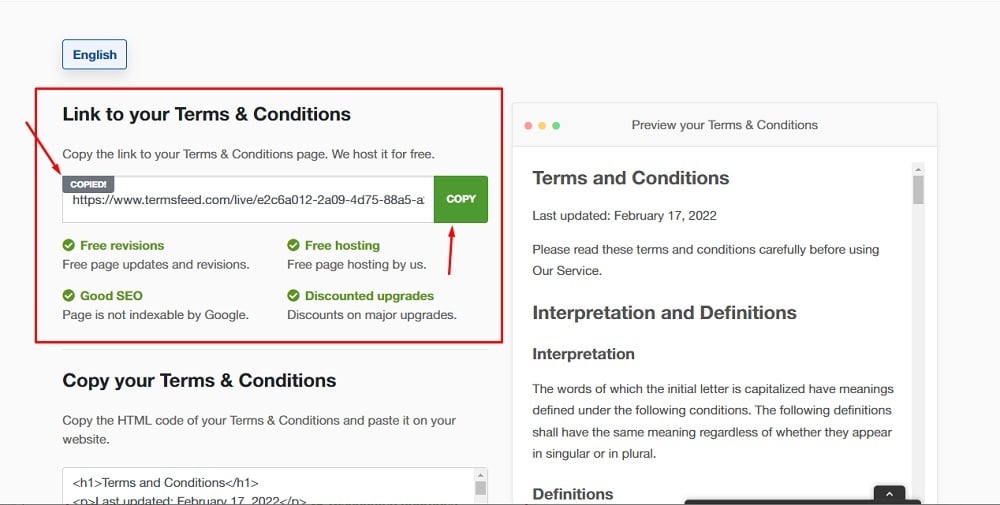
    TermsFeed Generators App: Terms and Conditions Download Page - Link to hosted Terms and Conditions URL copy option highlighted

  6. To add the copied URL to the "Footer text", you'll need to add it as the HTML code as shown in the image below:
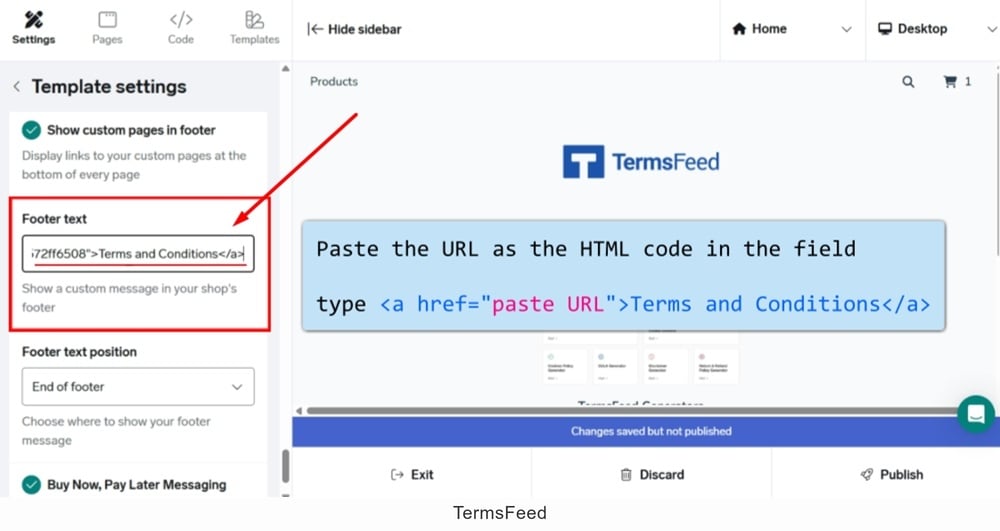
    TermsFeed Big Cartel - Shop designer - Settings - Template - Footer text - Terms and Conditions paste URL as the HTML code

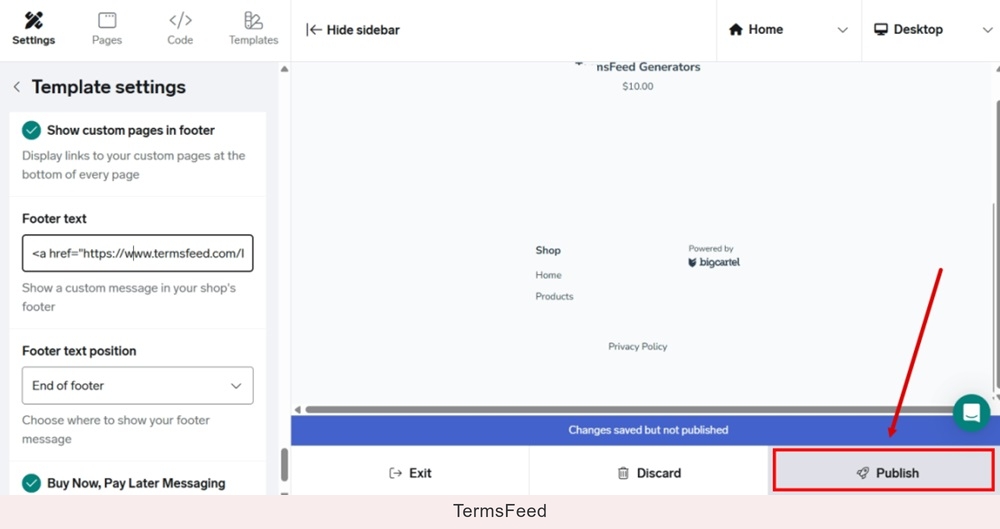
  7. Publish your changes:

    TermsFeed Big Cartel - Shop designer - Settings - Template - Footer text - Privacy Policy added - Publish

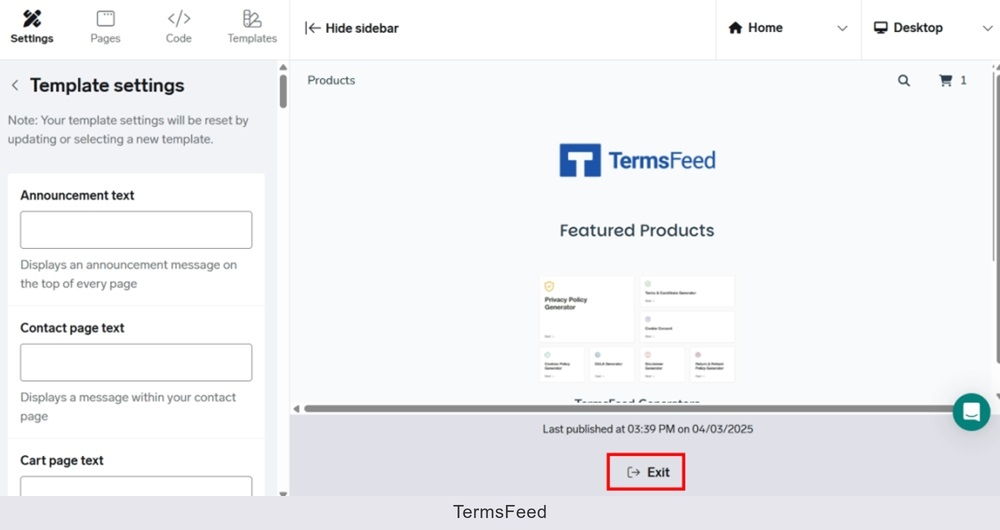
  8. Exit the editor:

    TermsFeed Big Cartel - Shop designer - Settings - Template - Footer text - added - Published - Exit

  9. Go back to the "Shop design" and click the "Preview your shop:"
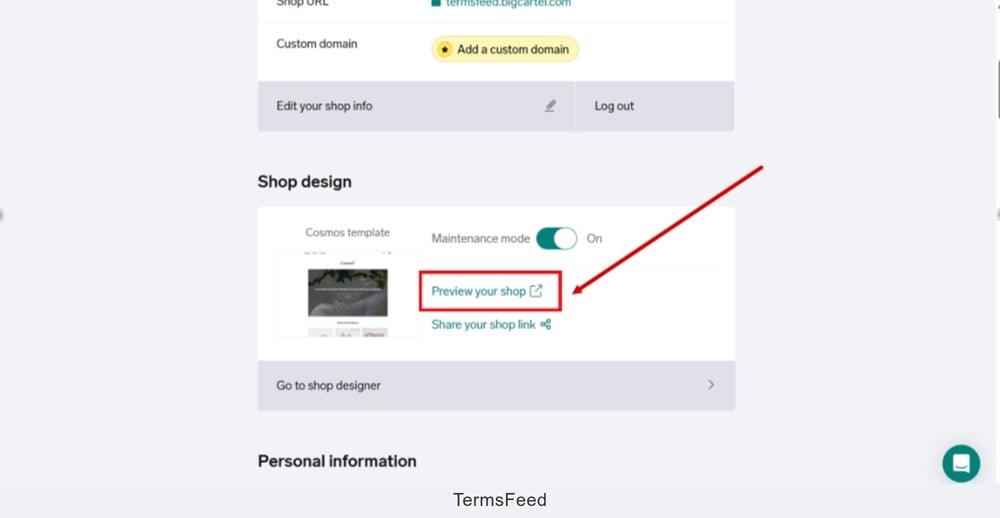
    TermsFeed Big Cartel - Account - Shop design - Preview your shop

  10. The Terms and Conditions URL is displayed at the footer of your Big Cartel shop:
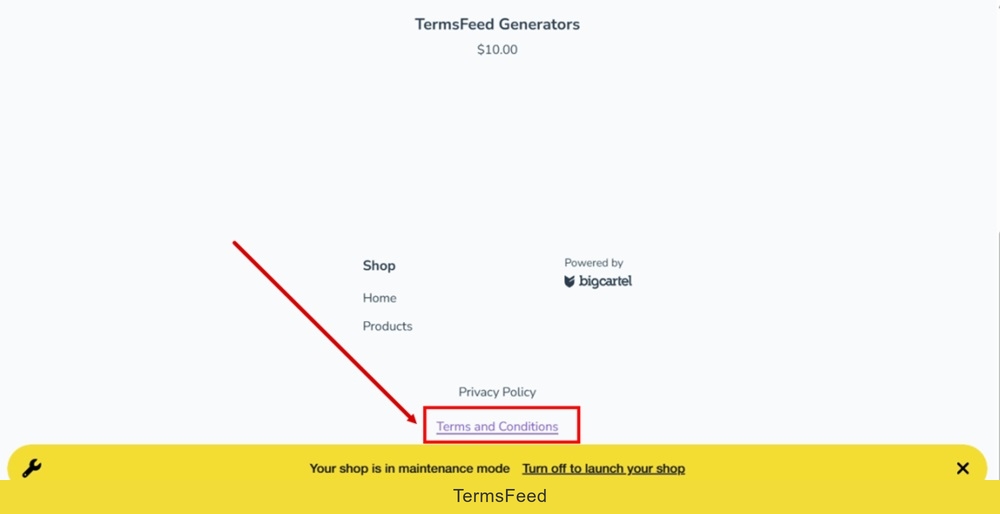
    TermsFeed Big Cartel - Preview your shop - Footer - Terms and Conditions - URL displayed