In this video, we'll show you how to create a new page on Tilda and add the newly created page in the footer of your Tilda website.

Step 1: Create a New Terms and Conditions Page on Tilda

  1. Log in to your Tilda account. Click "Edit site":
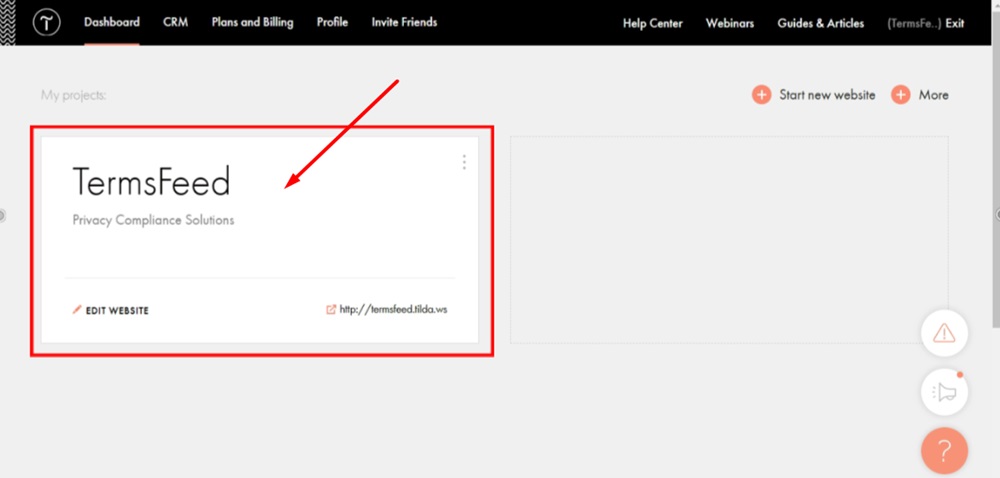
    TermsFeed Tilda - Dashboard - Edit website

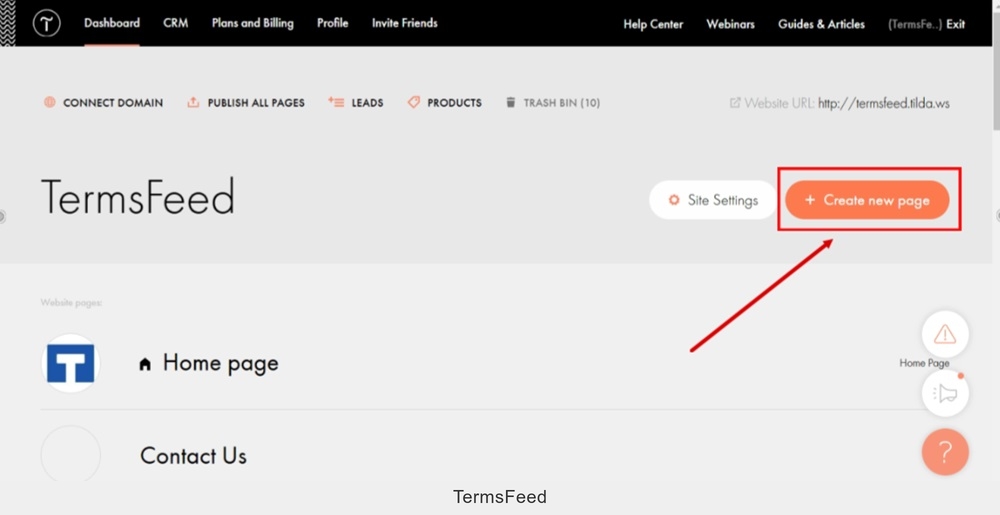
  2. Click the "+ Create new page":

    TermsFeed Tilda - Edit website - Create new page

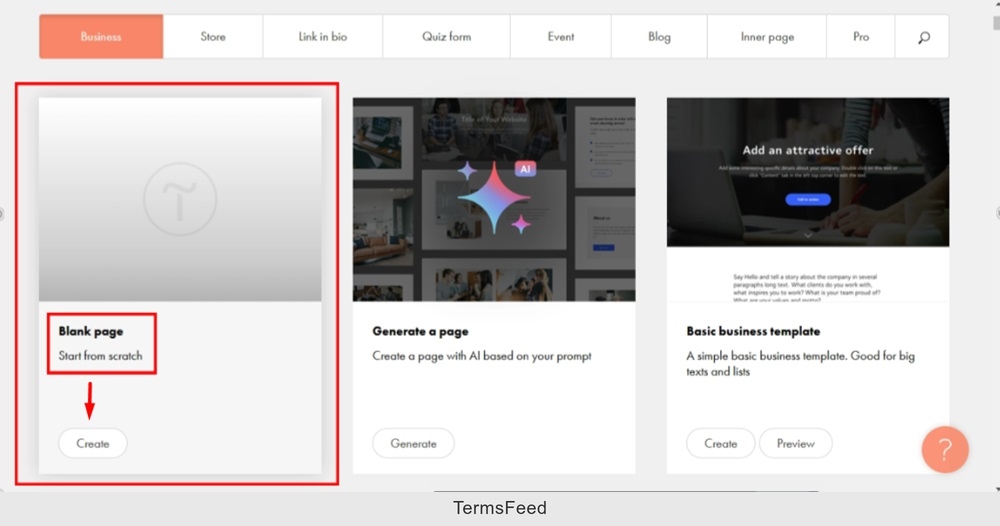
  3. Select "Blank page" to start with:

    TermsFeed Tilda - Edit website - Create new page - Blank page selected

  4. The new page editor opens. Go to More blocks:
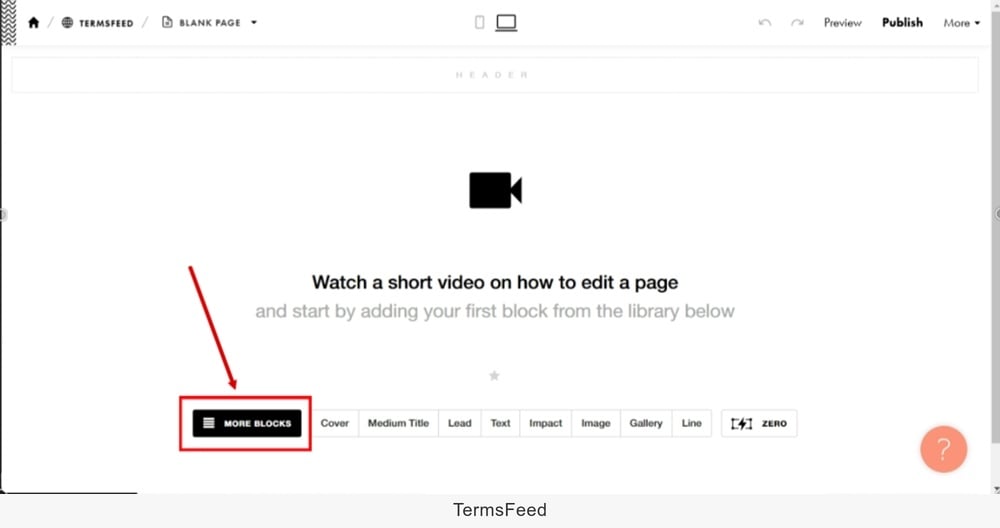
    TermsFeed Tilda - New page - Blank - More blocks

  5. From the Block library, scroll down to the "Other" option and click at the "Embed HTML code" block to add:
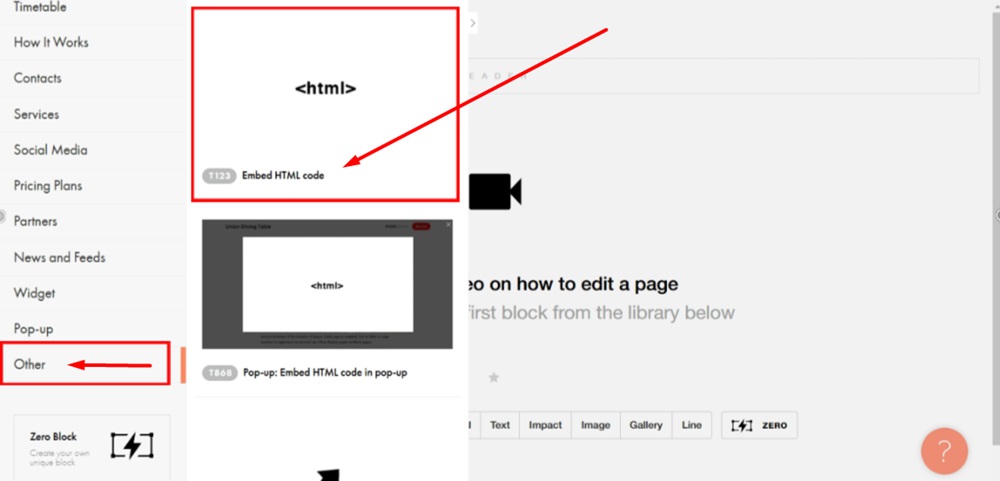
    TermsFeed Tilda - New page - Blank - More blocks - Other - Embed HTML code

  6. Click on the "Content" to open the HTML code block editor:
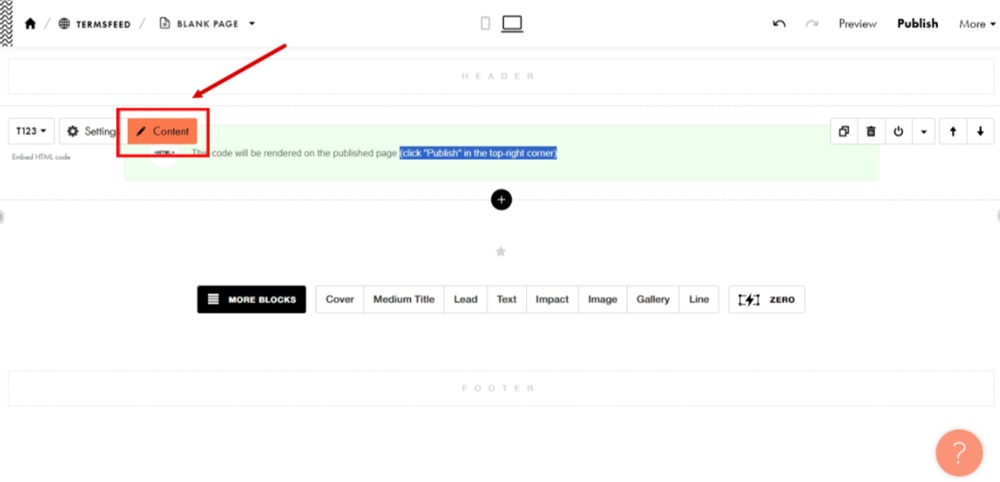
    TermsFeed Tilda - New page - Embed HTML code - Content

  7. Add your Terms and Conditions HTML code.

    If you do not have a Terms and Conditions, you can use our Terms and Conditions Generator and create it within minutes.

    Once you have the Terms and Conditions created by TermsFeed, let's get the policy text. Under the Copy your Terms and Conditions section, click on Copy this to clipboard:
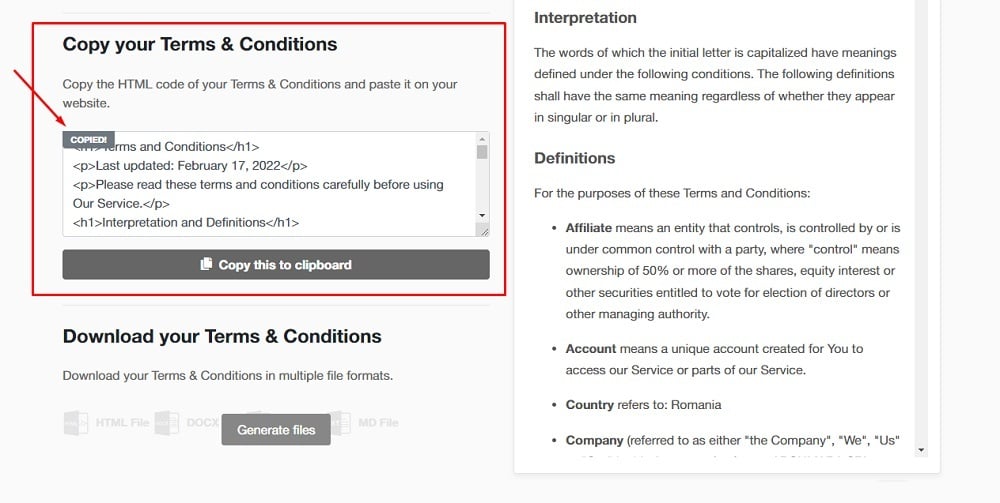
    TermsFeed App: Terms and Conditions Download page - Copy your Terms and Conditions section highlighted

  8. Paste the copied Terms and Conditions HTML code in the editor:
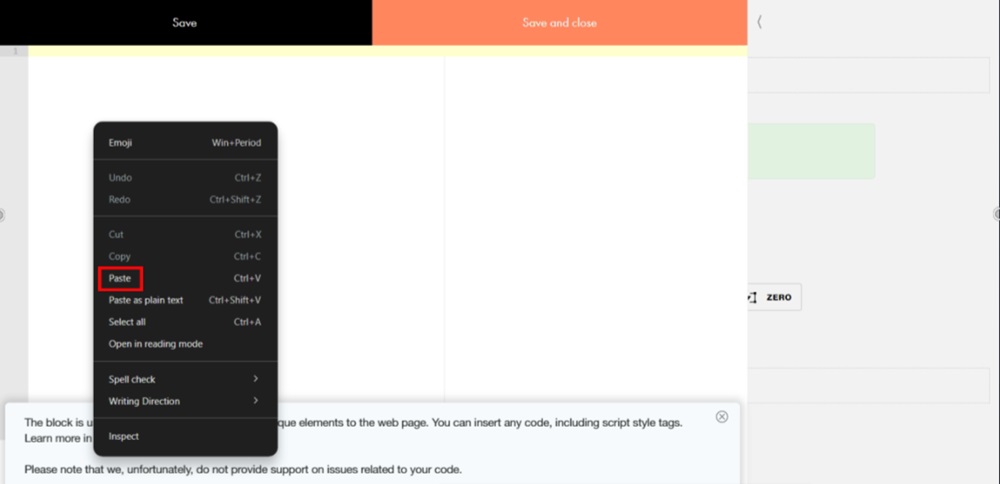
    TermsFeed Tilda - New page - Embed HTML code - Content - editor - Paste

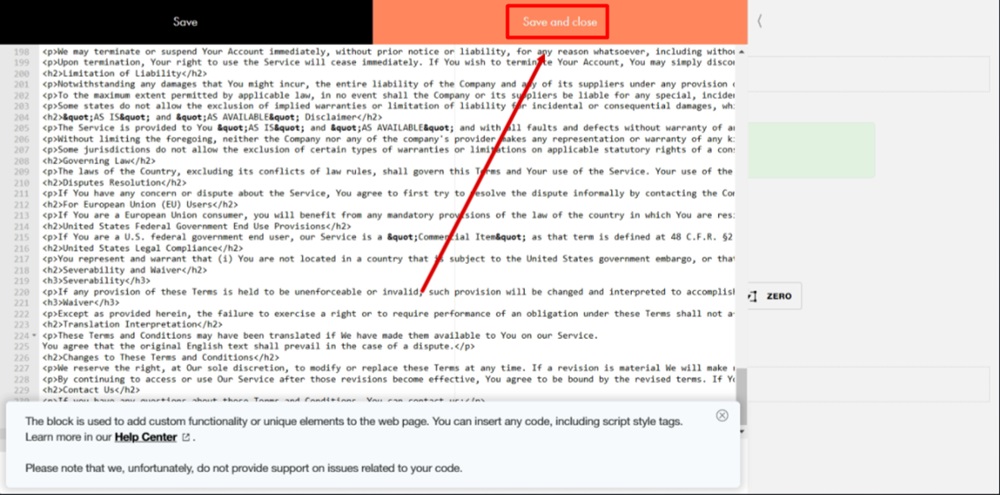
  9. Click Save and close:

    TermsFeed Tilda - New page - Embed HTML code - Content - editor - Terms and Conditions Pasted - Save and close

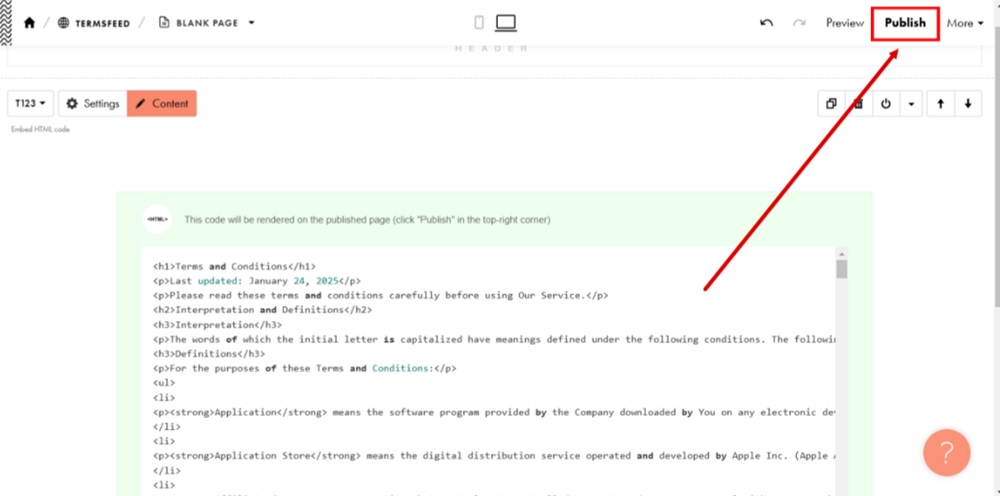
  10. Publish changes:

    TermsFeed Tilda - New page - Embed HTML code - Content - editor - Pasted - Save and closed - Publish

  11. The Terms and Conditions page is published:
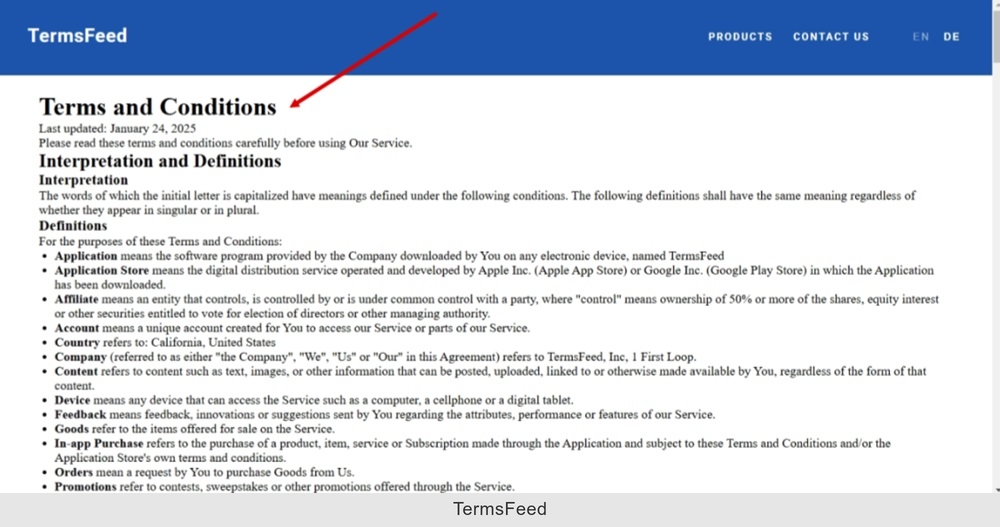
    TermsFeed Tilda - The Terms and Conditions page is published

  12. Go back to the page editor. Go to the "More" option and select "Page Settings:"
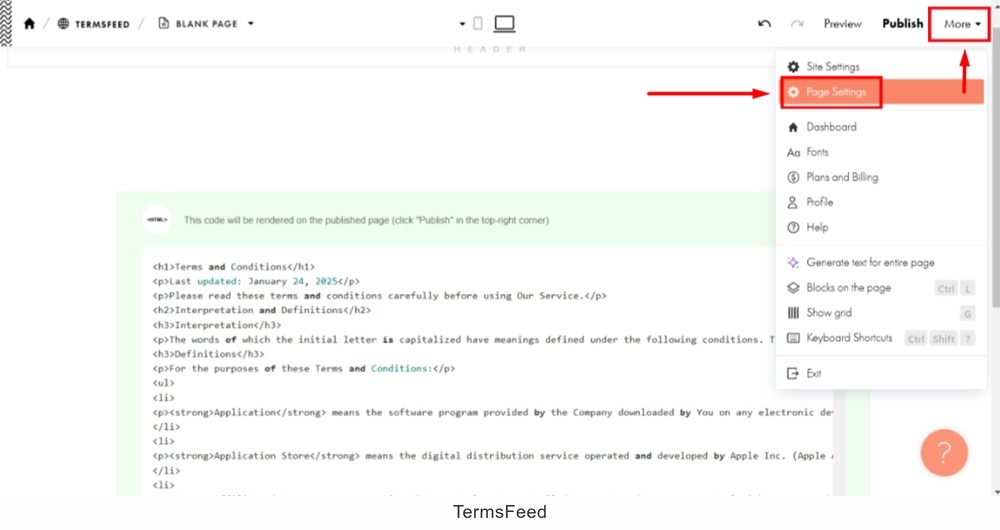
    TermsFeed Tilda - New page - Embed HTML code - Terms and Conditions code pasted and published - More - Page Settings

  13. The new window opens. Add "Terms and Conditions" in the Page Name field. Type "terms-conditions" in the URL field. Click the "Save changes" button:
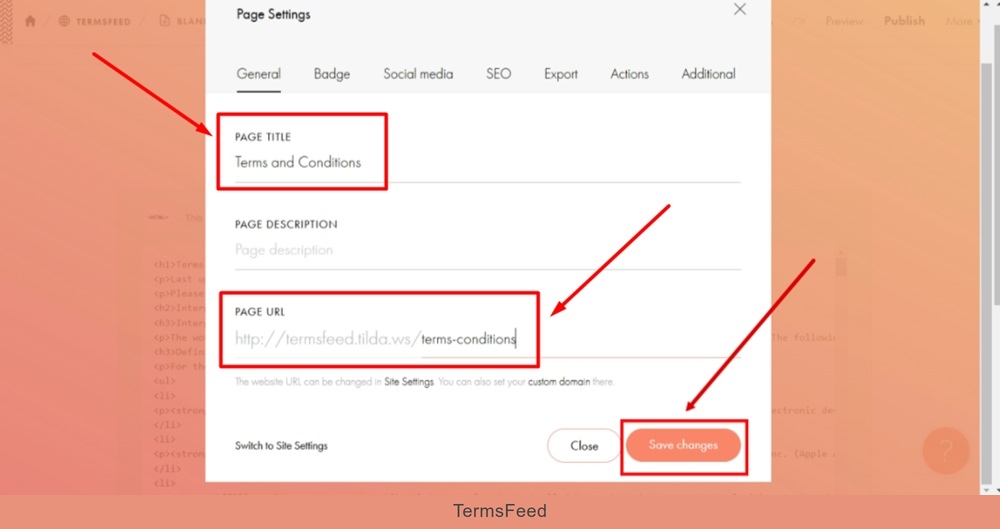
    TermsFeed Tilda - Edit page - More - Page Settings - Add Terms and Conditions in the Title and URL fields and click Save changes

  14. You're done.

The header and footer sections on Tilda are separated pages. For our video, these pages are already created and configured.

TermsFeed Tilda - Dashboard - Site Settings - Header and Footer - Pages set

Let's proceed with the steps below to add your page to the footer:

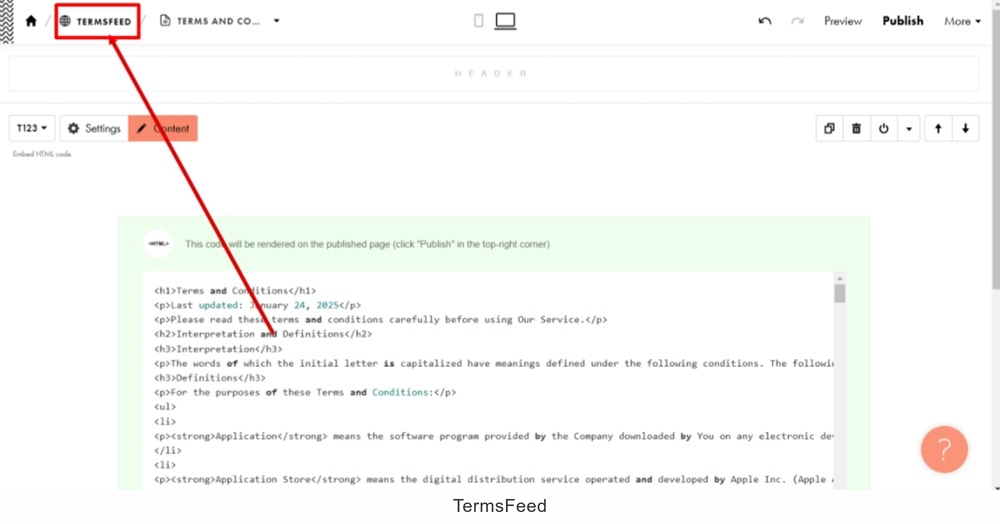
  1. Go to your website:

    TermsFeed Tilda - Edit page - Terms and Conditions - Website selected

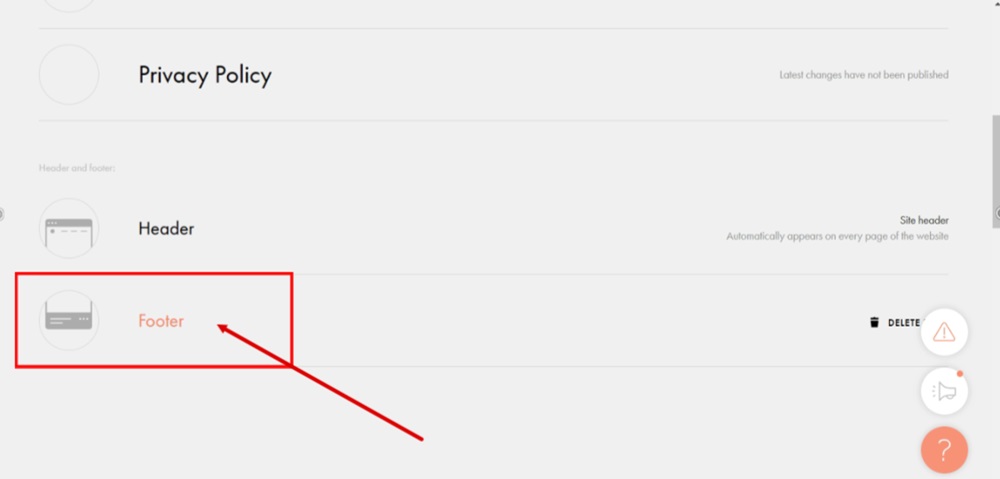
  2. Click the Footer to start editing it:

    TermsFeed Tilda - Edit Website - Footer

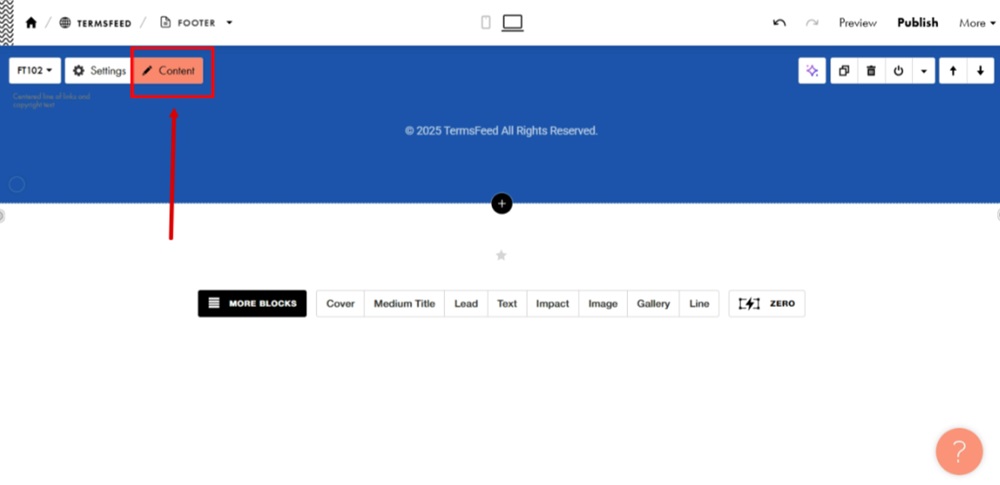
  3. Open the "Content" section:

    TermsFeed Tilda - Edit Footer page - Content

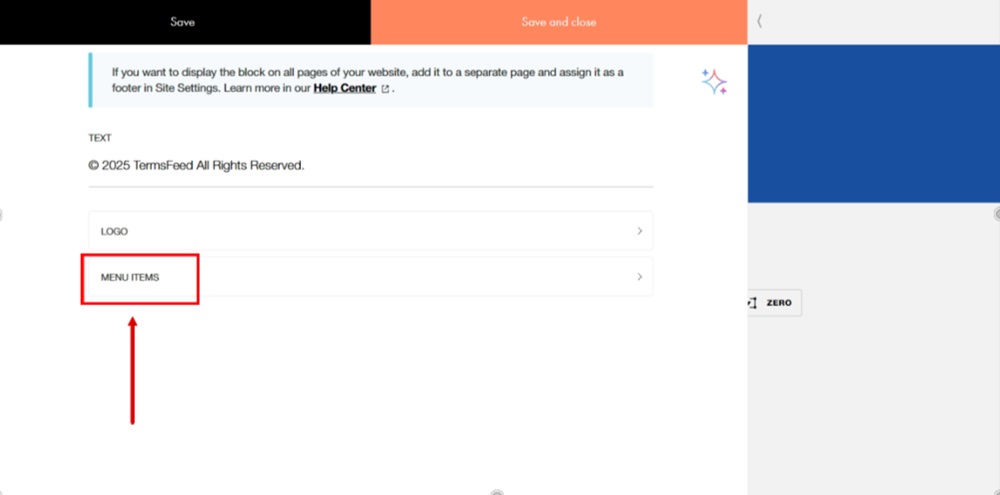
  4. Click the Menu Items option:

    TermsFeed Tilda - Edit Footer page - Content - Menu Items

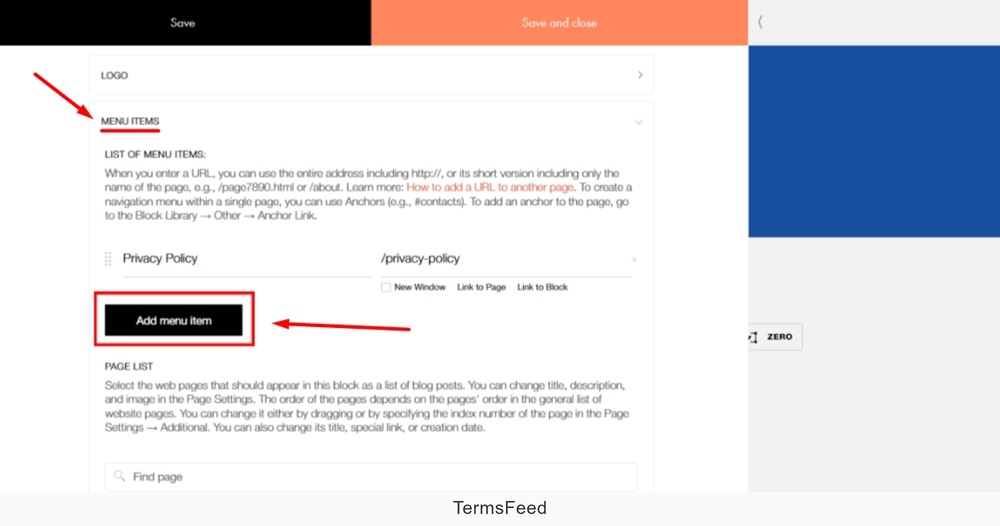
  5. Click the Add menu item button:

    TermsFeed Tilda - Edit Footer page - Content - Menu Items - Add menu item

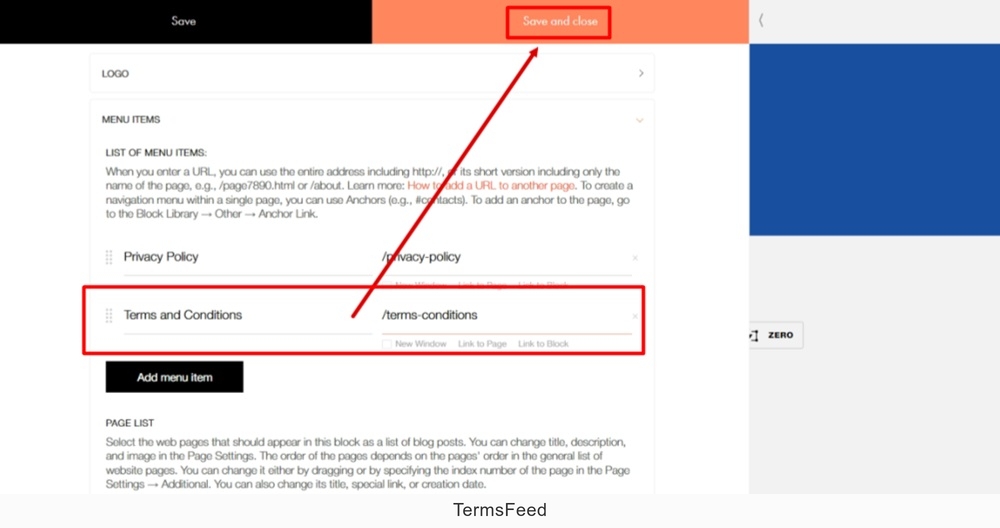
  6. In the new field, add "Terms and Conditions" as the Title and select "Link to page" from Link field options:
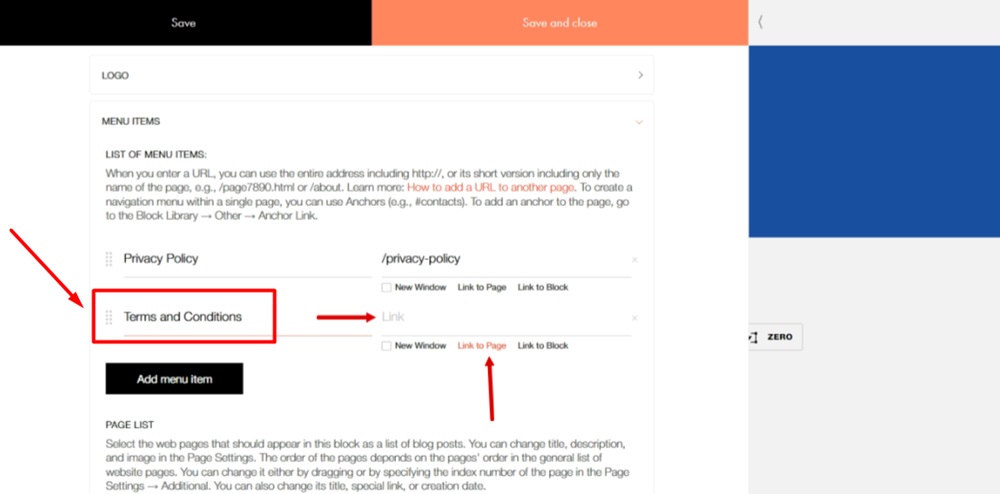
    TermsFeed Tilda - Edit Footer page - Content - Menu Items - Add menu item - Add Terms and Conditions as title and select Link to page from Link field options

  7. The dropdown page menu shows. Select the Terms and Conditions page:
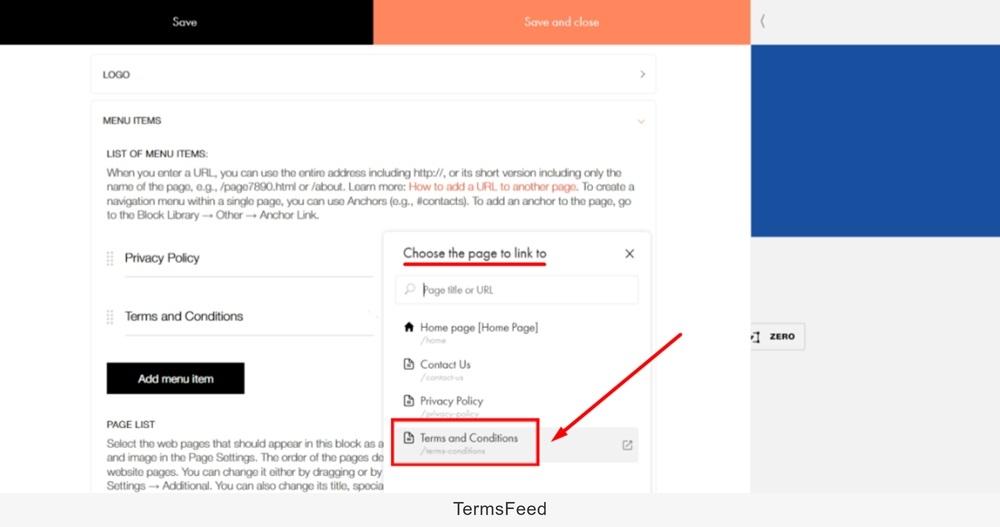
    TermsFeed Tilda - Edit Footer page - Content - Menu Items - Add menu item - Add Terms and Conditions title and Link to page added

  8. When done, click the Save and close:

    TermsFeed Tilda - Edit Footer page - Content - Menu Items - Add menu item - Add Terms and Conditions title and Link to page added - Save and close

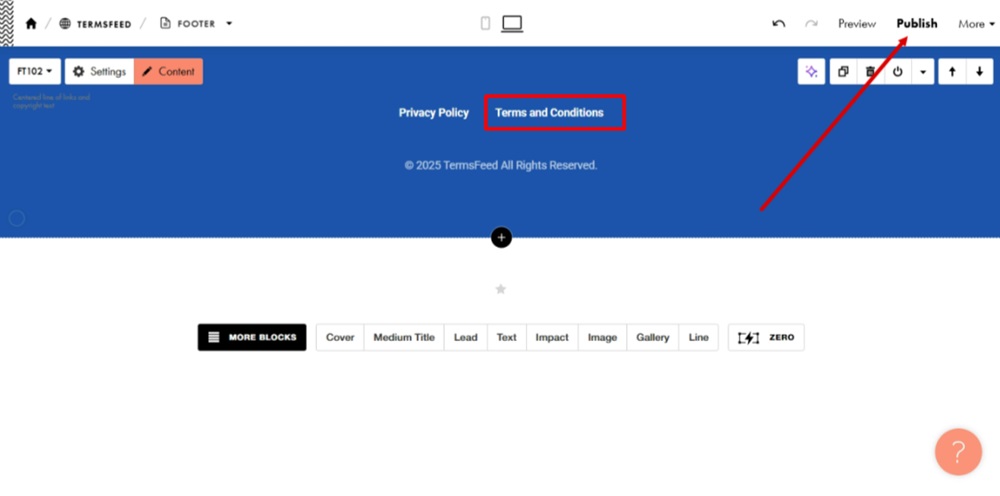
  9. Publish changes:

    TermsFeed Tilda - Edit Footer page - Content - Menu Items - Terms and Conditions added - Publish

  10. Go back to the website and click "Publish All Pages:"
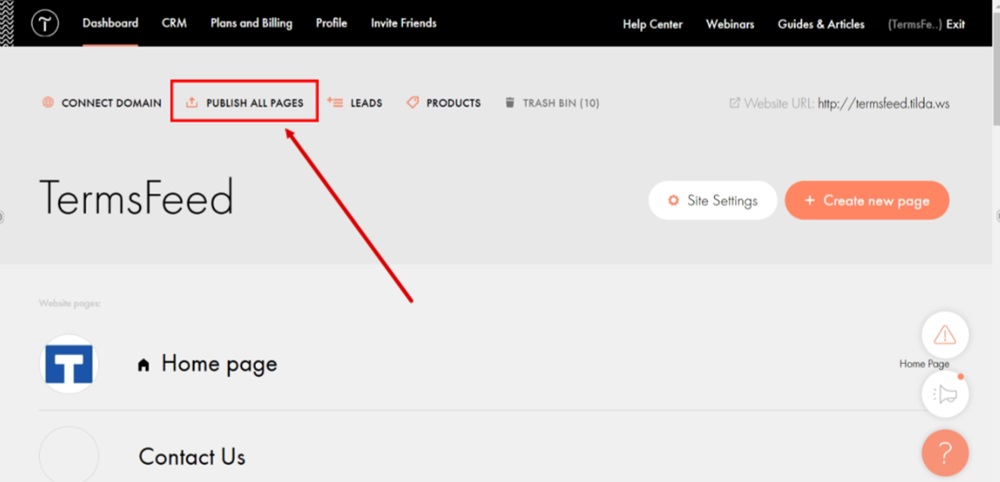
    TermsFeed Tilda - Edit website - Publish All Pages

  11. The Terms and Conditions page is now linked and displayed at the footer on the Tilda website:
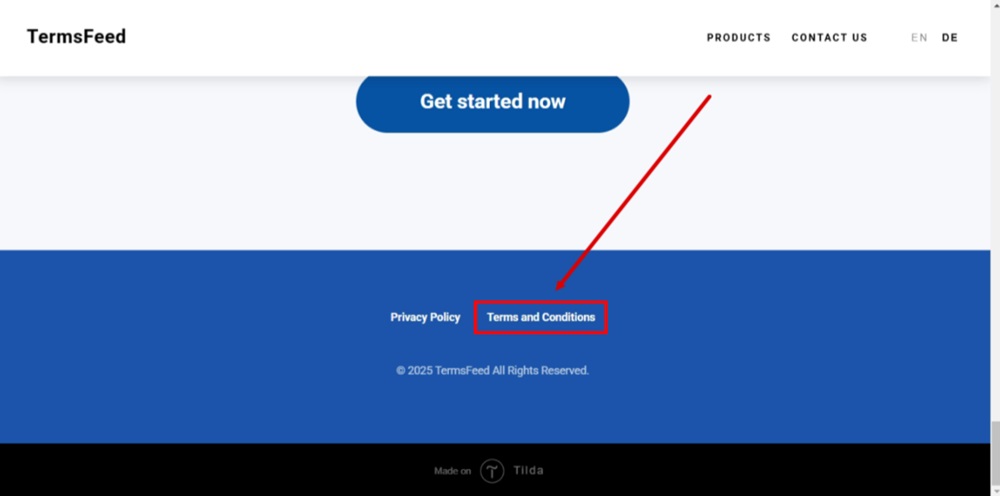
    TermsFeed Tilda - Published - Footer - The Terms and Conditions page is linked and displayed

  12. Done.