Steps
-
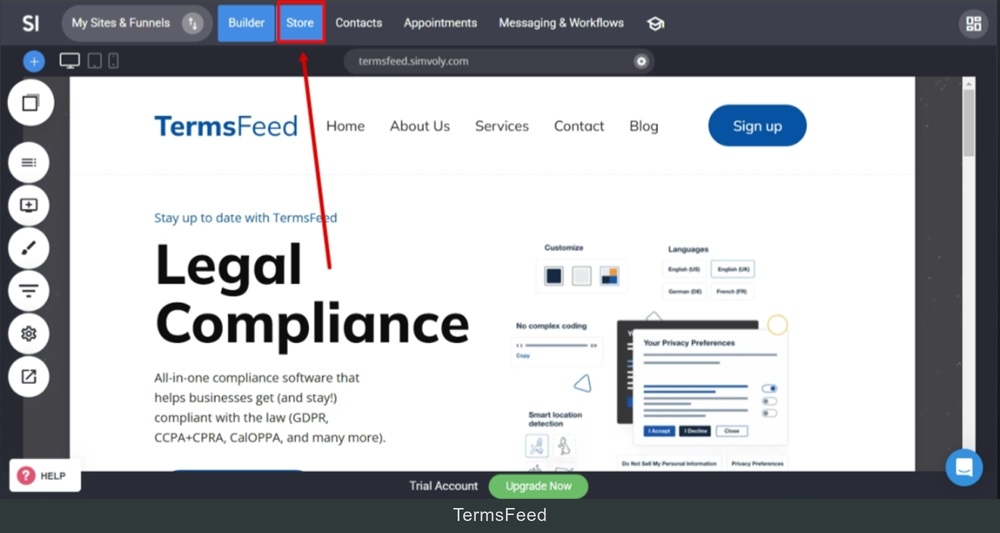
Log in to your Simvoly account. Switch to the Store from the main menu:
-
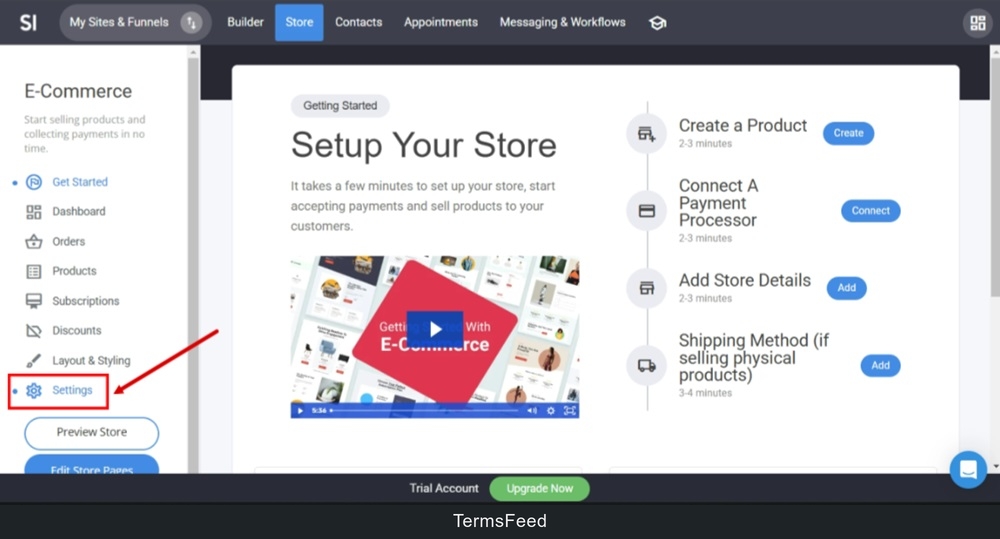
From the Store menu, go to the Settings:
-
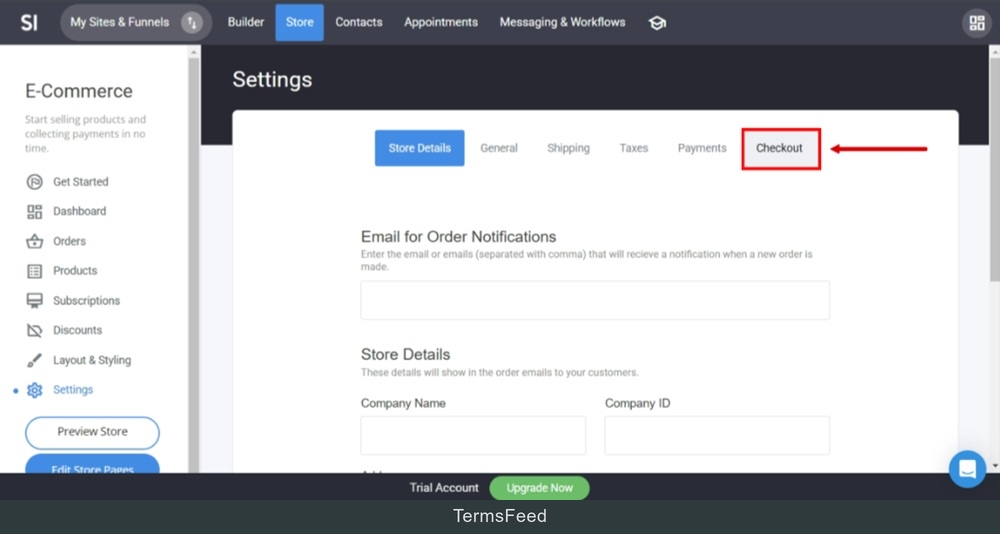
Select the Checkout tab:
-
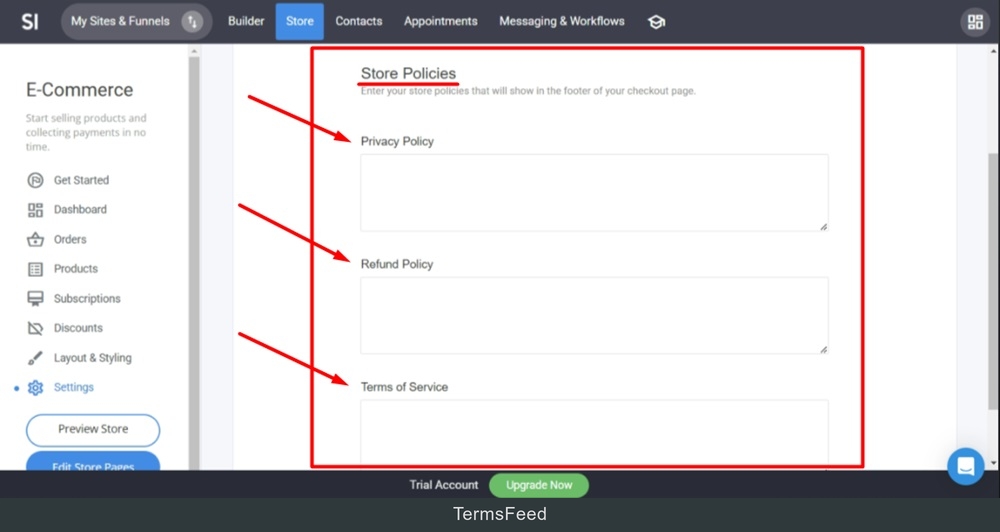
The Store Policies section shows:
-
Add the text of your store policies in their respective fields.
To get the text of your policies, go to TermsFeed and generate your legal policies for your ecommerce business today.
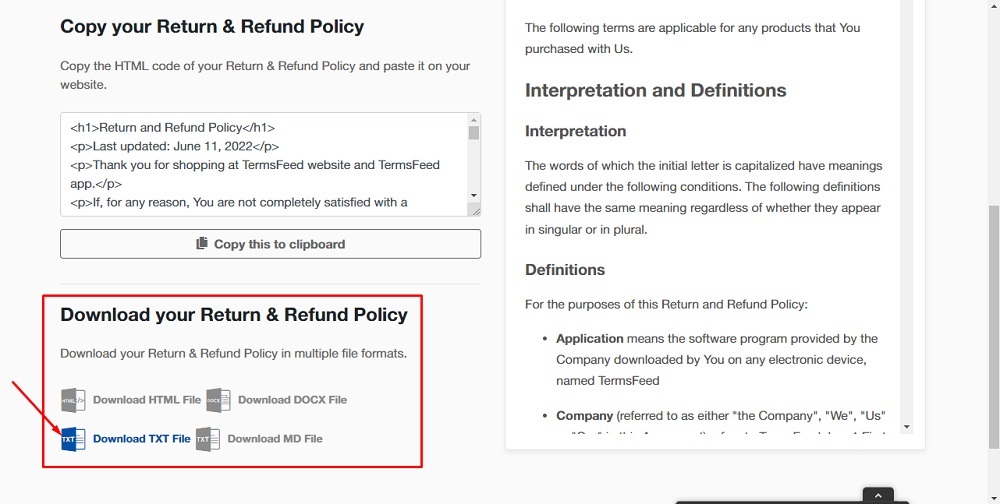
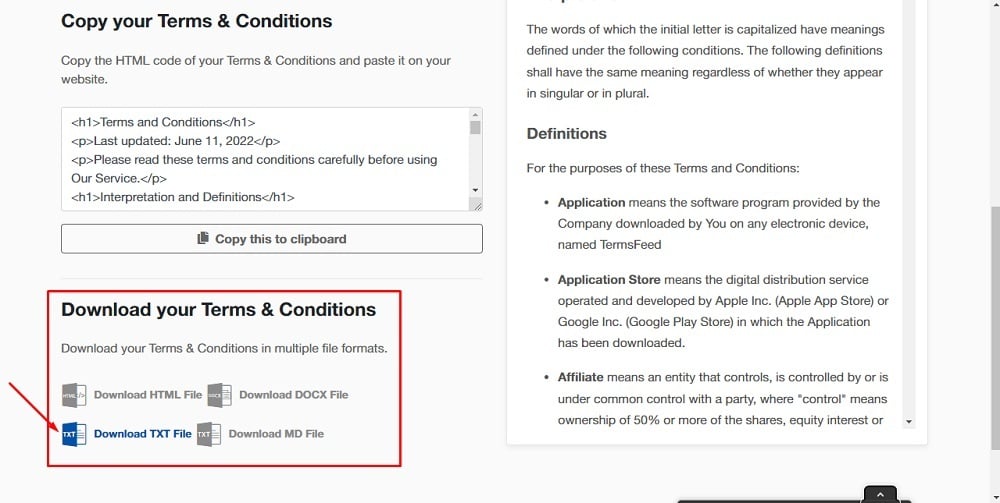
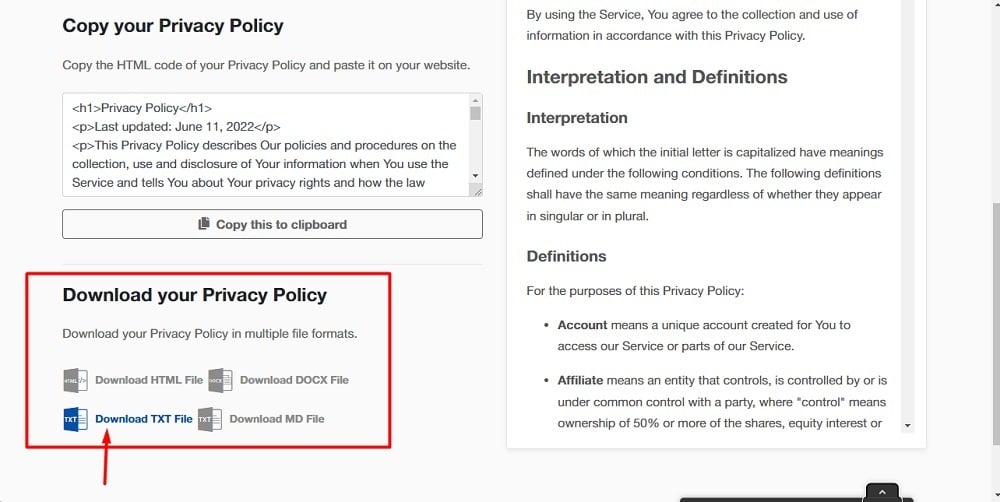
Once you have the policies created by TermsFeed, let's get the policy text. You can copy the HTML variant of the policy or download the Plain Text file format.
Download your policy from TermsFeed Generators: Use TermsFeed Return and Refund Policy Generator.
Use TermsFeed Terms and Conditions Generator.
Use TermsFeed Privacy Policy Generator.
-
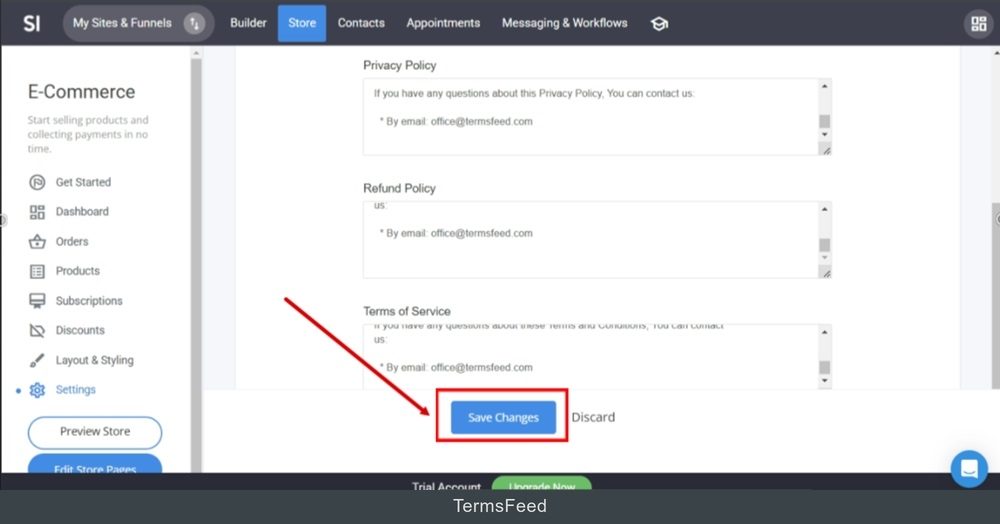
When done, click the Save Changes button:
-
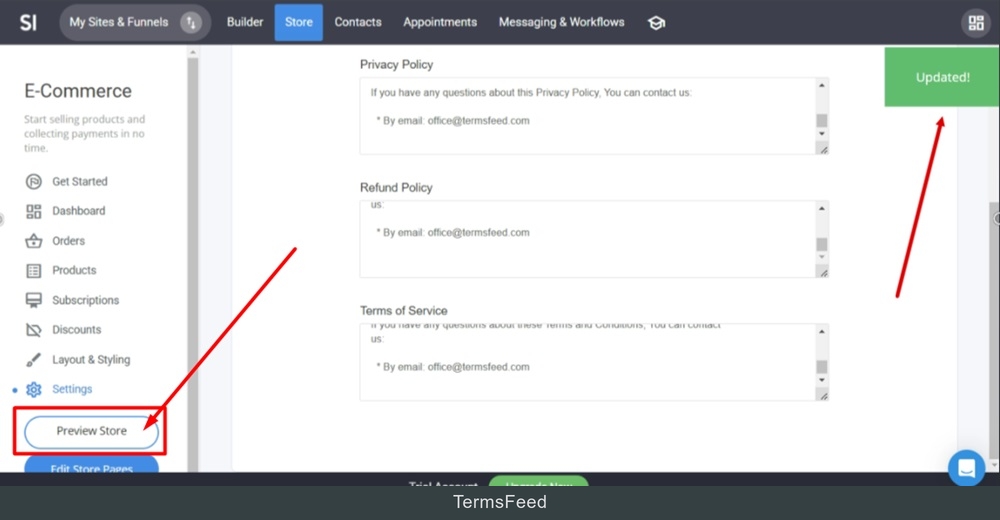
Go to the Preview Store to see the changes:
-
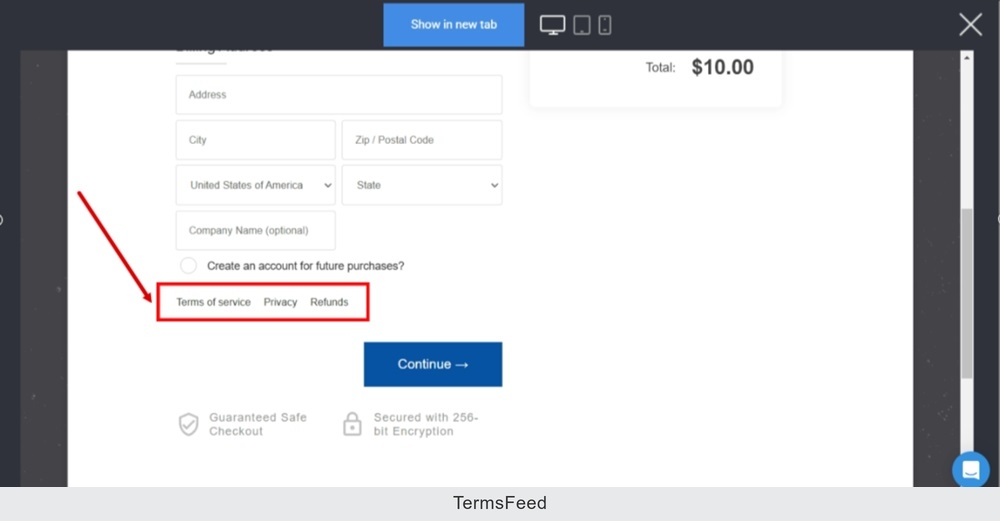
The legal policies are added and displayed at the bottom of the checkout page: