Steps

  1. Log in to your Simvoly account. From the builder menu on the left, select Pages:
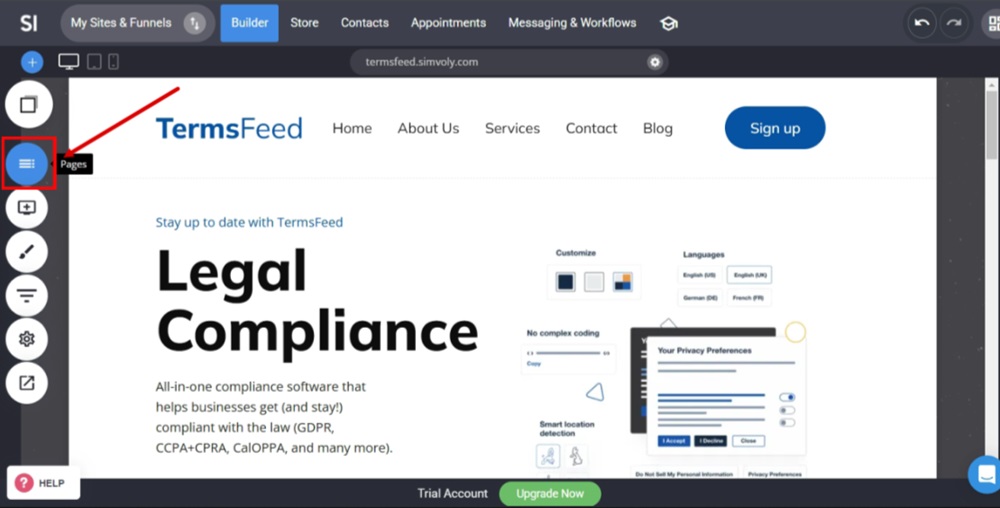
    TermsFeed Simvoly - Builder menu - Pages selected

  2. The Pages & Popups menu opens. Click the + Add New button and select the Page option:
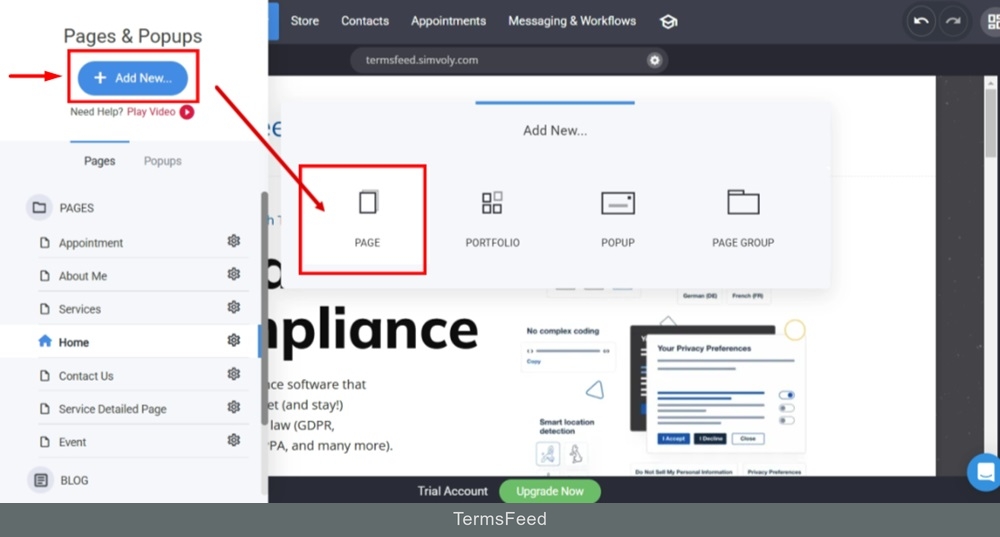
    TermsFeed Simvoly - Builder - Pages - Add new page selected

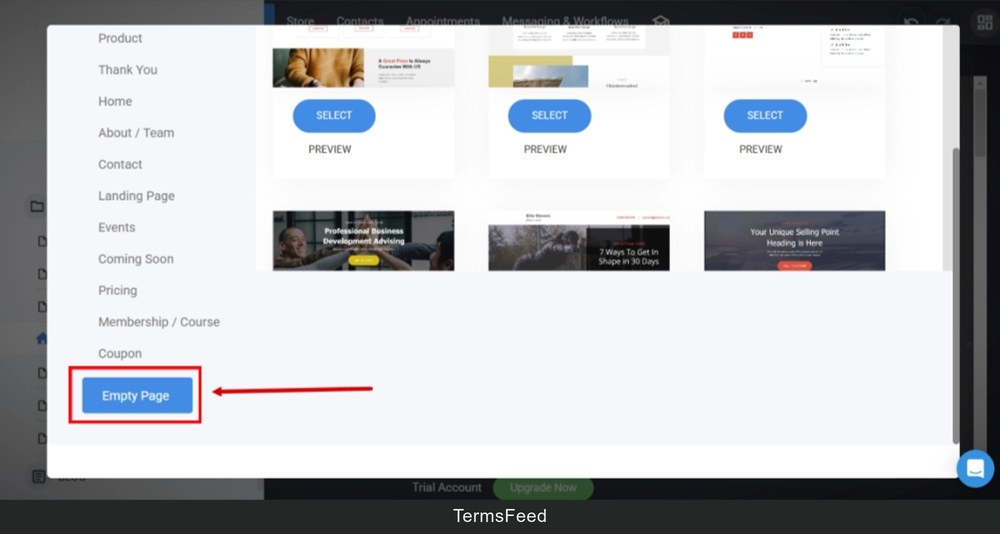
  3. Select Empty Page:

    TermsFeed Simvoly - Builder - Pages - Add new page - Empty page selected

  4. The "Add New Page" window opens. Type "Privacy Policy" in the Page Name field. The Page URL field will be filled automatically. Click Add at the bottom:
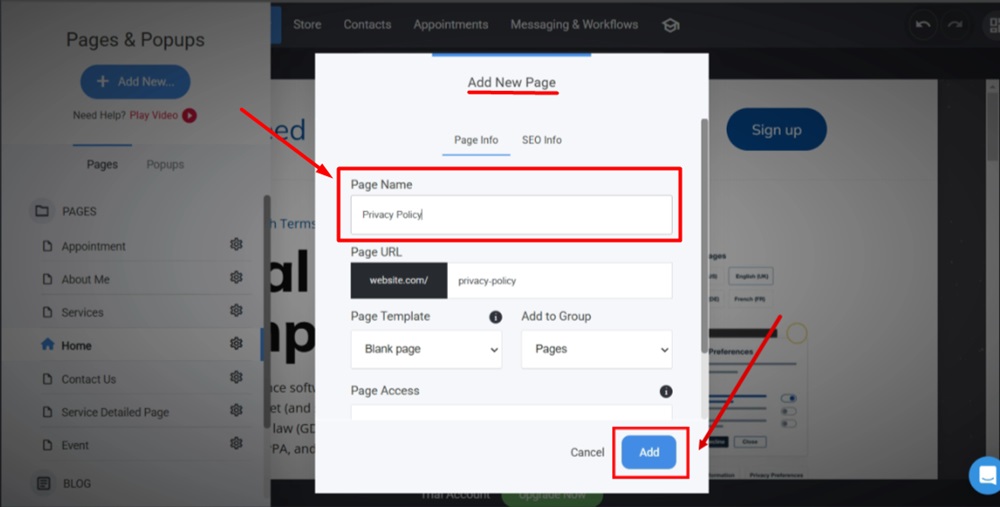
    TermsFeed Simvoly - Builder - Pages - Add New Page - Empty page selected - Type Privacy Policy in the Page Name field and click Add

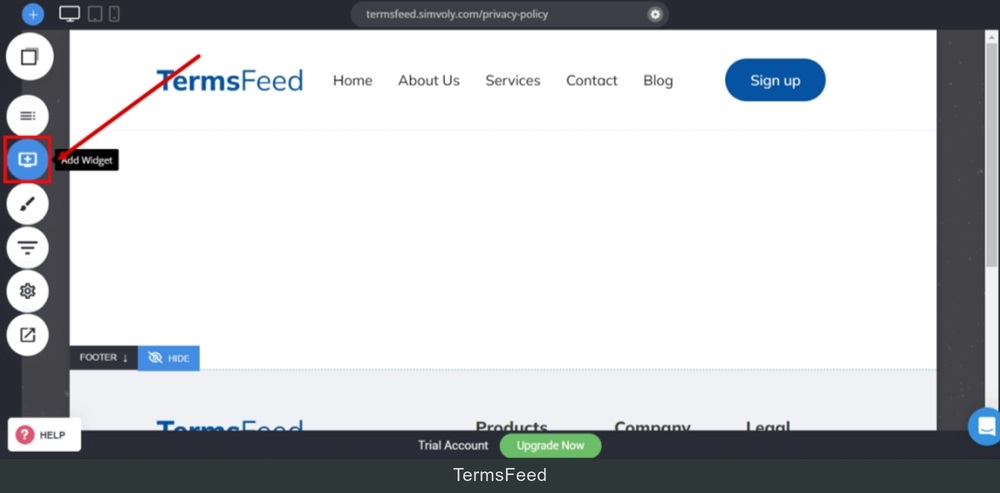
  5. Go to Add Widget:

    TermsFeed Simvoly - Builder - Empty page - Add Widget option selected

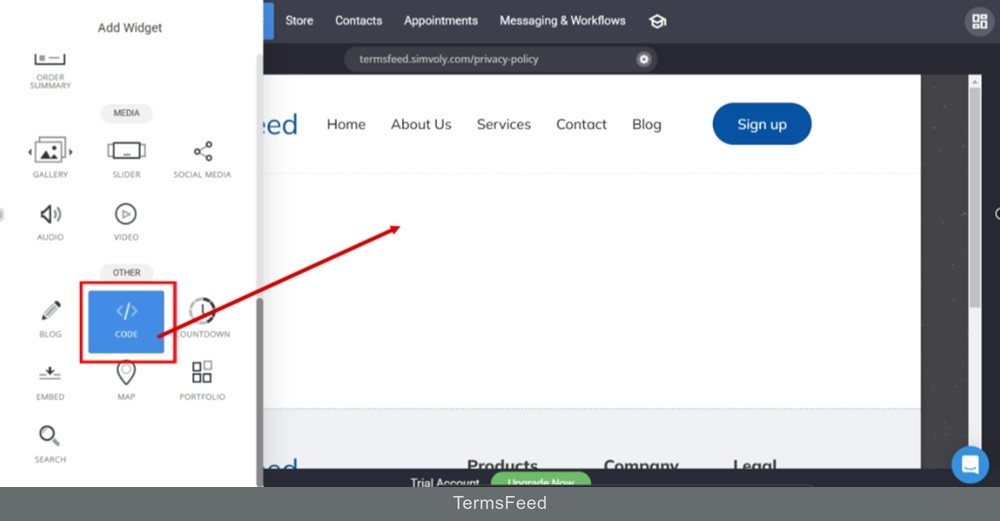
  6. Drag and drop the Code widget:

    TermsFeed Simvoly - Builder - Empty page - Add Widget - Code selected - drag and drop widget

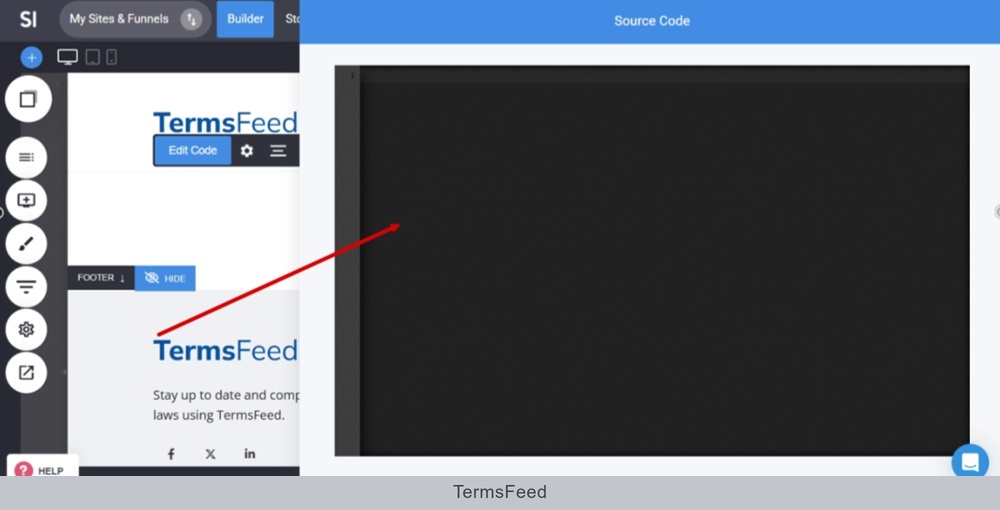
  7. The Source code editor opens:

    TermsFeed Simvoly - Builder - Empty page - Add Widget - Code selected - drag and drop which opens the Source code editor

  8. Add your Privacy Policy HTML code.

    If you do not have a Privacy Policy, you can use our Privacy Policy Generator and create it within minutes.

    Once you have the Privacy Policy created by TermsFeed, let's get the policy text. Under the Copy your Privacy Policy section, click on Copy this to clipboard:
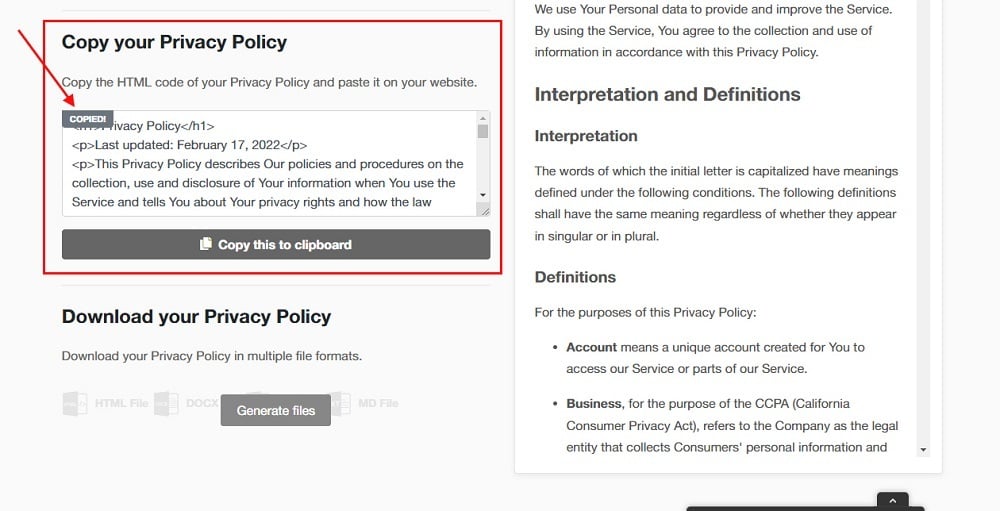
    TermsFeed App: Privacy Policy Download page - Copy your Privacy Policy section highlighted

  9. Use the CTRL + V to paste the copied code in the Source code editor:
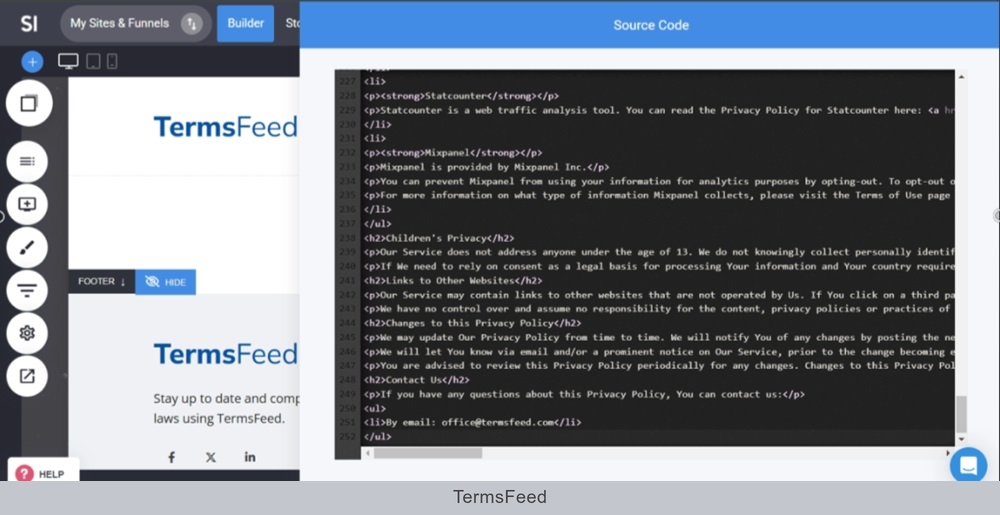
    TermsFeed Simvoly - Builder - Empty page - Add Widget - Code selected - drag and drop which opens the Source code editor - Privacy Policy HTML pasted

  10. Click Save at the top:

    TermsFeed Simvoly - Builder - Privacy Policy HTML pasted - Save

  11. Reload the page. Go to Website Preview to see the changes:
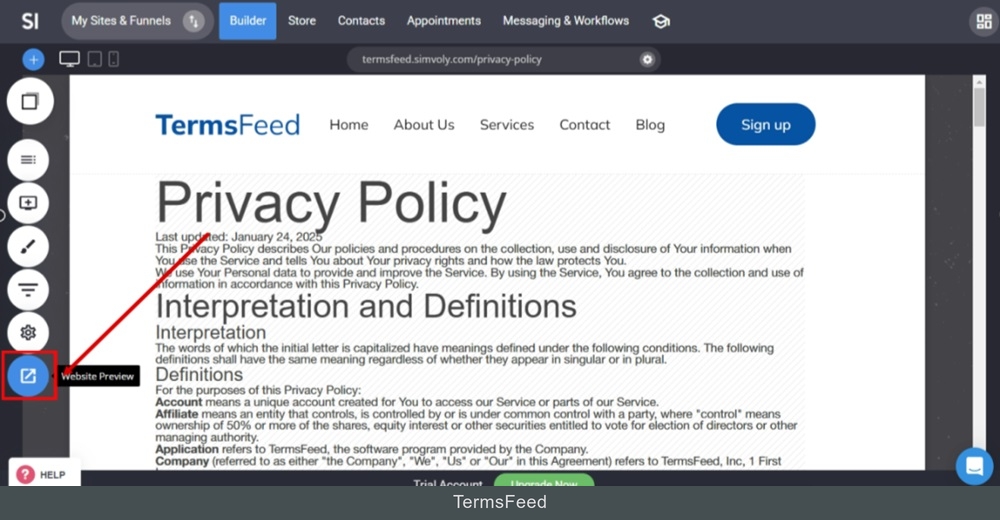
    TermsFeed Simvoly - Builder - Privacy Policy HTML pasted - Save - reloaded - website preview

  12. The Privacy Policy page is now displayed:
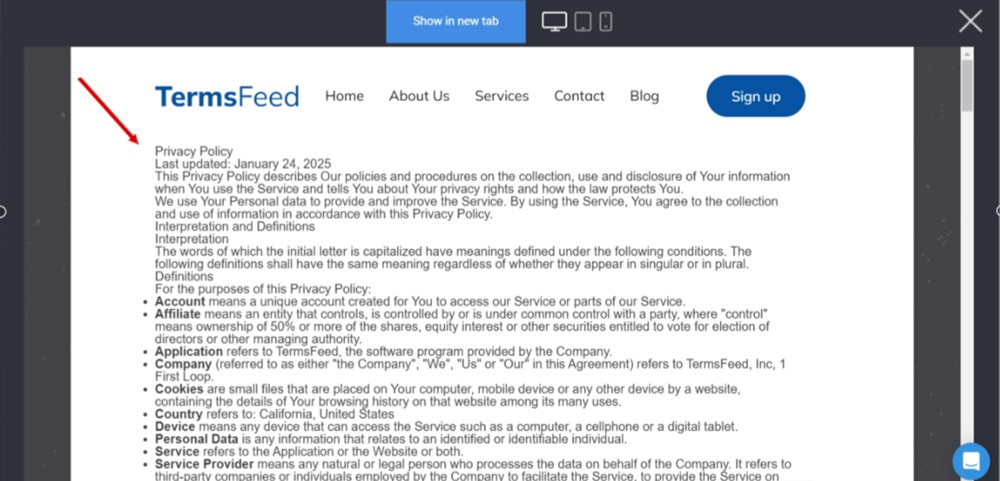
    TermsFeed Simvoly - Builder - Privacy Policy - Website preview displayed

  13. Close the preview. To add your newly created page to the footer, go to the Home page and scroll down to the footer:
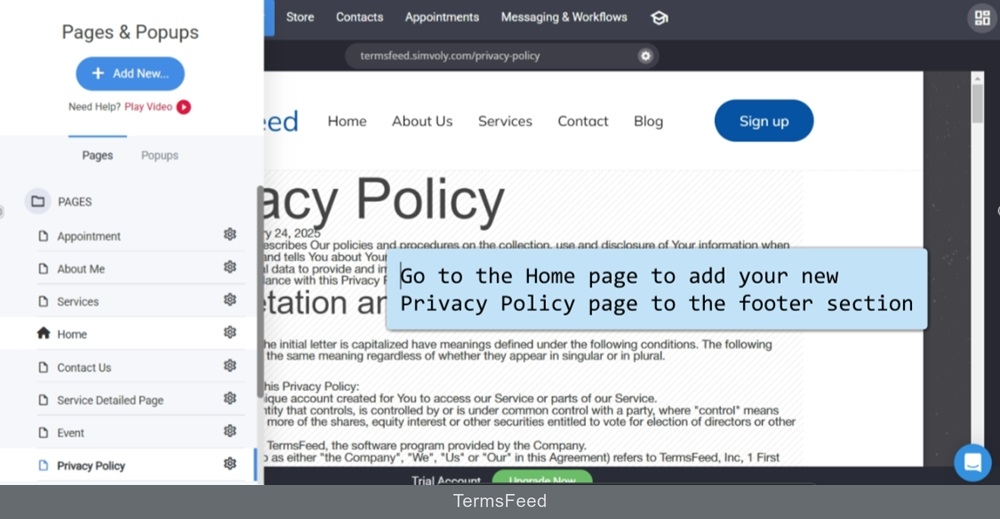
    TermsFeed Simvoly - Builder - Privacy Policy - page - Home page selected

  14. In the footer select the "Privacy Policy" text and go to the Link icon from the Text editor:
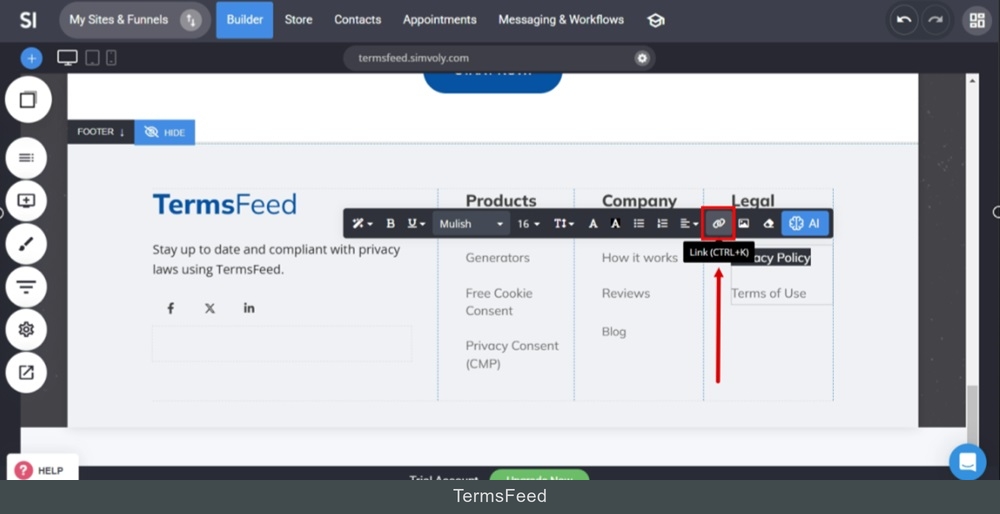
    TermsFeed Simvoly - Builder - Home page - Footer - Privacy Policy text selected and Link icon highlighted

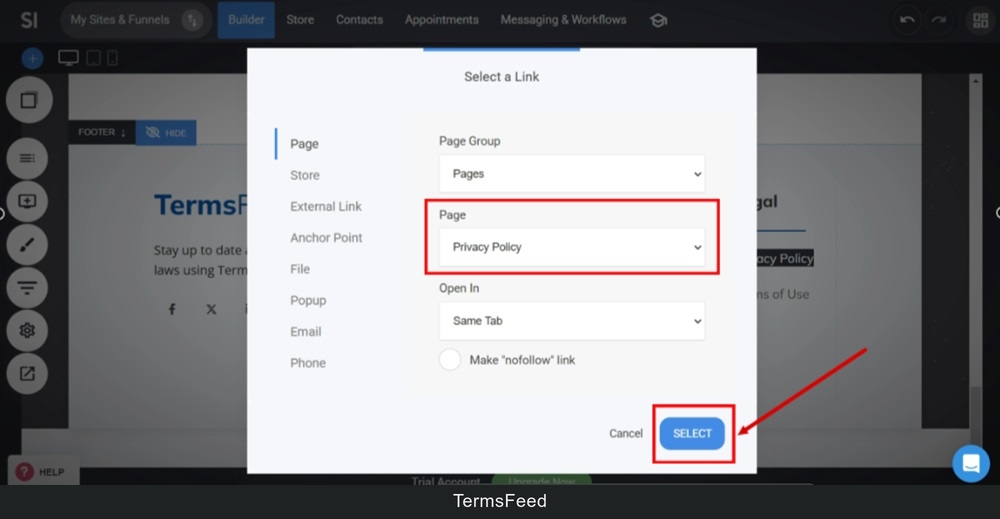
  15. A new "Select a Link" window opens. Select the Privacy Policy from the Page dropdown menu:
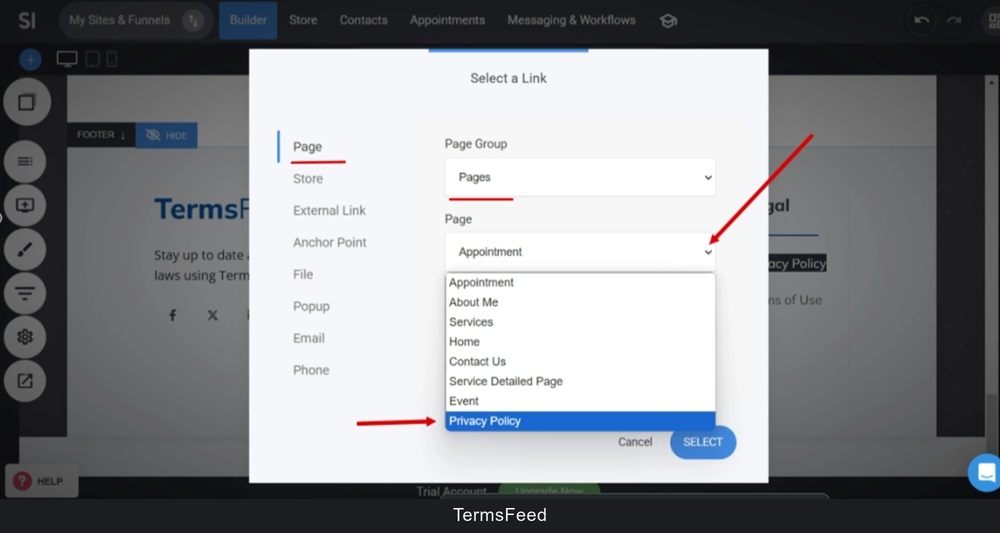
    TermsFeed Simvoly - Builder - Home page - Footer - Privacy Policy - Select Link window

  16. Click Select at the bottom:

    TermsFeed Simvoly - Builder - Home page - Footer - Privacy Policy - Select Link window - Select button

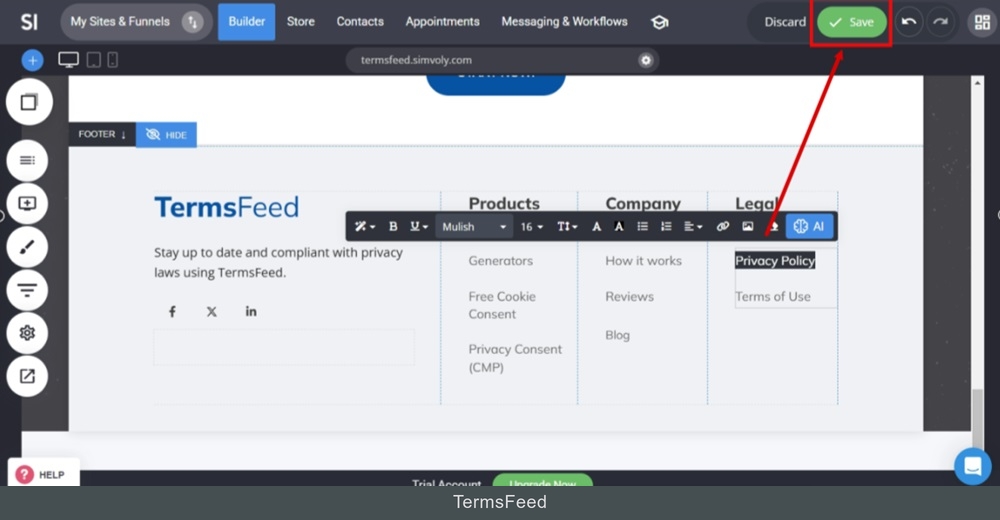
  17. Click Save at the top:

    TermsFeed Simvoly - Builder - Home page - Footer - Privacy Policy - Link added - Save

  18. Use Website Preview to see the changes:
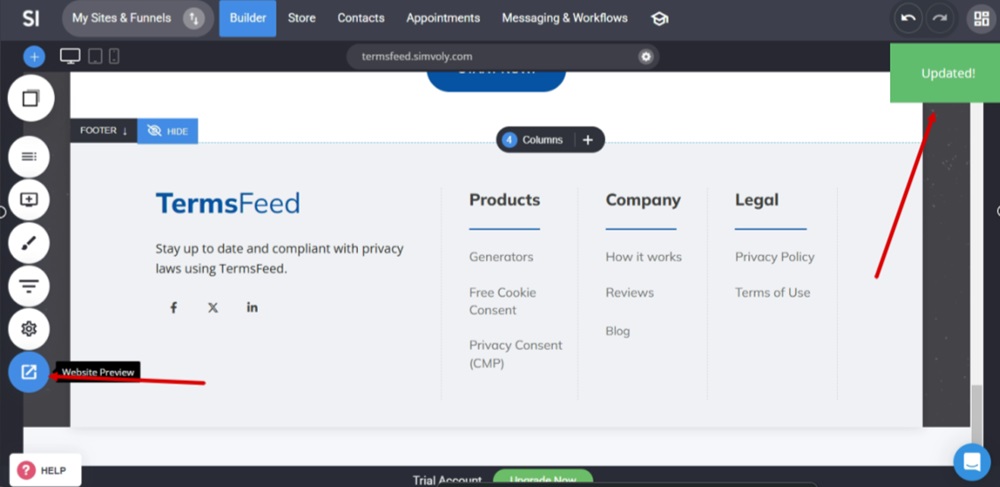
    TermsFeed Simvoly - Builder - Home page - Footer - Privacy Policy - Link added - Saved - Updated - Go to Website Preview

  19. The Privacy Policy page is linked and displayed in the footer section:
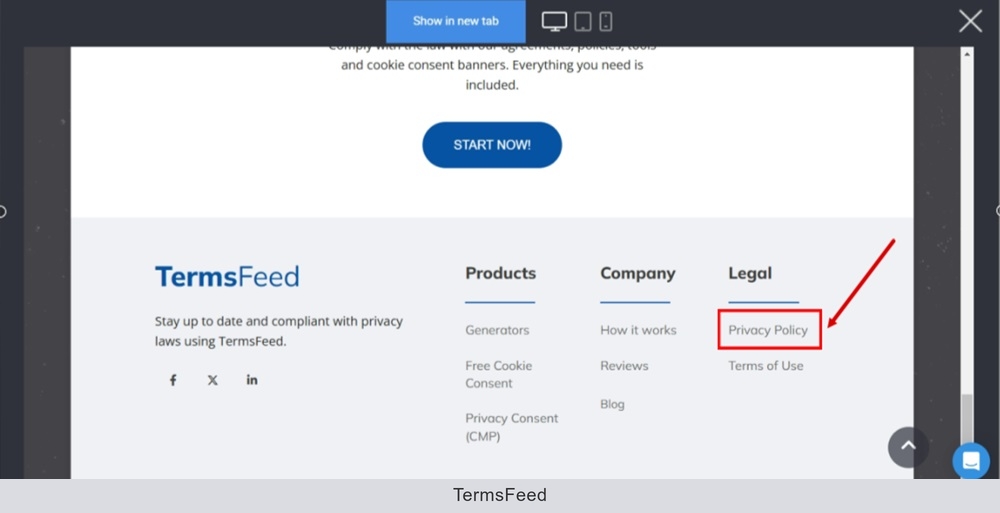
    TermsFeed Simvoly - Builder - Preview - Home page - Footer - Privacy Policy - Linked and displayed